Introducere
The ESI U22 XT cosMik Set is a powerful studio recording bundle designed to provide everything needed for professional quality recordings on PC or Mac. This comprehensive manual will guide you through the setup, operation, and maintenance of your new recording equipment, ensuring you get the best audio quality from your setup.
Ce este inclus
Your ESI U22 XT cosMik Set includes the following components:
- U22 XT USB Audio Interface: Offers 24-bit/96kHz recording, +48V phantom power, and Hi-Z input.
- cosMik 10 Condenser Microphone: Studio-grade microphone with cardioid pattern for detailed vocal and instrument recordings.
- eXtra 10 Monitoring Headphones: Provides accurate and dynamic audio feedback for monitoring.
- Table Stand for Microphone: For convenient desktop placement.
- Foam Windshield: To reduce unwanted breathing sounds during recording.
- XLR Cable: For connecting the microphone to the audio interface.
- USB Cable: For connecting the audio interface to your computer.
- Software Licenses: Includes Bitwig Studio 8-Track DAW and Realphones ESI Edition.

Figura 1: Pesteview of the ESI U22 XT cosMik Set components.

Figure 2: Labeled diagram of the ESI U22 XT cosMik Set, highlighting the audio interface, microphone, and headphones.
Înființat
Before connecting any hardware, it is crucial to install the necessary driver software for your audio interface. This ensures proper communication between your computer and the device.
Instalarea driverului
1. Visit the official ESI Audio website: www.esi-audio.com
2. Navigate to the 'Support' section at the top of the page and select 'Download'.
3. Under 'Product selection', choose 'USB Audio Interfaces' for the product group and then 'U22 XT' for the specific product.
4. Download the latest Windows driver and control panel zip archive. For Mac users, U22 XT is class compliant, so a separate driver download is not typically required, but specific control panels might be available.
5. Extract the downloaded zip file and follow the on-screen instructions to complete the driver installation. It is recommended to restart your computer after installation.
Conexiune hardware
1. Connect the U22 XT audio interface to your computer using the provided USB cable. The interface is USB-powered.

Figure 3: Front panel of the U22 XT audio interface.

Figure 4: The cosMik 10 condenser microphone.
2. Connect the cosMik 10 microphone to the XLR input on the U22 XT using the provided XLR cable. Ensure the cable is securely connected before activating phantom power.
3. Activate the +48V phantom power switch on the U22 XT for the microphone. Remember to disable phantom power before unplugging the microphone to prevent damage.
4. Connect the eXtra 10 headphones to the headphone output on the U22 XT. Adjust the headphone volume using the dedicated knob.

Figure 5: The eXtra 10 monitoring headphones.
5. Ensure the input select switch on the back of the U22 XT is set to 'Front' (pushed in) for the microphone input.
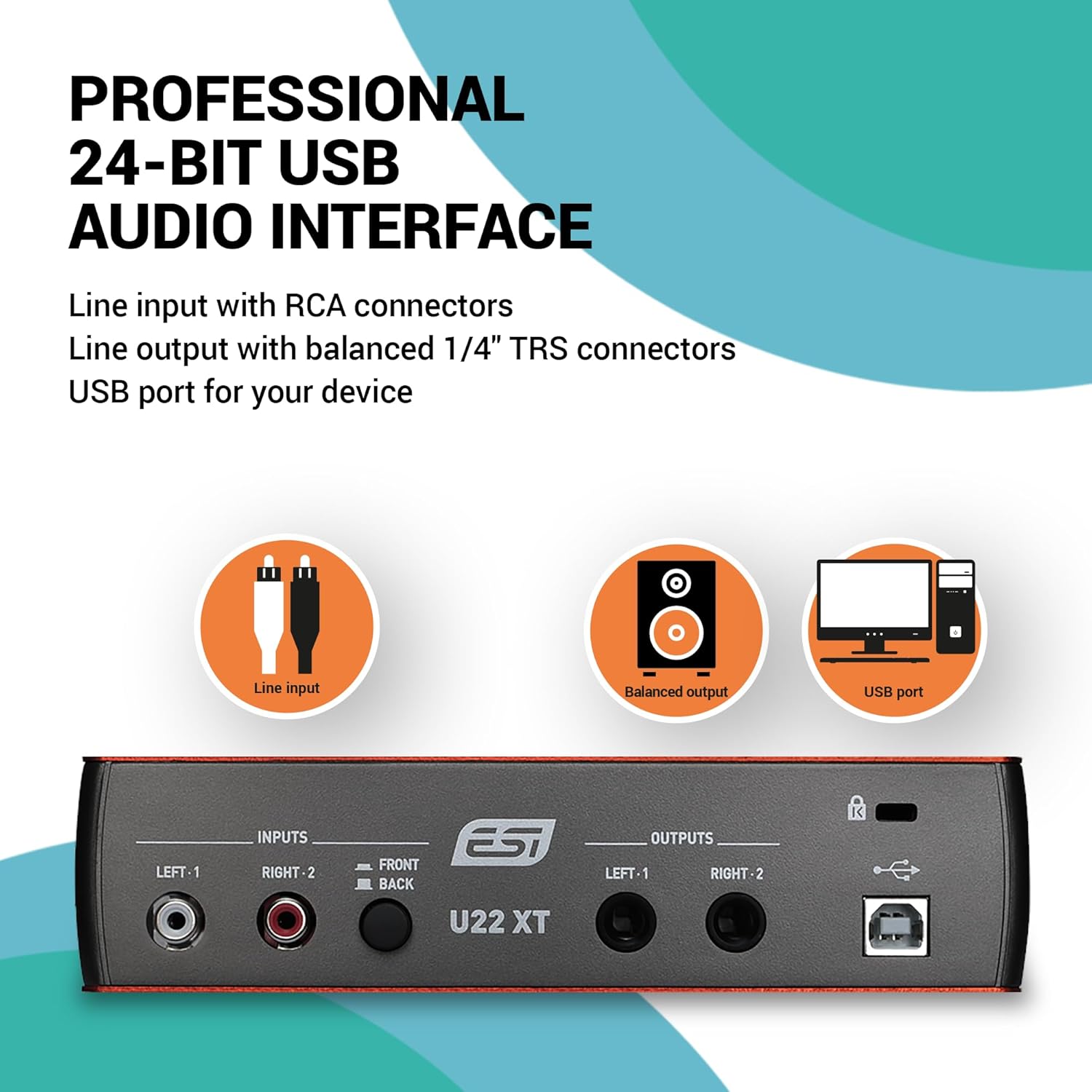
Figure 6: Back panel of the U22 XT audio interface showing input and output ports.
Your basic hardware setup is now complete. For a visual guide on setting up your equipment and installing drivers, please refer to the video below.
Video 1: How to record with U22 XT and Bitwig Studio 8-Track. This video covers the setup process, driver installation, and initial recording steps.
Funcționează
The ESI U22 XT cosMik Set comes with Bitwig Studio 8-Track, a powerful Digital Audio Workstation (DAW) that allows you to record, edit, and mix your audio. If you already have a preferred DAW, you can use that as well.
DAW Configuration (Bitwig Studio 8-Track)
1. Launch Bitwig Studio 8-Track. You may need to register the software using the serial number provided with your bundle.
2. To configure your audio device, click on an audio track (e.g., 'Audio 2') and then locate the 'Input' section in the lower-left menu. Select 'Add Buses'.
3. In the 'Settings' dialog that appears, go to the 'Audio' section. For 'Driver model', select 'ASIO' (for Windows users) or 'Core Audio' (for Mac users).
4. For 'Device', select 'ASIO 2.0 - ESI U22 XT USB'.
5. Under 'Input Buses', click 'Add Mono' and then select the circle under '1' to define the input source. You can rename this input (e.g., 'Microphone') for easier identification.

Figure 7: Bitwig Studio 8-Track interface, showing audio track and input settings.
Setarea câștigului de intrare
1. Position the cosMik 10 microphone so that its LED points towards you. Speak into the microphone at the volume you intend to use for recording.
2. Adjust the 'Gain' knob on the U22 XT audio interface. The 'Peak' LED next to the gain knob indicates the input level. Aim for the LED to remain green. If it turns red, the signal is too high and will distort; reduce the gain until it stays green.
3. Verify the input level within Bitwig Studio. For optimal audio quality, your input level should ideally be around -6 dB.
4. Adjust the headphone volume using the dedicated knob on the U22 XT.
Înregistrarea vocii
1. In Bitwig Studio, click the 'Record' button (red circle) on the transport bar.
2. Then, click the 'Play' button (triangle) to begin recording. You can now record your voice or any other audio source.
For a detailed walkthrough of these operating steps, refer to Video 1, starting from the 4:50 mark.
Voice Editing
After recording, you can enhance your audio using various effects within Bitwig Studio. We'll focus on three basic but effective tools: Equalizer (EQ), Compressor, and De-esser.
Aplicarea efectelor
1. Select your recorded audio track in Bitwig Studio.
2. In the 'Devices' panel (usually on the right), click the '+' icon next to your track's effects chain. Select 'Audio FX' and then 'Bitwig' to see available effects.
Egalizator (EQ)
The EQ adjusts the volume of specific frequencies. For voice, you might want to remove low-end rumble or boost clarity.
1. Add 'EQ-5' (a five-band equalizer) to your track's effects chain.
2. Use a high-pass filter (Band 1) to remove very low frequencies (e.g., below 60-80 Hz) that can cause muddiness or rumble.
3. Adjust mid-range frequencies (e.g., Band 3) to reduce harshness or boxiness in the voice. You can use a 'notch' filter for precise cuts.
4. Use a high-shelf filter (Band 5) to add brightness or 'air' to the voice, enhancing clarity.
Compresor
A compressor reduces the dynamic range of your audio, making loud parts quieter and quiet parts louder, resulting in a more consistent and present vocal.
1. Add a 'Compressor' to your effects chain. You can start with a vocal preset like 'Vocal Compression 2'.
2. Adjust the 'Makeup' gain to compensate for the volume reduction caused by compression, making the overall signal louder.
De-Esser
A de-esser targets and reduces harsh 's' or 'sh' sounds (sibilance) that can be prominent in vocal recordings.
1. Add a 'De-esser' to your effects chain.
2. Adjust the 'Cutoff Frequency' and 'Amount' to effectively reduce sibilance without making the voice sound unnatural.
Experiment with these settings to find what sounds best for your specific recording. For a visual demonstration of voice editing, refer to Video 1, starting from the 7:05 mark.

Figure 8: Realphones ESI Edition software, included for headphone monitoring simulation.
Întreţinere
To ensure the longevity and optimal performance of your ESI U22 XT cosMik Set, follow these maintenance guidelines:
- curatenie: Use a soft, dry cloth to clean the surfaces of the audio interface, microphone, and headphones. Avoid abrasive cleaners or solvents.
- Depozitare: Store components in a cool, dry place away from direct sunlight and extreme temperatures. When not in use, consider storing the microphone and headphones in their original packaging or protective cases.
- Îngrijirea cablului: Avoid sharp bends or kinks in cables. Unplug cables by gripping the connector, not the cable itself.
- Protecție microfon: Always use the foam windshield to protect the microphone capsule from dust and moisture, and to reduce plosives.
- Puterea fantomă: Always connect the microphone before activating +48V phantom power, and deactivate phantom power before disconnecting the microphone. This prevents potential damage to the microphone or interface.
Depanare
Iată câteva probleme comune și posibilele lor soluții:
- Fără ieșire de sunet:
- Check all cable connections (USB, headphones).
- Ensure the U22 XT is powered on (PWR LED is lit).
- Verify headphone volume knob is turned up.
- Check your computer's sound settings to ensure the U22 XT is selected as the output device.
- In your DAW, confirm the correct output buses are selected.
- Fără intrare de microfon:
- Ensure the microphone is correctly connected via XLR.
- Verify +48V phantom power is activated for the microphone.
- Check the input gain knob on the U22 XT and adjust it.
- Confirm the input select switch on the back of the U22 XT is set to 'Front'.
- In your DAW, ensure the correct microphone input is selected for the track.
- Distorted/Clipping Audio:
- The input gain is too high. Reduce the gain on the U22 XT until the 'Peak' LED remains green.
- Check the input level in your DAW and ensure it's not consistently peaking into the red.
- Software-ul nu recunoaște interfața:
- Reinstall the latest drivers from the ESI Audio website-ul.
- Încercați un alt port USB pe computer.
- Reporniți computerul și software-ul DAW.
Specificații
| Caracteristică | Caietul de sarcini |
|---|---|
| Greutatea articolului | 4.7 lire sterline |
| Dimensiunile produsului | 20.08 x 11.42 x 24.41 inci |
| Numărul de model al articolului | ESIU22XTCMSET |
| Dispozitive compatibile | Computer personal |
| Interfață hardware | USB |
| Software acceptat | Bitwig Studio 8-Track, Realphones ESI Edition, Image-Line Deckadance LE, Cubasis LE by Steinberg |
| Sistem de operare | Linux, Windows, macOS |
| Tehnologia de conectivitate | USB |
| Numărul de canale | 2 |

Figure 9: Specifications for the eXtra 10 headphones.

Figure 10: Specifications for the cosMik 10 microphone.
Garanție și suport
Every ESI product comes with a comprehensive 2-year warranty, supported by our 24/7 US- and Germany-based team, ready to take care of all your after-sales needs.
For further assistance, technical support, or warranty claims, please visit the ESI Audio website's support section or contact their customer service directly.


