1. Introducere
This user manual provides detailed instructions for the safe and efficient operation of your Veidoo 10-inch Android Tablet PC. Please read this manual thoroughly before using the device and retain it for future reference. This tablet is designed for various uses, including communication, entertainment, and productivity.

This image shows the Veidoo 10-inch Android Tablet PC. The front of the tablet displays the home screen with the current time, date, and various application icons such as Camera, Gallery, Settings, and Music. The rear of the tablet, visible behind the front, is black with a subtle textured design and features the rear camera module.
2. Informații de siguranță
- Nu expuneți dispozitivul la temperaturi extreme, la lumina directă a soarelui sau la umiditate ridicată.
- Evitați scăderea sau supunerea dispozitivului la impacturi puternice.
- Utilizați numai încărcătoare și accesorii aprobate de producător.
- Nu încercați să dezasamblați sau să reparați dispozitivul singur. Adresați-vă personalului de service calificat.
- Țineți dispozitivul departe de copii și animale de companie.
- Aruncați dispozitivul și bateria acestuia în mod responsabil, în conformitate cu reglementările locale.
3. Produs terminatview
3.1 Caracteristici fizice
Familiarize yourself with the various ports and buttons on your Veidoo Tablet PC:

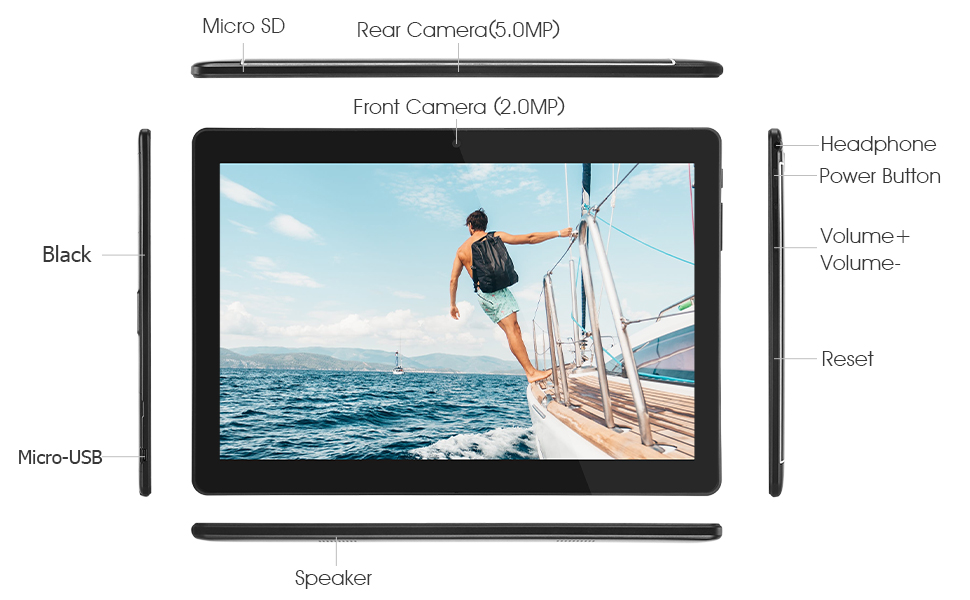
This diagram illustrates the various physical components and ports of the Veidoo 10-inch Android Tablet PC. It clearly labels the Micro SD card slot, the 5.0MP rear camera, the 2.0MP front camera, the headphone jack, the power button, the volume up and down buttons, the reset pinhole, the Micro-USB charging port, and the speaker.
- Slot Micro SD: Pentru spațiu de stocare extensibil.
- Cameră spate (5.0MP): Pentru realizarea de fotografii și videoclipuri.
- Cameră frontală (2.0MP): Pentru apeluri video și selfie-uri.
- Jack pentru căști: Conectați căști de 3.5 mm.
- Buton de alimentare: Apăsați și țineți apăsat pentru pornire/oprire, apăsați scurt pentru somn/trezire.
- Butoane de volum: Reglați volumul audio.
- Resetează Hole: Use a thin object to reset the device if unresponsive.
- Port micro-USB: Pentru încărcare și transfer de date.
- Vorbitor: Ieșire audio.
3.2 Conținutul pachetului
Asigurați-vă că toate articolele sunt prezente în cutia produsului:

This image displays the items typically found inside the Veidoo 10-inch Android Tablet PC product box. It includes the tablet itself, a black protective case, a power adapter (wall charger), a USB charging and data cable, a service warranty card, and a leaflet containing frequently asked questions and support information.
- Veidoo 10-inch Android Tablet PC
- Adaptor de alimentare
- Cablu USB
- Protective Case (optional, may vary by package)
- Manual de utilizare (acest document)
- Card de garanție de service
- FAQ Leaflet
4. Configurare
4.1 Încărcarea bateriei
Before first use, fully charge the tablet. Connect the USB cable to the tablet's Micro-USB port and the other end to the power adapter. Plug the adapter into a wall outlet. The charging indicator will show the charging status. A full charge typically takes 3-4 hours.

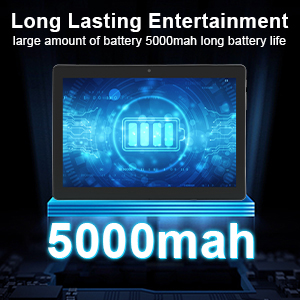
This image focuses on the Veidoo 10-inch Android Tablet PC's battery capacity, prominently displaying a battery icon and '5000mAh'. This signifies the tablet's 5000mAh battery, designed to provide extended usage time for entertainment and productivity.
4.2 Pornire/Oprire
- Pentru a porni: Press and hold the Power button until the Veidoo logo appears on the screen.
- Pentru a opri: Press and hold the Power button until a menu appears. Select "Power off" and confirm.
- Somn/trezire: Briefly press the Power button to put the tablet to sleep or wake it up.
4.3 Inserting SIM and Micro SD Cards
The tablet supports dual SIM cards for 3G phone calls and a Micro SD card for expandable storage.
- Locate the SIM/SD card slot on the side of the tablet.
- Carefully open the slot cover.
- Insert the SIM card(s) and/or Micro SD card into the designated slots with the gold contacts facing down. Ensure they are correctly seated.
- Close the slot cover securely.
This image demonstrates the storage capabilities of the Veidoo 10-inch Android Tablet PC, showing multiple applications and content open. It highlights the device's 16GB internal storage (ROM) and its ability to expand storage up to 32GB via a Micro SD card, allowing for ampspațiu liber pentru aplicații, fotografii și videoclipuri.
4.4 Configurare inițială
Upon first power-on, the tablet will guide you through the initial setup process:
- Selectați limba preferată.
- Conectați-vă la o rețea Wi-Fi.
- Sign in with your Google account or create a new one. This is necessary to download apps from the Google Play Store.
- Configurați blocarea ecranului (PIN, model, parolă).
- Review și acceptați termenii și condițiile.
5. Utilizarea tabletei
5.1 Navigare de bază
- Robinet: Selectați un element sau deschideți o aplicație.
- Atingeți și mențineți apăsat: Accesați meniurile contextuale sau mutați pictogramele.
- Beţivan: Derulați prin ecrane sau liste.
- Ciupire pentru zoom: Măriți sau micșorați imaginile și web pagini.
5.2 Conectivitate (Wi-Fi și Bluetooth)
- Wifi: Du-te la Setări > Rețea și internet > Wi-Fi. Turn Wi-Fi on, select your network, and enter the password.
- Bluetooth: Du-te la Setări > Dispozitive conectate > Bluetooth. Turn Bluetooth on, scan for devices, and pair with your desired accessory.
5.3 Making Phone Calls (3G)
With a valid SIM card inserted, you can make and receive 3G phone calls:

This image shows a group of four individuals participating in a video call using the Veidoo 10-inch Android Tablet PC. This illustrates the tablet's capability for video conferencing and its 3G phone call functionality, allowing users to connect with others remotely.
- Deschideți Telefon aplicația.
- Dial the number using the keypad or select a contact.
- Atingeți butonul de apel pentru a iniția apelul.
5.4 Utilizarea camerelor
The tablet is equipped with a front and rear camera for photos and videos.
- Deschideți Camera foto aplicația.
- Comutați între camera frontală și cea spate utilizând pictograma camerei.
- Atingeți butonul declanșator pentru a face o fotografie sau a porni/opri înregistrarea video.
5.5 Gestionarea spațiului de stocare
Puteți view and manage your tablet's internal and external storage:
- Du-te la Setări > Stocare.
- Here you can see storage usage and free up space by deleting unnecessary files sau dezinstalarea aplicațiilor.
5.6 Installing and Uninstalling Apps
This image features the Veidoo 10-inch Android Tablet PC showcasing its Android 10 operating system with a multitude of application icons. This highlights that the device is GMS (Google Mobile Services) certified, ensuring access to Google Play Store and other Google services.
- Instala: Deschideți Magazin Google Play app, search for your desired app, and tap Instala.
- Dezinstalează: Du-te la Setări > Aplicații și notificări > Vedeți toate aplicațiile. Select the app you wish to uninstall and tap Dezinstalează.
6. Întreținere
- curatenie: Folosiți o lavetă moale, fără scame, pentru a curăța ecranul și carcasa. Evitați substanțele de curățare abrazive sau solvenții.
- Actualizări de software: Verificați periodic dacă există actualizări de sistem în Setări > Sistem > Actualizare sistem pentru a asigura performanță și securitate optime.
- Îngrijirea bateriei: To prolong battery life, avoid fully discharging the battery frequently. Store the tablet in a cool, dry place when not in use for extended periods.
- Backup de date: Regularly back up important data to a cloud service or external storage device to prevent data loss.
7. Depanare
| Problemă | Soluție posibilă |
|---|---|
| Tableta nu pornește | Ensure the battery is charged. Connect the charger and wait a few minutes before attempting to power on. If unresponsive, try pressing the reset pinhole. |
| Ecranul nu răspunde | Restart the tablet by holding the Power button. If that doesn't work, use the reset pinhole. Ensure the screen is clean and dry. |
| Nu se poate conecta la Wi-Fi | Check if Wi-Fi is enabled in settings. Ensure the Wi-Fi password is correct. Restart your router and the tablet. |
| Aplicațiile se blochează sau se blochează | Close and reopen the app. Clear the app's cache in Setări> Aplicații și notificări. Update the app or uninstall and reinstall it. Ensure sufficient storage space. |
| Durată slabă a bateriei | Reduce screen brightness. Close unused apps running in the background. Turn off Wi-Fi, Bluetooth, and GPS when not in use. Limit background data usage. |
8. Specificații
Key technical specifications for the Veidoo 10-inch Android Tablet PC (Model T10):

This image provides a visual summary of the Veidoo Tablet PC's key specifications. It highlights features such as 1GB RAM, a 2MP front and 5MP rear camera setup, a 10.1-inch IPS HD display with 1280x800 resolution, 16GB of internal storage, Android 10 operating system, Wi-Fi connectivity, a Quad-Core CPU, and dual SIM card support.
| Caracteristică | Detaliu |
|---|---|
| Numele modelului | Touch (T10) |
| Dimensiunea ecranului în picioare | 10.1 inchi |
| Rezoluția ecranului | 800 x 1280 (IPS) |
| RAM | 1 GB (DDR3 SDRAM) |
| Dimensiune hard disk / memorie flash | 16 GB (extensibil până la 32 GB prin Micro SD) |
| Tip fără fir | 802.11b, 802.11b/g (Wi-Fi), Bluetooth |
| Durata medie a bateriei | 6 Hours (5000mAh Lithium Polymer) |
| Platformă hardware | Android |
| Sistem de operare | Android 6.0 Marshmallow (GMS Certified) |
| Greutatea articolului | 2.86 lire sterline |
| Dimensiunile produsului | 9.49 x 6.69 x 0.37 inci |
| Spate WebRezoluția camerei | 5 MP |
| Faţă WebRezoluția camerei | 2 MP |
| Numărul de procesoare | 4 (Quad-Core) |
| Sursa de alimentare | Alimentat cu baterie, electric cu fir |
9. Garanție și asistență
Your Veidoo Tablet PC comes with a service warranty. Please refer to the included Service Warranty Card for specific terms and conditions, including warranty period and coverage details.
For technical support, troubleshooting assistance, or warranty claims, please contact Veidoo customer service. Contact information can typically be found on the warranty card or the official Veidoo website. When contacting support, please have your model number (T10) and purchase information ready.
You can also visit the official Veidoo store on Amazon for more information and support resources: Veidoo Store


