1. Introducere
Thank you for choosing the Rapoo M300G Multi-Device Wireless Mouse. This manual provides detailed instructions on how to set up, operate, maintain, and troubleshoot your new mouse. Please read this manual carefully before use to ensure optimal performance and longevity of your device.
2. Produs terminatview
Caracteristici cheie:
- Conectivitate multimodală: Supports Bluetooth 3.0, Bluetooth 4.0, and 2.4GHz wireless connections, allowing connection to up to three devices simultaneously.
- Clicuri silențioase: Designed with 90% noise reduction for quiet operation.
- DPI reglabil: Four adjustable DPI levels (600/1000/1300/1600) for precise control.
- Design ergonomic: Comfortable design for right-hand users, suitable for extended use.
- Durată lungă de viață a bateriei: Built-in 1 AA battery provides up to 9 months of battery life under normal conditions.
- Motor optic de înaltă precizie: Works reliably on various surfaces without a mouse pad.
Continutul pachetului:
- Rapoo M300G Multi-Device Wireless Mouse
- Receptor USB (stocat în interiorul mouse-ului)
- 1 AA Alkaline Battery (pre-installed or included)
- Ghid de pornire rapidă (acest manual)
Componente mouse:

Figure 2.1: Labeled diagram of the Rapoo M300G mouse showing the scroll wheel, DPI switch button, multi-device conversion indicator, right click button, left click button, forward button, and backward button.
- Butonul stânga pentru clic: Funcția standard de clic principal.
- Buton clic dreapta: Funcție standard de clic secundar.
- Rotiță de defilare: Pentru derulare verticală și funcția de clic din mijloc.
- Buton comutare DPI: Cycles through DPI settings (600/1000/1300/1600).
- Multi-device Conversion Indicator: Shows current connection mode (Bluetooth A, Bluetooth B, or 2.4GHz).
- Buton înainte: Navighează înainte în web browsere sau file exploratori.
- Buton înapoi: Navighează înapoi în web browsere sau file exploratori.
3. Configurare
3.1 Instalarea bateriei:
The Rapoo M300G mouse uses one AA battery. The battery is typically pre-installed. If not, open the battery compartment on the bottom of the mouse, insert the AA battery with the correct polarity, and close the compartment.

Figura 3.1: De jos view of the Rapoo M300G mouse, illustrating the battery compartment, power switch, and Bluetooth pairing button.
3.2 Pornire/Oprire:
Localizați comutatorul de alimentare în partea de jos a mouse-ului. Glisați-l în poziția „ON” pentru a porni mouse-ul. Glisați-l în poziția „OFF” atunci când nu îl utilizați pentru a economisi bateria.
3.3 Connecting to Devices:
The M300G mouse supports three connection modes: 2.4GHz wireless via USB receiver, Bluetooth 3.0, and Bluetooth 4.0. You can switch between connected devices using the mode switch button on the bottom of the mouse.
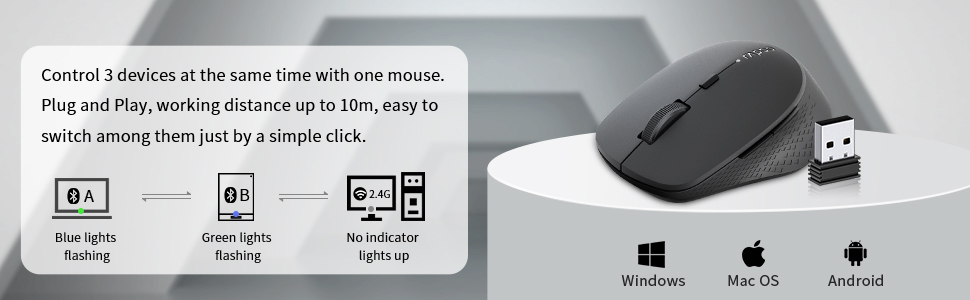
Figure 3.2: The Rapoo M300G mouse can control three devices, with easy switching. It is compatible with Windows, Mac OS, and Android operating systems.
Conexiune wireless de 2.4 GHz:
- Take out the USB receiver from the battery compartment of the mouse.
- Conectați receptorul USB la un port USB disponibil de pe computer.
- Turn on the mouse. The mouse will automatically connect to the receiver. No indicator light will illuminate for 2.4GHz mode.
Bluetooth Connection (Device A & B):
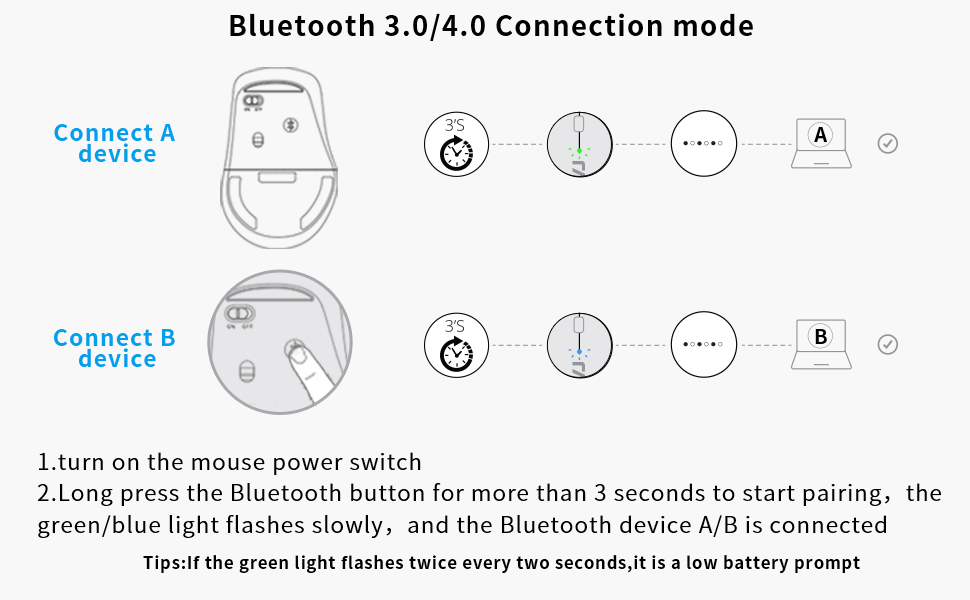
Figure 3.3: Detailed steps for connecting the mouse via Bluetooth 3.0/4.0 to Device A and Device B.
- Turn on the mouse power switch.
- Press the Bluetooth button on the bottom of the mouse to switch to Bluetooth Channel A (blue light flashing) or Bluetooth Channel B (green light flashing).
- Long press the Bluetooth button for more than 3 seconds until the blue or green light flashes slowly. This indicates the mouse is in pairing mode.
- Pe dispozitivul dvs. (computer, laptop, tabletă), accesați setările Bluetooth și căutați dispozitive noi.
- Select 'Rapoo BT3.0 Mouse' or 'Rapoo BT4.0 Mouse' from the list of found devices to complete the pairing.
- Once connected, the corresponding indicator light will stop flashing and remain solid for a few seconds before turning off.
Sfat: If the green light flashes twice every two seconds, it indicates a low battery.
3.4 Switching Between Devices:
Briefly press the Bluetooth button on the bottom of the mouse to cycle through the connected devices (Bluetooth A, Bluetooth B, 2.4GHz). The indicator light will briefly show the active channel.
4. Instrucțiuni de utilizare
4.1 DPI Adjustment:
Press the DPI switch button located behind the scroll wheel to cycle through the four DPI settings: 600, 1000, 1300, and 1600 DPI. Adjust the DPI to match your preference for cursor speed and precision.
4.2 Basic Mouse Functions:
- Click stânga: Utilizare pentru selectarea elementelor, deschiderea files și activarea funcțiilor.
- Click dreapta: Use for accessing context menus and additional options.
- Rotiță de defilare: Rotate to scroll vertically through documents and web pages. Press down for middle-click functionality (e.g., opening links in new tabs).
- Butoane Înainte/Înapoi: Situate pe partea laterală a mouse-ului, aceste butoane permit navigarea rapidă în web browsere și file exploratori.
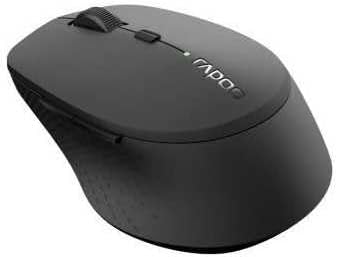
Figura 4.1: Înclinat view of the Rapoo M300G mouse, highlighting its ergonomic shape and button placement.
5. Întreținere
5.1 Curățare:
Pentru a curăța mouse-ul, ștergeți ușor suprafața cu o lavetă moale șiamp cloth. Do not use harsh chemicals or abrasive cleaners. Ensure no liquid enters the mouse's internal components.
5.2 Înlocuirea bateriei:
When the low battery indicator flashes, it's time to replace the AA battery. Open the battery compartment on the bottom of the mouse, remove the old battery, insert a new AA battery with the correct polarity, and close the compartment.
5.3 Depozitare:
When not in use for an extended period, turn off the mouse to conserve battery life. Store the USB receiver inside the mouse's dedicated slot to prevent loss. Keep the mouse in a dry, cool place away from direct sunlight and extreme temperatures.
6. Depanare
If you encounter issues with your Rapoo M300G mouse, please refer to the following common problems and solutions:
| Problemă | Cauza posibila | Soluţie |
|---|---|---|
| Șoarecele nu răspunde | Low battery; Mouse is off; Incorrect connection mode; USB receiver not plugged in (for 2.4GHz); Bluetooth not paired. | Replace battery; Turn on mouse; Switch to correct connection mode (2.4G, BT A, BT B); Plug in USB receiver; Re-pair Bluetooth. |
| Cursor erratic or not smooth | Senzor optic murdar; Suprafață nepotrivită; Baterie descărcată. | Clean optical sensor; Use on a flat, non-reflective surface; Replace battery. |
| Nu se poate conecta prin Bluetooth | Mouse not in pairing mode; Device Bluetooth is off; Interference. | Long press Bluetooth button to enter pairing mode; Ensure device Bluetooth is on; Move closer to device; Try re-pairing. |
| Butoanele laterale nu funcționează | Application does not support forward/backward functions; Driver issue. | Test in a different application (e.g., web browser); Check for updated drivers for your operating system. |
7. Specificații
| Caracteristică | Caietul de sarcini |
|---|---|
| Numărul de model | 18048 |
| Tehnologia de conectivitate | Bluetooth 3.0, Bluetooth 4.0, Wireless 2.4GHz |
| Tehnologia de detectare a mișcării | Optic |
| Niveluri DPI | 600, 1000, 1300, 1600 |
| Butoane | 6 (Stânga, Dreapta, Rotiță de derulare, Comutator DPI, Înainte, Înapoi) |
| Tip baterie | 1 x baterie AA |
| Durata de viață estimată a bateriei | Până la 9 luni |
| Dimensiunile produsului | 4.09 x 2.6 x 0.04 inci |
| Greutatea articolului | 2.08 uncii |
| Culoare | NEGRU |
| Prima dată disponibilă | 30 noiembrie 2018 |
8. Garanție și asistență
8.1 Informații despre garanție:
The Rapoo M300G Multi-Device Wireless Mouse comes with a Garanție de un an de la data achiziției. În plus, un 30 Days Return and Refund or Replacement policy is offered. This warranty covers manufacturing defects and issues arising from normal use.
8.2 Asistență clienți:
For technical support, warranty claims, or any questions regarding your Rapoo M300G mouse, please contact Rapoo customer service. Refer to the official Rapoo website-ul sau ambalajul produsului pentru cele mai recente informații de contact.
Suport online: Vizitați Rapoo oficial website pentru întrebări frecvente, descărcări de drivere și resurse de asistență.
Asistență prin e-mail: [Refer to Rapoo's official website for email contact]
Asistență telefonică: [Refer to Rapoo's official website for phone contact]


