1. Introducere
This manual provides comprehensive instructions for the setup, operation, and maintenance of your ELECOM DEFT PRO Trackball Mouse, model M-DPT1MRBK. This high-performance trackball mouse offers versatile connectivity options including wired, 2.4GHz wireless, and Bluetooth, designed for enhanced precision and ergonomic comfort across various operating systems.

The ELECOM DEFT PRO Trackball Mouse, showcasing its ergonomic design and prominent red trackball.
2. Conținutul pachetului
Verificați dacă toate articolele sunt prezente în pachetul produsului:
- ELECOM DEFT PRO Trackball Mouse (M-DPT1MRBK)
- USB-A to USB-C Cable (for wired connection and charging)
- USB Wireless Receiver (2.4GHz)
- Lithium Polymer Battery (pre-installed or included separately)
- Manual de utilizare (acest document)

The trackball mouse accompanied by its USB-A to USB-C cable for wired connection and charging, and a USB wireless receiver for 2.4GHz wireless mode.
3. Produs terminatview
Familiarize yourself with the components of your ELECOM DEFT PRO Trackball Mouse:
- Trackball: Pentru mișcarea cursorului.
- Butoane clic stânga/dreapta: Funcții standard ale mouse-ului.
- Rotiță de defilare: For vertical scrolling and tilt for horizontal scrolling.
- Buton comutare DPI: Ajustează viteza cursorului.
- Function Buttons (Fn1, Fn2, Fn3, etc.): Programmable buttons for custom actions.
- Comutator mod conectivitate: Selects Wired, Wireless (2.4GHz), or Bluetooth mode.
- Întrerupător: Pornește/oprește dispozitivul.
- Port USB-C: For wired connection and battery charging.
- Wireless Receiver Storage: Compartment for the USB wireless receiver.
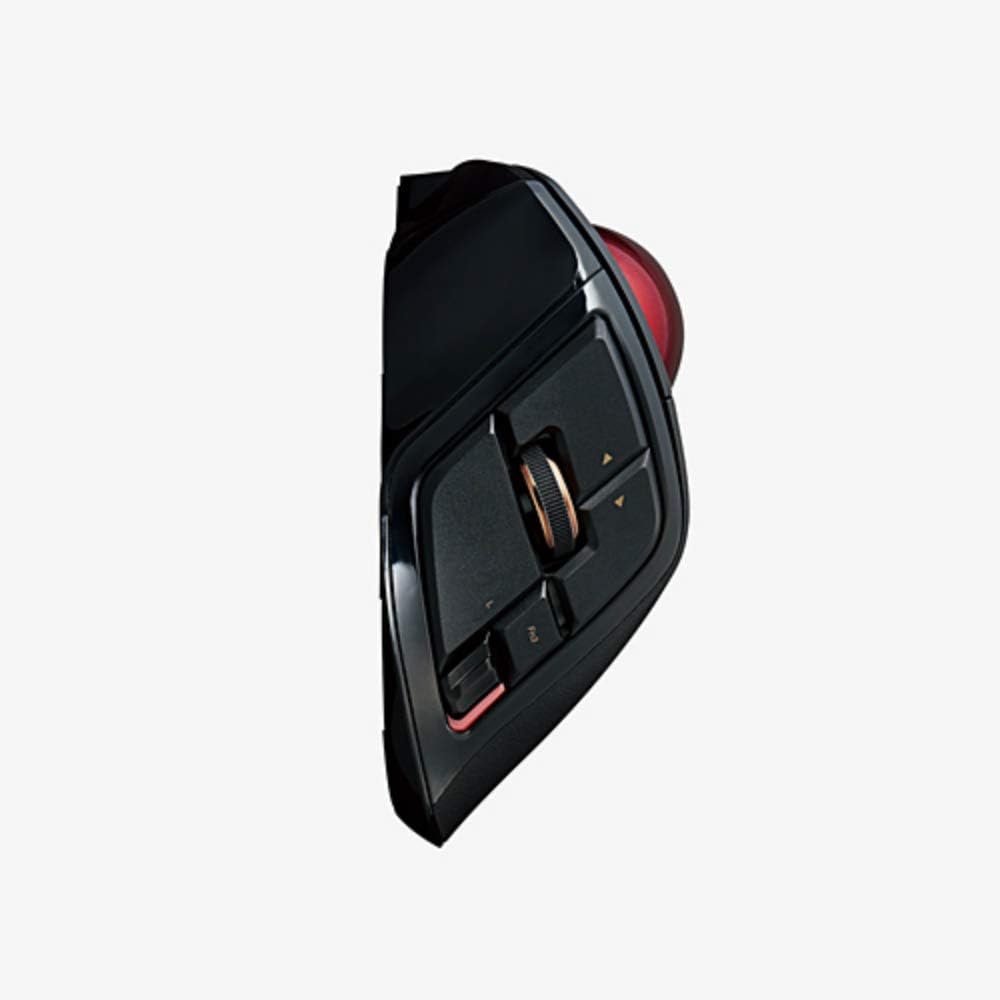
Un profesionist secundarfile of the trackball mouse, illustrating the placement of the scroll wheel, tilt functions, and programmable side buttons.

Un detaliat view of the ELECOM DEFT PRO's buttons, including the main click buttons, scroll wheel, and additional programmable function buttons.
4. Configurare
4.1. Instalarea și încărcarea bateriei
The ELECOM DEFT PRO uses a Lithium Polymer battery. If not pre-installed, open the battery compartment and insert the battery according to the polarity indicators. To charge, connect the mouse to a USB power source using the provided USB-A to USB-C cable. The LED indicator will show charging status.
4.2. Opțiuni de conectivitate
The mouse supports three connection methods:
- Conexiune prin cablu: Connect the mouse directly to your computer using the USB-A to USB-C cable.
- Conexiune wireless de 2.4 GHz:
- Introduceți receptorul wireless USB într-un port USB disponibil de pe computer.
- Set the connectivity mode switch on the mouse to the 'Wireless' position.
- Turn on the mouse using the power switch. The mouse should automatically connect.
- Conexiune Bluetooth:
- Set the connectivity mode switch on the mouse to the 'Bluetooth' position.
- Porniți mouse-ul folosind comutatorul de alimentare.
- Pe computer sau dispozitiv, navigați la setările Bluetooth și căutați dispozitive noi.
- Select 'ELECOM DEFT PRO' from the list of available devices to pair.
4.3. Software Installation (ELECOM Mouse Assistant)
For full customization of buttons and advanced settings, download and install the ELECOM Mouse Assistant software from the official ELECOM website. This software allows you to remap buttons, adjust DPI settings, and configure other functions specific to your workflow. Ensure you download the correct version for your operating system (Windows or macOS).
5. Funcționare
5.1. Basic Cursor Control
Use your fingers to roll the red trackball to move the cursor on the screen. The optical tracking technology provides precise and smooth cursor movement.

An illustration of a hand comfortably resting on the ELECOM DEFT PRO Trackball Mouse, showing the natural finger placement for operating the trackball and buttons.
5.2. Funcții butoane
The ELECOM DEFT PRO features 8 physical buttons and scroll wheel tilt functionality. Default functions are:
- Clic stânga/dreapta: Standard primary and secondary click actions.
- Rotiță de defilare: Derulare verticală.
- Scroll Wheel Tilt (Left/Right): Horizontal scrolling.
- Comutator DPI: Cycles through DPI settings (500, 1000, 1500).
- Programmable Buttons (Fn1, Fn2, Fn3, etc.): Customizable via ELECOM Mouse Assistant.
5.3. Ajustarea DPI-ului
Press the DPI switch button located near the trackball to cycle through the available cursor speeds: 500 DPI, 1000 DPI, and 1500 DPI. Select the sensitivity that best suits your task or preference.
6. Întreținere
6.1. Curățarea trackball-ului
Regular cleaning of the trackball and its bearings is essential for optimal performance. Dust and debris can accumulate and affect cursor smoothness.
- Opriți mouse-ul folosind comutatorul de alimentare.
- Locate the small hole on the underside of the mouse.
- Gently push the trackball out from the bottom using a pen or similar blunt object.
- Ștergeți trackball-ul cu o lavetă moale, fără scame.
- Clean the three ruby ball bearings inside the trackball housing with a cotton swab lightly dampened with isopropyl alcohol. Ensure no residue remains.
- Reintroduceți trackball-ul în locașul său.
7. Depanare
- Cursor not moving or erratic:
- Ensure the mouse is powered on and the correct connectivity mode (Wired, Wireless, Bluetooth) is selected.
- Verificați nivelul bateriei și încărcați-o dacă este necesar.
- For wireless, ensure the USB receiver is securely plugged in. For Bluetooth, verify pairing in your device's settings.
- Clean the trackball and its bearings as described in Section 6.1.
- Butoanele care nu răspund:
- Verify the mouse is connected and powered on.
- If using custom button assignments, check the ELECOM Mouse Assistant software for correct configuration.
- Software issues (ELECOM Mouse Assistant):
- Ensure you have downloaded the latest version of the software for your operating system.
- Reporniți computerul după instalare.
- Dacă problemele persistă, încercați să reinstalați software-ul.
8. Specificații
| Caracteristică | Detaliu |
|---|---|
| Numărul de model | M-DPT1MRBK |
| Conectivitate | Wired (USB), 2.4GHz Wireless (USB Receiver), Bluetooth |
| Setări DPI | 500 / 1000 / 1500 count (switchable) |
| Butoane | 8 physical buttons + Scroll Wheel Tilt |
| Detectarea mișcării | Optical, Trackball |
| Dimensiuni (l x l x h) | 3.6" x 5.3" x 2.3" (91.4 mm x 133.4 mm x 57.3 mm) |
| Greutate | 5.7 oz (without battery) |
| Baterie | 1 baterie cu litiu polimer (inclusă) |
| Cerințe de sistem | Windows 7, 8, 10 or later; macOS 10.13 or later |

An image comparing the dimensions of various ELECOM trackball mouse models, with the DEFT PRO (M-DPT1MRBK) positioned in the center, showing its length, width, and height.
9. Garanție și asistență
For warranty information, technical support, or further assistance, please refer to the official ELECOM website or contact ELECOM customer service. Keep your proof of purchase for warranty claims.


