1. Introducere
This manual provides detailed instructions for the setup, operation, and maintenance of your Xerox VersaLink C505/X Color Laser Multifunction Printer. The C505/X is designed for efficient performance in fast-paced work environments, offering print, copy, scan, and fax functionalities.
Key features include a customizable 7-inch color touchscreen for intuitive control, mobile and cloud connectivity, and robust security measures.
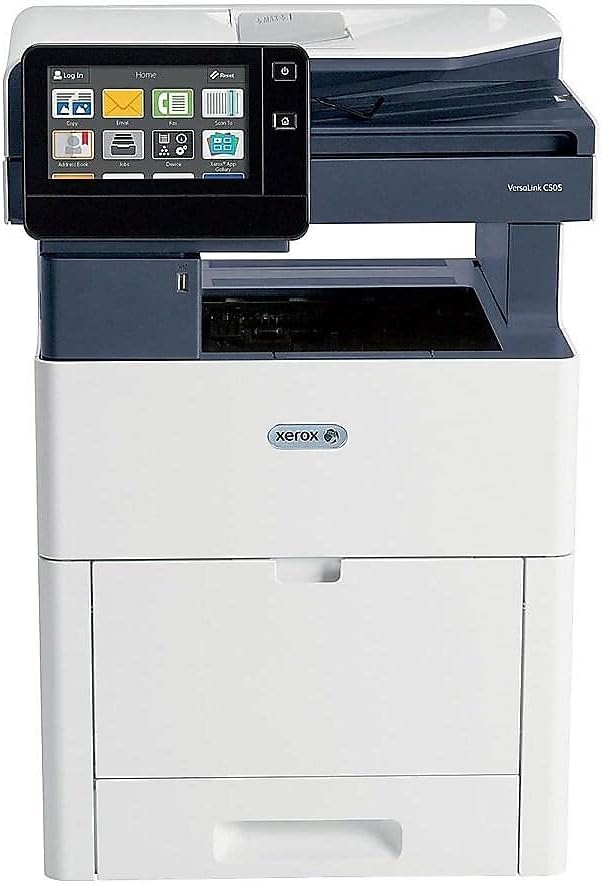
Figura 1: Față view of the Xerox VersaLink C505/X Multifunction Printer.
2. Configurare
2.1 Despachetarea și inspecția inițială
Carefully remove the printer from its packaging. Verify that all components listed below are present and undamaged:
- Xerox VersaLink C505 Color MFP
- Starter capacity toner cartridges (one each of cyan, magenta, yellow: 2,400 capacity; black: 5,000 capacity)
- CD cu software și documentație
- Ghid de instalare
- Quick User Guides
- Cablu de alimentare
2.2 Conexiune la alimentare
- Așezați imprimanta pe o suprafață stabilă și plană.
- Connect the provided power cord to the printer's power input and then to a grounded electrical outlet.
- Nu porniți dispozitivul până când nu ați efectuat toate celelalte conexiuni.
2.3 Instalarea cartușului de toner
Install the starter toner cartridges into their respective slots. Refer to the Quick User Guides for specific instructions on opening the toner access panel and inserting cartridges.

Figure 2: Toner cartridge access panel open, showing toner installation.
2.4 Conexiune de rețea și USB
The printer supports both Ethernet and USB connectivity.
- Ethernet: Conectați un cablu Ethernet de la portul Ethernet al imprimantei la routerul sau switch-ul de rețea.
- USB: Conectați un cablu USB de la portul USB al imprimantei la computer.
2.5 Instalare software
Insert the provided software and documentation CD into your computer's CD/DVD drive. Follow the on-screen instructions to install the necessary drivers and utilities. Alternatively, visit the official Xerox support website pentru cele mai recente drivere.
3. Operarea imprimantei
3.1 Interfață cu ecran tactil
The 7-inch color touchscreen provides access to all printer functions. Navigate through menus by tapping and swiping, similar to a smartphone. The home screen displays icons for various functions such as Print, Copy, Scan, and Fax.

Figure 3: Close-up of the 7-inch color touchscreen control panel.
3.2 Imprimare
Pentru a imprima documente:
- Asigurați-vă că imprimanta este conectată la computer sau la rețea.
- Open the document on your computer and select the print option.
- Choose the Xerox VersaLink C505/X from the list of available printers.
- Adjust print settings (e.g., color/monochrome, duplex printing, paper size) as needed. The printer supports up to 43 ppm color and 45 ppm monochrome, with automatic duplexing.
- Confirm the print job.
3.3 Copiere
Pentru a face copii:
- Așezați documentul original pe geamul scanerului sau în alimentatorul automat de documente (ADF).
- On the touchscreen, tap the "Copy" icon.
- Select desired settings such as number of copies, color/black and white, and two-sided copying. The maximum copy speed is 45 ppm (black & white) with resolutions up to 1200 x 2400 dpi.
- Apăsați butonul „Start”.
3.4 Scanare
To scan documents:
- Așezați documentul pe geamul scanerului sau în ADF.
- On the touchscreen, tap the "Scan" icon.
- Choose the scan destination (e.g., email, network folder, USB drive) and adjust scan settings.
- Apăsați butonul „Start”.
3.5 Trimiterea de faxuri
Pentru a trimite un fax:
- Așezați documentul pe geamul scanerului sau în ADF.
- On the touchscreen, tap the "Fax" icon.
- Introduceți numărul de fax al destinatarului.
- Ajustați toate setările de fax necesare.
- Apăsați butonul „Start”.
3.6 Mobile and Cloud Connectivity
The VersaLink C505/X offers out-of-the-box connectivity to cloud services like Google Drive, Microsoft OneDrive, and DropBox. Additional options are available through the Xerox App Gallery, allowing for flexible workflow integration.
4. Întreținere
4.1 Înlocuirea cartușului de toner
When a toner cartridge is low or empty, the printer's display will indicate which cartridge needs replacement. Always use genuine Xerox toner cartridges for optimal performance and print quality.
- Deschideți panoul de acces frontal al imprimantei.
- Scoateți cu grijă cartușul de toner gol trăgându-l drept afară.
- Despachetați noul cartuș de toner și agitați-l ușor pentru a distribui tonerul.
- Insert the new cartridge into the corresponding slot until it clicks into place.
- Închideți panoul de acces frontal.
4.2 Curățare
Curățarea regulată ajută la menținerea calității imprimării și prelungește durata de viață a imprimantei.
- Exterior: Ștergeți suprafețele exterioare cu un material moale, damp, cârpă fără scame.
- Sticla scanerului: Use a soft cloth moistened with glass cleaner to clean the scanner glass. Ensure no residue remains.
- Componente interne: Refer to the detailed user manual on the software and documentation CD for instructions on cleaning internal components, such as the print heads or rollers, if necessary.
5. Depanare
This section addresses common issues you might encounter with your Xerox VersaLink C505/X. For more complex problems, consult the full user manual or contact support.
5.1 Blocaje de hârtie
If a paper jam occurs, the touchscreen will display an error message indicating the location of the jam. Follow the on-screen instructions to clear the jammed paper. Always pull paper in the direction of the paper path to avoid tearing.
5.2 Probleme de calitate a imprimării
If printouts show streaks, faded areas, or incorrect colors:
- Verificați nivelurile de toner și înlocuiți orice cartușe cu nivel scăzut.
- Asigurați-vă că utilizați hârtie adecvată pentru lucrarea de imprimare.
- Efectuați o diagnosticare a calității imprimării de la panoul de control al imprimantei.
- Clean the print heads or other internal components as instructed in the detailed manual.
5.3 Probleme de conectivitate
If the printer is not communicating with your computer or network:
- Verify that all cables (power, USB, Ethernet) are securely connected.
- Reporniți imprimanta și computerul/routerul.
- Check network settings on the printer's touchscreen.
- Ensure the correct printer drivers are installed on your computer.
6. Specificații
| Caracteristică | Detaliu |
|---|---|
| Numele modelului | Xerox C505/X VersaLink |
| Funcții | Imprimare, Copiere, Scanare, Fax |
| Tehnologia de imprimare | Laser color |
| Viteză maximă de imprimare (monocrom) | 45 ppm |
| Viteză maximă de imprimare (color) | 43 ppm |
| Rezoluție maximă de imprimare (alb-negru) | 2400 dpi |
| Rezoluție maximă de imprimare (color) | 1200 x 2400 dpi |
| Imprimare duplex | Automat |
| Tip scaner | Document |
| Viteză maximă de copiere (alb-negru) | 45 ppm |
| Rezoluție maximă de copiere (culoare) | Până la 1200 x 2400 dpi |
| Metoda de control | App, Touch (7-inch display) |
| Conectivitate | USB-Ethernet |
| Capacitate maximă de intrare a foii | 3250 de coli |
| Tavi standard | 2 (550 Sheet Tray, 150 Sheet Multi Purpose Tray) |
| Dimensiuni media acceptate | Letter (8.5 x 11 inches), Legal (8.5 x 14 inches) |
| Tip cerneală | Toner (Black, Cyan, Magenta, Yellow) |
| Capacitate de stocare a memoriei | 4096 MB |
| Dimensiunile produsului | 26" D x 23" L x 31" H |
| Greutatea articolului | 77.2 lire sterline |
| Wattage | 600 wați |
7. Garanție și asistență
7.1 Garanția produsului
The Xerox VersaLink C505/X Color Laser MFP comes with a standard one-year full warranty from the date of purchase. This warranty covers defects in materials and workmanship under normal use. For detailed terms and conditions, please refer to the warranty documentation included with your product or visit the official Xerox website-ul.
7.2 Asistență pentru clienți
For technical assistance, troubleshooting, or service requests, please contact Xerox customer support. Support contact information can be found on the Xerox website or in the documentation provided with your printer.
Resurse online: Vizitați pagina oficială de asistență Xerox website for FAQs, driver downloads, and additional user guides.


