1. Introducere
The Logitech MX Anywhere 2S is a versatile and portable wireless mouse designed for enhanced productivity across multiple devices. Featuring advanced tracking, multi-device connectivity, and fast charging, it is an ideal tool for users who work on various platforms and locations.
This manual provides detailed instructions on setting up, operating, and maintaining your MX Anywhere 2S mouse, along with troubleshooting tips and product specifications.

Image: The Logitech MX Anywhere 2S Wireless Mouse, showcasing its ergonomic design and graphite color.
2. Conținutul pachetului
- Logitech MX Anywhere 2S Wireless Mouse
- Pico Unifying Receiver
- Micro-USB Charging Cable (1.3m)
- Informații despre garanție
- Documentația utilizatorului

Image: A visual representation of the Logitech MX Anywhere 2S mouse and its included accessories, such as the Unifying receiver and charging cable.
3. Configurare
3.1. Încărcarea mouse-ului
Before first use, it is recommended to fully charge your MX Anywhere 2S mouse. Connect the included Micro-USB charging cable to the mouse's charging port and the other end to a USB port on your computer or a USB power adapter.
- A 3-minute charge provides approximately 8 hours of use.
- A full charge can last for over 70 days, depending on usage.
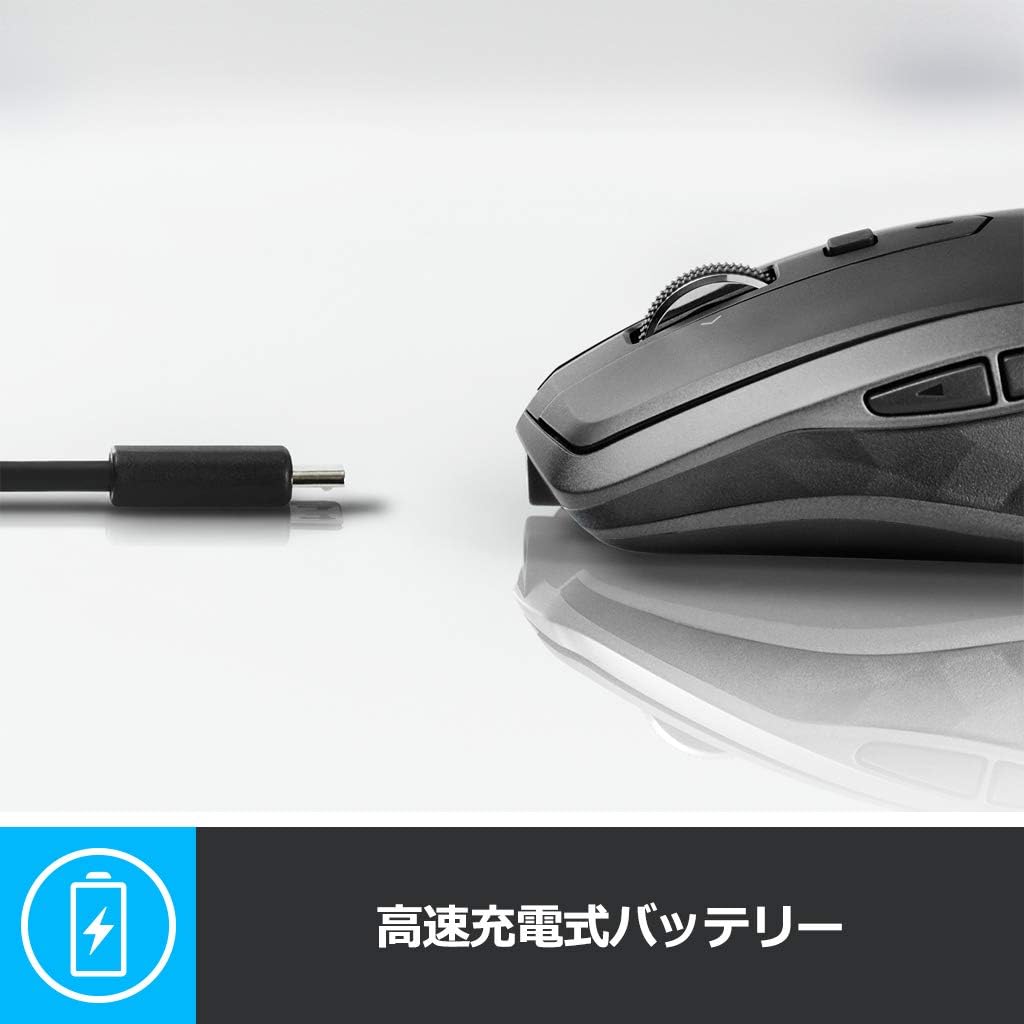
Image: The MX Anywhere 2S mouse connected to its charging cable, illustrating its fast-charging capability.
3.2. Conectarea mouse-ului
The MX Anywhere 2S offers two connection methods: Logitech Unifying USB receiver or Bluetooth.
3.2.1. Unifying USB Receiver Connection
- Conectați receptorul Logitech Unifying la un port USB disponibil al computerului.
- Porniți mouse-ul folosind comutatorul Pornit/Oprit situat în partea de jos a mouse-ului.
- The mouse should automatically connect to the receiver. If not, use the Logitech Options software to pair.
3.2.2. Conexiune Bluetooth
- Porniți mouse-ul folosind comutatorul Pornit/Oprit situat în partea de jos a mouse-ului.
- Apăsați butonul Easy-Switch din partea de jos a mouse-ului pentru a selecta un canal disponibil (1, 2 sau 3). Indicatorul LED pentru canalul selectat va clipi rapid.
- Pe computer, deschideți setările Bluetooth și căutați dispozitive noi.
- Select "MX Anywhere 2S" from the list of available devices to complete the pairing process.

Image: Icons representing Bluetooth and Unifying USB connections, indicating the mouse's dual connectivity options for Windows, Mac, and iPad OS.
3.3. Multi-Device Pairing (Easy-Switch)
The MX Anywhere 2S can be paired with up to three different devices and switch between them seamlessly.
- Pair the mouse with your first device using either Unifying or Bluetooth.
- Press the Easy-Switch button on the bottom of the mouse to select another channel (e.g., 2).
- Pair the mouse with your second device using the chosen channel.
- Repeat for a third device if desired.
- To switch between devices, simply press the Easy-Switch button to select the corresponding channel.

Image: An illustration showing the bottom of the MX Anywhere 2S mouse with its Easy-Switch button, demonstrating how it can pair with and switch between up to three different computers (laptops and desktops).
4. Utilizarea mouse-ului
4.1. DPI Adjustment (Darkfield Laser Sensor)
The MX Anywhere 2S features a Darkfield laser sensor that allows for precise tracking on virtually any surface, including glass. The DPI (dots per inch) can be adjusted from 200 to 4,000 DPI in 50 DPI increments.
To adjust DPI, download and install the free Logitech Options software. Within the software, you can customize the pointer speed and sensitivity to your preference.

Image: The MX Anywhere 2S mouse resting on a reflective surface, illustrating its ability to track accurately on various surfaces, including glass.
4.2. High-Speed Scroll Wheel and Tilt Scroll
The mouse is equipped with a high-speed scroll wheel that allows for rapid navigation through long documents or web pages. It also features tilt-scroll functionality for horizontal scrolling.
- High-Speed Scroll: Flick the scroll wheel to activate hyper-fast scrolling.
- Click-to-Click Scroll: Press the button behind the scroll wheel to switch to precise, click-to-click scrolling.
- Tilt Scroll: Tilt the scroll wheel left or right for horizontal navigation.

Imagine: Un prim-plan view of the MX Anywhere 2S scroll wheel, highlighting its high-speed scrolling and navigation features.
4.3. Butoane personalizabile
The MX Anywhere 2S features 7 customizable buttons and 1 scroll wheel. These can be programmed to perform various functions using the Logitech Options software.
- Clic stânga/dreapta: Butoane standard ale mouse-ului.
- Clic cu rotița de derulare: Can be customized.
- Butoane laterale: Two thumb buttons for forward/back navigation, customizable for other functions.
- Butonul pentru gesturi: Located on the thumb rest, can be customized for gestures.
- Mode Shift Button: Behind the scroll wheel, switches between hyper-fast and click-to-click scrolling.

Image: A diagram of the MX Anywhere 2S mouse with numbered callouts pointing to its key features, including Bluetooth/Unifying connection, customizable buttons, Easy-Switch, high-speed scroll wheel, tilt scroll, and comfortable form factor.

Image: A screenshot of the Logitech Options software interface on a computer monitor, demonstrating the customization options available for the mouse's buttons and wheel.
4.4. Logitech FLOW
Logitech FLOW allows you to seamlessly control up to three computers with a single MX Anywhere 2S mouse, and even copy and paste text, images, and files intre ei.
- Ensure all computers are on the same network.
- Install Logitech Options software on all computers you wish to use with FLOW.
- Follow the instructions within Logitech Options to enable and configure FLOW.

Image: A setup showing multiple computers (Windows and Mac) with the MX Anywhere 2S mouse, illustrating the Logitech FLOW feature that allows seamless cursor and file transfer între ele.
5. Întreținere
5.1. Curatenie
Pentru a curăța mouse-ul, folosiți o lavetă moale,amp pânză. Evitați utilizarea agenților de curățare abrazivi sau a solvenților.
5.2. Durata de viață a bateriei
The MX Anywhere 2S has a long-lasting rechargeable battery. To maximize battery life:
- Turn off the mouse when not in use for extended periods.
- Încărcați mouse-ul în mod regulat, mai ales când indicatorul bateriei arată un nivel scăzut de energie.
6. Depanare
6.1. Mouse-ul nu răspunde
- Asigurați-vă că mouse-ul este pornit.
- Verificați nivelul bateriei și încărcați dacă este necesar.
- For Unifying connection: Ensure the receiver is securely plugged into a USB port. Try a different USB port.
- For Bluetooth connection: Ensure Bluetooth is enabled on your computer and the mouse is paired. Try re-pairing the mouse.
- Try switching to a different Easy-Switch channel to see if it connects to another paired device.
6.2. Probleme de urmărire
- Ensure the sensor on the bottom of the mouse is clean and free of debris.
- Try using the mouse on a different surface. While the Darkfield sensor works on most surfaces, extreme patterns or highly reflective surfaces might cause issues.
- Adjust the DPI settings using the Logitech Options software.
6.3. Logitech FLOW Not Working
- Ensure Logitech Options software is installed and running on all computers.
- Verify that all computers are connected to the same network.
- Check firewall settings on your computers; they might be blocking FLOW communication.
- Restart the Logitech Options software on all connected computers.
7. Specificații
| Caracteristică | Descriere |
|---|---|
| Numărul de model | MX1600sGR |
| Dimensiuni (L x A x H) | 61.6 x 100.3 x 34.4 mm |
| Greutate | 240.4 g (0.53 lbs) |
| Culoare | Grafit |
| Tehnologia senzorilor | Darkfield Laser Tracking |
| Interval DPI | 200 to 4,000 DPI (50 DPI increments) |
| Conectivitate | Bluetooth, Logitech Unifying USB |
| Distanța de operare fără fir | Aproximativ. 10m |
| Butoane | 7 customizable buttons + 1 scroll wheel |
| Tip baterie | Baterie reîncărcabilă Li-Po |
| Durata de viață a bateriei | Up to 70 days on a full charge (usage dependent) |
| Încărcare rapidă | 3 minutes charge for 8 hours of use |
| Sistem de operare acceptat | Windows 7, Windows 8, Windows 10 or later; Mac OS X 10.10 or later; iPad OS |
| Dispozitive compatibile | PC, tableta |
8. Garanție și asistență
8.1. Informații despre garanție
The Logitech MX Anywhere 2S comes with a Garanție hardware limitată de 2 an de la data achiziției. Vă rugăm să păstrați dovada achiziției pentru reclamațiile în garanție.
For detailed warranty terms and conditions, please refer to the warranty documentation included in your product package or visit the official Logitech support website-ul.
8.2. Asistență pentru clienți
For further assistance, technical support, or to download the latest version of Logitech Options software, please visit the official Logitech support website:


