Introducere
This manual provides instructions for setting up, operating, and maintaining your Mercury MW3030R Dual Band Wireless Router. Please read this manual carefully before use to ensure proper installation and optimal performance.
Informații de siguranță
- Nu expuneți dispozitivul la apă sau umiditate excesivă.
- Nu încercați să dezasamblați sau să reparați singur dispozitivul.
- Utilizați numai adaptorul de alimentare furnizat împreună cu dispozitivul.
- Asigurați o ventilație adecvată în jurul routerului pentru a preveni supraîncălzirea.
Conținutul pachetului
Verificați dacă pachetul dvs. conține următoarele articole:
- Mercury MW3030R Wireless Router
- Adaptor de alimentare
- Cablu Ethernet
- Ghid de instalare rapidă (acest manual servește ca ghid detaliat)
Produs terminatview
Familiarizați-vă cu componentele și indicatorii routerului.
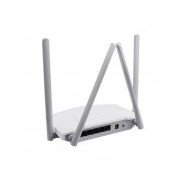
Figura 1: Spate view of the Mercury MW3030R router. This image displays the four external antennas, the WAN port (typically blue), multiple LAN ports (typically yellow), and the power input jack. The reset button and WPS button are also usually located on the rear panel.
Figura 2: De sus în jos view of the Mercury MW3030R router with its antennas folded. This perspective highlights the router's sleek, white casing and its overall compact form factor, suitable for various placements.
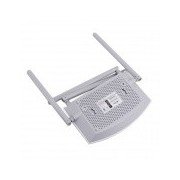
Figura 3: Fund view of the Mercury MW3030R router. This image shows the ventilation holes designed for heat dissipation and the product label, which typically contains important information such as the default Wi-Fi name (SSID), password, and web management address.
Indicatoare LED:
- LED de alimentare: Indică starea de alimentare a routerului.
- LED Internet: Indică starea conexiunii la internet.
- LED WLAN: Indică activitate wireless.
- LED-uri LAN: Indicate connection status for each LAN port.
Înființat
1. Conexiune hardware
- Pornire: Connect the power adapter to the router's power port and plug it into a wall outlet. Wait for the Power LED to become stable.
- Conectare la internet (WAN): Connect one end of an Ethernet cable to your modem's LAN port and the other end to the router's WAN port (usually distinctively colored, e.g., blue).
- Connect Devices (LAN): For wired connections, connect your computer or other devices to the router's LAN ports (usually yellow) using Ethernet cables.
- antene: Adjust the four antennas for optimal signal coverage.
2. Configurație inițială (Web Interfață)
- Conectați-vă la router: Connect your computer to the router either via an Ethernet cable to a LAN port or wirelessly using the default Wi-Fi SSID and password printed on the router's label (refer to Figure 3).
- Acces Web Browser: Deschide a web browser (e.g., Chrome, Firefox) and type the default access address (e.g., http://192.168.1.1 or http://tplinkwifi.net) în bara de adrese și apăsați Enter.
- Log in: Introduceți numele de utilizator și parola implicite (de obicei admin pentru ambele sau conform specificațiilor de pe eticheta routerului).
- Executați configurarea rapidă: Follow the on-screen instructions of the Quick Setup Wizard to configure your internet connection type (e.g., PPPoE, Dynamic IP, Static IP) and wireless settings (SSID, password).
- Schimbați parola implicită: Din motive de securitate, este recomandat să schimbați parola implicită de conectare pentru router. web interfata de management.
Instrucțiuni de operare
Conectarea la Wi-Fi
- Pe dispozitivul wireless (smartphone, laptop), căutați rețele Wi-Fi disponibile.
- Select your router's Wi-Fi network name (SSID) that you configured during setup.
- Enter the Wi-Fi password you set.
- Dispozitivul dvs. ar trebui să fie acum conectat la internet.
Funcționare în bandă duală
The MW3030R supports both 2.4GHz and 5.0GHz wireless bands. The 2.4GHz band offers wider coverage, while the 5.0GHz band provides faster speeds with less interference over shorter distances. You can connect your devices to either band based on your needs.
Rețeaua de oaspeți
Accesați routerul web interface to enable and configure a separate guest network. This allows guests to access the internet without accessing your main network resources.
Întreţinere
- Actualizări firmware: Verificați periodic specificațiile producătorului website pentru actualizări de firmware. Actualizarea firmware-ului poate îmbunătăți performanța, poate adăuga noi funcții și poate remedia vulnerabilități de securitate.
- Repornirea routerului: Dacă întâmpinați probleme de rețea, încercați să reporniți routerul deconectând adaptorul de alimentare, așteptând 10 secunde, apoi reconectandu-l.
- curatenie: Păstrați routerul curat și fără praf. Folosiți o cârpă moale și uscată. Nu utilizați agenți de curățare lichizi.
- Plasare: Plasați routerul într-o locație centrală, departe de obstacole și dispozitive care pot cauza interferențe (de exemplu, cuptoare cu microunde, telefoane fără fir).
Depanare
Fără acces la internet
- Check if the Internet LED on the router is lit or blinking correctly.
- Asigurați-vă că este conectat corect cablul Ethernet de la modem la portul WAN al routerului.
- Reporniți modemul și routerul.
- Verificați setările conexiunii la internet în router web interfata.
Viteză wireless redusă
- Ensure your device is connected to the 5.0GHz band if it supports it, for faster speeds.
- Move closer to the router or adjust antenna positions.
- Verificați dacă există interferențe de la alte dispozitive electronice.
- Reduce the number of devices connected to the network or bandwidth-intensive activities.
Nu se pot accesa routerele Web Interfață
- Asigurați-vă că dispozitivul este conectat la router (cu fir sau fără fir).
- Verify the IP address you are typing in the browser is correct (e.g., http://192.168.1.1).
- Încearcă să golești memoria cache a browserului sau să folosești un alt browser.
- If you forgot the login password, you may need to perform a factory reset (Warning: This will erase all your settings).
Specificații
| Caracteristică | Descriere |
|---|---|
| Model | MW3030R |
| Standarde wireless | IEEE 802.11ac/n/g/b/a |
| Frecvenţă | 2.4 GHz și 5.0 GHz (bandă duală) |
| Viteza wireless | Up to 600Mbps (combined) |
| Antene | 4 antene externe |
| Interfețe | 1x WAN Port, Multiple LAN Ports (typically 3 or 4) |
| Alimentare electrică | External Power Adapter (provided) |
Garanție și suport
The Mercury MW3030R router comes with a standard manufacturer's warranty. For detailed warranty information, technical support, or service inquiries, please refer to the official Mercury website-ul lor sau contactați serviciul de asistență pentru clienți. Păstrați bonul fiscal pentru reclamații în garanție.


