1. Introducere
Mulțumesc pentru achizițieasing the Blow KidsTab7 Tablet. This device is designed to provide an engaging and safe digital experience for children, featuring a 7-inch display, Android 9.0 Go operating system, and a durable protective shell. This manual provides essential information on how to set up, operate, and maintain your tablet to ensure optimal performance and longevity.
2. Informații de siguranță
Please read all safety instructions carefully before using the tablet. Failure to follow these instructions may result in electric shock, fire, or damage to the device.
- Pericol de sufocare: A nu se lăsa la îndemâna copiilor mici piesele mici.
- Expunerea la apă: Do not expose the tablet to water or excessive moisture.
- Temperatură: Avoid extreme temperatures. Do not leave the tablet in direct sunlight or in very cold environments.
- Încărcare: Use only the provided charger or a certified compatible charger. Supervise children during charging.
- Baterie: Do not attempt to replace the battery yourself. Contact support if battery issues arise.
- curatenie: Disconnect the tablet from power before cleaning. Use a soft, dry cloth.
- Protecția auzului: Prolonged use at high volume may cause hearing damage.
3. Conținutul pachetului
Asigurați-vă că toate articolele sunt prezente în colet:
- Blow KidsTab7 Tablet
- Protective Silicone Shell (pre-installed or separate)
- Cablu de încărcare USB
- Adaptor de alimentare
- Manual de utilizare (acest document)

This image displays the retail packaging box for the Blow KidsTab7 Multimedia Tablet. The box features the 'BLOW' brand logo, 'KIDS TAB 7' model name, and an image of the tablet. Icons for HD, Wi-Fi, and 7-inch screen are visible, along with various app icons and award seals.
4. Dispozitiv terminatview
Familiarize yourself with the physical components of your Blow KidsTab7 Tablet.
4.1 Față și spate View

This image displays the Blow KidsTab7 Tablet. On the left, the back of the tablet is visible, featuring the 'Multimedia tablet KIDS TAB 7 BLOW' branding, a rear camera, and a speaker grille. On the right, the tablet is shown from the front, encased in its pink protective shell, with the screen displaying colorful graphics.
4.2 Side and Top Views
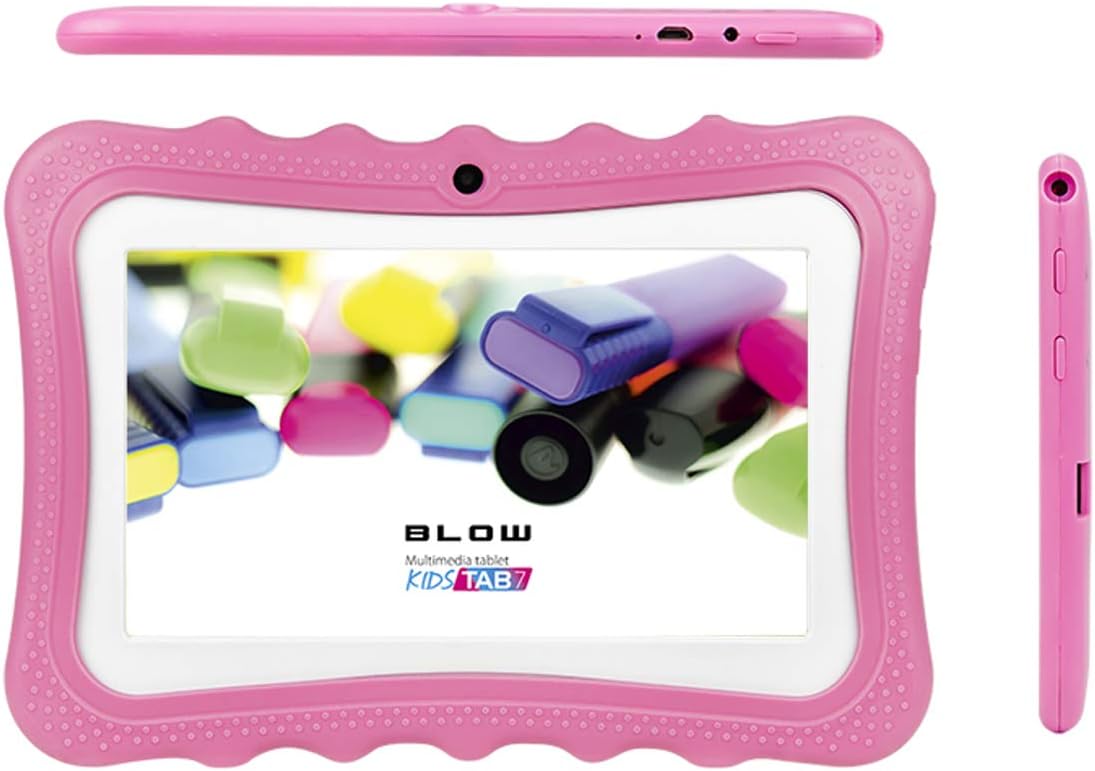
This image provides multiple perspectives of the Blow KidsTab7 Tablet. The top view shows the power button and charging port. The main view presents the tablet from the front, within its pink protective case, displaying the screen. A side view on the right highlights the volume buttons and headphone jack.
4.3 Protective Shell and Kickstand

This image illustrates the Blow KidsTab7 Tablet separated from its pink protective shell. The shell is shown on the left, highlighting its textured design and cutouts. The tablet itself is on the right, displaying its screen with colorful content.

The image shows the back of the Blow KidsTab7 Tablet, still in its pink protective case. A pink, dog-shaped kickstand is attached, allowing the tablet to stand upright. The rear camera and speaker grille are also visible.
5. Configurare
5.1 Încărcare inițială
Before first use, fully charge the tablet for approximately 3-4 hours.
- Connect the USB charging cable to the tablet's charging port.
- Conectați celălalt capăt al cablului USB la adaptorul de alimentare.
- Conectați adaptorul de alimentare la o priză de perete.
- Pictograma bateriei de pe ecran va indica starea de încărcare.
5.2 Pornire/Oprire
- Pentru a porni: Press and hold the Power button (located on the top edge) for a few seconds until the screen lights up.
- Pentru a opri: Apăsați și mențineți apăsat butonul de pornire/oprire până când apare un meniu. Selectați „Oprire” și confirmați.
- Pentru a reporni: Press and hold the Power button until a menu appears. Select 'Restart' and confirm.
5.3 Conectarea la Wi-Fi
To access the internet and download apps, connect your tablet to a Wi-Fi network.
- From the home screen, swipe down from the top to open the Quick Settings panel.
- Atingeți și mențineți apăsată pictograma Wi-Fi pentru a deschide setările Wi-Fi.
- Ensure Wi-Fi is toggled 'On'.
- Selectați rețeaua Wi-Fi dorită din listă.
- Introduceți parola de rețea dacă vi se solicită, apoi atingeți „Conectare”.
5.4 Configurarea inițială a dispozitivului
Follow the on-screen prompts for initial setup, which typically includes:
- Selectarea limbii
- Setări de fus orar și dată
- Google account sign-in (required for Play Store access)
- Acceptarea termenilor și condițiilor
6. Instrucțiuni de utilizare
6.1 Navigare de bază
- Atingere: Atingeți o pictogramă pentru a deschide o aplicație sau a selecta un element.
- Beţivan: Trageți degetul pe ecran pentru a derula paginile sau listele.
- Ciupire pentru zoom: Folosește două degete pentru a mări sau micșora imaginile și web pagini.
- Buton Acasă: Tap the circle icon at the bottom of the screen to return to the home screen.
- Butonul Înapoi: Atingeți pictograma triunghi pentru a reveni la ecranul anterior.
- Aplicații recente: Atingeți pictograma pătrată pentru a view și comutați între aplicațiile utilizate recent.
6.2 Gestionarea aplicațiilor
- Downloading Apps: Open the Google Play Store app, search for desired apps, and tap 'Install'.
- Dezinstalarea aplicațiilor: Du-te la Setări > Aplicații și notificări > Vedeți toate aplicațiile. Select the app and tap 'Uninstall'.
- Organizing Apps: Drag and drop app icons on the home screen to rearrange them or create folders.
6.3 Controale parentale
The Android operating system offers built-in parental control features to manage content and screen time.
- Google Family Link: Download the Google Family Link app on your own device and the child's tablet to set up comprehensive controls, including app approvals, screen time limits, and location tracking.
- Google Play Store Controls: In the Play Store app, go to Setări > Control parental to restrict content based on age ratings for apps, games, movies, and music.
- Bunăstare digitală: Acces Setări > Bunăstare digitală și control parental to monitor usage and set app timers.
7. Întreținere
7.1 Curățarea tabletei
- Always power off the tablet and disconnect it from the charger before cleaning.
- Use a soft, lint-free cloth to gently wipe the screen and body.
- Pentru pete persistente, d puținampCurățați laveta cu apă sau cu un produs de curățare sigur pentru ecran. Evitați substanțele chimice dure.
- Clean the protective shell separately with mild soap and water if necessary, ensuring it is completely dry before reattaching.
7.2 Îngrijirea bateriei
- Avoid fully discharging the battery frequently. Charge it before it drops below 20%.
- Nu lăsați tableta la încărcare pentru perioade lungi de timp după ce a atins 100%.
- Store the tablet in a cool, dry place if not used for a long time, with the battery charged to about 50%.
7.3 Actualizări de software
Verificați periodic dacă există actualizări de software pentru a vă asigura că tableta are cele mai recente funcții și corecții de securitate. Accesați Setări > Sistem > Avansat > Actualizare sistem.
8. Depanare
Dacă întâmpinați probleme cu tableta, consultați următoarele soluții comune:
| Problemă | Soluţie |
|---|---|
| Tablet will not power on | Asigurați-vă că bateria este încărcată. Conectați încărcătorul la încărcător timp de cel puțin 30 minute, apoi încercați să îl porniți din nou. |
| Nu se poate conecta la Wi-Fi | Check if Wi-Fi is enabled in settings. Verify the Wi-Fi password. Restart your router and the tablet. |
| Aplicațiile se blochează sau se blochează | Închideți și redeschideți aplicația. Ștergeți memoria cache a aplicației (Settings > Apps & notifications > App info > Storage & cache > Clear cacheReporniți tableta. |
| Performanță lentă | Close unused apps. Clear cache for frequently used apps. Free up storage space by deleting unnecessary files. |
| Ecranul nu răspunde | Perform a forced restart by holding the Power button for about 10-15 seconds until the tablet restarts. |
9. Specificații
Key technical specifications for the Blow KidsTab7 Tablet (Model 79-006#):
| Caracteristică | Detaliu |
|---|---|
| Marca | Lovitură |
| Numărul de model | 79-006 # |
| Sistem de operare | Android 9.0 Go |
| Dimensiunea ecranului | 7 inchi |
| Rezoluția afișajului | 1024 x 600 |
| Capacitate de stocare a memoriei | 8 GB |
| Comunicare fără fir | Bluetooth, Wi-Fi (802.11a) |
| Spate WebRezoluția camerei | 2 MP |
| Rezoluție captură video | HD 720p |
| baterii | 1 baterie litiu-ion (inclusă) |
| Conținutul de energie al bateriei cu litiu | 29.02 de wați-oră |
| Greutatea articolului | 800 grame |
| Interfață hardware | USB |
| Culoare | Roz |
10. Garanție și asistență
The Blow KidsTab7 Tablet comes with a standard manufacturer's warranty. Please refer to the warranty card included in your package for specific terms and conditions, including warranty period and coverage details.
For technical support, troubleshooting assistance beyond this manual, or warranty claims, please contact Blow customer service. Contact information can typically be found on the product packaging or the official Blow website-ul.
- Suport online: Visit the official Blow website cu întrebări frecvente, articole de asistență și formulare de contact.
- Asistență prin e-mail: Refer to your warranty documentation for a support email address.
- Asistență telefonică: Refer to your warranty documentation for a customer service phone number.


