1. Introducere
Thank you for choosing the Rapoo E6500 Bluetooth Multi-Media Ultra-Slim Wireless Keyboard. This manual provides detailed instructions on how to set up, operate, and maintain your new keyboard. Please read this manual carefully before use to ensure optimal performance and longevity of your device.
The Rapoo E6500 is designed for seamless connectivity with Android devices, offering a compact and portable typing solution with integrated multimedia functions.
2. Caracteristici cheie
- Design ultra-subțire: With a thickness of only 5.6mm, this keyboard is exceptionally portable.
- Conectivitate Bluetooth: Provides a stable and reliable wireless connection to your Android devices.
- Multi-Media Hotkeys: Dedicated keys for quick access to media controls and other functions.
- Aspect compact: Efficient design for comfortable typing on the go.
- Construcție durabilă: Built with quality materials for long-lasting use.

Figura 2.1: De sus în jos view of the Rapoo E6500 Bluetooth Keyboard, showcasing its full key layout and multimedia function keys.
3. Conținutul pachetului
Vă rugăm să verificați conținutul pachetului la despachetare. Dacă lipsesc sau sunt deteriorate articolele, contactați distribuitorul.
- Rapoo E6500 Bluetooth Keyboard
- Cablu de încărcare USB (dacă este cazul)
- Manual de utilizare (acest document)
4. Ghid de instalare
4.1. Charging the Keyboard (if applicable)
If your keyboard has a built-in rechargeable battery, connect the provided USB charging cable to the keyboard's charging port and the other end to a USB power source (e.g., computer USB port, USB wall adapter). The charging indicator light will illuminate during charging and turn off when fully charged.
4.2. Pairing with Your Android Device
- Ensure the keyboard is sufficiently charged or has fresh batteries installed.
- Turn on the keyboard by sliding the power switch (usually located on the side or back) to the "ON" position.
- Press and hold the Bluetooth pairing button (often labeled with a Bluetooth icon or "Connect") for a few seconds until the Bluetooth indicator light starts blinking. This indicates the keyboard is in pairing mode.
- Pe dispozitivul tău Android, accesează Setări > Dispozitive conectate > Bluetooth.
- Ensure Bluetooth is turned "ON" on your Android device.
- Your device will scan for available Bluetooth devices. Select "Rapoo E6500" or a similar name from the list of found devices.
- If prompted, enter the pairing code displayed on your Android device using the Rapoo E6500 keyboard, then press Intră.
- Once paired, the Bluetooth indicator light on the keyboard will stop blinking and remain solid or turn off, indicating a successful connection.
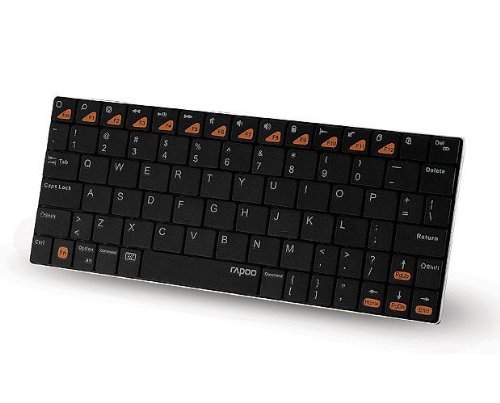
Figura 4.1: Înclinat view of the Rapoo E6500 keyboard, highlighting its slim profile și dispunerea tastelor.
5. Instrucțiuni de utilizare
5.1. Noțiuni de bază de tastare
Once paired, you can use the Rapoo E6500 keyboard like any standard keyboard. Simply open any text input field on your Android device and begin typing.
5.2. Using Multimedia Hotkeys
The Rapoo E6500 features dedicated multimedia hotkeys (F1-F12) that provide quick access to various functions. These functions are typically activated by pressing the Fn simultan cu tasta funcțională dorită.
| Combinație de taste rapide | Funcţie |
|---|---|
| Fn + F1 | Ecranul de pornire |
| Fn + F2 | Caută |
| Fn + F3 | Spate |
| Fn + F4 | Meniu |
| Fn + F5 | Redare/Pauză |
| Fn + F6 | Piesa anterioară |
| Fn + F7 | Următoarea piesă |
| Fn + F8 | Mut |
| Fn + F9 | Reducerea volumului |
| Fn + F10 | Creșterea volumului |
| Fn + F11 | Blocare ecran |
| Fn + F12 | Browser/Web |
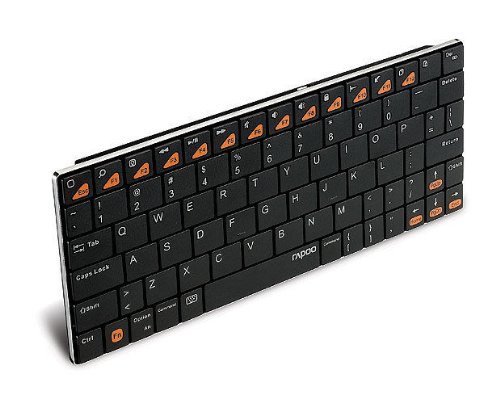
Figura 5.1: lateral view of the Rapoo E6500 keyboard, emphasizing its thin profile.
6. Întreținere și îngrijire
To ensure the longevity and optimal performance of your Rapoo E6500 keyboard, follow these maintenance guidelines:
- curatenie: Folosiți o lavetă moale, uscată și fără scame pentru a șterge suprafața tastaturii. Pentru murdăria persistentă, ștergeți ușor.ampClătiți laveta cu apă sau cu un detergent blând, neabraziv. Evitați umiditatea excesivă.
- Depozitare: Când nu o utilizați pentru perioade lungi de timp, opriți tastatura pentru a conserva bateria. Depozitați-o într-un loc răcoros și uscat, ferit de lumina directă a soarelui și de temperaturi extreme.
- Evitați lichidele: Do not expose the keyboard to liquids. Spills can cause permanent damage.
- Manipulați cu grijă: Evitați să scăpați tastatura sau să o supuneți la impacturi puternice.
7. Depanare
If you encounter issues with your Rapoo E6500 keyboard, please refer to the following common problems and solutions:
| Problemă | Cauza posibila | Soluţie |
|---|---|---|
| Tastatura nu se pornește. | Baterie descărcată sau comutatorul de alimentare este oprit. | Charge the keyboard. Ensure the power switch is in the "ON" position. |
| Tastatura nu se conectează la dispozitiv. | Bluetooth not enabled on device, keyboard not in pairing mode, or already paired with another device. | Ensure Bluetooth is enabled on your Android device. Put the keyboard into pairing mode. Forget the device on your Android device and re-pair. Ensure no other devices are actively connected to the keyboard. |
| Tastele nu răspund sau se tastează greșit. | Low battery, connection issue, or software glitch. | Charge the keyboard. Re-pair the keyboard with your device. Restart your Android device. |
| Multimedia hotkeys not working. | Not pressing the Fn key, or device software incompatibility. | Asigurați-vă că apăsați butonul Fn key simultaneously with the desired function key. Some Android versions or apps may have limited support for certain hotkeys. |
If the problem persists after trying these solutions, please contact Rapoo customer support for further assistance.
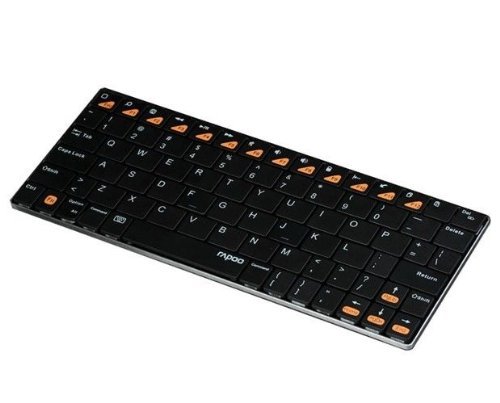
Figure 7.1: Another angled top-down view of the Rapoo E6500 keyboard, showing the full key layout.
8. Specificațiile produsului
| Caracteristică | Detaliu |
|---|---|
| Numărul de model | 14207-ARE6500BK-K07 |
| Conectivitate | Bluetooth |
| Compatibilitatea sistemelor de operare | Android |
| Culoare | Negru |
| Dimensiuni (Lxlxh) | 21.1 x 9.7 x 1.5 cm (aprox. 8.3 x 3.8 x 0.6 inci) |
| Greutatea articolului | 220 g (aprox. 0.48 lbs) |
| Caracteristica specială | Wireless, Multi-Media Keys |
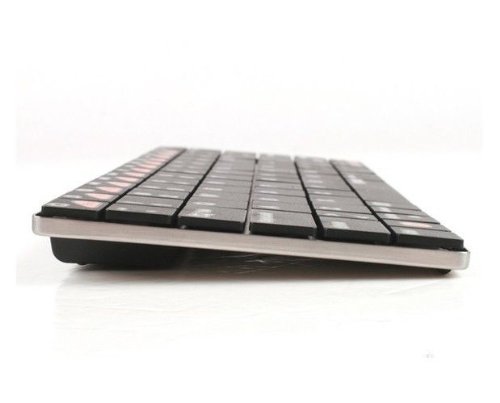
Figura 8.1: Față view of the Rapoo E6500 keyboard, showing its slim profile din față.
9. Garanție și asistență
Rapoo products are designed and manufactured to the highest quality standards. For information regarding warranty coverage, terms, and conditions, please refer to the warranty card included with your product or visit the official Rapoo website-ul.
For technical support, troubleshooting assistance beyond this manual, or to inquire about replacement parts, please contact Rapoo customer service through their official channels. Details can typically be found on the product packaging or the Rapoo website-ul.
Important: Păstrați bonul fiscal ca dovadă a achiziției pentru reclamațiile în garanție.


