1. Introducere
This manual provides essential instructions for the proper setup, operation, and maintenance of your Argox AS-8250U Barcode Scanner. The AS-8250U is a long-range scanner designed for various applications, including retail, inventory management, invoicing, and factory receiving. It offers fast and accurate reading of PDF codes, Code 16K, and all standard linear symbologies.
2. Informații de siguranță
- Nu expuneți scanerul la temperaturi extreme, umiditate sau lumină directă a soarelui.
- Evitați să scăpați scanerul sau să îl supuneți la impacturi puternice.
- Nu încercați să dezasamblați sau să modificați scanerul. Aceasta va anula garanția.
- Keep the scanning window clean to ensure optimal performance.
- Use only the provided or recommended power source and cables.
3. Conținutul pachetului
Vă rugăm să bifați căsuța pentru următoarele elemente:
- Argox AS-8250U Barcode Scanner
- USB Interface Cable (or other specified interface cable)
- Manual de utilizare (acest document)
4. Produs terminatview
The Argox AS-8250U is a handheld barcode scanner designed for ergonomic use and efficient data capture.
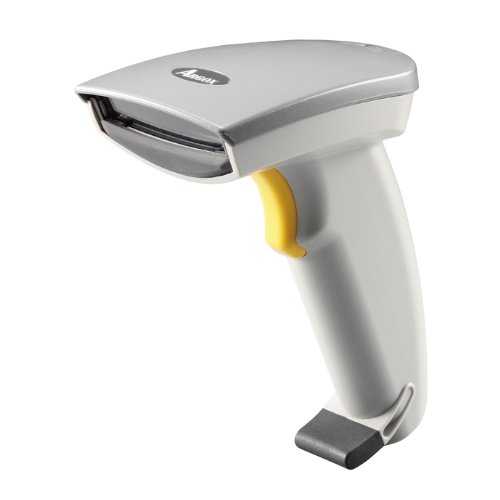
Figura 1: Partea frontală view of the Argox AS-8250U Barcode Scanner. This image shows the scanner's ergonomic design, scanning window, and trigger button.
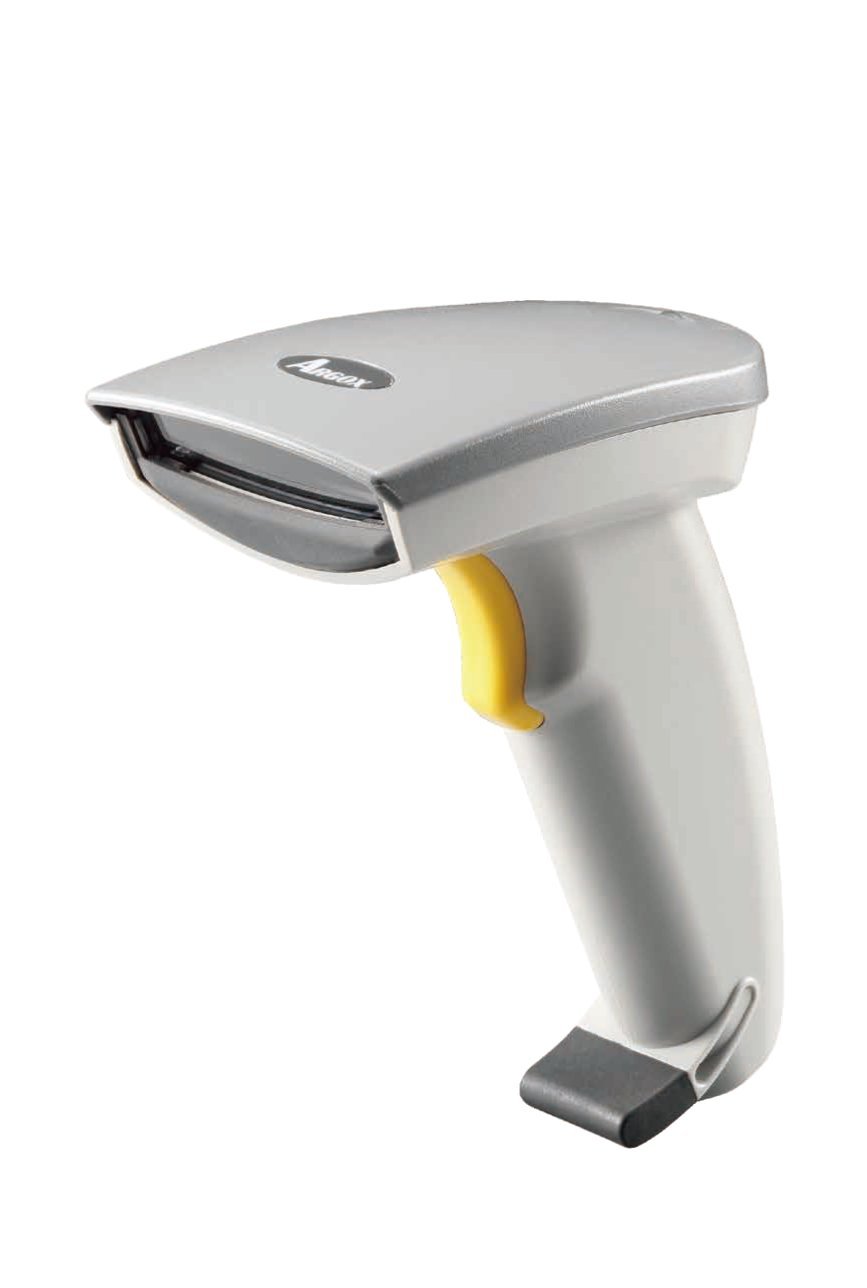
Figura 2: Înclinat view of the Argox AS-8250U Barcode Scanner, highlighting its compact form factor and the Argox logo.
Componente cheie:
- Fereastra de scanare: Emits and receives the laser beam for barcode reading.
- Buton de declanșare: Activează procesul de scanare.
- Indicator luminos: Provides feedback on scanning status (e.g., successful read).
- Interface Port: Connects the scanner to the host device via USB, RS-232, or Keyboard Wedge (KBW).
5. Configurare
5.1 Conectarea scanerului
- Identify Interface: Determine the interface type required by your host system (USB, RS-232, or Keyboard Wedge). The AS-8250U supports all popular interfaces.
- Cablu de conectare: Plug one end of the interface cable into the scanner's interface port.
- Conectare la gazdă: Plug the other end of the interface cable into the corresponding port on your computer or POS system.
- USB: Connect to an available USB port. The scanner is typically plug-and-play, and Windows will automatically install necessary drivers.
- RS-232: Connect to a serial port. You may need to configure serial port settings on your host system.
- Keyboard Wedge (KBW): Connect between your keyboard and the computer's keyboard port.
- Pornire: Once connected, the scanner should power on automatically. The indicator light may illuminate briefly.
5.2 Instalarea driverului (pentru USB)
For USB connections, the Argox AS-8250U is designed for plug-and-play functionality with Windows operating systems. Typically, no manual driver installation is required. Upon connecting the scanner to a USB port, your operating system should automatically detect and install the necessary drivers. If prompted, follow the on-screen instructions. A Windows utility is included for advanced configuration if needed.
6. Utilizarea scanerului
6.1 Procedura de bază de scanare
- Prepare for Scan: Ensure the scanner is connected and powered on. Open an application on your host system where you want the barcode data to appear (e.g., a text editor, spreadsheet, or POS software).
- Aim the Scanner: Point the scanning window of the AS-8250U at the barcode you wish to read. The optimal scanning distance ranges from contact up to 250mm, depending on the barcode density.
- Apăsați trăgaciul: Press and hold the trigger button. A red laser line will emit from the scanning window.
- Scan the Barcode: Position the laser line across the entire barcode. Once a successful read occurs, the scanner will typically emit an audible beep and/or the indicator light will flash. The barcode data will then be transmitted to your host system.
- Eliberare declanșator: Eliberați butonul de declanșare după o scanare reușită.
6.2 Simbologii de coduri de bare acceptate
The AS-8250U is capable of reading a wide range of barcode types, including:
- PDF codes
- Cod 16K
- All standard linear (1D) symbologies (e.g., UPC/EAN/JAN, Code 39, Code 128, Interleaved 2 of 5, Codabar, etc.)
7. Întreținere
7.1 Curățarea scanerului
- Fereastra de scanare: Utilizați o cârpă moale, fără scame dampened with a mild, non-abrasive cleaner (e.g., glass cleaner) to gently wipe the scanning window. Avoid harsh chemicals or abrasive materials that could scratch the surface.
- Exterior Casing: Ștergeți exteriorul scanerului cu o lavetă moale și delicată.amp cloth. Do not allow liquids to enter the scanner's internal components.
- Cabluri: Inspect cables regularly for any signs of damage.
7.2 Depozitare
When not in use, store the scanner in a clean, dry environment, away from direct sunlight and extreme temperatures. Protect it from dust and physical damage.
8. Depanare
| Problemă | Cauza posibila | Soluţie |
|---|---|---|
| Scanerul nu pornește. | Cable not properly connected or damaged. | Check cable connections at both the scanner and the host device. Try a different USB port or cable if available. |
| Scanerul nu citește coduri de bare. |
|
|
| Barcode data is incorrect or incomplete. |
|
|
| Nicio dată nu a fost transmisă către gazdă. |
|
|
9. Specificații
| Caracteristică | Detaliu |
|---|---|
| Marca | Argox |
| Model | AS-8250U |
| Producător | Argox Information Co., Ltd, Taiwan |
| Tehnologia de conectivitate | USB Cable (also supports RS-232, KBW) |
| Rata de scanare | 200 scanări pe secundă |
| Interval de lucru | Contact to 250mm on medium density barcodes |
| Simbolologii acceptate | PDF codes, Code 16K, all standard linear (1D) symbologies |
| Compatibilitatea sistemelor de operare | Windows |
| Dispozitive compatibile | Desktop, Laptop |
| Sursa de alimentare | Electric cu fir |
| Greutatea articolului | 420 g |
| Dimensiuni pachet | 22.8 x 11.8 x 11 cm |
10. Garanție și asistență
For warranty information and technical support, please refer to the warranty card included with your product or visit the official Argox webPăstrați bonul fiscal ca dovadă a achiziției pentru reclamații în garanție.
For further assistance, please contact Argox customer support through their official channels.


