1. Introducere
This manual provides detailed instructions for setting up, operating, and maintaining your Linksys AC1600 Wi-Fi Wireless Dual-Band+ Router (EA6400). This router is designed to deliver high-speed wireless connectivity using the 802.11ac standard, offering enhanced performance for your home network.
2. Conținutul pachetului
Asigurați-vă că toate articolele sunt prezente în pachetul produsului:
- Linksys AC1600 Wi-Fi Wireless Dual-Band+ Router (EA6400)
- Adaptor de alimentare
- Cablu Ethernet
- Ghid de pornire rapidă
- Informații de reglementare fără fir
3. Suprasolicitare fizicăview
Familiarize yourself with the router's physical components and ports.
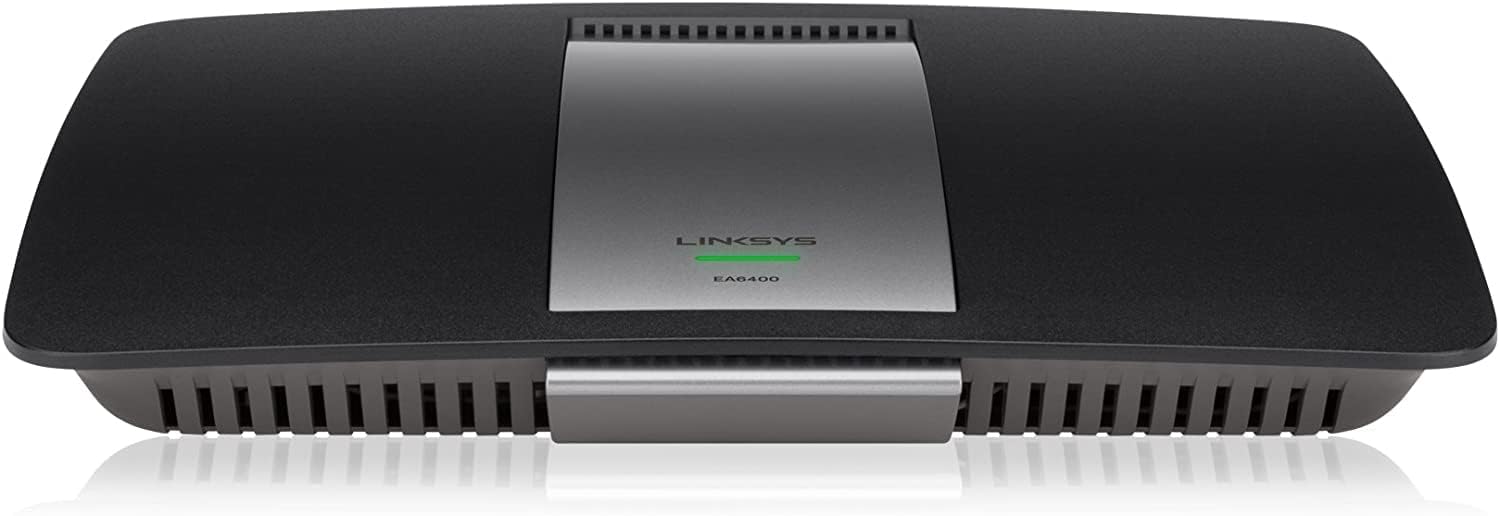
Figura 1: Față view of the Linksys EA6400 Router, showing its sleek black design with a central silver panel and the Linksys logo.

Figura 2: Spate view of the Linksys EA6400 Router, highlighting the various connection ports including Ethernet, USB, and power input.
Rear Panel Ports and Buttons:
- Power Port (12VDC): Conectați aici adaptorul de alimentare inclus.
- Întrerupător: Toggles the router's power on or off.
- Port de internet (galben): Connect an Ethernet cable from your modem to this port.
- Porturile Ethernet 1-4 (albastru): Connect wired devices such as computers, gaming consoles, or smart TVs using Ethernet cables. These are Gigabit Ethernet ports for high-speed wired connections.
- Porturi USB (USB1, USB2): Connect USB storage devices or printers for network sharing.
- Buton de resetare: Apăsați și țineți apăsat timp de câteva secunde pentru a restaura routerul la setările implicite din fabrică.
- Wi-Fi Protected Setup (WPS) Button: Use for easy, secure connection of WPS-compatible devices.
4. Configurare
Follow these steps to set up your Linksys EA6400 Router:
- Despachetați routerul: Scoateți toate componentele din ambalaj.
- Poziționați routerul: Place the router in a central location in your home for optimal Wi-Fi coverage. Avoid placing it near large metal objects or appliances that may cause interference.
- Conectare la modem: Connect one end of the included Ethernet cable to the Internet port (yellow) on the router and the other end to your modem's Ethernet port.
- Conectare alimentare: Plug the power adapter into the router's power port and then into an electrical outlet. Turn on the router using the power switch.
- Așteptați inițializarea: Allow a few minutes for the router to power on and initialize. The indicator light on the front should turn solid white or blue.
- Conectați un dispozitiv: Connect a computer or mobile device to the router's Wi-Fi network. The default Wi-Fi network name (SSID) and password can be found on a label on the bottom of the router or in the Quick Start Guide.
- Executați expertul de configurare: Deschide a web browser on the connected device. The Linksys Smart Wi-Fi setup wizard should automatically launch. Follow the on-screen instructions to configure your network settings, including changing the Wi-Fi name and password. Alternatively, download the Linksys Smart Wi-Fi App for guided setup.
Video 1: Un overview of the Linksys EA6400 router, demonstrating its physical features and connectivity options.
5. Instrucțiuni de utilizare
Wi-Fi dublă bandă:
The EA6400 is a dual-band router, meaning it broadcasts two separate Wi-Fi networks: 2.4 GHz and 5 GHz. The 2.4 GHz band offers wider coverage and better penetration through walls, while the 5 GHz band provides faster speeds and less interference for devices closer to the router.
- Banda de 2.4 GHz: Ideal for older devices, devices further from the router, and general internet browsing.
- Banda de 5 GHz: Best for newer devices, high-bandwidth activities like streaming HD video, online gaming, and large file transfers, especially when closer to the router.
Aplicația Linksys Smart Wi-Fi:
Manage your network from anywhere using the Linksys Smart Wi-Fi App. This app allows you to:
- View dispozitivele conectate.
- Configurați accesul pentru oaspeți.
- Prioritizați dispozitivele pentru performanță optimă.
- Manage parental controls.
- Perform speed tests.
Porturi Gigabit Ethernet:
Utilize the four Gigabit Ethernet ports for wired connections to devices that require maximum speed and stability, such as desktop computers, network-attached storage (NAS) devices, or smart home hubs.
NFC Simple Tap:
For NFC-enabled devices, simply tap the Simple Tap card (included with some models or available via the app) to easily connect to your home network without manually entering credentials.
6. Întreținere
To ensure optimal performance and security for your router:
- Actualizări firmware: Regularly check for and install firmware updates through the Linksys Smart Wi-Fi App or the web interface. Updates often include security patches and performance improvements.
- Plasare: Keep the router in an open area, away from obstructions and other electronic devices that may cause interference.
- Securitate: Use a strong, unique password for your Wi-Fi network and router administration. Enable WPA2/WPA3 encryption for maximum security.
- curatenie: Periodically clean the router's exterior with a soft, dry cloth to prevent dust buildup in ventilation areas.
7. Depanare
If you encounter issues with your router, try the following:
- Fără conexiune internet:
- Verificați toate conexiunile prin cablu dintre modem și router.
- Reporniți modemul și routerul deconectându-le timp de 30 de secunde, apoi conectându-le din nou.
- Verificați dacă furnizorul dvs. de servicii de internet (ISP) nu întâmpină o problemă.tage.
- Viteză Wi-Fi redusă:
- Ensure your devices are connected to the appropriate Wi-Fi band (5 GHz for faster speeds, 2.4 GHz for better range).
- Mută-te mai aproape de router pentru a îmbunătăți puterea semnalului.
- Reduce the number of devices actively using the network, especially for high-bandwidth tasks.
- Verificați actualizările de firmware.
- Nu se poate conecta la Wi-Fi:
- Verificați din nou numele rețelei Wi-Fi (SSID) și parola.
- Încearcă să repornești routerul.
- If using WPS, ensure the device is compatible and the WPS button is pressed correctly.
- Resetare din fabrică: If all else fails, perform a factory reset by pressing and holding the Reset button on the rear panel for approximately 10 seconds. This will erase all custom settings, and you will need to reconfigure the router.
8. Specificații
| Caracteristică | Caietul de sarcini |
|---|---|
| Marca | Linksys |
| Numele modelului | EA6400 |
| Tip fără fir | 802.11a/b/g/n/ac |
| Clasa de bandă de frecvență | Bandă duală (2.4 GHz, 5 GHz) |
| Viteza wireless | AC1600 (up to 1300 Mbps) |
| Porturi Ethernet | 4 x 10/100/1000 Gigabit Ethernet LAN Ports |
| Broadband Port | 1 x 10/100/1000 Gigabit Ethernet WAN Port |
| Porturi USB | 2 x USB Ports (USB1, USB2) |
| Caracteristica specială | WPS, Smart Wi-Fi App Enabled |
| Compatibilitatea sistemelor de operare | Windows, Mac |
| Greutatea articolului | 1.1 lire sterline |
| Dimensiunile produsului | 10.8 x 7.25 x 1.58 inci |
| Culoare | Negru |
| baterii | 1 AAA batteries required (Note: This is an unusual specification for a router and may be a generic data entry error. The router typically operates via AC power.) |
9. Garanție și asistență
Your Linksys EA6400 Router typically comes with a Garanție hardware limitată de 1 an. For specific warranty details, please refer to the documentation included in your package or visit the official Linksys support website-ul.
For technical assistance, troubleshooting, or additional information, please visit the Asistență Linksys Website-ul or use the Linksys Smart Wi-Fi App.


