Introducere
The Logitech G430 7.1 Gaming Headset is designed to provide an immersive audio experience for gaming, movies, and music. Featuring 7.1 Dolby Headset surround sound and DTS Headphone:X, comfortable ear cups, and a noise-canceling microphone, this wired headset is compatible with various platforms.
Ce este în cutie
- Logitech G430 Gaming Headset
- Adaptor audio USB
- Manual de utilizare
Produs terminatview
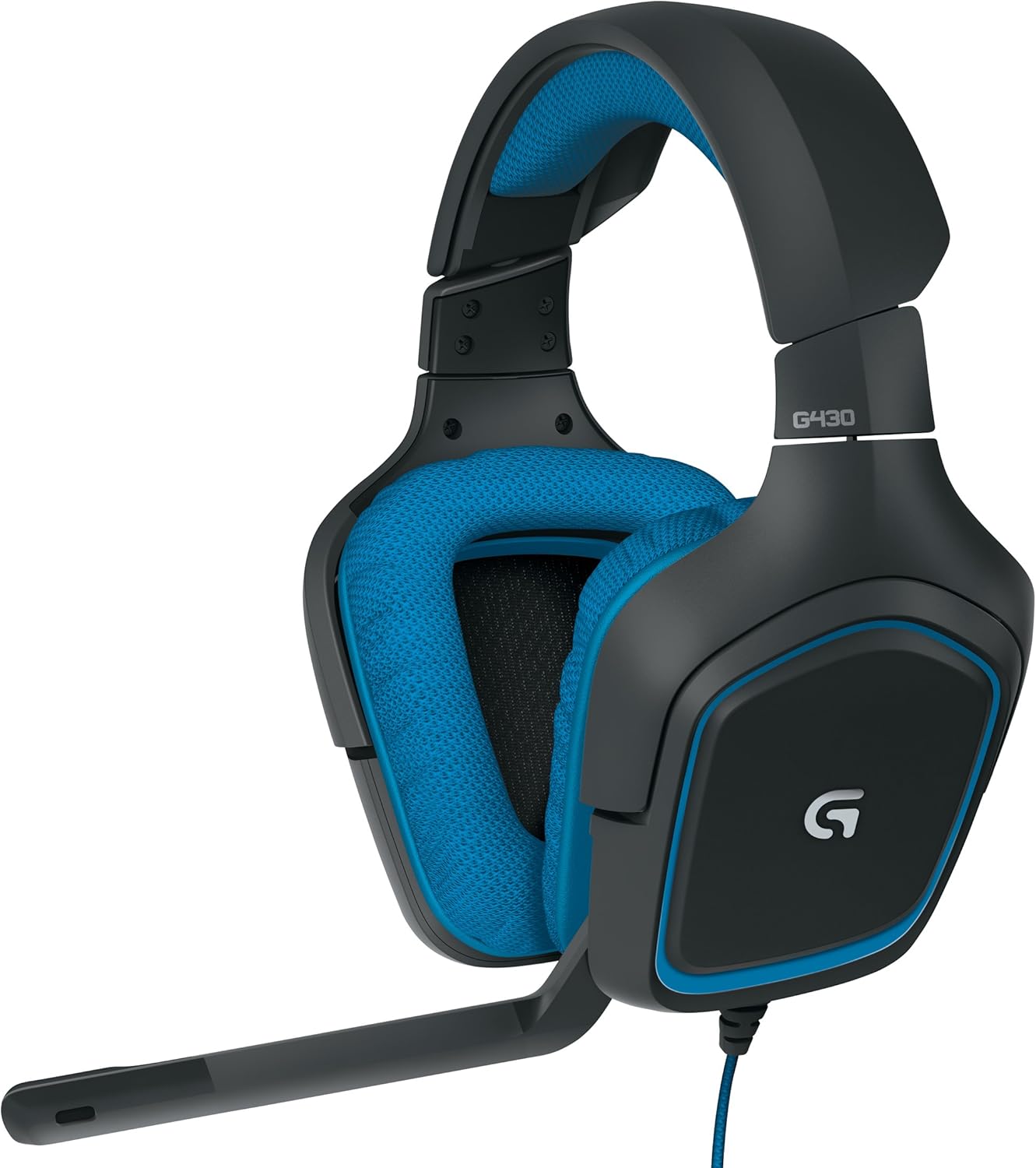


Înființat
Cerințe de sistem
- Windows 7 or later (Windows 10, Windows 8, Windows 7, Windows Vista)
- Nintendo Switch
- PS4 or Xbox One
- USB port or 3.5mm headphone and microphone ports
- Internet connection for Logitech G HUB (optional)
Conectarea setului cu cască
- For PC (using USB Audio Adapter):
a. Connect the headset's 3.5mm headphone and microphone jacks to the corresponding ports on the USB Audio Adapter.
b. Plug the USB Audio Adapter into an available USB port on your computer. - For Consoles (PS4, Xbox One, Nintendo Switch) or Mobile Devices (using 3.5mm jack):
a. Connect the headset's 3.5mm combined audio jack directly into the controller or device's 3.5mm port. (Note: The USB Audio Adapter is not typically used for these connections unless specified by the console/device manufacturer for specific features.)
Instalare software (opțional)
For full customization and advanced features, including 7.1 surround sound, download and install the Logitech G HUB software from the official Logitech website. An internet connection is required for software installation and updates.
Instrucțiuni de operare
Ajustarea potrivirii
- Adjust the headband to ensure a comfortable and secure fit on your head.
- The earcups feature a 90-degree swivel for personalized fit and comfort.
Utilizarea microfonului
- The headset features a folding, noise-canceling boom mic.
- To use, rotate the microphone boom down towards your mouth.
- To mute, flip the microphone boom up and out of the way, or use the in-line mute switch.
On-Cable Controls
- Apelare volum: Rotate the dial up or down to adjust the audio volume.
- Comutator Mute: Glisați comutatorul pentru a dezactiva sau activa microfonul.
Surround Sound Activation
When connected via the USB Audio Adapter to a compatible PC, the 7.1 Dolby Headset surround sound and DTS Headphone:X features can be enabled and customized through the Logitech G HUB software for an immersive 360-degree sound field.
Video: This video demonstrates the comfort and features of the Logitech G430 headset, including its adjustable microphone and in-line controls. It also discusses the sound quality and the long cable, providing a user's perspective on its functionality for gaming and streaming.
Video: Acest videoclip oferă un overview of the Logitech G430 Gaming Headset, highlighting its design, comfort, and key features for gamers. It offers insights into what users should know about the product.
Întreţinere
- curatenie: Folosiți un moale, damp cloth to clean the earcups and headband. Avoid harsh chemicals or abrasive materials. The cloth earcups are designed for easy removal and cleaning.
- Depozitare: Store the headset in a dry, cool place away from direct sunlight and extreme temperatures to prolong its lifespan.
- Îngrijirea cablului: Evitați curburile bruște sau tragerea excesivă a cablului pentru a preveni deteriorarea.
Depanare
- Fără sunet/Microfonul nu funcționează:
a. Ensure all cables are securely connected to the correct ports.
b. Check the in-line volume dial and mute switch to ensure they are not set to minimum volume or muted.
c. Verify audio settings in your operating system or game. - Distorsiunea sunetului:
a. Ensure the headset is properly connected.
b. On Windows, check audio enhancement settings (e.g., 'Speaker Fill') as some users report issues when surround sound and stereo audio play simultaneously. Adjusting these settings may resolve distortion. - Probleme de confort:
a. Adjust the headband and earcup swivel for optimal fit.
b. Take regular breaks during extended use to prevent discomfort.
Specificații
| Numele modelului | G430 |
| Tehnologia de conectivitate | Cablat |
| Controlul zgomotului | Anularea activă a zgomotului |
| Mufă pentru căști | 3.5 mm Jack |
| Impedanta | 32 ohmi |
| Sensibilitate | 90 dB |
| Raspuns in frecventa | 20Hz - 20KHz (Headphone), 50 - 20KHz (Microphone) |
| Microphone Pickup Pattern | Cardioid (unidirecțional) |
| Lungimea cablului | 10.5 ft |
| Greutatea articolului | 8.1 uncii (229 grame) |
| Dispozitive compatibile | Windows Computers, Gaming Consoles (PS4, Xbox One, Nintendo Switch), Mobile Devices |
Garanție și suport
Logitech products are designed for reliability and performance. For warranty information, technical support, and additional resources, please visit the official Logitech support website. You can find detailed FAQs, driver downloads, and contact information for customer service.


