Introducere
This manual provides essential information for the proper setup, operation, and maintenance of your Hitachi Touro Desk Dx3 2TB External Hard Drive. Please read these instructions carefully before using the device to ensure optimal performance and longevity.
Conținutul pachetului
Verificați dacă toate articolele sunt prezente în colet:
- Hitachi Touro Desk Dx3 2TB External Hard Drive
- Cablu de date USB 3.0
- AC Power Adapter (EURO plug)
- Ghid de pornire rapidă (dacă este inclus)
Produs terminatview
The Hitachi Touro Desk Dx3 is a 2TB external desktop hard drive designed for reliable data storage and backup. It features a stylish, stackable design and SuperSpeed USB 3.0 connectivity for fast data transfers, while also being backwards compatible with USB 2.0.

Figura 1: Faţă view of the Hitachi Touro Desk Dx3. This image displays the sleek, black, vertically ribbed casing of the external hard drive. A small, rectangular indicator light is visible towards the bottom center of the front panel, signifying power or activity status.
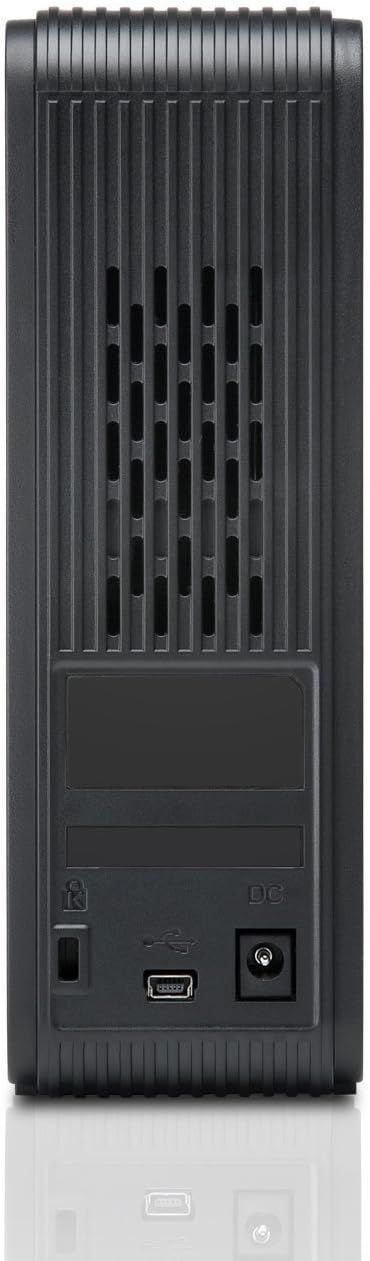
Figura 2: Spate view of the Hitachi Touro Desk Dx3. This image shows the rear panel of the hard drive, which includes the DC power input port on the right, the USB 3.0 data port in the center, and a security lock slot on the left. Ventilation grilles are visible across the top portion of the back panel.
Înființat
Follow these steps to set up your external hard drive:
- Conectați adaptorul de alimentare: Plug the AC power adapter into the DC power input port on the back of the Touro Desk Dx3. Then, plug the other end of the power adapter into a wall outlet. The drive will power on automatically.
- Conectați cablul USB: Connect one end of the supplied USB 3.0 data cable to the USB port on the back of the Touro Desk Dx3. Connect the other end of the USB cable to an available USB port on your computer. For optimal performance, use a USB 3.0 port.
- Recunoașterea sistemului de operare: Your computer's operating system (Windows or macOS) should automatically detect and install the necessary drivers for the hard drive. The drive will appear as a new storage device in 'My Computer' (Windows) or 'Finder' (macOS).
- Initial Formatting (Optional): The drive comes pre-formatted. If you wish to reformat the drive or partition it, refer to your operating system's disk management tools. Notă: Reformatarea va șterge toate datele de pe unitate.
Funcționează
Once connected, your Touro Desk Dx3 is ready for use.
- Transfer de date: Trageți și plasați files or folders to and from the Touro Desk Dx3 icon on your desktop or in your file explorer. The USB 3.0 interface allows for rapid data transfer speeds.
- Backup: Use your operating system's built-in backup utilities or third-party software to create backups of your important files on the external drive.
- Îndepărtare sigură: Always safely eject the hard drive before disconnecting it from your computer. In Windows, right-click the drive icon in the system tray and select 'Eject'. In macOS, drag the drive icon to the Trash or click the Eject button next to the drive in Finder. This prevents data corruption.
Întreţinere
Proper maintenance ensures the longevity of your device.
- curatenie: Folosiți o lavetă moale, uscată și fără scame pentru a curăța exteriorul unității. Nu utilizați agenți de curățare lichizi sau aerosoli.
- Conditii de mediu: Store and operate the drive in a cool, dry environment, away from direct sunlight, extreme temperatures, and high humidity. Avoid placing the drive near strong magnetic fields.
- Manipulare fizică: Handle the drive with care. Avoid dropping it or subjecting it to strong impacts, as this can damage the internal components.
Depanare
Dacă întâmpinați probleme, consultați următoarele soluții comune:
- Unitate nerecunoscută:
- Asigurați-vă că adaptorul de alimentare este conectat corect atât la unitate, cât și la o priză funcțională.
- Verify the USB cable is firmly connected to both the drive and your computer. Try a different USB port or cable.
- Reporniți computerul.
- Check Disk Management (Windows) or Disk Utility (macOS) to see if the drive is detected but not assigned a drive letter or mounted.
- Viteze mici de transfer:
- Ensure you are connected to a USB 3.0 port on your computer for SuperSpeed performance. USB 2.0 ports will operate at slower speeds.
- Evitați transferul multor files simultan; mari fileTransferul s este mai eficient.
- Close other applications that might be using system resources or the USB bus.
- Lumina de deplasare nu este aprinsă:
- Check the power adapter connection to the drive and the wall outlet.
- Încercați o priză diferită.
Specificații
| Capacitate de stocare digitală | 2 TB |
| Interfață hard disk | USB 3.0 |
| Tehnologia de conectivitate | USB |
| Marca | Hitachi |
| Factor de formă a hard diskului | 3.5 inchi |
| Dispozitive compatibile | Calculatoare desktop |
| Tip de instalare | Blat de masă |
| Culoare | Negru |
Informații despre garanție
This product is covered by a limited warranty. For detailed information regarding warranty terms, conditions, and duration, please refer to the warranty card included in your product packaging or visit the official Hitachi support webPăstrați dovada achiziției pentru reclamații în garanție.
Asistență pentru clienți
For further assistance, technical support, or to inquire about service, please visit the official Hitachi support website-ul web sau contactați departamentul de asistență pentru clienți. Informațiile de contact pot fi găsite de obicei pe site-ul producătorului. website-ul sau în documentația produsului.


