
1. Introducere
The SABLUTE K21Pro is a large print, backlit, wired USB keyboard designed for enhanced readability and ergonomic comfort. It features oversized characters, 7-color adjustable backlighting, an integrated wrist rest, and a convenient phone/tablet holder. This manual provides instructions for setup, operation, maintenance, and troubleshooting to ensure optimal use of your keyboard.
2. Conținutul pachetului
- SABLUTE K21Pro Large Print Backlit Wired USB Keyboard
- Suport integrat pentru încheietura mâinii
- Suport pentru palme integrat
3. Configurare
To set up your SABLUTE K21Pro keyboard, follow these simple steps:
- Despachetați tastatura din ambalaj.
- Locate an available USB-A port on your computer (desktop, laptop, or Mac).
- Plug the USB connector of the keyboard into the USB-A port.
- Your operating system (Windows, macOS, etc.) should automatically detect and install the necessary drivers. No additional software installation is typically required.
- The keyboard is ready for use once detected.

Nota: For optimal performance, ensure the USB cable is securely connected.
4. Caracteristici cheie și funcționare
4.1 Large Print Keys
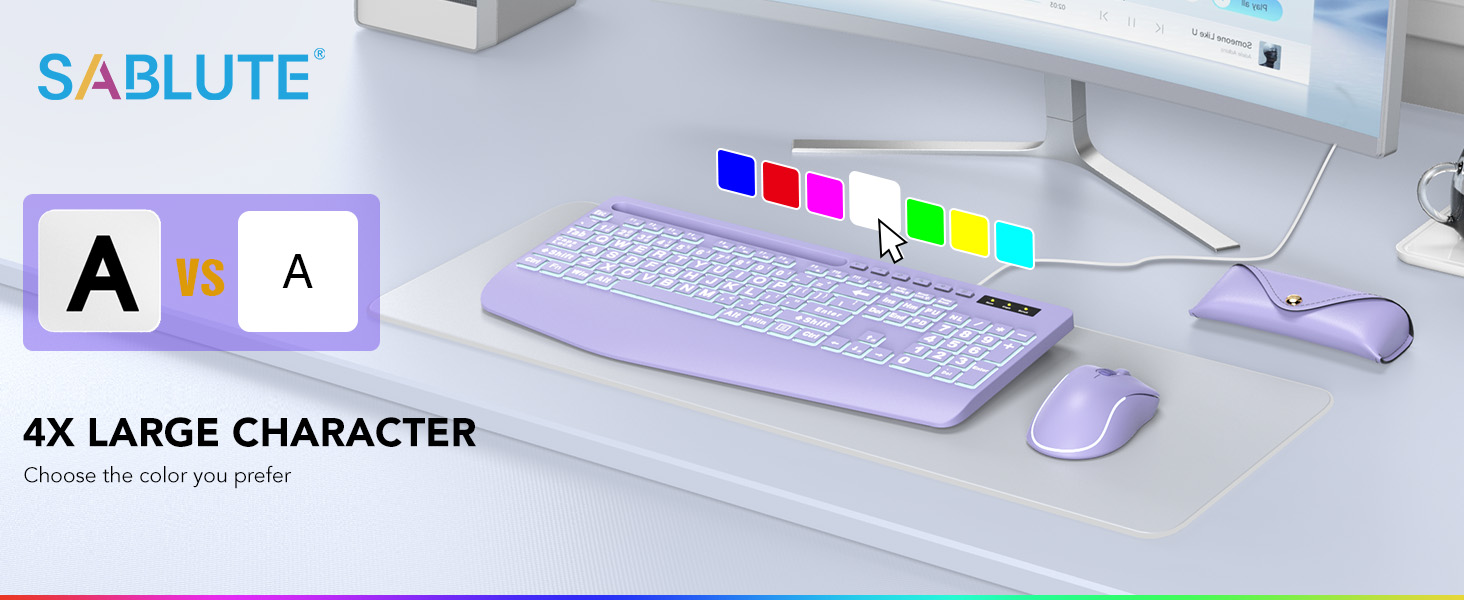
The SABLUTE K21Pro features oversized characters on each key, making them significantly easier to read compared to standard keyboards. This design helps reduce eye strain and improves typing accuracy, especially for users with visual impairments, seniors, or those working in low-light conditions.
4.2 7-Color Backlight
The keyboard includes a vibrant 7-color backlight system with adjustable brightness and multiple modes. Use the Function (Fn) key in combination with other keys to control the backlighting:
- Toggle Backlight Color: Presa Fn + 1 pentru a parcurge cele 7 culori de iluminare de fundal disponibile.
- Keep One Backlight Color: Presa Fn + 2 repeatedly until your desired single color is displayed. The backlight will remain this color.
- Backlighting While Typing: Presa Fn + 3 to activate a mode where keys light up as you type.
- Backlight Color Changes Back and Forth: Presa Fn + 4 to enable a dynamic mode where backlight colors transition.
- Reglați luminozitatea: Presa Fn + ↑ (Săgeată sus) pentru a crește luminozitatea fundalului și Fn + ↓ (Săgeată în jos) pentru a reduce luminozitatea. Există 8 niveluri de luminozitate.


4.3 Ergonomic Design with Wrist Rest
The keyboard is designed with an integrated palm and wrist rest to provide support and reduce strain during extended typing sessions. This ergonomic feature helps maintain a neutral wrist position, contributing to comfort and potentially preventing discomfort.

4.4 Integrated Phone/Tablet Holder
A dedicated slot at the top of the keyboard serves as a convenient holder for your smartphone or tablet. This allows you to keep your device upright and visible while working, facilitating multitasking such as watching videos, video conferencing, or reading documents.

4.5 taste multimedia
The keyboard includes standard function keys (F1-F12) which, when combined with the Fn key, can activate various multimedia and system controls. Refer to your operating system's documentation for specific functions associated with these keys.
5. Întreținere
Proper care and maintenance will extend the lifespan of your keyboard:
- curatenie: Use a soft, dry, lint-free cloth to wipe the surface of the keyboard. For deeper cleaning, a slightly damp Se poate folosi o lavetă cu săpun delicat, asigurându-vă că nu pătrunde lichid în comutatoarele cu cheie sau în componentele interne.
- Îndepărtarea prafului: Folosește aer comprimat pentru a îndepărta praful și resturile dintre taste.
- Evitați lichidele: Nu vărsați lichide pe tastatură. Dacă se produce o vărsare, deconectați imediat tastatura de la computer și lăsați-o să se usuce complet înainte de a o reconecta.
- Depozitare: Store the keyboard in a clean, dry environment away from extreme temperatures.
6. Depanare
If you encounter issues with your SABLUTE K21Pro keyboard, try the following troubleshooting steps:
- Tastatura nu răspunde:
- Asigurați-vă că ați conectat corect cablul USB atât la tastatură, cât și la portul USB al computerului.
- Încearcă să conectezi tastatura la un alt port USB al computerului.
- Reporniți computerul.
- Testați tastatura pe un alt computer pentru a determina dacă problema este cu tastatura sau cu sistemul dumneavoastră.
- Backlight Not Working or Not Changing:
- Ensure the backlight is turned on. Use Fn + ↑ (Săgeată sus) pentru a crește luminozitatea.
- Comutați prin modurile de iluminare din spate folosind Fn + 1, Fn + 2, Fn + 3, și Fn + 4 pentru a vedea dacă un alt mod activează luminile.
- Verify that the keyboard is receiving power (e.g., if other keys are functioning).
- Specific Keys Not Working or Registering Incorrectly:
- Check for any physical obstructions or debris under the affected key. Use compressed air to clear.
- If multiple keys are affected, try the general troubleshooting steps for
Ask a question about this manual
Ask about setup, troubleshooting, compatibility, parts, safety, or missing instructions. Manuals+ will review the question and use this page’s manual context to help answer it.