
1. Introducere
The TP-Link UB600 is a compact Bluetooth 6.0 USB adapter designed for PCs. It enhances connection security and stability compared to previous Bluetooth generations, providing reliable wireless connectivity for various Bluetooth-enabled devices. Its ultra-small nano design allows it to remain discreetly plugged into a USB port, making it ideal for mobile use or permanent connection.
This adapter supports Windows 11, 10, 8.1, and 7. For Windows 11, 10, and 8.1, it offers Plug & Play functionality. For Windows 7, driver installation is required.
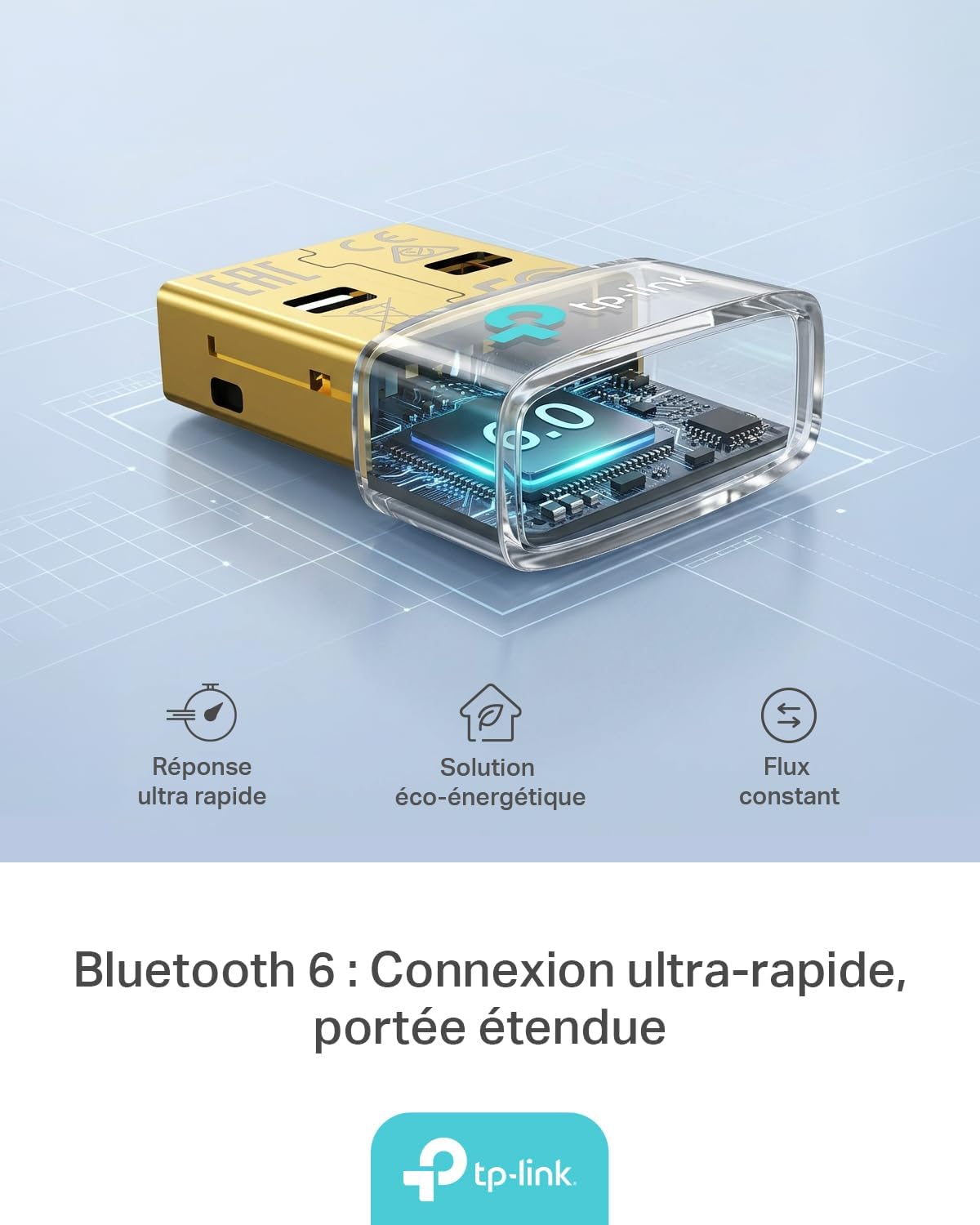
Figure 1: TP-Link UB600 Bluetooth 6.0 USB Adapter showcasing its key features: ultra-fast response, energy-saving solution, and constant data flow.
2. Instrucțiuni de configurare
2.1 Cerințe de sistem
- Operating System: Windows 11, Windows 10, Windows 8.1, Windows 7.
- Port USB disponibil.
2.2 Instalare
- Introduceți adaptorul: Plug the TP-Link UB600 Bluetooth USB adapter into an available USB port on your computer.

Figure 2: The UB600 adapter discreetly plugged into a laptop's USB port, demonstrating its compact design.
- Instalare driver:
- For Windows 11, 10, 8.1: The adapter is Plug & Play. Your operating system should automatically detect and install the necessary drivers. No manual installation is typically required.
- Pentru Windows 7: Driver installation is required. Please visit the official TP-Link website (www.tp-link.com) to download the latest drivers for the UB600 model. Follow the on-screen instructions to complete the installation.

Figure 3: Visual representation of the UB600's compatibility with different Windows versions and various Bluetooth peripherals like smartphones, headphones, controllers, and keyboards.
- Verificare: After installation, check your computer's Device Manager to ensure the Bluetooth adapter is recognized and functioning correctly.
3. Instrucțiuni de utilizare
3.1 Împerecherea dispozitivelor Bluetooth
Once the UB600 adapter is installed, you can pair it with your Bluetooth-enabled devices:
- Activați Bluetooth: Ensure Bluetooth is enabled on your computer. You can usually find this in the Windows Settings (Settings > Devices > Bluetooth & other devices).
- Puneți dispozitivul în modul de asociere: Place your Bluetooth device (e.g., headphones, mouse, keyboard) into pairing mode. Refer to your device's manual for specific instructions.
- Adăugați dispozitiv: Pe computer, faceți clic pe „Adăugați Bluetooth sau alt dispozitiv” și selectați „Bluetooth”.
- Selecteaza dispozitivul: Computerul va scana dispozitivele Bluetooth din apropiere. Selectați dispozitivul din listă și urmați instrucțiunile de pe ecran pentru a finaliza procesul de asociere.
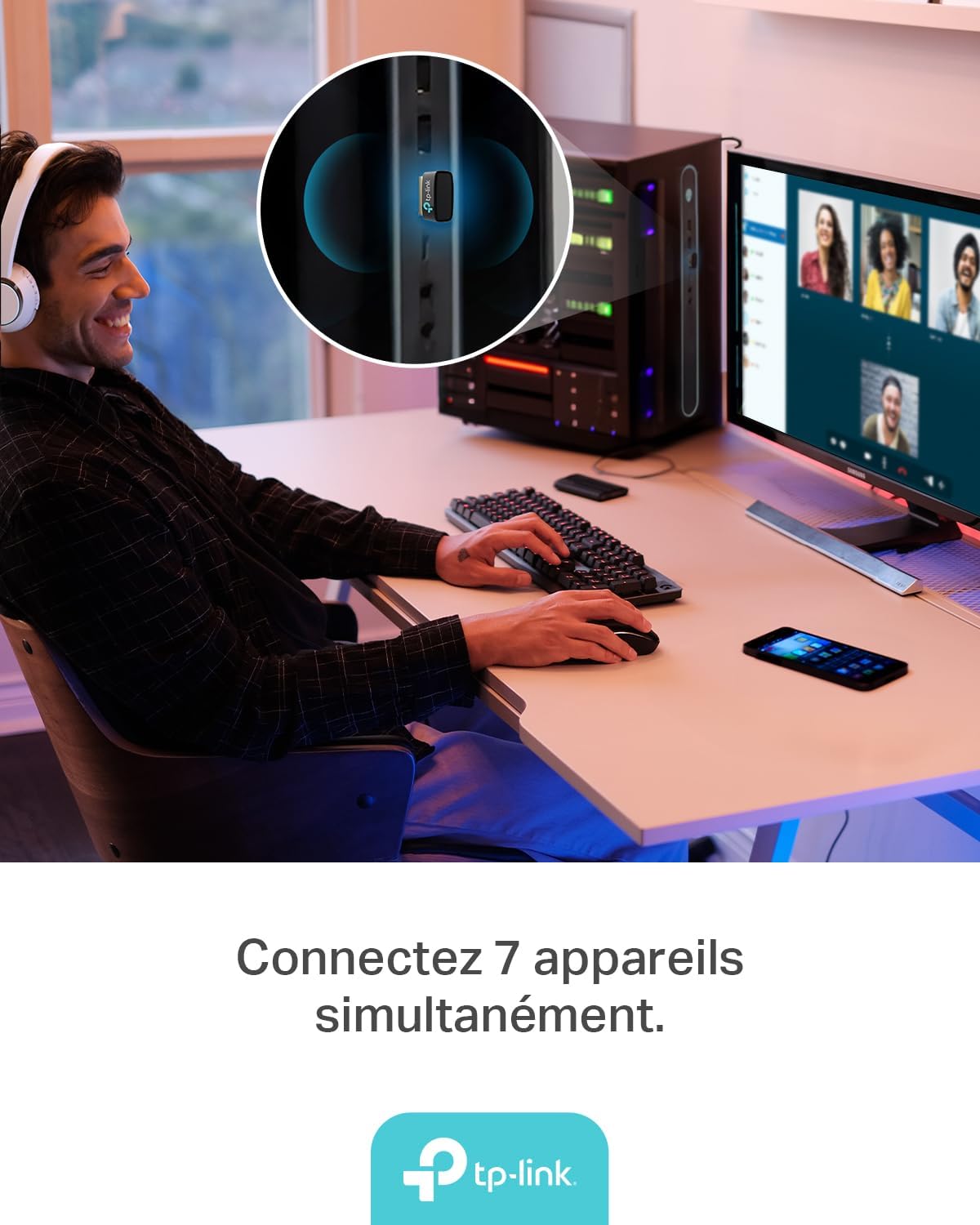
Figure 4: The UB600 adapter allows simultaneous connection of up to 7 Bluetooth devices, enhancing productivity and convenience.
3.2 Bluetooth 6.0 Advantages
The UB600 utilizes Bluetooth 6.0 technology, offering several improvements:
- Securitate îmbunătățită: Provides improved security features for your wireless connections.
- Stabilitate sporită: Offers a more stable and reliable connection compared to older Bluetooth versions.
- Faster Speeds (EDR): Supports Enhanced Data Rate (EDR) for quicker data transfer.
- Reduced Power Consumption (BLE): Utilizes Bluetooth Low Energy (BLE) for energy-efficient operation, especially beneficial for battery-powered devices.

Figure 5: The UB600 adapter contributes to daily efficiency with faster speeds (EDR) and reduced power consumption (BLE).
4. Întreținere
The TP-Link UB600 is designed for durability and requires minimal maintenance. To ensure optimal performance and longevity:
- Păstra curat: Curățați periodic exteriorul adaptorului cu o cârpă moale și uscată. Evitați utilizarea de produse de curățare lichide sau solvenți.
- Protejați împotriva daunelor: While compact, avoid subjecting the adapter to physical shocks, extreme temperatures, or moisture.
- Conexiune fermă: Ensure the adapter is securely plugged into the USB port to prevent intermittent connections.
5. Depanare
If you encounter issues with your TP-Link UB600 adapter, consider the following steps:
- Adaptorul nu a fost detectat:
- Încearcă să conectezi adaptorul la un alt port USB.
- Reporniți computerul.
- For Windows 7, ensure drivers are correctly installed from the TP-Link website-ul.
- Nu se pot conecta dispozitivele:
- Ensure Bluetooth is enabled on your computer and the device you are trying to pair.
- Make sure your device is in pairing mode.
- Check if the device is already paired with another computer or adapter.
- Move the device closer to the computer to rule out range issues.
- Conexiune intermitentă:
- Ensure there are no major obstructions between the adapter and the Bluetooth device.
- Avoid placing the adapter near sources of strong electromagnetic interference (e.g., Wi-Fi routers, microwaves).
- Update your computer's operating system and Bluetooth drivers to the latest versions.
Pentru asistență suplimentară, vă rugăm să vizitați pagina oficială de asistență TP-Link. website-ul.
6. Specificații
| Caracteristică | Detaliu |
|---|---|
| Numărul de model | UB600 |
| Interfață | USB |
| Versiune Bluetooth | Bluetooth 6.0 |
| Rata de transfer de date | 2 Mbps |
| Sisteme de operare compatibile | Windows 11, Windows 10, Windows 8.1, Windows 7 |
| Dispozitive compatibile | Computer, Laptop (for connecting mouse, keyboard, headset, smartphone, controller, etc.) |
| Dimensiuni (L x l x H) | 0.68 x 1.89 x 1.48 cm |
| Greutate | 10 grame |
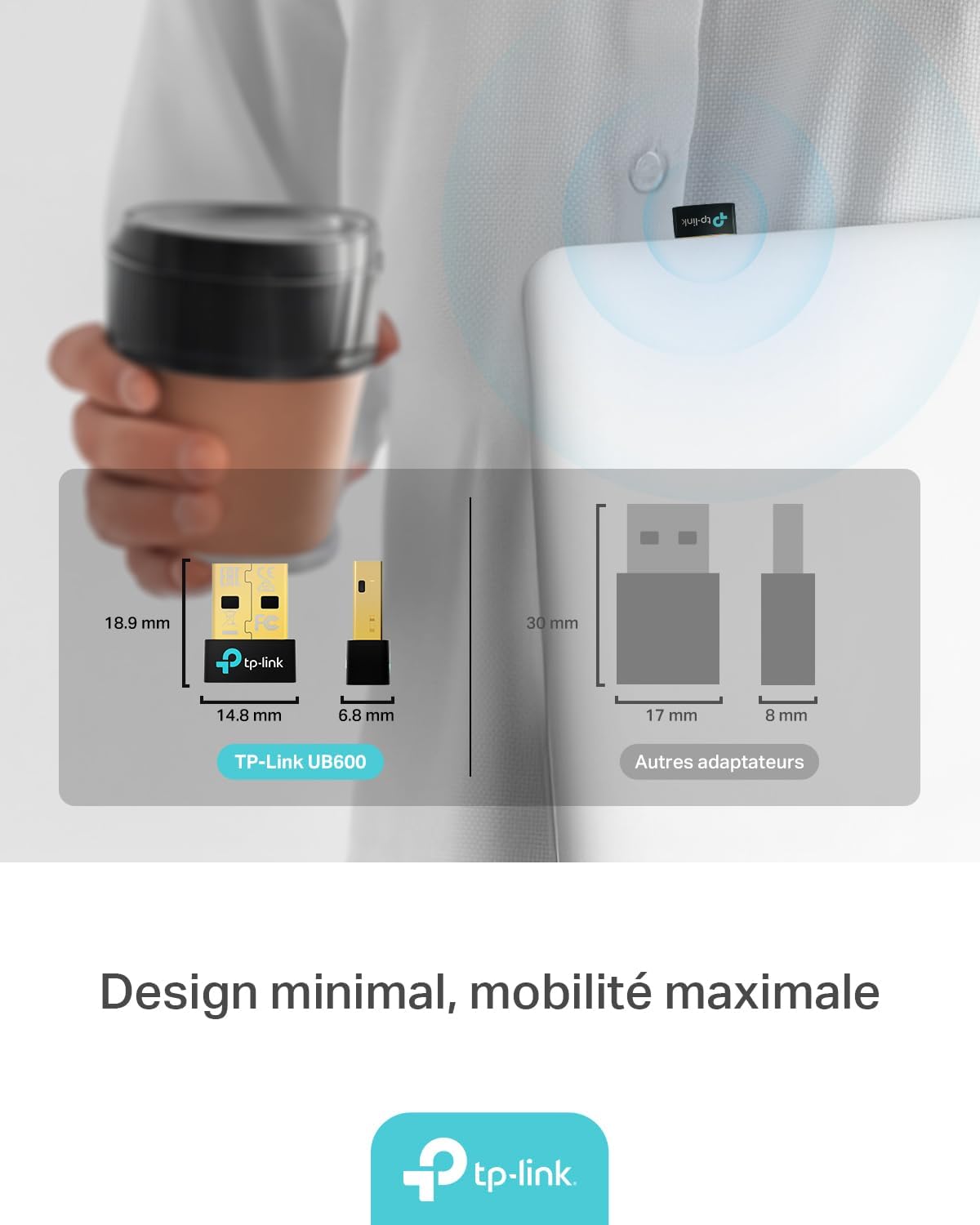
Figure 6: The UB600's minimal design ensures maximum mobility and discreet integration with your device.
7. Informații despre garanție
Pentru informații detaliate despre garanție, consultați cardul de garanție inclus împreună cu produsul sau vizitați site-ul oficial TP-Link. webTermenii și condițiile de garanție pot varia în funcție de regiune.
8. Suport tehnic
If you require technical assistance or have questions regarding your TP-Link UB600 Bluetooth USB Adapter, please visit the TP-Link support website:
You can find FAQs, driver downloads, and contact information for customer service on their website-ul.