
1. Configurare
1.1 Conținutul pachetului
Înainte de asamblare, vă rugăm să verificați dacă toate componentele sunt prezente în ambalaj:
- KTC H24F7 24 Inch 240Hz Monitor
- Baza monitorului
- Suport pentru monitor
- Adaptor de alimentare
- Cablu HDMI
- Ghid de pornire rapidă (QSG)
1.2 Instrucțiuni de asamblare
Urmați acești pași pentru a asambla monitorul:
- Scoateți cu grijă monitorul și toate componentele din ambalaj.
- Attach the monitor stand to the monitor base. Ensure it clicks securely into place.
- Connect the assembled stand and base to the back of the monitor. The stand is designed for easy snap-in installation.
- Așezați monitorul pe o suprafață stabilă, plană.

1.3 Instalarea suportului VESA
The KTC H24F7 monitor supports VESA 100mm x 100mm mounting for alternative stand or wall mount solutions. Ensure you use M4-0.7 x 10mm screws (not included) for secure installation.

1.4 Conectarea la dispozitive
Conectați computerul sau alte dispozitive la monitor folosind cablurile corespunzătoare.
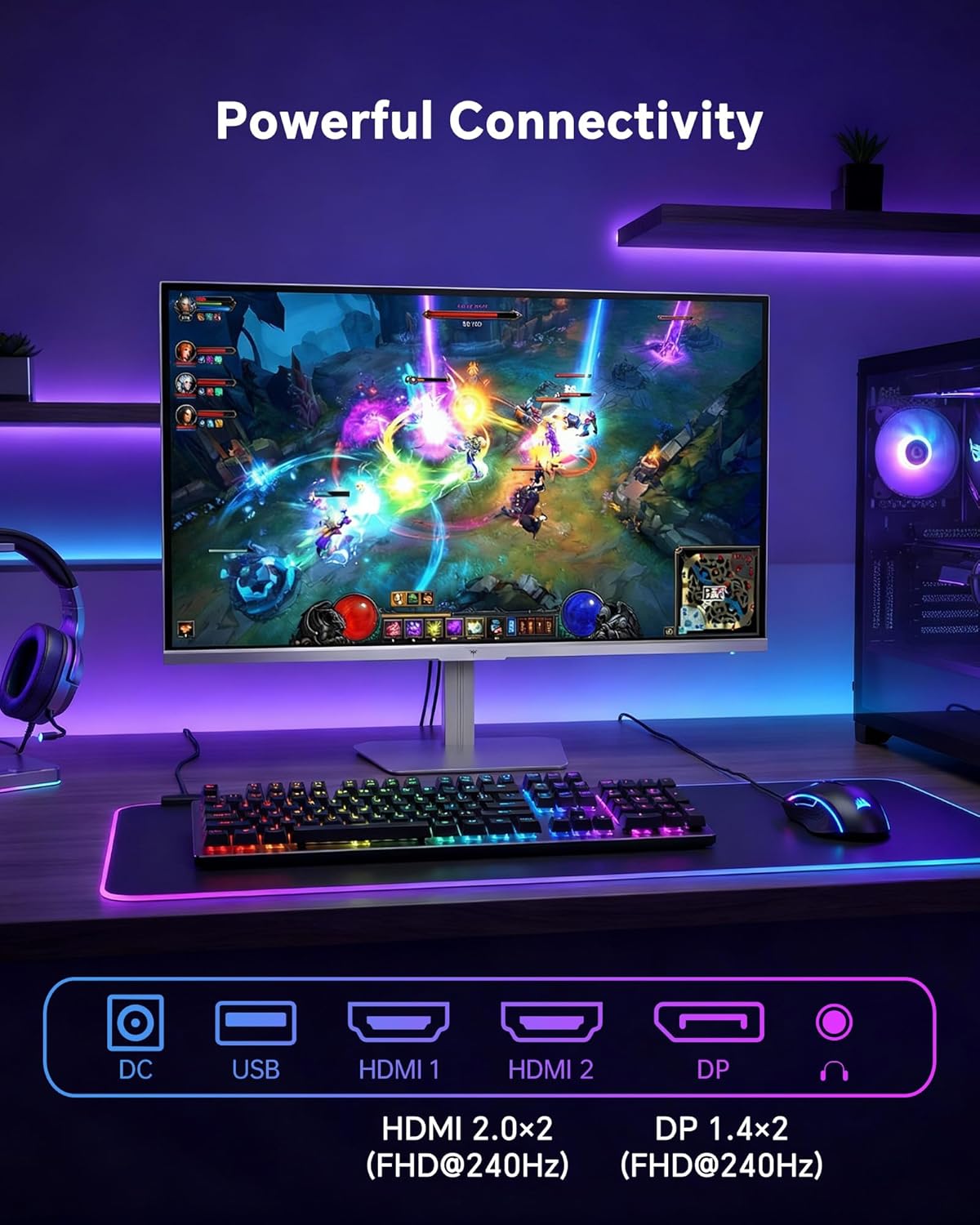
- HDMI: Use an HDMI cable to connect to devices with HDMI output. The monitor has two HDMI 2.0 ports, supporting FHD at 240Hz.
- DisplayPort: Use a DisplayPort cable for devices with DisplayPort output. The monitor has one DisplayPort 1.4, supporting FHD at 240Hz.
- Putere: Connect the power adaptor to the DC input on the monitor and then to a power outlet.
- USB: A USB 2.0 port is available for connecting peripherals.
- Ieșire audio: A 3.5mm audio jack is available for connecting headphones or external speakers.
2. Instrucțiuni de utilizare
2.1 Pornire/Oprire
Apăsați butonul de alimentare situat pe monitor pentru a-l porni sau opri. Indicatorul luminos de alimentare se va aprinde atunci când monitorul este activ.
2.2 Meniul de afișare pe ecran (OSD).
The OSD menu allows you to adjust various monitor settings. Use the control buttons (typically located on the back or bottom of the monitor) to navigate the menu and select options. Refer to the Quick Start Guide for specific button functions.
2.3 Setări de afișare
Optimizați-vă viewexperiență prin ajustarea următoarelor setări:
- Rata de reîmprospătare: The monitor supports a 240Hz refresh rate for smooth motion. Ensure your graphics card settings are configured to utilize this rate.

- Sincronizare adaptivă: This technology synchronizes the monitor's refresh rate with your graphics card's frame rate to eliminate screen tearing and stuttering. Enable Adaptive Sync in the OSD menu and ensure it is also enabled in your graphics card control panel (FreeSync/G-Sync compatible).

- HDR 400: High Dynamic Range 400 provides enhanced contrast and color accuracy, delivering brighter highlights and deeper shadows. Activate HDR in the OSD menu and your operating system display settings for compatible content.

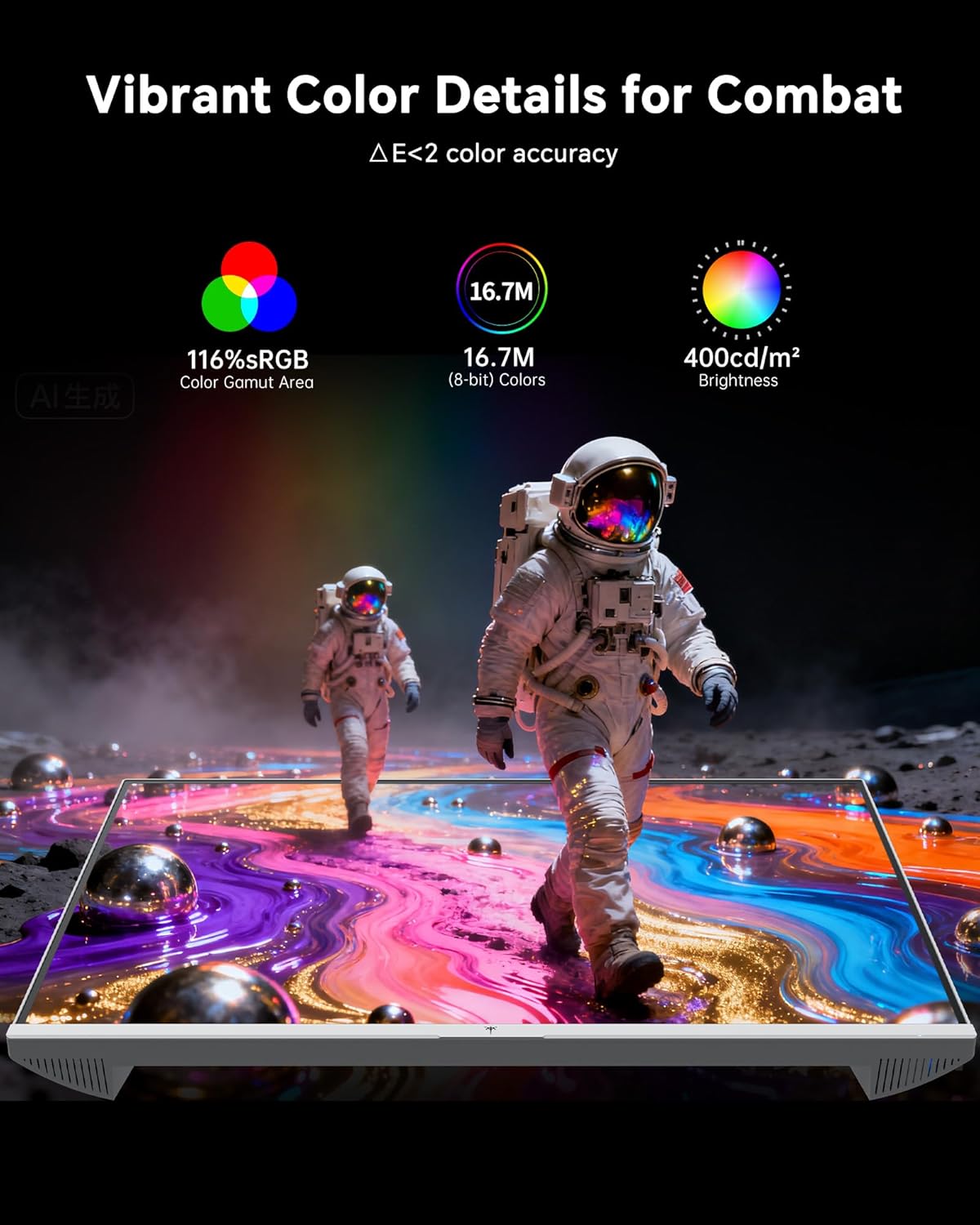
- Setări de culoare: The monitor offers 116% sRGB color gamut and 16.7 million colors. Adjust brightness (up to 400 cd/m²) and color temperature through the OSD menu to suit your preference.
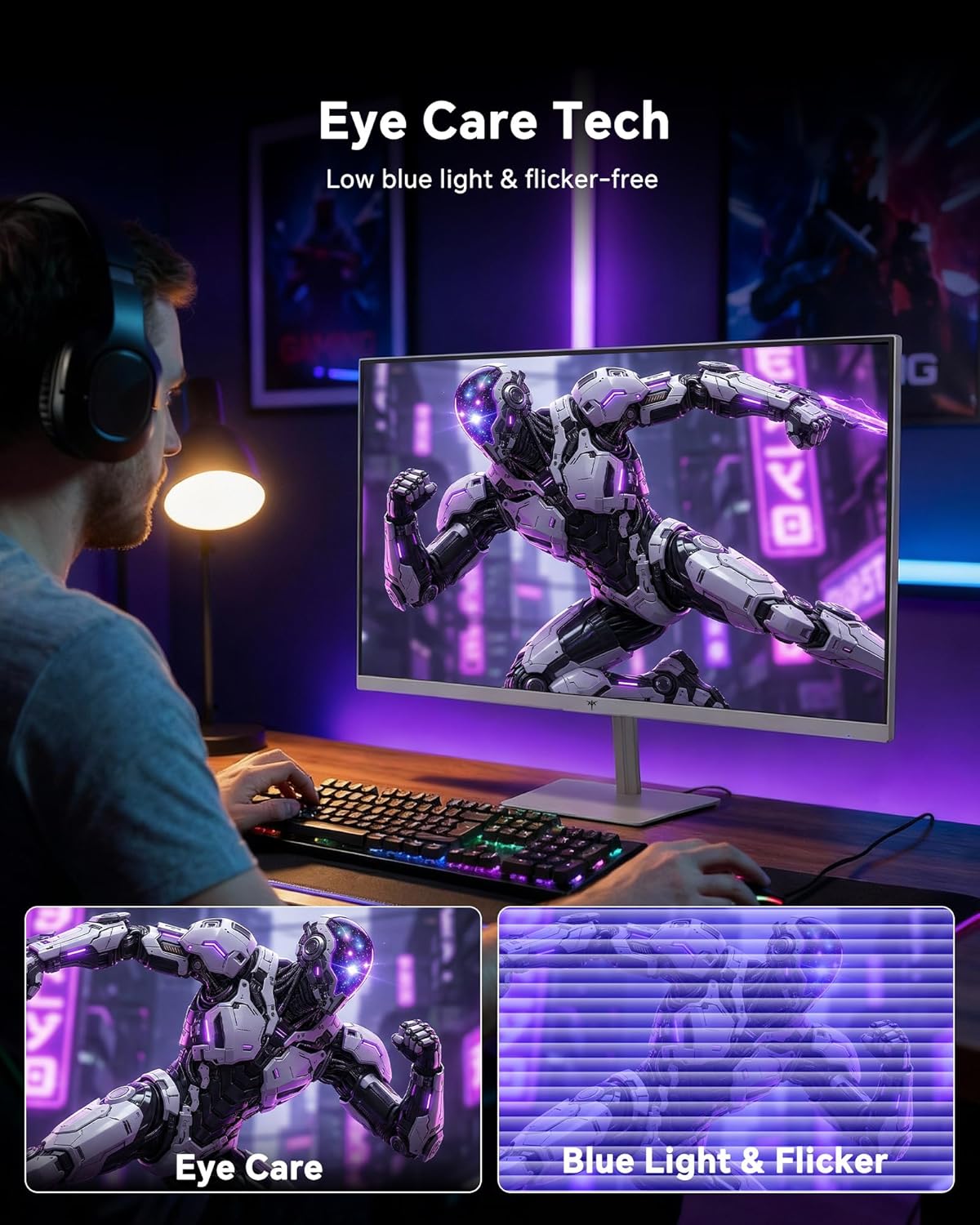
- Tehnologie de îngrijire a ochilor: The monitor features low blue light and flicker-free technology to reduce eye strain during prolonged use. These settings can typically be adjusted or enabled within the OSD menu.
2.4 Monitor Tilt Adjustment
The monitor supports tilt adjustment from -5° to 15° (±3°). Gently adjust the monitor panel to your desired viewunghiul de ing.
3. Întreținere
3.1 Curăţarea monitorului
Pentru a curăța ecranul monitorului șiasing:
- Opriți întotdeauna monitorul și deconectați cablul de alimentare înainte de curățare.
- Folosiți o cârpă moale, fără scame dampcurățate cu apă sau cu o soluție de curățare a ecranelor blândă, neabrazivă.
- Ștergeți ecranul ușor pentru a îndepărta praful și petele. Evitați aplicarea unei presiuni excesive.
- Pentru casing, use a dry, soft cloth. Do not use alcohol, ammonia, or abrasive cleaners, as these can damage the surface.
3.2 Îngrijire generală
- Evitați să așezați obiecte grele pe monitor sau pe cablurile acestuia.
- Nu expuneți monitorul la lumina directă a soarelui, la căldură excesivă sau la frig extrem.
- Țineți monitorul departe de lichide și umiditate ridicată.
- Asigurați o ventilație adecvată în jurul monitorului pentru a preveni supraîncălzirea.
4. Depanare
If you encounter issues with your KTC H24F7 monitor, refer to the following common problems and solutions:
| Problemă | Cauza posibila | Soluţie |
|---|---|---|
| Nicio imagine pe ecran | Power cable disconnected; Video cable disconnected or loose; Incorrect input source selected; Monitor is off. | Ensure power cable is securely connected and monitor is on. Check video cable connections (HDMI/DisplayPort) at both the monitor and computer. Press the input source button on the monitor to cycle through inputs. |
| Pâlpâire sau ruptură de imagine | Adaptive Sync not enabled; Graphics card driver issues; Faulty video cable. | Enable Adaptive Sync in the OSD menu and your graphics card control panel. Update graphics card drivers. Try a different video cable. If using DisplayPort 1, try DisplayPort 2 or HDMI if available, as some units may experience issues with specific ports. |
| Culorile apar incorect sau decolorate | Color settings incorrect; HDR not properly configured; Faulty video cable. | Adjust color settings (brightness, contrast, color temperature) in the OSD menu. Ensure HDR is enabled in both the OSD and your operating system for HDR content. Try a different video cable. |
| Monitorul nu atinge 240Hz | Graphics card limitations; Incorrect display settings in OS; Cable bandwidth limitations. | Ensure your graphics card supports 240Hz at 1080p. Verify display settings in your operating system (e.g., Windows Display Settings or NVIDIA/AMD control panel) are set to 240Hz. Use the provided HDMI cable or a certified DisplayPort 1.4 cable. |
| Stuck or dead pixels | Defect de fabricatie. | A small number of stuck or dead pixels (typically 1-3) may be considered normal for LCD panels. If the issue is severe or persistent, contact customer support. |
5. Specificații
| Caracteristică | Detaliu |
|---|---|
| Marca | KTC |
| Numărul de model | H24F7 |
| Dimensiunea ecranului | 24 inchi |
| Rezoluţie | FHD 1080p (1920 x 1080 pixeli) |
| Tip panou | Aproape IPS |
| Rata de reîmprospătare | 240 Hz |
| Timp de răspuns | 1 Millisecond (MPRT) |
| Raportul de aspect | 16:9 |
| Luminozitate | 400 de candele pe metru pătrat |
| Raport de contrast | 1000:1 |
| Gama de culori | 116% sRGB |
| Suport HDR | HDR 400 |
| Sincronizare adaptivă | FreeSync, G-Sync Compatible |
| Conectivitate | 2x HDMI 2.0, 1x DisplayPort 1.4, 1x USB 2.0, 1x Audio Out (3.5mm) |
| Caracteristici pentru îngrijirea ochilor | Low Blue Light, Flicker-Free, Anti-Glare Screen |
| Ajustări | Înclinare (-5° până la 15°) |
| Muntele VESA | 100 mm x 100 mm |
| Dimensiuni (D x W x H) | 5.39" D x 21.25" L x 15.74" H |
| Greutatea articolului | 3.2 kilograme |
| Culoare | Alb |
6. Garanție și asistență
6.1 Informații despre garanție
The KTC H24F7 monitor comes with a three-year manufacturer warranty. Această garanție acoperă defectele de materiale și de manoperă în condiții normale de utilizare.
Vă rugăm să păstrați dovada achiziției pentru cererile de garanție.
6.2 Asistență pentru clienți
For technical assistance, warranty claims, or any questions regarding your KTC H24F7 monitor, please contact KTC customer support. KTC aims to provide responsive customer support and typically responds within 12 hours.
You can usually find contact information on the official KTC website or through the retailer where you purchased the product. When contacting support, please have your monitor model number (H24F7) and purchase details ready.