
1. Introducere
The XTOOL IP500 is a professional diagnostic scan tool designed for Jeep, Dodge, and Chrysler vehicles. It offers comprehensive full system diagnostics, bi-directional control, and various special reset functions. This manual provides instructions for setting up, operating, maintaining, and troubleshooting your IP500 device.

Image 1.1: The XTOOL IP500 diagnostic tool, highlighting its key capabilities including bi-directional control, full system diagnostics, all services, and FCA CAN FD support.
2. Configurare
2.1 Conținutul pachetului
Înainte de a începe, asigurați-vă că toate componentele sunt prezente:
- XTOOL IP500 Main Unit
- OBD2 Main Cable
- 12+8 Adapter Cable (for 2018+ FCA vehicles)
- Adaptor de alimentare (dacă este cazul)
- Manual de utilizare (acest document)
2.2 Conectarea dispozitivului
- Localizați portul OBD2 al vehiculului, de obicei sub bordul de bord, pe partea șoferului.
- For most vehicles, connect the OBD2 Main Cable directly to the vehicle's OBD2 port and the IP500 device.
- For 2018 and newer FCA (Fiat Chrysler Automobiles) vehicles (Jeep, Dodge, Chrysler, RAM), use the included 12+8 Adapter Cable. Connect the 12-pin and 8-pin connectors to the vehicle's respective ports, then connect the OBD2 male connector of the adapter to the OBD2 female connector of the main cable, and finally to the IP500 device.
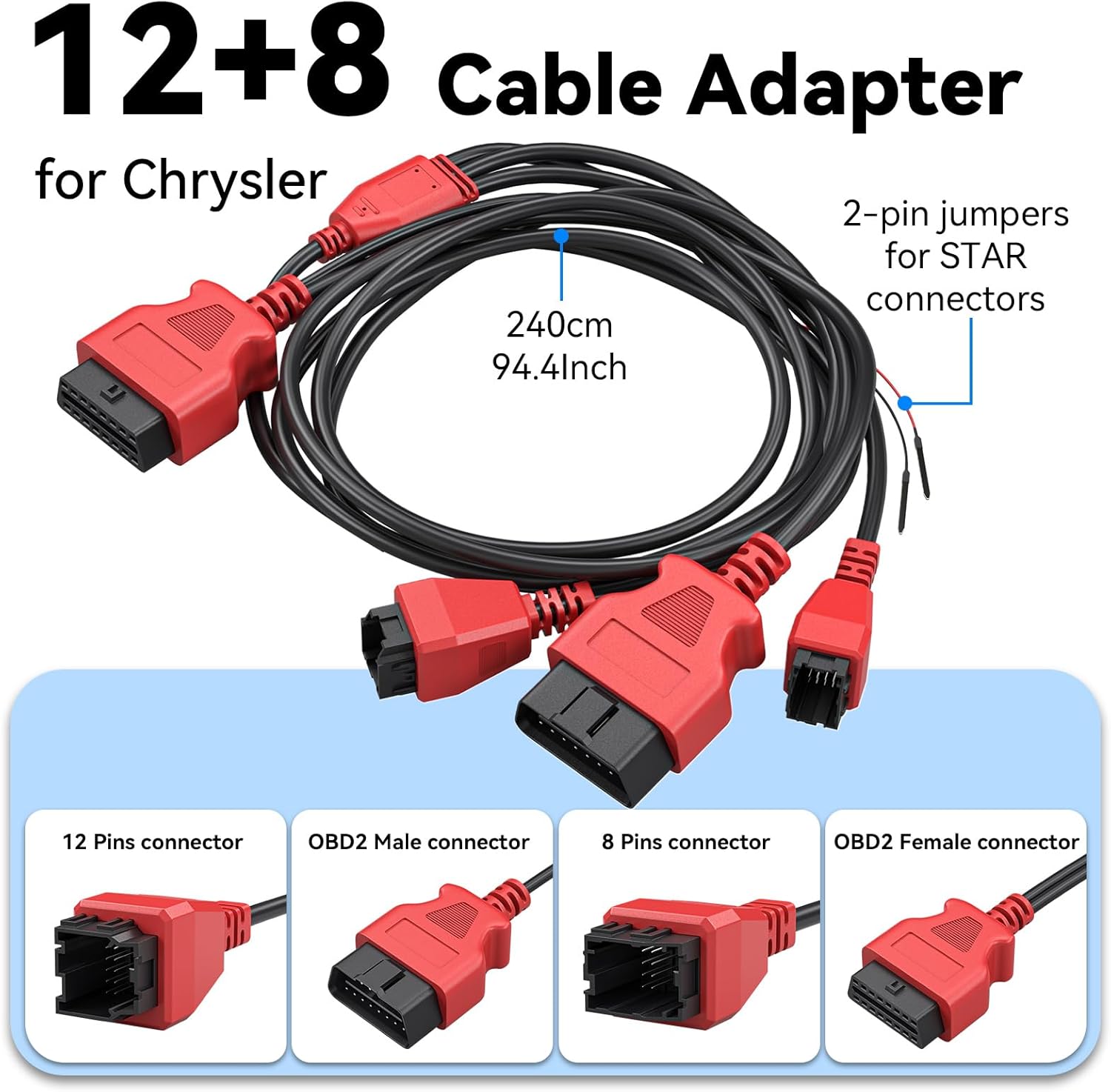
Imaginea 2.1: Detaliată view of the 12+8 Cable Adapter, illustrating its various connectors and overall length, essential for connecting to newer FCA vehicles.
2.3 Initial Power-On and Software Updates
- Once connected, the IP500 device should power on automatically. If not, press the power button.
- Follow the on-screen prompts to select your preferred language (23 languages supported).
- Conectați dispozitivul la o rețea Wi-Fi.
- Navigate to the 'Updates' section on the main menu to download and install the latest software. Regular updates ensure optimal performance and vehicle compatibility.
3. Instrucțiuni de utilizare
3.1 Navigare prin meniul principal
The IP500 features a 5.45" HD touchscreen for intuitive navigation. The main menu typically includes options such as 'Auto Scan', 'Diagnosis', 'OBD II', 'Special Function', 'Updates', and 'More'.
3.2 Diagnosticare completă a sistemului
This function allows you to access and diagnose all available electronic control modules within the vehicle. It supports comprehensive diagnostics for Fiat Group vehicles (Chrysler, Dodge, Jeep, RAM) from 1998 to 2024.
- Select 'Diagnosis' from the main menu.
- Choose the vehicle make and model.
- Perform an 'Auto Scan' or manually select specific systems (e.g., Engine, Transmission, ABS, Airbag, HVAC, Suspension, Headlamp, Audio, A/C).
- View live data streams, read and clear Diagnostic Trouble Codes (DTCs).

Image 3.1: The IP500 device displaying a diagnostic menu, with an overlay showing various vehicle systems it can diagnose, such as engine, airbag, and transmission.
3.3 Special Functions and Reset Services
The IP500 provides access to 18+ special functions for various vehicle maintenance and repair tasks, including those for 2018+ FCA vehicles using the 12+8 adapter.
- Select 'Special Function' from the main menu.
- Choose the desired service from the list. Common services include:
- Resetare EPB: Resetarea frânei de parcare electronice.
- Resetare SAS: Calibrarea senzorului de unghi de direcție.
- Resetare BMS: Battery Management System reset.
- Reglarea farurilor: Adjusting headlight settings.
- Codarea injectoarelor: Coding new injector values.
- Potrivirea clapetei de accelerație: Throttle body relearn.
- Sângerare ABS: Performing ABS brake bleeding.
- Potrivirea cutiei de viteze: Transmission adaptation.
- Sistem de suspensie: Suspension calibration.
- Window Initialization: Window motor relearn.
- Seat Matching: Seat position calibration.
- Maintenance Light Reset: Resetting service indicators.
- A/F Settings: Air/Fuel ratio adjustments.
- Mod de transport: Deactivating/activating transport mode.

Image 3.2: A visual representation of the 'ALL RESET SERVICES' menu on the IP500, showing various available functions for vehicle maintenance.
3.4 Bi-Directional Control (Active Tests)
This feature allows the IP500 to send commands to vehicle components and receive feedback, enabling active testing of actuators and sensors. This helps in quickly pinpointing issues.
- Select 'Diagnosis' and then navigate to the specific system.
- Look for 'Active Test' or 'Bi-Directional Control' options.
- Examples of components that can be tested include: Windows, Mirrors, Injectors, Door Locks, Braking systems, Wipers, Headlights, and Horns.

Image 3.3: The IP500 illustrating bi-directional control capabilities, showing how it can command and receive feedback from various vehicle components.
3.5 Funcții OBD2 complete
The IP500 supports all 10 modes of OBD2 testing, providing essential diagnostic information for emissions-related issues.
- Select 'OBD II' from the main menu.
- Funcțiile disponibile includ:
- Citiți codurile: Retrieve current, pending, and permanent DTCs.
- Coduri clare: Erase DTCs and turn off the Malfunction Indicator Light (MIL).
- Date live: View parametrii datelor în timp real.
- Blocare cadru: View a snapshot of vehicle operating conditions when an emission-related fault occurs.
- Disponibilitate I / M: Verificați disponibilitatea sistemelor de monitorizare a emisiilor.
- Test monitor O2: Retrieve O2 sensor monitoring test results.
- Test monitor de bord: Obțineți rezultate pentru componentele și sistemele sistemului de propulsie legate de emisii.
- Testul componentelor: Inițiați un test de scurgeri pentru sistemul EVAP al vehiculului.
- Informații despre vehicul: Obțineți numărul de identificare al vehiculului (VIN), ID-ul de calibrare (CALID) și numărul de verificare a calibrării (CVN).

Image 3.4: The IP500's interface showing the comprehensive range of OBD2 functions available for vehicle diagnostics.
3.6 FCA Secure Gateway Access
For 2018+ FCA vehicles equipped with a Secure Gateway Module (SGM), the 12+8 adapter cable provides direct diagnostic access without requiring an FCA AutoAuth subscription. This allows full diagnostic capabilities on these newer models.

Image 3.5: The IP500 demonstrating FCA Secure Gateway Access, indicating its compatibility with 2018+ Chrysler, Dodge, and Jeep vehicles.
4. Întreținere
4.1 Curăţarea dispozitivului
Folosiți un moale, damp cloth to clean the device's screen and body. Avoid using abrasive cleaners or solvents that could damage the surface.
4.2 Actualizări de software
Regularly check for and install software updates via Wi-Fi. These updates provide new vehicle coverage, bug fixes, and improved functionality. The IP500 offers free lifetime functional updates.
4.3 Depozitare
Store the device in a cool, dry place away from direct sunlight and extreme temperatures. Keep it in its protective case when not in use to prevent damage.
5. Depanare
5.1 Dispozitivul nu pornește
- Ensure the device is correctly connected to the vehicle's OBD2 port.
- Verificați volumul bateriei vehicululuitage; a low battery might prevent the device from powering up.
- Verify the OBD2 port fuse in the vehicle.
5.2 Erori de comunicare
- Confirm the ignition is in the ON position (engine off).
- Ensure the correct vehicle make, model, and year are selected in the device menu.
- For 2018+ FCA vehicles, verify the 12+8 adapter is correctly installed.
- Încearcă să te conectezi la un alt vehicul pentru a exclude o problemă specifică vehiculului.
5.3 Software Freezes or Slow Performance
- Reporniți dispozitivul.
- Asigurați-vă că software-ul este actualizat.
- Clear cache or temporary files if the option is available in device settings.
6. Specificații
| Caracteristică | Descriere |
|---|---|
| Procesor | 1.2GHz Dual-Core |
| Afişa | Ecran tactil HD de 5.45" |
| Baterie | 3150mAh |
| Depozitare | 32 GB |
| Sistem de operare | Bazat pe Android |
| Acoperire vehicul | Fiat Group (Chrysler, Dodge, Jeep, RAM) 1998-2024; 2018+ FCA with 12+8 adapter |
| Limbi | 23 limbi acceptate |
| Actualizări | Free Lifetime Functional Updates |
7. Garanție și asistență
7.1 Informații despre garanție
For detailed warranty information, please refer to the official XTOOL website or contact your point of purchase. The device includes free lifetime functional updates, ensuring ongoing software support.
7.2 Suport tehnic
If you encounter any issues or require technical assistance, please contact XTOOL customer support. Contact details can typically be found on the official XTOOL website sau în secțiunea „Despre” a dispozitivului.