
1. Introducere
The GEEVON-LINK GL-25TH08 is a smart WiFi and Bluetooth-enabled indoor hygrometer thermometer designed to monitor temperature and humidity levels in your environment. It features a large E-Ink display, smart app connectivity for remote monitoring and alerts, and data storage capabilities. This manual provides essential information for setting up, operating, and maintaining your device.
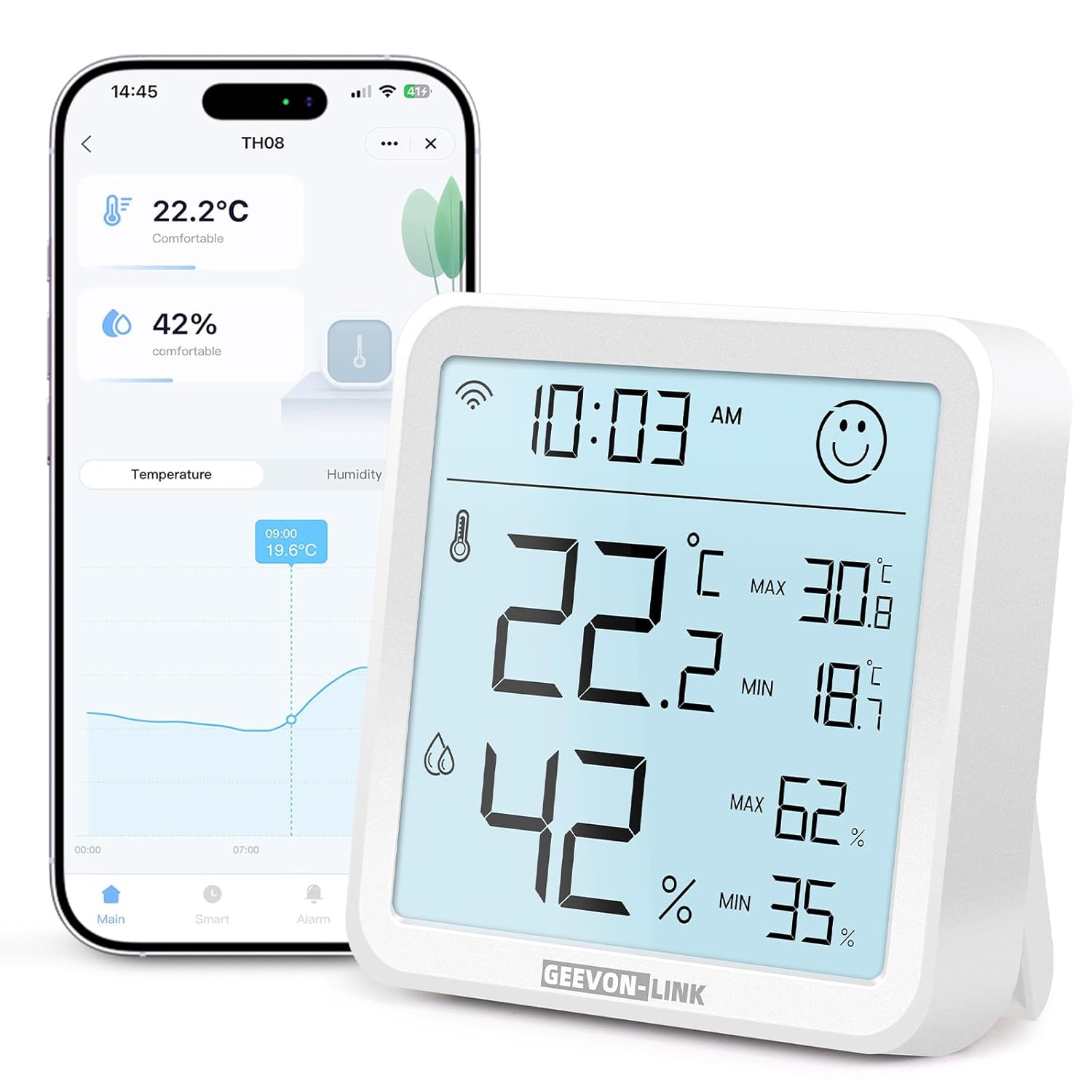
Image: GEEVON-LINK GL-25TH08 WiFi Indoor Hygrometer Thermometer, front view showing the large digital display.
2. Caracteristicile produsului
- Dual Wi-Fi & Bluetooth Connectivity: Connects to 2.4GHz Wi-Fi for remote monitoring and Bluetooth for local data access via the Smart Life app.
- Precizie ridicată: Provides temperature accuracy of ±1°C (±1.8°F) and humidity accuracy of ±5% RH.
- Large Backlit E-Ink Display: A 3.2-inch screen with an ultra-wide viewing angle for clear readability. Backlight activates for 8 seconds with a top touch button press.
- Smart Alerts & Automated Control: Receive instant app alerts for high/low temperature, humidity, and low battery. Integrates with Alexa and Google Home for voice control and automated scene creation.
- Long-Term Data Storage & Export: View historical data trends (hour, day, month, year) and export records for up to one year via the app.
- Indicator de confort pentru pictograma facială: Displays a happy face for comfortable conditions (18°C-28°C / 64.4°F-82.4°F and 40%-65% RH) and an unhappy face when conditions are outside this range.
- Baterie de lunga durata: Energy-efficient design powered by 3 AAA batteries (included), with in-app low battery alerts.

Image: Close-up of the GEEVON-LINK GL-25TH08 display showing temperature, humidity, time, comfort indicator, and max/min records.
3. Instrucțiuni de configurare
3.1. Instalarea bateriei
- Open the rear battery cover of the device.
- Remove any battery insulation sheet if present.
- Insert 3 new AAA alkaline batteries into the battery compartment, ensuring correct polarity.
- Închideți bine capacul bateriei.

Video: This video demonstrates the physical features of the GEEVON-LINK WiFi Thermometer Hygrometer, including how to open the battery compartment and insert batteries.
3.2. Instalarea aplicației și asocierea dispozitivelor
- Descărcați Viață inteligentă app from your smartphone's app store (Google Play Store or Apple App Store). You can also scan the QR code provided in the product packaging.
- Înregistrează-te pentru un cont nou sau autentifică-te dacă ai deja unul.
- Ensure the device's Wi-Fi icon is flashing. If not, press and hold the reset button (usually a small pinhole on the back or side) for 5 seconds until it flashes.
- In the Smart Life app, tap the "+" icon in the top-right corner or select "Add Device" to begin searching for devices.
- Enable phone Bluetooth as prompted by the app.
- Select your device from the list and follow the on-screen prompts to complete pairing.

Image: Step-by-step guide for installing the Smart Life app, inserting batteries, checking the Wi-Fi indicator, and pairing the device.
3.3. Conexiune Wi-Fi
During the pairing process, you will be prompted to enter your Wi-Fi network details. The device supports 2.4GHz Wi-Fi networks only (5GHz is not supported). Ensure your smartphone is connected to a 2.4GHz network during setup.
4. Instrucțiuni de utilizare
4.1. Afișare pesteview
The large E-Ink display shows current temperature, humidity, time, and max/min records. A comfort icon (happy/unhappy face) indicates the environmental comfort level. Press the top touch button to activate the backlight for 8 seconds in low-light conditions.

Image: The GEEVON-LINK GL-25TH08 display with its backlight activated, showing clear visibility in a dim environment.
4.2. Indicator de confort
The device features a face icon to visually represent comfort levels:
- Față fericită: Temperature between 18°C-28°C (64.4°F-82.4°F) and humidity between 40%-65% RH.
- Unhappy Face: Conditions are outside the comfortable range.
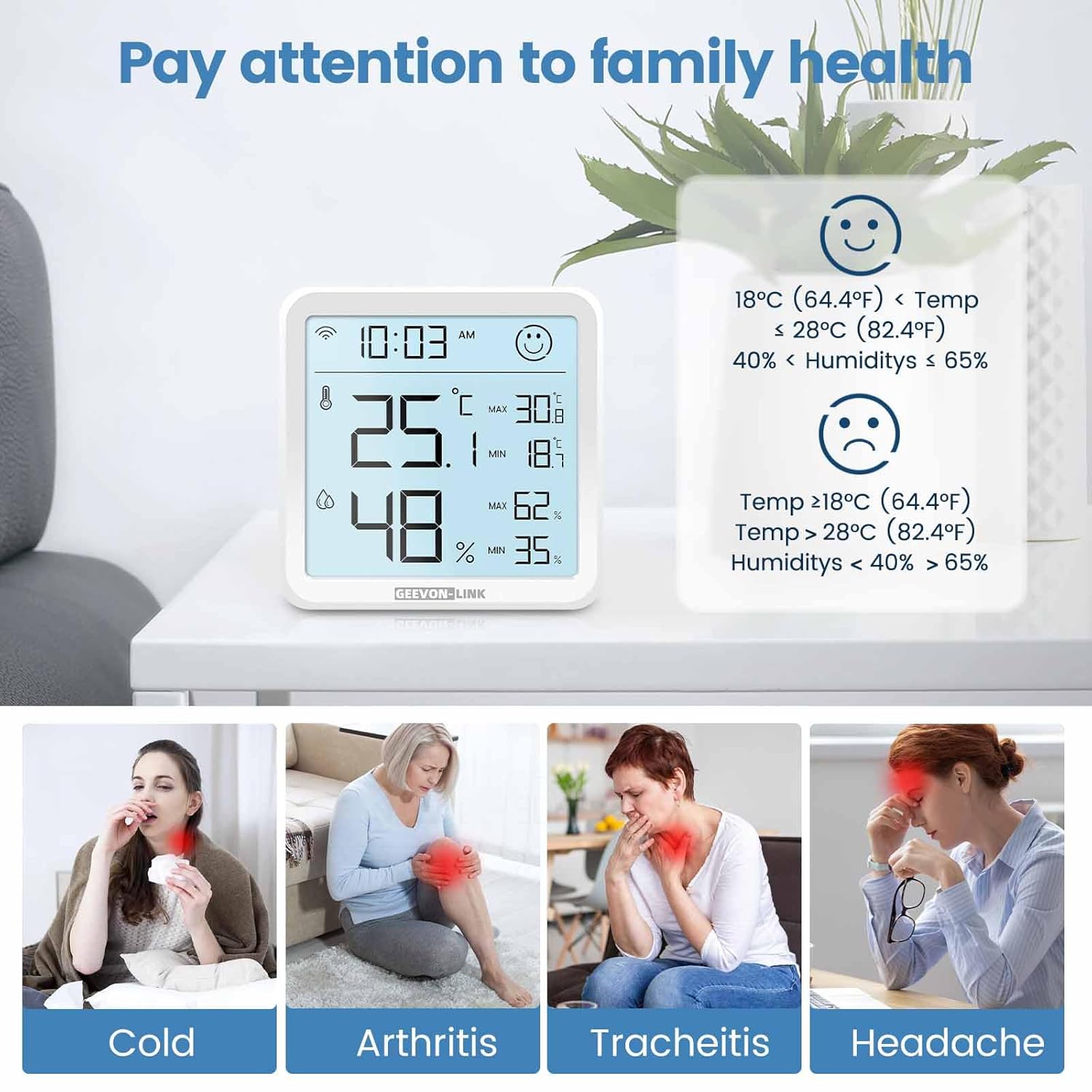
Image: The GEEVON-LINK GL-25TH08 display showing the comfort indicator face icon, with examples of temperature and humidity ranges for happy and unhappy faces.
4.3. App Monitoring & Data Export
Once connected to the Smart Life app, you can:
- View citiri actuale ale temperaturii și umidității de la distanță.
- Access historical data graphs by hour, day, month, or year.
- Export up to one year of data records by tapping the share icon in the top-right corner of the data screen and entering your email address.
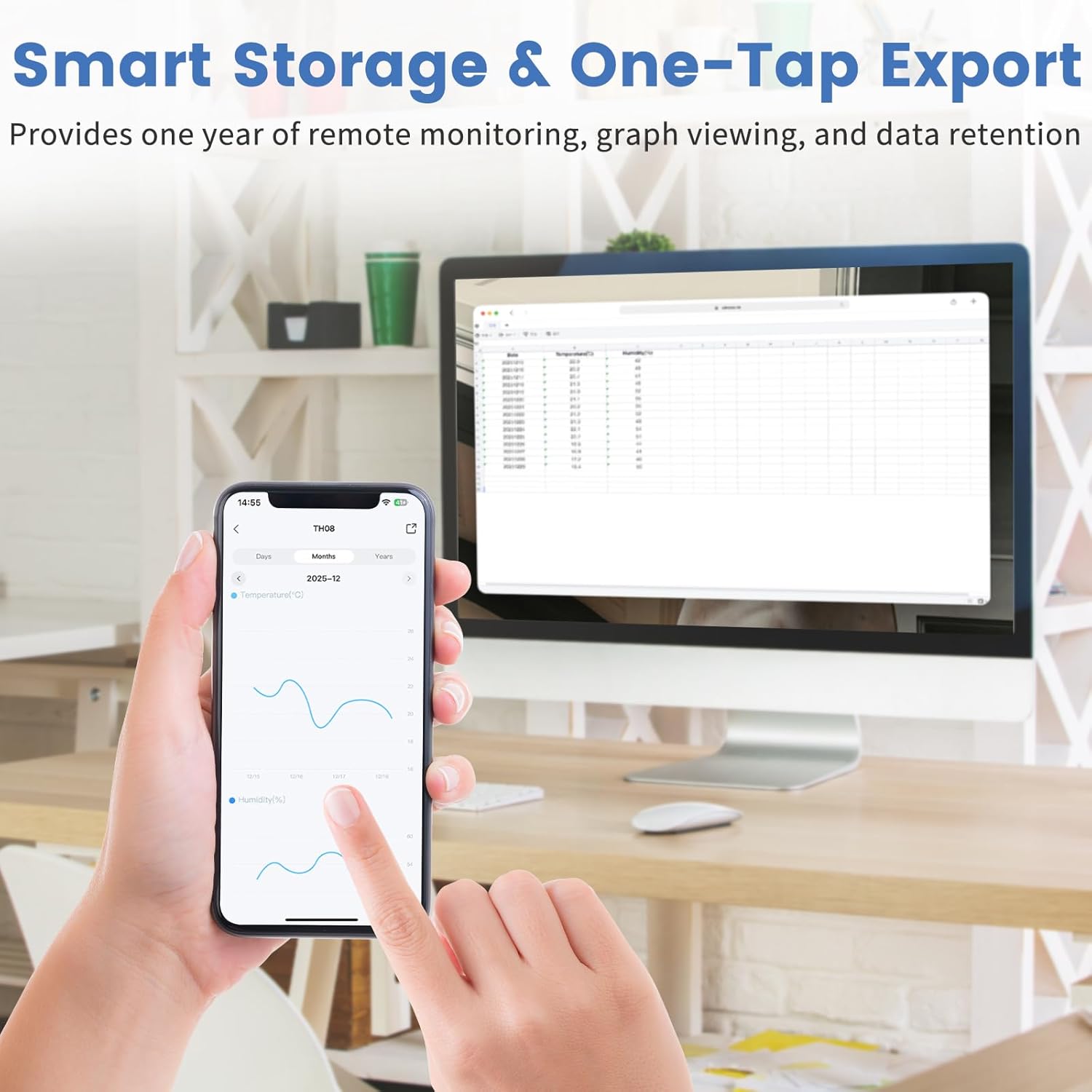
Image: A smartphone displaying the Smart Life app interface with temperature and humidity graphs, demonstrating the data storage and export function.
4.4. Smart Alerts & Automation
Configure custom alerts and smart scenes through the Smart Life app:
- Set upper and lower limits for temperature and humidity to receive instant app, phone, or SMS notifications.
- Integrate with Alexa or Google Home to create automated scenes, such as turning on an AC or dehumidifier when specific conditions are met.
- Use voice commands (e.g., "Alexa, what's the temperature in the living room?") to get current readings.

Image: Screenshots of the Smart Life app demonstrating real-time notifications for temperature and humidity, and options for smart device linkage.

Image: A person interacting with a smart speaker, illustrating the device's compatibility with Alexa and Google Home for voice control.
Video: A detailed "How to Use" guide demonstrating app setup, alarm functions, and settings for the GEEVON-LINK WiFi Thermometer Hygrometer.
4.5. Calibrare
The Smart Life app allows for temperature and humidity calibration to ensure accuracy. Navigate to the device settings within the app to adjust calibration values if needed. These settings will take effect the next time the device wakes up.
4.6. Opțiuni de plasare
The device can be placed on a flat surface using its integrated bracket or mounted on a wall using the keyhole slot on the back. Ensure placement in a location that provides accurate readings for the desired area, away from direct sunlight, heat sources, or drafts.

Image: The GEEVON-LINK GL-25TH08 device shown with its adjustable stand extended and retracted, illustrating flexible placement options.
5. Specificații
| Caracteristică | Detaliu |
|---|---|
| Marca | GEEVON-LINK |
| Numele modelului | GL-25TH08-1-WH-WUS |
| Culoare | Alb |
| Material exterior | Plastic |
| Sursa de alimentare | Alimentat cu baterii (3 baterii AAA incluse) |
| Lungimea articolului | 3.2 inchi |
| Greutatea articolului | 3.68 uncii |
| Interval de temperatură | -9.9°C până la 60°C |
| Precizia temperaturii | ±1°C (±1.8°F) |
| Intervalul de umiditate | 0%-99% RH |
| Precizia umidității | ±5% RH |
| Frecvența Wi-Fi | 2.4GHz (5GHz not supported) |
6. Întreținere
- curatenie: Ștergeți dispozitivul cu o lavetă moale și uscată. Nu utilizați agenți de curățare lichizi sau materiale abrazive.
- Înlocuire baterie: Replace all three AAA batteries when the low battery alert is received in the app or indicated on the device display.
- Depozitare: Dacă depozitați dispozitivul pentru o perioadă lungă de timp, scoateți bateriile pentru a preveni scurgerile. Depozitați într-un loc răcoros și uscat.
7. Depanare
- Dispozitivul nu pornește: Verificați instalarea bateriilor și asigurați-vă că bateriile sunt noi și introduse corect.
- Nu se poate conecta la Wi-Fi:
- Asigurați-vă că rețeaua Wi-Fi este de 2.4 GHz. Dispozitivul nu acceptă rețele de 5 GHz.
- Verificați dacă parola Wi-Fi este corectă.
- Mută dispozitivul mai aproape de routerul Wi-Fi.
- Reset the device by holding the reset button for 5 seconds and try pairing again.
- Citiri inexacte:
- Ensure the device is not placed near heat sources, direct sunlight, or strong drafts.
- Perform temperature and humidity calibration via the Smart Life app settings.
- App alerts not received:
- Verifică setările de notificări ale telefonului pentru aplicația Smart Life.
- Verify that alert thresholds are correctly set in the app.
- Asigurați-vă că dispozitivul are o conexiune Wi-Fi stabilă.
8. Garanție și asistență
GEEVON-LINK products are designed for reliability and performance. For warranty information, technical support, or service inquiries, please refer to the contact information provided in your product packaging or visit the official GEEVON-LINK webPăstrați bonul fiscal ca dovadă a achiziției pentru reclamații în garanție.