
Introducere
This manual provides detailed instructions for the DAREU A950GM Wireless Gaming Mouse. It covers product features, setup procedures, operational guidelines, maintenance tips, troubleshooting solutions, and technical specifications. Please read this manual thoroughly before using the product to ensure optimal performance and longevity.
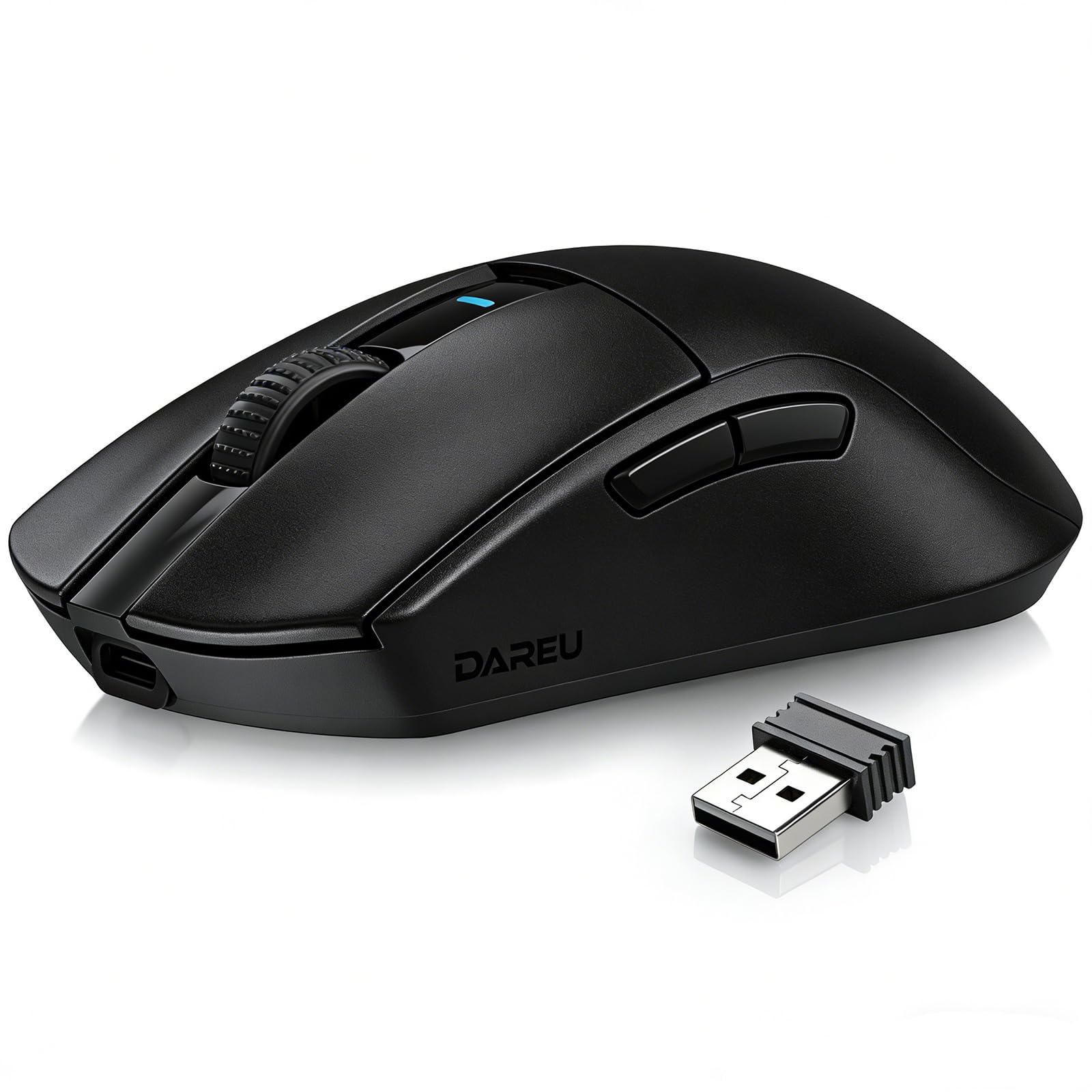
Image: The DAREU A950GM Wireless Gaming Mouse, showcasing its sleek black design and key features like lightweight design, tri-mode connectivity, high DPI, fast charge, Huano switches, and PAW3395 sensor.
Înființat
Conținutul pachetului
Asigurați-vă că toate articolele sunt prezente în colet:
- 1 x DAREU A950GM Mouse
- 1 x cablu tip C
- 1 x Receptor USB
- 1 x Manual de utilizare în limba engleză

Image: Contents of the DAREU A950GM package, including the mouse, Type-C cable, USB receiver, user manual, and packaging box.
Încărcare inițială
Before first use, it is recommended to fully charge the mouse. Connect the provided Type-C cable to the mouse and a USB power source. A full charge typically takes 30-40 minutes for the 500mAh battery, providing up to 128 hours of use (16 days in 2.4G mode, 32 days in BT5.1 mode, based on 4 hours of connection per day).

Image: The DAREU A950GM mouse indicating its fast charge capability and battery life in different modes.
Moduri de conectivitate
The DAREU A950GM supports three connection modes: 2.4GHz Wireless, Bluetooth (BT5.1), and Wired (USB-C).
- Mod wireless de 2.4 GHz:
- Localizați receptorul USB din partea inferioară a mouse-ului.
- Conectați receptorul USB la un port USB disponibil de pe computer.
- Slide the switch on the bottom of the mouse to the '2.4G' position. The mouse will automatically connect.
- Mod Bluetooth:
- Glisați comutatorul din partea inferioară a mouse-ului în poziția „BT”.
- On your device (PC, laptop, smartphone, tablet), open Bluetooth settings and search for new devices.
- Select 'DAREU A950GM' from the list to pair.
- Modul cu fir:
- Connect the provided Type-C cable to the mouse and the other end to a USB port on your computer.
- Mouse-ul va funcționa ca un mouse cu fir și se va încărca simultan.
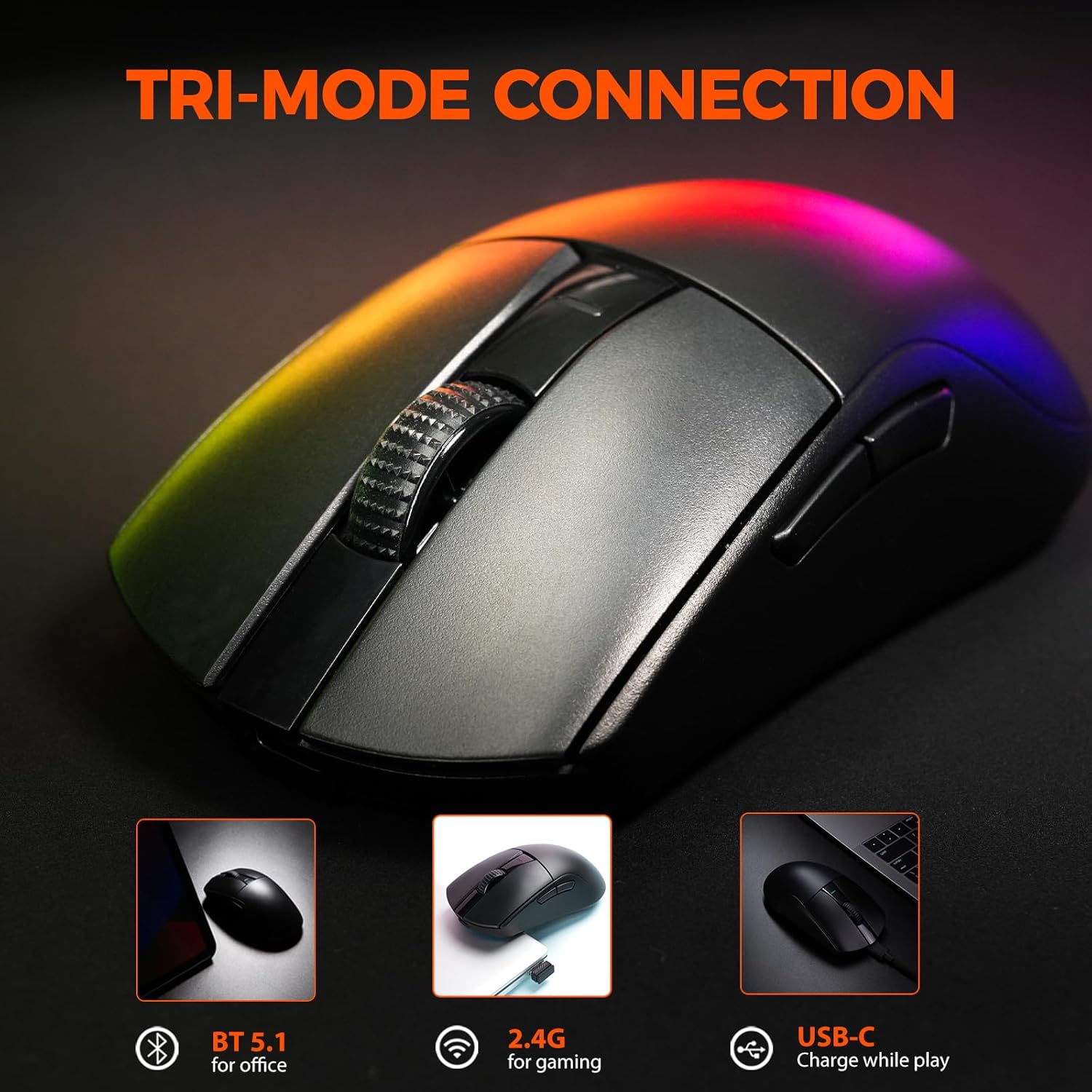
Image: The DAREU A950GM mouse demonstrating its tri-mode connectivity options: Bluetooth for office, 2.4G for gaming, and USB-C for charging while playing.
Instalare software
For advanced customization of buttons, macros, polling rate, and DPI settings, DAREU provides dual software support:
- Web-based Driver: Access the DAREU official website pentru a web-based configuration tool. No installation is required.
- Software pentru desktop: Download and install the dedicated DAREU e-sports driver software for your operating system (Windows 7 or later, macOS).
Customized settings are saved via the mouse's onboard memory.

Image: Screenshot of the DAREU all-in-one driver software interface, showing options for button customization, macro management, DPI settings, and battery level.
Instrucțiuni de operare
Funcțiile butoanelor
The DAREU A950GM features 5 programmable buttons:
- Faceți clic stânga pe butonul
- Faceți clic dreapta pe butonul
- Rotiță de derulare (cu clic)
- Buton lateral 1 (Înainte)
- Buton lateral 2 (Înapoi)
These buttons can be customized using the DAREU software to assign various functions, shortcuts, or macros.
Ajustare DPI
The mouse features an advanced PAW3395 optical sensor with adjustable sensitivity up to 26,000 DPI. The DPI button is located on the bottom of the mouse. Press this button to cycle through preset DPI levels. The current DPI setting is often indicated by an LED color change above the scroll wheel.

Image: The underside of the DAREU A950GM mouse, highlighting the PAW3395 optical sensor and its specifications (26000 DPI, 650 IPS, 50g Acceleration).
Comutarea modului
To switch between 2.4GHz, Bluetooth, and Off modes, use the physical switch located on the bottom of the mouse. For wired mode, simply connect the USB-C cable.

Image: The bottom of the DAREU A950GM mouse, showing the 2.4G/OFF/BT switch, DPI button, USB receiver storage, PTFE feet, and Type-C interface. Serial number: A950GMW250901750.
Întreţinere
Curatenie
Pentru a menține performanțe optime, curățați mouse-ul în mod regulat. Folosiți o cârpă moale și uscată pentru a șterge suprafața. Pentru murdăria persistentă, curățați ușor.amp Se poate folosi o cârpă, asigurându-vă că nu pătrunde umezeală în componentele interne. Evitați substanțele chimice dure sau materialele abrazive.
PBT Buttons and Huano Micro Switches
The DAREU A950GM features durable PBT buttons designed to resist fading and oil buildup. The Huano micro switches are rated for up to 100 million clicks, ensuring long-lasting and consistent performance. No specific user maintenance is required for these components beyond general cleaning.
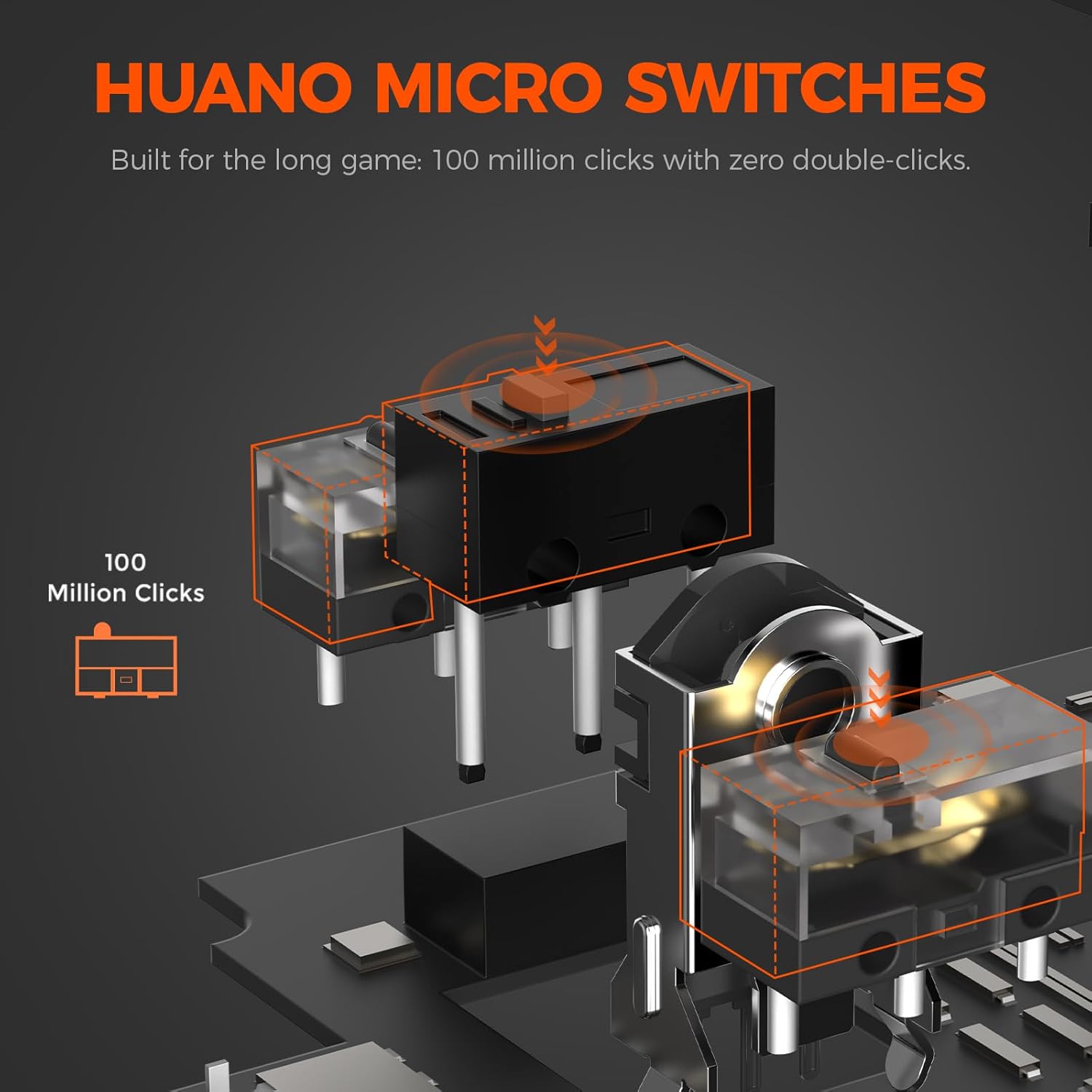
Imagine: O explozie view illustrating the Huano micro switches within the DAREU A950GM mouse, highlighting their 100 million click lifespan.
Depanare
Probleme de conectivitate
- Mouse-ul nu se conectează prin Bluetooth: Ensure the mouse is in 'BT' mode and your device's Bluetooth is enabled and discoverable. Try re-pairing the mouse from your device's Bluetooth settings.
- Lag or intermittent connection in wireless modes: Ensure the USB receiver is plugged into a direct USB port, not a hub. Minimize interference from other wireless devices. If issues persist, try wired mode.
- 2.4GHz receiver not recognized: Asigurați-vă că receptorul este introdus complet în portul USB. Încercați un alt port USB.
Probleme de driver/software
- Software-ul nu detectează mouse-ul: Ensure the mouse is connected to your computer (preferably in wired or 2.4GHz mode for initial setup). Restart the software and/or your computer.
- Setările nu se salvează: Ensure you are using only one instance of the DAREU software (either web-based or desktop app) at a time to avoid conflicts.
DPI Button Placement
The DPI adjustment button is located on the bottom of the mouse. This design choice means on-the-fly DPI changes during gameplay may require lifting the mouse. For frequent DPI adjustments, consider pre-setting preferred DPI stages via the software.
Specificații
| Caracteristică | Detaliu |
|---|---|
| Marca | DAREU |
| Numele modelului | A950GM |
| Culoare | Negru |
| Tehnologia de conectivitate | USB/BT/2.4G Hz |
| Tehnologia de detectare a mișcării | Optic (senzor PAW3395) |
| Mouse Maximum Sensitivity | 26000 DPI |
| IPS Speed | IPS 650 |
| Accelerare | 50 g |
| Rata de sondare | 1000 Hz |
| Cantitate de butoane | 5 Butoane programabile |
| Micro întrerupătoare | Huano (100 Million Clicks) |
| Capacitatea bateriei | 500mAh polimer de litiu |
| Durata medie a bateriei | Up to 128 hours (BT5.1 mode), 65 hours (2.4G mode) |
| Timp de încărcare | 30-40 minutes (fast charge) |
| Greutatea articolului | 60 g |
| Dimensiuni articol (L x l x H) | 122.8 x 64 x 39 mm |
| Dispozitive compatibile | PC, Laptop, Mac, Gaming Console, Smartphone, Tablet |
| Suport sistem de operare | Windows 7 or later, macOS, Android |
| Componente incluse | Mouse, Type-C cable, USB receiver, English user manual |
Videoclipuri cu produse
Video: An official DAREU GAMING video showcasing the DAREU A950GM Wireless Gaming Mouse, highlighting its PAW3395 sensor and black color variant.
Video: An official DAREU GAMING video demonstrating the DAREU A950GM Wireless Gaming Mouse in use.
garanție
The DAREU A950GM Wireless Gaming Mouse comes with a 1 ANI GARANTIE de la data achiziției. Vă rugăm să păstrați dovada achiziției pentru reclamațiile în garanție. Garanția acoperă defectele de fabricație și defecțiunile în condiții normale de utilizare. Nu acoperă daunele cauzate de utilizarea necorespunzătoare, accidente, modificări neautorizate sau uzură normală.
Sprijin
For further assistance, technical support, or warranty inquiries, please visit the official DAREU website or contact DAREU customer service. Refer to the packaging or the DAREU website pentru cele mai recente informații de contact.
De asemenea, puteți vizita DAREU Store on Amazon pentru mai multe informații despre produs și resurse de asistență.