
Introducere
Welcome to the Thunderobot Zero 16 Pro user manual. This document provides essential information for setting up, operating, maintaining, and troubleshooting your new gaming laptop. The Thunderobot Zero 16 Pro is engineered for high-performance gaming and demanding applications, featuring an Intel Core Ultra 9 275HX processor, NVIDIA GeForce RTX 5080 graphics, a 16-inch QHD+ 360Hz display, 32GB DDR5 RAM, and a 1TB PCIe M.2 SSD.
Pentru performanțe optime și o durată de viață mai lungă, vă rugăm să citiți cu atenție acest manual înainte de a utiliza dispozitivul.
Conținutul pachetului
Verificați dacă toate articolele sunt prezente în colet:
- Thunderobot Zero 16 Pro Gaming Laptop
- Adaptor de alimentare și cablu
- Manual de utilizare (acest document)
- Card de garanție
Înființat
1. Pornirea inițială
- Conectare alimentare: Conectați adaptorul de alimentare la portul de alimentare al laptopului și apoi la o priză de perete.
- Deschideți laptopul: Deschideți cu grijă capacul laptopului.
- Pornire: Apăsați butonul de pornire, situat de obicei deasupra tastaturii sau pe lateral.
- Configurare inițială: Urmați instrucțiunile de pe ecran pentru a finaliza configurarea Windows 11 Home, inclusiv limba, regiunea, conexiunea la rețea și crearea contului de utilizator.
2. Conectarea perifericelor
The Thunderobot Zero 16 Pro offers various ports for connecting external devices:
- Porturi USB-A: Connect mice, keyboards, external hard drives, and other USB accessories.
- USB-C Port (Thunderbolt 5): Pentru transfer de date de mare viteză, afișaje externe și alimentare.
- Port HDMI 2.1: Conectați-vă la monitoare sau televizoare externe pentru afișare extinsă.
- Port Ethernet RJ-45: Pentru o conexiune stabilă la rețea prin cablu.
- Mufă audio de 3.5 mm: Conectați căști sau difuzoare externe.
Imagine: Laterală view of the Thunderobot Zero 16 Pro, highlighting the RJ-45, USB3.2 Gen2 Type-A, HDMI 2.1, Thunderbolt 5 Type-C, Power, USB3.2 Gen1 Type-A, and 3.5mm audio jack ports.

Image: Detailed diagram illustrating the location and type of ports available on the Thunderobot Zero 16 Pro, including USB, HDMI, Ethernet, and audio connections.
Instrucțiuni de operare
1. Keyboard and Lighting
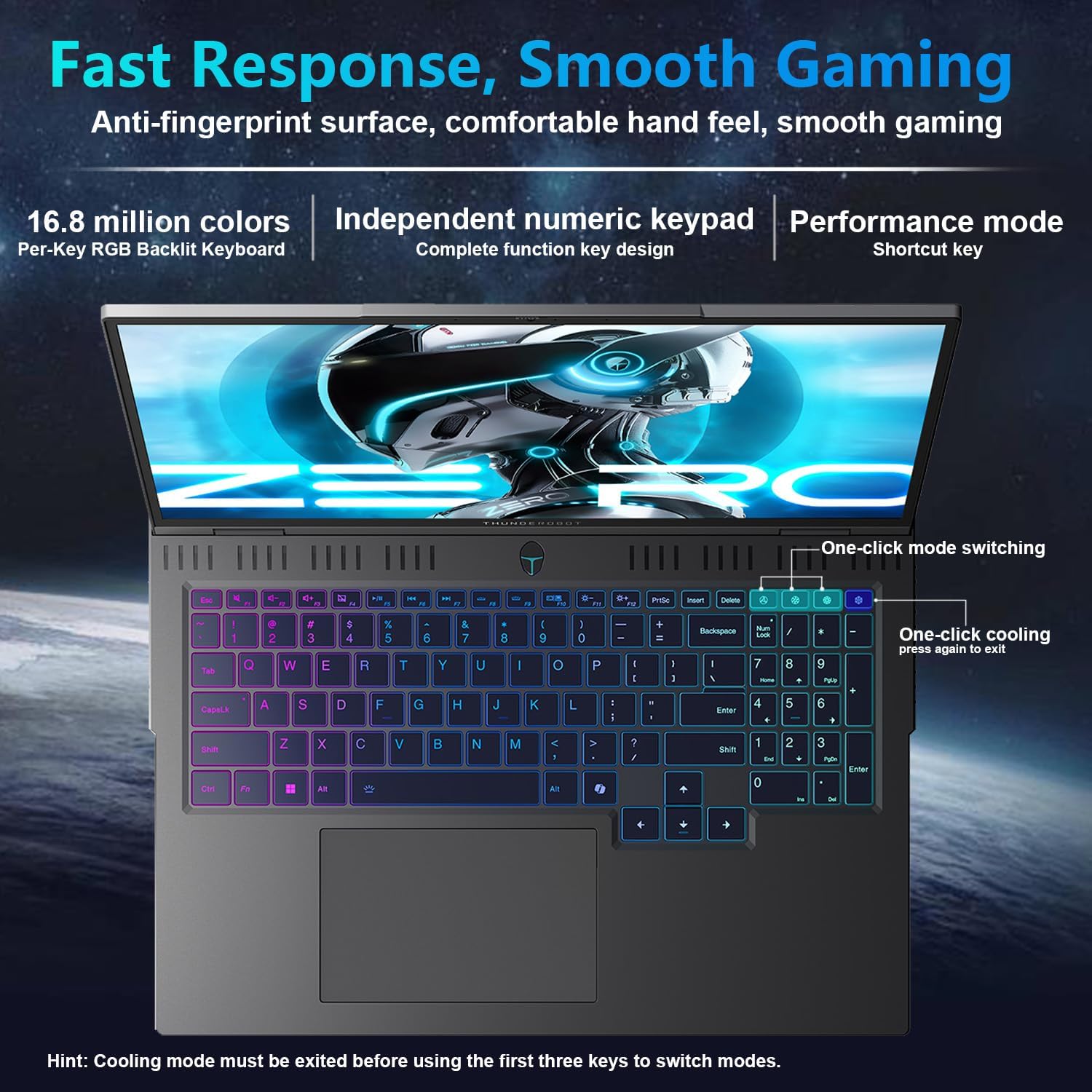
The laptop features a full-size, per-key RGB backlit keyboard with a numeric keypad. You can customize the RGB lighting effects through the Thunderobot Control Center software.
- Performance Mode Switching: Use dedicated shortcut keys to switch between performance profiles (e.g., Quiet, Balance, Turbo).
- One-Click Cooling: A dedicated key allows for instant activation of maximum cooling.
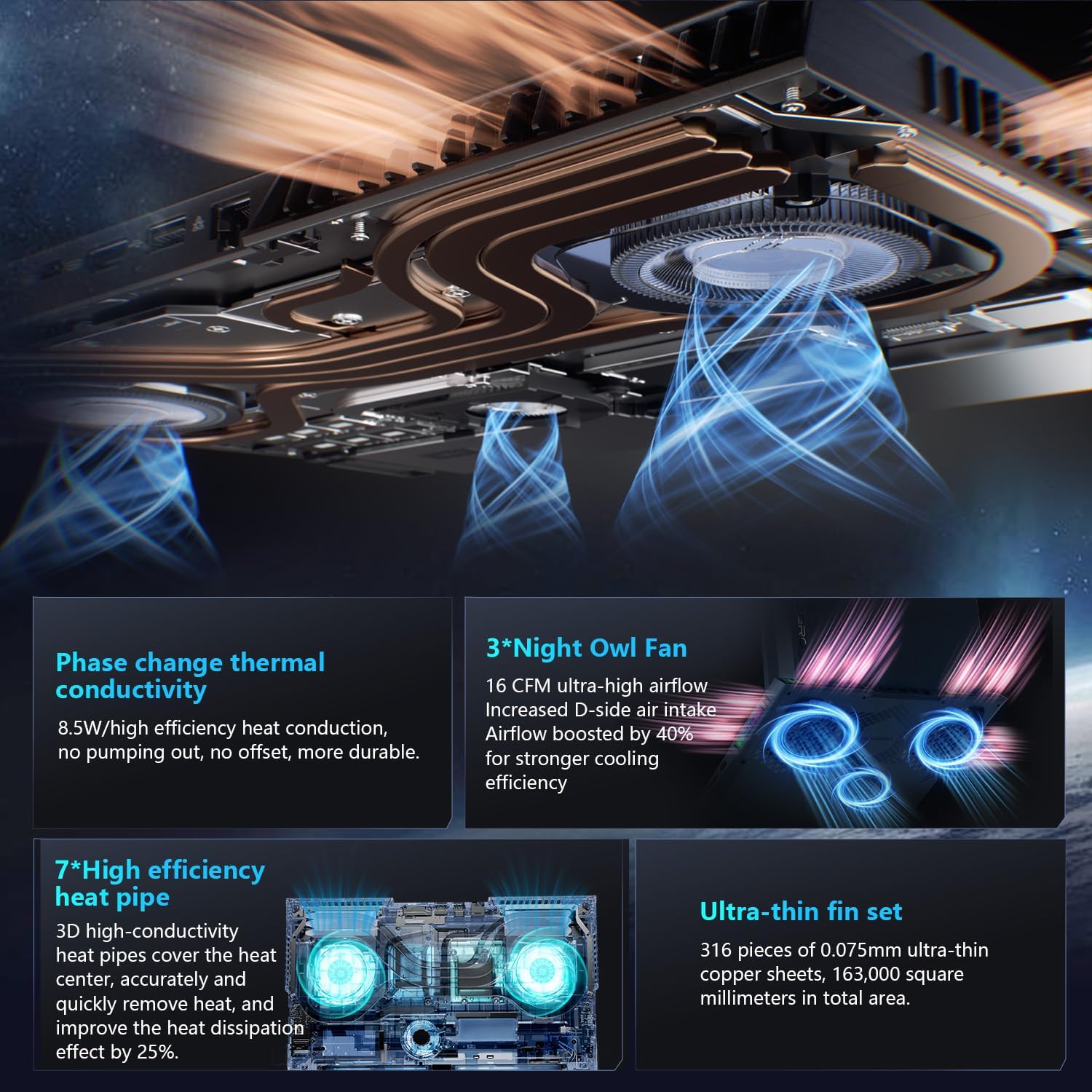
Image: The RGB backlit keyboard of the Thunderobot Zero 16 Pro, showing the full layout and numeric keypad.

Image: Visual guide to the keyboard's one-click mode switching and cooling activation keys.
Video: This video demonstrates the RGB lighting system and keyboard features of the Thunderobot Zero 16 Pro, including performance mode switching and one-click cooling.
2. Caracteristici de afișare
The 16-inch QHD+ (2560x1600) display offers a 360Hz refresh rate and eye-care technology. To utilize the highest refresh rate, ensure the dedicated graphics direct connection mode is enabled in the Control Center.
- Anti-Glare & Anti-Reflection: Reduces distractions from ambient light.
- Anti-lumină albastră: Helps reduce eye strain during prolonged use.
- Dimming DC: Provides flicker-free eye protection.
- Professional Color Calibration: Ensures accurate color reproduction.

Image: The 16-inch QHD+ display of the Thunderobot Zero 16 Pro, showcasing its high refresh rate and eye-care features.

Image: Infographic detailing the display's features such as 2.5K resolution, 360Hz refresh rate, 500 nits brightness, and various eye protection technologies.
3. Thunderobot Control Center
The AI Intelligent Control Center software allows for comprehensive management of your laptop's performance, lighting, and system settings. It is recommended to connect the device to a power source for full functionality of system mode switching.
- Performance Tuning: Adjust CPU and GPU settings for optimal performance or power saving.
- Intelligent Light Adjustment: Customize keyboard, strip, and logo RGB lighting.
- Comprehensive Adjustment: Monitor system status, fan speeds, and manage other personalized settings.
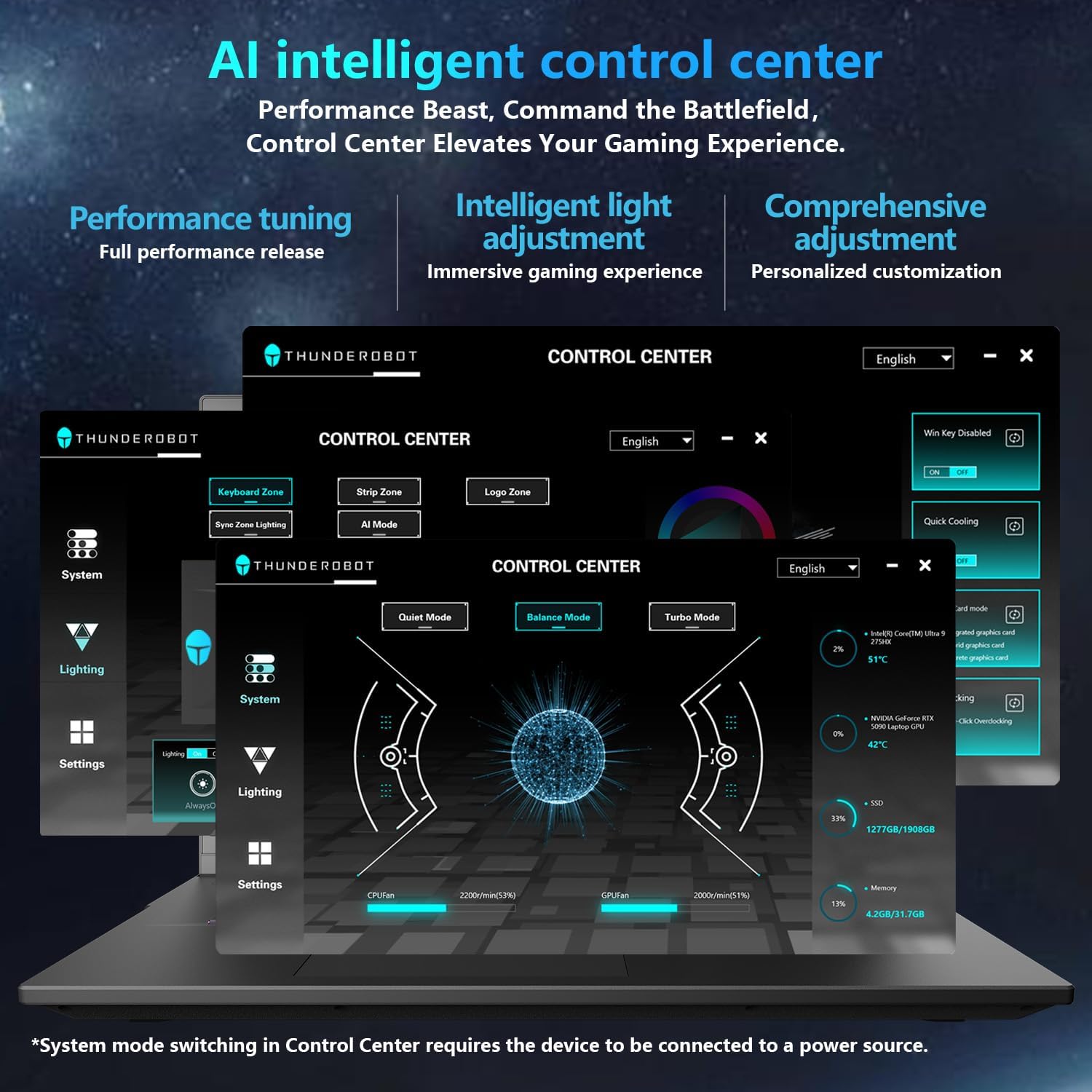
Image: A visual representation of the Thunderobot Control Center interface, showing options for system monitoring, lighting control, and performance settings.
Image: Infographic explaining the capabilities of the AI Intelligent Control Center, including performance tuning, intelligent light adjustment, and comprehensive system management.
4. Sistem audio
The laptop is equipped with a Soundstage Full audio system, featuring 4 speakers and Nahimic high-quality sound effects for an immersive audio experience.

Image: A graphic illustrating the Soundstage Full audio system with sound waves, emphasizing the immersive experience.
Video: This video showcases the display quality and overall design of the Thunderobot Zero series, including the Zero 16 Pro.
Întreţinere
1. Sistem de răcire
The Thunderobot Zero 16 Pro features a robust cooling system designed to maintain performance under heavy loads. This includes dual Night Owl fans, 7 enlarged heat pipes, and 316 ultra-thin copper fins.
- Păstrați aerisirea liberă: Ensure that the air intake and exhaust vents are not obstructed to allow for proper airflow.
- Curățare regulată: Curățați periodic praful de pe orificiile de ventilație folosind aer comprimat.

Imagine: O explozie view of the laptop's internal cooling components, showing the dual fans, heat pipes, and fin set.

Image: Infographic explaining the Night Hawk fans, high-efficiency heat pipes, phase-change thermal conduction, and ultra-thin fin array.
2. Îngrijire generală
- curatenie: Folosiți o lavetă moale, fără scame, pentru a curăța ecranul și carcasa. Evitați substanțele chimice dure.
- Conditii de mediu: Operate the laptop within recommended temperature ranges (-20°C to 60°C) and humidity (up to 90%).
- Longevitatea bateriei: To prolong battery life, avoid frequently discharging the battery completely and store the laptop with a partial charge if not used for extended periods.
Video: This video highlights the robust build quality and testing of Thunderobot gaming products, demonstrating their durability.
Depanare
Probleme comune și soluții
| Emisiune | Cauza posibila | Soluţie |
|---|---|---|
| Display not reaching 360Hz refresh rate. | Dedicated graphics direct connection mode is not enabled. | Enable the dedicated graphics direct connection mode in the Thunderobot Control Center. |
| Laptop performance is lower than expected. | Laptop is not connected to power, or is in a power-saving mode. | Connect the laptop to its power adapter. Adjust performance settings to "Turbo Mode" or "Performance Mode" in the Thunderobot Control Center. Ensure cooling vents are clear. |
| Keyboard RGB lighting is not working or customizable. | Lighting settings are disabled or not configured in the Control Center. | Open the Thunderobot Control Center and navigate to the "Lighting" section to enable and customize RGB effects. |
| No sound from speakers or headphones. | Audio drivers are outdated, volume is muted, or incorrect output device selected. | Check volume levels and audio output settings in Windows. Update audio drivers if necessary. Ensure headphones are fully plugged into the 3.5mm jack. |
Specificații
| Caracteristică | Detaliu |
|---|---|
| Marca | Thunderbot |
| Numele modelului | ZERO 16 Pro |
| Dimensiunea ecranului | 16 inchi |
| Rezoluţie | 2560x1600 pixels (QHD+) |
| Rata de reîmprospătare | 360 Hz |
| Model CPU | Intel Core Ultra 9 275HX (24 Cores, up to 5.4 GHz) |
| Coprocesor grafic | NVIDIA GeForce RTX 5080 (12 GB GDDR7) |
| Dimensiunea memoriei RAM instalate | 32 GB DDR5 (4800 MHz) |
| Dimensiunea hard diskului | 1 TB SSD (PCIe x4) |
| Sistem de operare | Windows 11 Home |
| Tehnologia de conectivitate | Wi-Fi 6E, Bluetooth, USB-A, USB-C (Thunderbolt 5), HDMI, Ethernet, Audio Jack |
| Total porturi USB | 4 |
| Porturi HDMI | 1 |
| Tastatura | Iluminat din spate, de dimensiuni normale, cu tastatură numerică |
| Webcam Capability | Da |
| Dimensiuni articol (L x l x grosime) | 14.09 cm L x 10.52 cm l x 1.03 cm Grosime |
| Utilizări specifice pentru produs | Jocuri |
Garanție și suport
Informații despre garanție
Fiecare laptop Thunderobot include un 12 luni garantie, oferind asistență de specialitate, diagnosticare amănunțită și piese originale dacă este necesară o reparație. În plus, un 90 de zile garanție is provided on all warranty replacement parts, ensuring hassle-free repairs. Your complete satisfaction is our commitment.
Asistență pentru clienți
For technical assistance, warranty claims, or product inquiries, please visit the official Thunderobot website or contact their customer support. Refer to the warranty card included in your package for specific contact details and terms.
De asemenea, puteți vizita Magazinul Thunderobot pe Amazon pentru informații suplimentare despre produs și resurse de asistență.