
Introducere
This manual provides essential instructions for the safe and efficient operation of your KYOCERA ECOSYS MA3500wfx Monochrome All-in-One Wireless Laser Printer. This device is designed for printing, copying, scanning, and faxing, offering high-speed monochrome output and various mobile utilities. Please read this manual thoroughly before using the product and keep it for future reference.
Caracteristici cheie
- High speeds up to 37 pages per minute (ppm) in black and white.
- 5-line LCD with Hard Key Control Panel for intuitive operation.
- High-quality output for professional documents.
- Standard wireless connectivity for flexible placement and usage.
- Automatic Document Processor for efficient multi-page scanning and copying.
- Mobile Utilities MFP for enhanced productivity.
Înființat
1. Despachetarea și plasarea
Scoateți cu grijă imprimanta din ambalaj. Așezați imprimanta pe o suprafață stabilă, plană, cu ventilație adecvată. Asigurați suficient spațiu în jurul dispozitivului pentru utilizare și întreținere.
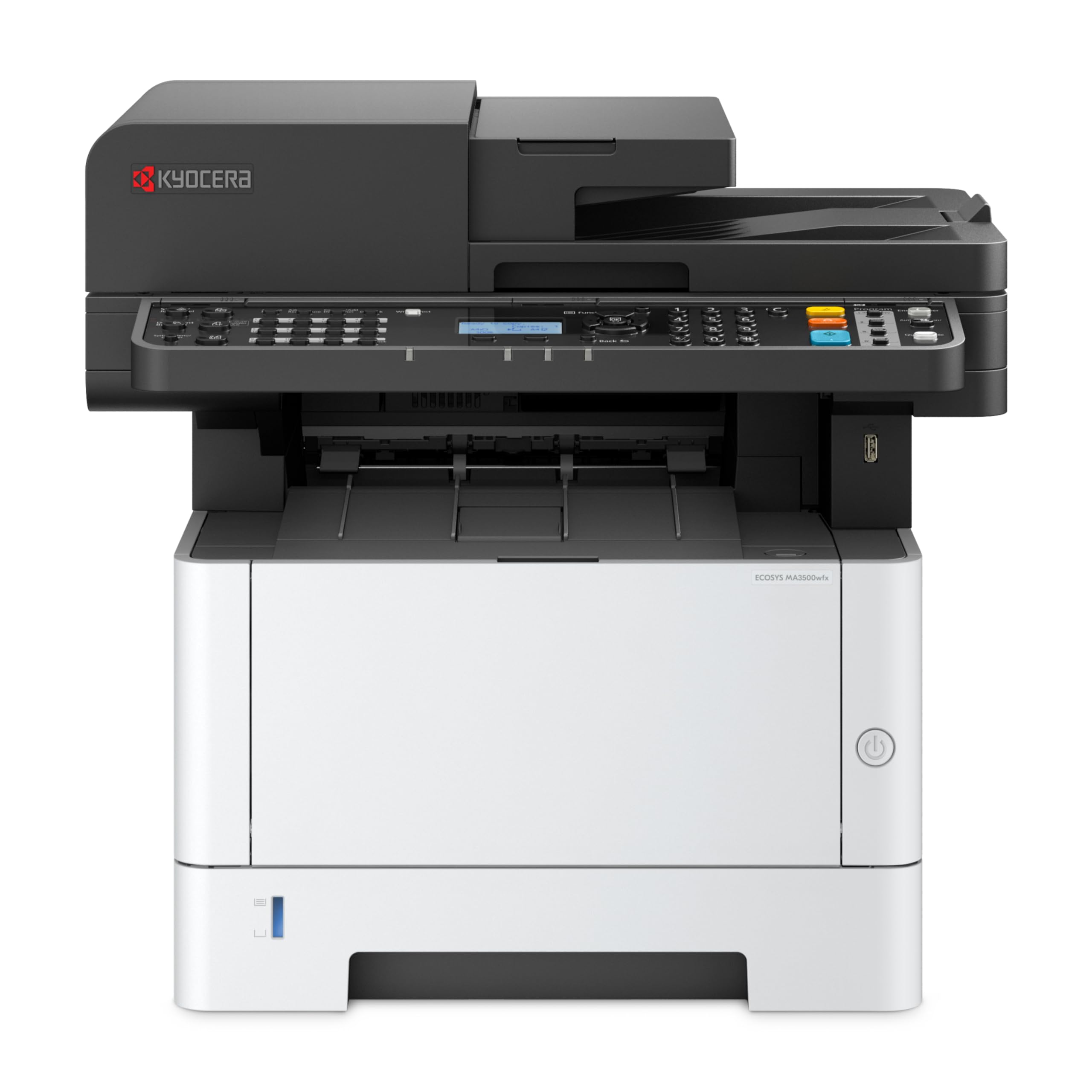
Figura 1: Față view of the KYOCERA ECOSYS MA3500wfx printer. This image shows the overall design and main components.
2. Conexiune la alimentare
Conectați cablul de alimentare la imprimantă și apoi la o priză electrică cu împământare. Apăsați butonul de alimentare pentru a porni dispozitivul.
3. Initial Toner Installation
Open the front cover of the printer. Insert the starter toner cartridge according to the instructions provided on the cartridge packaging and inside the printer. Close the front cover securely.
4. Încărcarea hârtiei
Open the paper tray located at the bottom front of the printer. Adjust the paper guides to fit the paper size. Load paper into the tray, ensuring it does not exceed the maximum fill line. Close the paper tray.

Figura 2: lateral view of the printer, illustrating the paper tray location and design.
5. Conectivitate la rețea
The MA3500wfx supports Wi-Fi, Ethernet, and USB connectivity. For wireless setup, navigate to the network settings on the control panel, select your Wi-Fi network, and enter the password. For wired connection, connect an Ethernet cable to the printer and your network router. For direct connection, use a USB cable.
6. Instalarea driverului
Install the necessary drivers and software from the KYOCERA website or the provided installation media onto your computer. The printer is compatible with Windows 10 (32/64), Windows 11 (64), Windows Server 2016, 2019, 2022, MAC OS X 10.9 or Greater, and various Linux distributions (Ubuntu 20.04+, Debian 11+, OpenSUSE 15.5+, Fedora 39+, CentOS Stream 9+), and Chrome OS Version 118 or Higher.
Instrucțiuni de operare

Figura 3: Detaliat view of the printer's control panel with LCD screen and numeric keypad.
1. Imprimare
To print a document, select the print option from your computer's application. Choose the KYOCERA ECOSYS MA3500wfx from the list of available printers. Adjust print settings such as paper size, orientation, and duplex printing (automatic for printing) as needed. Confirm and send the print job.
2. Copierea
Place your document on the scanner glass or in the Automatic Document Feeder (ADF). On the control panel, select the "Copy" function. Adjust settings like number of copies, zoom (25% - 400% in 1% increments), image mode (Text, Photo, Text & Photo, Light Text/Fine Line), and duplex copying. Press the "Start" button to begin copying.
3. Scanare
Place your document on the scanner glass or in the ADF. Select the "Scan" function on the control panel. Choose your desired scan method (PC (SMB Version 3.0), SMTP, USB, FTP, FTPS WSD (Network), TWAIN Source (Network & USB), WIA (Network & USB)). Configure scan resolution (200/300/400/600 dpi, up to 1200 dpi via TWAIN) and file format (TIFF, JPEG, XPS, Open XPS, PDF, PDF/A-1, PDF/A-2, Encrypted PDF). Initiate the scan.
4. Trimiterea de faxuri
Place your document in the ADF. Select the "Fax" function on the control panel. Enter the recipient's fax number using the numeric keypad. The device supports G3 Fax with MMR, MR, MH, JBIG data compression and a transmission speed of 3 seconds or less. Available functions include Fax Direct Tx, Fax Memory Tx, Scheduled transmission, Fax Polling, Forward Fax, Group Fax, Dial-in/out (LS Model), Number Display Mode, Fax Dedicated Paper Source, Network Fax Tx & RX. Press "Start" to send the fax.
Întreţinere
Toner Replacement
When the toner is low or empty, a message will appear on the control panel. To replace the toner, open the front cover of the printer. Press the release button for the toner cartridge and carefully pull out the old cartridge. Unpack the new toner cartridge, shake it gently, and insert it into the printer until it clicks into place. Close the front cover. The printer will automatically detect the new toner.

Figura 4: Față view of the printer with the access panel open, showing the toner cartridge area.
Depanare
Dacă întâmpinați probleme cu imprimanta, luați în considerare următorii pași de bază pentru depanare:
- Fără putere: Ensure the power cord is securely connected to both the printer and the electrical outlet.
- Blocaje de hârtie: Follow the on-screen instructions or refer to the printer's internal diagrams to locate and carefully remove any jammed paper.
- Probleme de calitate a imprimării: Check toner levels. Ensure you are using appropriate paper for your print settings. Clean the print head if necessary (refer to the printer's internal cleaning functions).
- Probleme de conectivitate: Verify network settings on the printer and your computer. For Wi-Fi, ensure the printer is within range of your router. For wired connections, check the Ethernet cable.
- Probleme cu driverul: Reinstall the printer drivers from the official KYOCERA website-ul.
For more detailed troubleshooting or persistent issues, please consult the comprehensive user manual available on the KYOCERA website or contact KYOCERA customer support.
Specificații
| Caracteristică | Detaliu |
|---|---|
| Marca | KYOCERA |
| Numele modelului | ECOSYS MA3500wfx |
| Tehnologia de conectivitate | Wi-Fi, Ethernet, USB, SDHC |
| Tehnologia de imprimare | Laser |
| Ieșire imprimantă | Monocrom |
| Viteză maximă de imprimare (monocrom) | 37 ppm |
| Viteză maximă de imprimare (color) | 1 ppm (for color documents converted to monochrome) |
| Imprimare duplex | Automatic for printing |
| Tip scaner | Alimentator automat de documente |
| Maximum Copy Resolution B&W | 600 dpi |
| Afişa | 5 line LCD with Hard Key Control Panel |
| Greutatea articolului | 42.9 lire sterline |
| Dimensiuni articol (D x L x H) | 16.2" D x 18.7" L x 17.2" H |
| Dimensiune maximă a suportului media | 8.5 x 14 inch (Legal) |
| Capacitate maximă de coli | 250 de coli (tavă standard) |
| Media încorporate | Starter toner |
| Compatibilitatea sistemelor de operare | Windows 10/11, Windows Server, MAC OS X 10.9+, Linux, Chrome OS |
Garanție și suport
The KYOCERA ECOSYS MA3500wfx printer comes with a limited warranty. For specific warranty details and terms, please refer to the manufacturer's official website. Technical support and customer service can also be accessed through the KYOCERA website or by contacting their dedicated support channels.
For additional protection, 4-Year Protection Plans and Complete Protect monthly plans may be available for purchase.


