
Introducere
Thank you for choosing the ProtoArc KM310 Wireless Mechanical Keyboard and Mouse. This combo offers a responsive typing experience with low-profile linear red switches and versatile multi-device connectivity. The ergonomic mouse is designed for comfort and precision. This manual provides detailed instructions for setup, operation, maintenance, and troubleshooting to ensure optimal performance.
Ce este în cutie

Image: Contents of the ProtoArc KM310 package, including the keyboard, mouse, charging cable, and user manual.
- ProtoArc KM310 Wireless Mechanical Keyboard
- Mouse wireless ProtoArc
- Cablu de încărcare USB-C
- Manual de utilizare
Produs terminatview
Caracteristicile tastaturii

Imagine: Un prim-plan view of the ProtoArc KM310 keyboard, highlighting its low-profile keys and linear red switches.
- Low-Profile Chei mecanice: Equipped with linear red switches for a smooth, quiet, and responsive typing experience.
- Aluminum Top Case: Provides durability and a sleek, modern aesthetic.
- Picioare reglabile înclinabile: Ergonomically designed with 2-stage foot mats offering 6° and 9° tilt options for comfortable typing.
- Aspect la dimensiune completă: A 108-key layout suitable for office and business use.
Caracteristicile mouse-ului

Image: The ProtoArc KM310 mouse being held, showcasing its ergonomic design for a natural grip.
- 63G Ultra-Lightweight: Reduces hand fatigue during extended use and enhances portability.
- Design ergonomic: Contoured shape for a comfortable and natural grip.
- DPI reglabil: Three DPI levels (1000/1600/2400) for tailored control and precision.
- Clic silențios: Conceput pentru funcționare silențioasă.
- Butoane Înainte/Înapoi: Integrated for seamless browsing.
Conectivitate și putere
- Conectivitate cu mai multe dispozitive: Connects up to 3 devices via 2.4G USB receiver or Dual Bluetooth (BT1, BT2).
- Reîncărcabil: Both keyboard and mouse feature Type-C charging. The mouse's USB receiver is stored on its bottom.
- Durată lungă de viață a bateriei: Up to 150-200 days standby time; 2-3 hours for a full charge.
Instrucțiuni de configurare
1. Încărcarea dispozitivelor

Image: The keyboard and mouse are shown connected to power sources via USB-C cables for charging.
- Conectați cablul de încărcare USB-C furnizat la portul de încărcare de pe tastatură (situat pe marginea superioară) și de pe mouse (situat pe marginea frontală).
- Conectați celălalt capăt al cablului la o sursă de alimentare USB (de exemplu, portul USB al computerului, adaptorul USB de perete).
- The indicator lights will show charging status. Allow 2-3 hours for a full charge.
2. Conectarea la dispozitive

Image: A desk setup showing the ProtoArc KM310 keyboard and mouse connected to a laptop, monitor, and tablet, illustrating multi-device capability.
The KM310 combo supports three connection modes: 2.4G wireless via USB receiver, Bluetooth 1 (BT1), and Bluetooth 2 (BT2).
2.1. Conexiune wireless 2.4G
- Localizați receptorul USB din compartimentul din partea inferioară a mouse-ului.
- Conectați receptorul USB la un port USB disponibil de pe computer.
- Porniți tastatura și mouse-ul folosind comutatoarele de alimentare respective.
- The devices should connect automatically.
2.2. Conexiune Bluetooth (BT1 / BT2)
- Porniți tastatura și mouse-ul.
- Pe tastatură, apăsați tasta BT1 or BT2 key (usually located on the number pad, indicated by orange keycaps) to select the desired Bluetooth channel. The indicator light will flash.
- On your device (computer, tablet, etc.), go to Bluetooth settings and search for "ProtoArc KM310 Keyboard" and "ProtoArc KM310 Mouse".
- Select the devices to pair. The indicator light will stop flashing once connected.
- Repeat for a second Bluetooth device using the other BT channel.
2.3. Comutarea între dispozitive
To switch between connected devices, simply press the corresponding connection key on the keyboard (2.4G, BT1, or BT2) and the channel switch button on the bottom of the mouse.
Instrucțiuni de operare
Utilizarea tastaturii
- tastare: Low-profile linear red switches provide a responsive and quiet typing experience.
- Compatibilitate cu sistemul de operare: The keyboard is compatible with Windows and Mac OS. Keys like 'Win' and 'Alt' also show 'Option' and 'Cmd' for Mac users.
- Reglarea înclinării: Use the adjustable tilt legs on the underside of the keyboard to set your preferred typing angle (6° or 9°).
Utilizarea mouse-ului
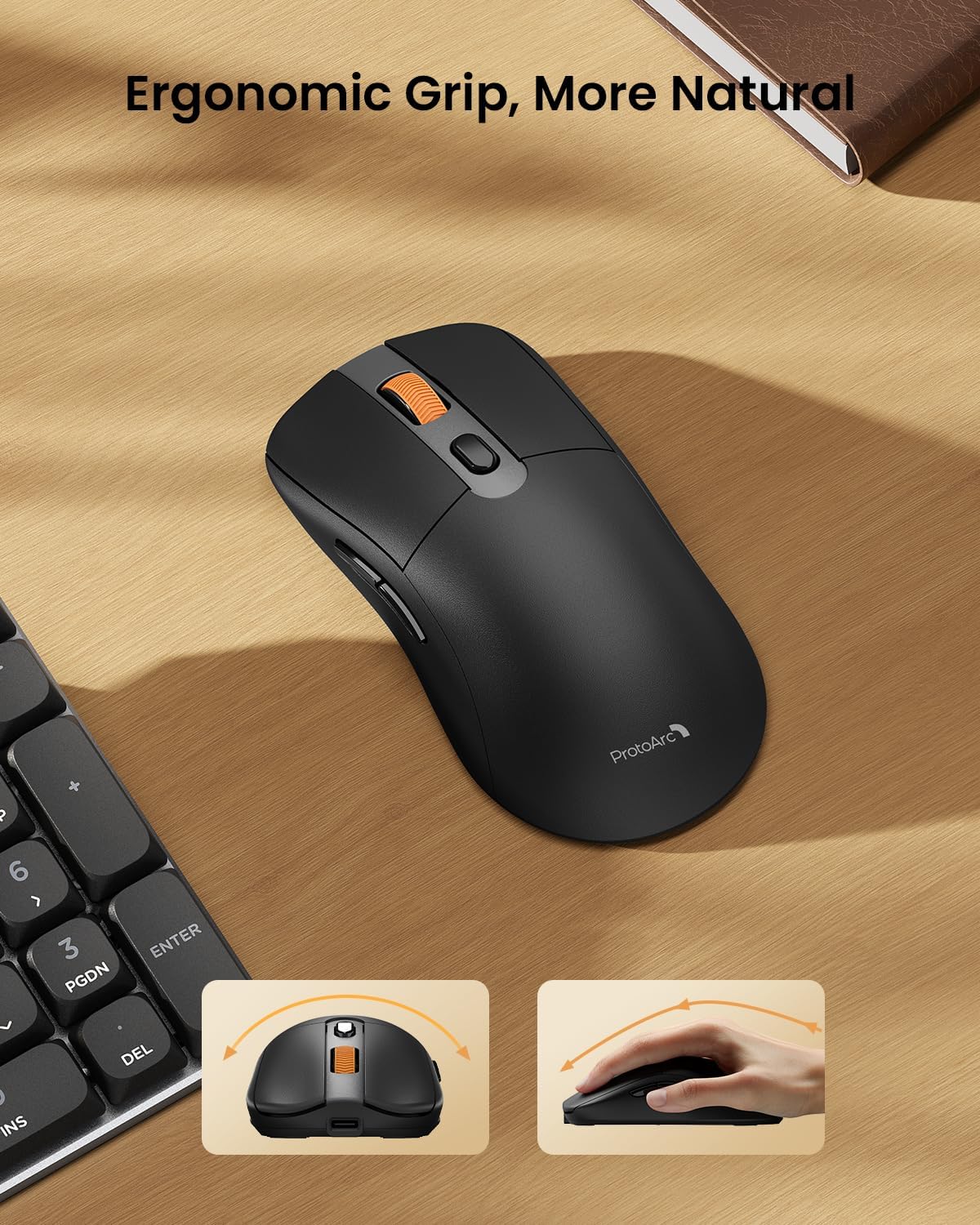
Image: A close-up of the ProtoArc KM310 mouse, illustrating the three adjustable DPI settings (1000, 1600, 2400).
- Ajustare DPI: Press the DPI switch button (usually located near the scroll wheel) to cycle through the 3 DPI levels (1000/1600/2400) to match your preference for cursor speed and precision.
- Butoane de navigare: Use the forward and backward buttons on the side of the mouse for quick navigation in web browsere sau file exploratori.
- Clicuri silențioase: The mouse features silent click buttons for a quiet working environment.
Întreţinere
- curatenie: Folosiți o lavetă moale și uscată pentru a șterge tastatura și mouse-ul. Pentru murdăria persistentă, ștergeți ușor.amp Se poate folosi o lavetă cu săpun delicat, asigurându-vă că nu pătrunde lichid în dispozitiv.
- Îngrijirea bateriei: Recharge the devices when the battery indicator is low. Avoid prolonged exposure to extreme temperatures.
- Depozitare: When not in use for extended periods, turn off the devices to conserve battery life. Store the USB receiver inside the mouse to prevent loss.
Depanare
Keyboard/Mouse Not Turning On or Stopping Working
- Verificați bateria: Ensure both the keyboard and mouse are sufficiently charged. Connect them to a power source using the USB-C cable.
- Reparați dispozitivele:
- For 2.4G connection, ensure the USB receiver is securely plugged in and the devices are set to 2.4G mode.
- For Bluetooth connection, ensure the devices are set to the correct BT channel (BT1 or BT2) and re-pair them through your device's Bluetooth settings.
- Încercați un alt cablu: If charging issues persist, try using a different USB-C cable to rule out a faulty cable.
- Interferență: Move the devices closer to your computer or away from other wireless devices that might cause interference.
- Contactați asistența: If the issue persists, please contact ProtoArc customer support for further assistance.
Specificații
| Numărul de model | KM310 |
| Marca | ProtoArc |
| Culoare | Gri spațial |
| Tehnologia de conectivitate | Bluetooth, USB (fără fir 2.4G) |
| Caracteristici speciale | Low Profile Keys, Linear Red Switches, Ergonomic Design, Ultra-Light Mouse, Ergonomic Mouse |
| Dispozitive compatibile | Laptop, Personal Computer, Tablet (Windows 7/8/10, Mac OS X 10.12, Android 4.3 or higher) |
| Greutatea articolului | 2.31 lire sterline |
| Dimensiuni pachet | 17.68 x 8.07 x 2.05 inci |
Garanție și asistență
The ProtoArc KM310 Mechanical Keyboard and Mouse combo comes with a 2 ani garanție.
For any questions, technical support, or warranty claims, please contact ProtoArc customer service:
- E-mail: support@protoarc.com
- Telefon: +1 866-287-8188
Videoclip oficial al produsului
Video: Prezentare video oficială a produsuluiasing the features and design of the ProtoArc KM310 Aluminum Mechanical Keyboard and Mouse.