
1. Introducere
This manual provides detailed instructions for the installation, operation, and maintenance of your UNITOPSCI Android 15 Car Stereo. Please read this manual thoroughly before using the product to ensure proper functionality and safety. This unit is specifically designed for Lexus ES models from 2001 to 2005 (ES250, ES300, ES330).

Image 1.1: UNITOPSCI Android 15 Car Stereo with main accessories.
2. Conținutul pachetului
Verificați dacă toate articolele enumerate mai jos sunt incluse în pachetul dumneavoastră:
- 1 x Unitate radio auto
- 1 x cablu de alimentare
- 1 x spate mașină View Camera foto
- 1 x Set de scule de instalare
- 1 x Antenă GPS
- 1 x Cablu de intrare pentru camera spate
- Cablu 1 x RCA
- 2 x cabluri USB
- 1 x Manual de utilizare
- 1 x Microfon

Image 2.1: Visual representation of the package contents and unit dimensions.
3. Compatibility and Important Notes
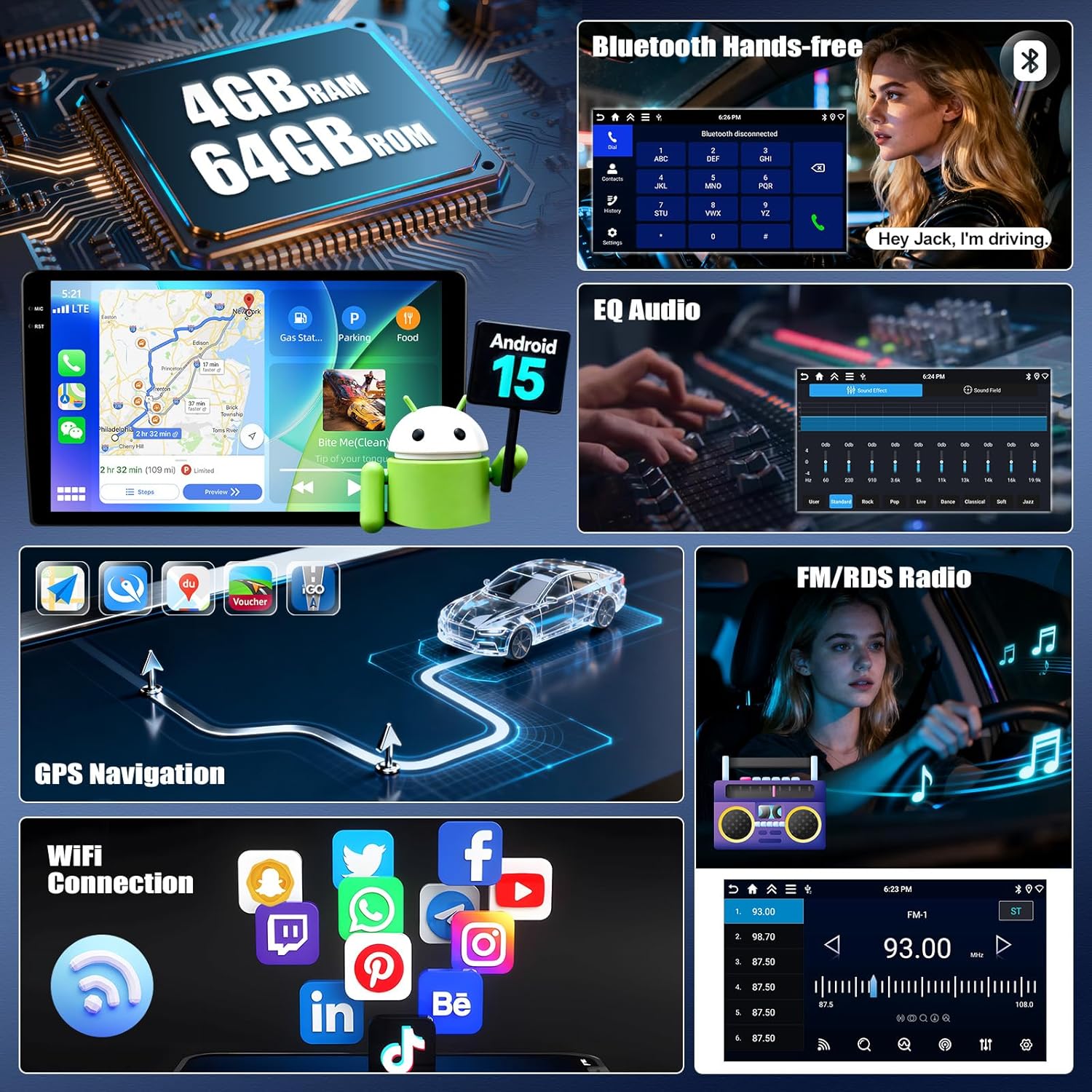
This car stereo is designed for Lexus ES 2001-2005 ES250/300/330 models. It features a 9-inch IPS touchscreen with 1280*720P resolution and runs on Android 15 with 4GB RAM and 64GB ROM.
3.1 Wiring Harness and CANBUS
Important: If your vehicle's original CD player has an incompatible back interface (as shown in Image 3.1, types B, C, or D), you may need to purchase an additional wiring harness and CANBUS decoder separately. The standard wiring harness included is for basic configurations (Type A). Please consult customer support if you are unsure about your vehicle's specific configuration.
Imaginea 3.1: Examples of compatible (A) and incompatible (B, C, D) CD player back interfaces.
4. Configurare și instalare
Installation of this car stereo requires technical knowledge. It is recommended to seek professional installation to avoid damage to the unit or your vehicle. Ensure the vehicle's battery is disconnected before beginning installation.
4.1 General Installation Steps (Consult a professional or vehicle-specific guide for detailed steps):
- Remove the original car stereo unit from the dashboard.
- Connect the provided power cable, RCA cables, USB cables, GPS antenna, and rear camera input cable to the new head unit.
- If required, connect the additional wiring harness and CANBUS decoder.
- Carefully route all cables to their respective locations in the vehicle.
- Mount the new car stereo into the dashboard opening.
- Reconnect the vehicle's battery and test all functions.
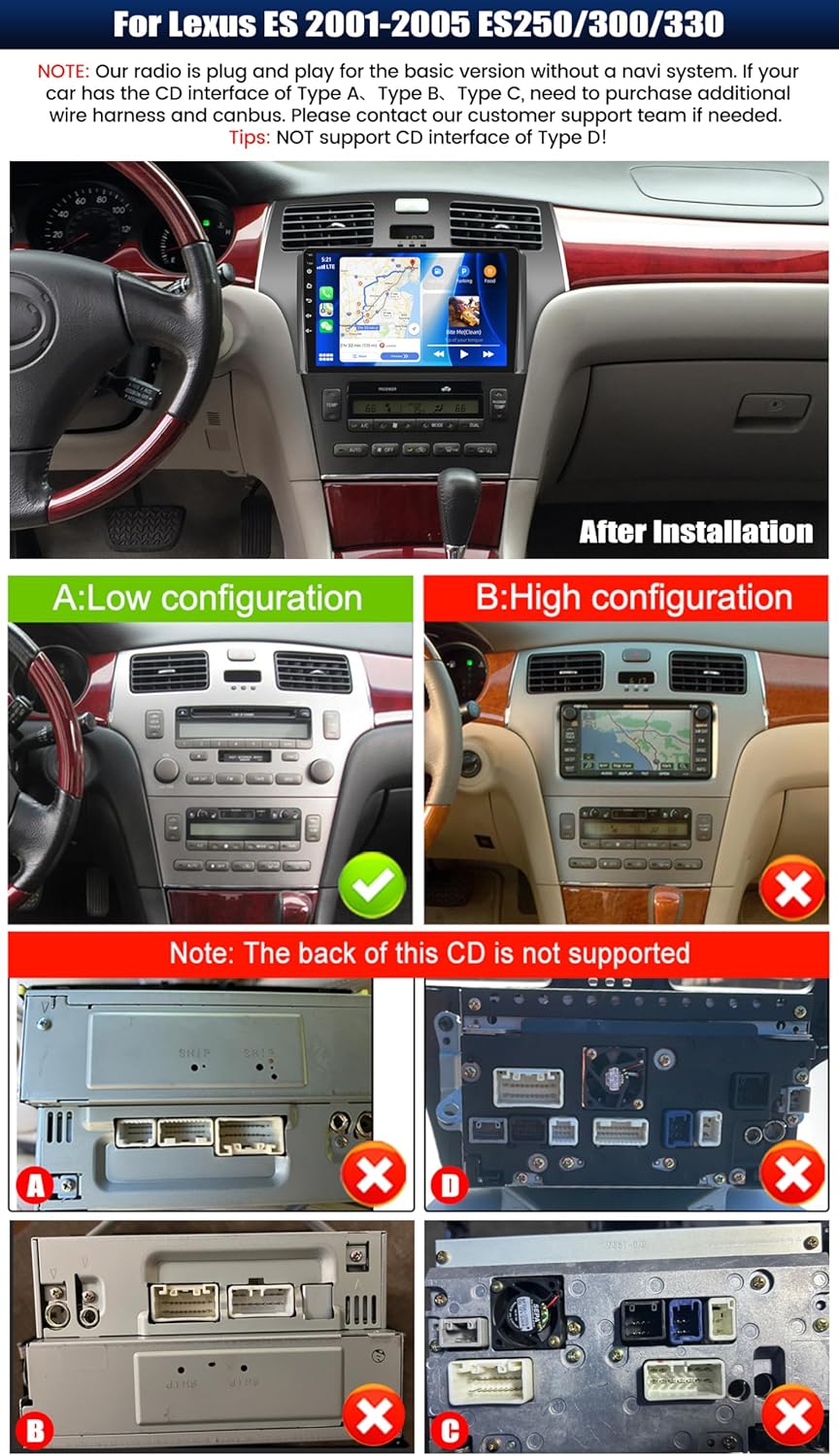
Imaginea 4.1: Example of the car stereo installed in a Lexus ES dashboard.
5. Instrucțiuni de utilizare
CarPlay wireless 5.1 / Android Auto
The unit supports wireless CarPlay for iOS devices and wireless Android Auto for Android devices. This allows seamless integration of your smartphone's navigation, music, calls, and messaging functions directly on the car stereo display.
- Asigurați-vă că Bluetooth și Wi-Fi sunt activate pe smartphone-ul dvs.
- Pe sistemul stereo al mașinii, navigați la aplicația CarPlay sau Android Auto.
- Urmați instrucțiunile de pe ecran pentru a vă asocia dispozitivul.
- Once connected, you can access compatible apps and use voice commands (Siri or Google Assistant).

Imaginea 5.1: Funcționalități Wireless CarPlay și Android Auto.
5.2 Funcția de legătură în oglindă
Mirror Link allows you to display your smartphone's screen on the car stereo. For Android devices, you can also control the phone directly from the stereo's touchscreen.
- Connect your smartphone to the car stereo via USB or Wi-Fi.
- Deschideți aplicația „Mirror Link” pe sistemul stereo al mașinii.
- Follow the instructions on the screen to establish the connection.
5.3 Navigare GPS
The unit features a built-in GPS module supporting both online and offline navigation. Pre-installed maps for North America and worldwide are available.
- To use online navigation, ensure the unit is connected to Wi-Fi.
- For offline navigation, download map data in advance.
- Access navigation through the dedicated 'GPS' or 'Maps' application.

Image 5.2: GPS Navigation and Wi-Fi connectivity.
5.4 Bluetooth 5.0
Conectați-vă smartphone-ul prin Bluetooth pentru apeluri hands-free și streaming audio.
- Activați Bluetooth pe smartphone și pe sistemul stereo al mașinii.
- Caută available devices on the car stereo and select your phone.
- Confirmați codul de asociere pe ambele dispozitive.
- După asociere, puteți efectua/primi apeluri și reda muzică fără fir.
Radio FM/RDS 5.5
The built-in FM/RDS tuner provides enhanced radio signal reception. You can store up to 18 preset stations.
- Accesați aplicația „Radio”.
- Folosiți funcția de scanare pentru a găsi posturile disponibile.
- Apăsați și mențineți apăsat un buton de presetare pentru a salva postul curent.
5.6 EQ Audio Settings
Adjust audio output with the integrated Equalizer (EQ) to customize your listening experience. Multiple preset sound effects are available.
- Navigate to 'Sound Settings' or 'EQ' in the main menu.
- Choose from various preset sound modes (e.g., Pop, Rock, Jazz) or manually adjust frequency bands.

Image 5.3: Bluetooth, FM/RDS Radio, and EQ Audio interfaces.
5.7 Controlul volanului (SWC)
The unit supports steering wheel controls, allowing you to manage audio functions (volume, track skipping, call answering) without taking your hands off the wheel.
- Access the 'Steering Wheel Control' settings in the system menu.
- Urmați instrucțiunile de pe ecran pentru a programa fiecare buton de pe volan la funcția dorită.
5.8 Funcționalitate ecran divizat
The split-screen feature allows you to run two applications simultaneously on the display, such as navigation and music playback. You can adjust the size and position of each app.
- From a running application, swipe from the side or long-press the recent apps button (method may vary by UI theme) to activate split-screen mode.
- Select a second application to run alongside the first.

Image 5.4: Display features including IPS touchscreen, UI themes, and split screen.
6. Spate View Funcționarea camerei
Camera video AHD pentru marșarier inclusă oferă o imagine clară view of the area behind your vehicle when reversing. It automatically activates when the vehicle is shifted into reverse gear.
- Ensure the rear camera is properly installed and connected to the 'Rear Camera Input' on the head unit.
- When the vehicle is in reverse, the display will automatically switch to the camera feed, showing parking assist lines.

Image 6.1: Steering Wheel Control interface and AHD Backup Camera view.
7. Specificații
| Caracteristică | Caietul de sarcini |
|---|---|
| Sistem de operare | Android 15 |
| RAM | 4 GB |
| ROM | 64 GB |
| Dimensiunea afișajului | 9 inchi |
| Rezoluția ecranului | 1280 x 720P IPS |
| Versiune Bluetooth | 5.0 |
| Conectivitate | Bluetooth, Wi-Fi, USB |
| Caracteristici speciale | Wireless CarPlay, Android Auto, Mirror Link, GPS Navigation, FM/RDS, EQ, Steering Wheel Control, AHD Backup Camera, Multiple UI Themes, Split Screen |
| Tip hartă | North America, Worldwide (offline/online) |
| Greutatea articolului | 3.89 lire sterline |
| Dimensiuni pachet | 15.35 x 9.65 x 3.35 inci |
8. Depanare
Dacă întâmpinați probleme cu sistemul stereo al mașinii, consultați următorii pași comuni de depanare:
- Fără putere: Check all power connections and fuses. Ensure the vehicle's battery is properly connected.
- Fără sunet: Verificați conexiunile difuzoarelor. Verificați nivelurile de volum și setările egalizatorului. Asigurați-vă că este selectată sursa audio corectă.
- Pierdere semnal GPS: Asigurați-vă că antena GPS este instalată corect și are o vizibilitate clară. view Verificați setările GPS din unitate.
- Probleme de conexiune Bluetooth: Ensure Bluetooth is enabled on both devices. Delete previous pairings and attempt to re-pair.
- CarPlay/Android Auto nu se conectează: Ensure Wi-Fi and Bluetooth are active on your phone. Try restarting both the phone and the car stereo. Check for software updates for the car stereo.
- Camera din spate nu afișează: Verificați conexiunile de alimentare și de intrare video ale camerei. Asigurați-vă că firul de semnal al marșarierului este conectat corect.
- Ecranul tactil nu răspunde: Încercați să reporniți unitatea. Dacă problema persistă, poate fi necesară o resetare la setările din fabrică (notă: aceasta va șterge toate datele utilizatorului).
Pentru probleme persistente, vă rugăm să contactați serviciul de asistență pentru clienți.
9. Întreținere
Întreținerea corespunzătoare asigură longevitatea și performanța optimă a sistemului stereo auto.
- Curățarea ecranului: Folosiți o lavetă moale, fără scame, pentru a șterge ușor ecranul tactil. Pentru petele persistente, ștergeți ușor.ampCurățați laveta cu apă sau cu un produs de curățare sigur pentru ecran. Evitați substanțele chimice dure sau materialele abrazive.
- Actualizări de software: Periodically check for available software updates to ensure optimal performance and access to new features. Follow the instructions provided with the update.
- Conditii de mediu: Evitați expunerea unității la temperaturi extreme, la lumina directă a soarelui pentru perioade lungi de timp sau la umiditate excesivă.
- Conexiuni prin cablu: Periodically check that all cables are securely connected to prevent intermittent issues.
10. Garanție și asistență
UNITOPSCI offers comprehensive support for your product:
- Garantie: The product comes with a 12-month replacement service.
- Garanția de rambursare a banilor: Se oferă o garanție de returnare a banilor de 30 de zile.
- Returnări: Enjoy 60-days no-worry returns.
- Suport tehnic: Dedicated 24/7 professional after-sales team is available to assist with installation or usage inquiries. Lifetime after-sales consultation and technical support are provided.
Informații de contact:
For online support, please contact: UNITOPSCI@126.com

Image 10.1: UNITOPSCI customer support information.