
Introducere
Thank you for choosing the MEETION BTC1100 Wireless Keyboard and Mouse Combo. This product is designed to enhance your productivity and comfort across multiple devices. It features versatile connectivity options, an ergonomic design, and convenient multimedia controls. Please read this manual carefully to ensure proper setup and optimal use.
Conținutul pachetului
- MEETION BTC1100 Wireless Keyboard
- MEETION Wireless Mouse
- Cablu de încărcare USB-C la USB-A
- Receptor USB 2.4G
- User Manual (Instruction Card)
Înființat
1. Încărcarea dispozitivelor
Both the keyboard and mouse are equipped with built-in rechargeable batteries. Use the provided USB-C cable to charge them. A full charge typically takes 2-3 hours.

Image: The keyboard and mouse connected to charging cables, illustrating the Type-C rechargeable feature.
2. Operating System Selection (Keyboard)
On the top right side of the keyboard, locate the switch to select your operating system: Windows (Win) or Mac (iOS). Slide the switch to the appropriate position for your device. This ensures correct key mapping for your system.
3. Conectarea la dispozitive
The combo offers triple-device connectivity: one 2.4G USB connection and two Bluetooth connections (BT1, BT2).
3.1. 2.4G USB Receiver Connection
- Take the 2.4G USB receiver out of its storage compartment (located on the underside of the mouse or keyboard).
- Conectați receptorul USB la un port USB-A disponibil de pe computer.
- On the keyboard, press the 2.4G connection button (often indicated by a Wi-Fi-like symbol). The corresponding indicator light will illuminate.
- On the mouse, press the Mode Switching Button (M) until the 2.4G indicator light illuminates.
- Your keyboard and mouse should now be connected via 2.4G.
3.2. Conexiune Bluetooth (BT1 / BT2)
- On the keyboard, press either the Bluetooth 1 (BT1) or Bluetooth 2 (BT2) button. The corresponding indicator light will turn blue and begin to blink, indicating pairing mode.
- On the mouse, press the Mode Switching Button (M) until the desired Bluetooth indicator (BT1 or BT2) lights up blue and starts blinking.
- Pe computer sau dispozitiv, accesați setările Bluetooth și căutați dispozitive noi.
- Select the device named 'MEETION KB-BT1' (for keyboard) and 'MEETION MS-BT1' (for mouse) for Bluetooth 1, or 'MEETION KB-BT2' and 'MEETION MS-BT2' for Bluetooth 2.
- Once connected, the indicator lights on the keyboard and mouse will stop blinking and remain solid blue.

Image: The keyboard and mouse connected to a tablet, phone, and monitor, demonstrating multi-device connectivity.
4. Adjustable Tilt Legs (Keyboard)
For a more natural and relaxed typing experience, you can adjust the keyboard's angle using the tilt legs located on the underside. There are two levels of adjustment available.

Image: Close-up of the keyboard's underside showing the adjustable tilt legs in two different positions (4 and 7 degrees).
Instrucțiuni de operare
1. Caracteristici ale tastaturii
- Ergonomic Design with Wrist Rest: The keyboard features a generous, textured palm rest designed to reduce wrist pressure and provide comfort during extended typing sessions.
- Integrated Tablet/Phone Holder: A 9.2-inch slot at the top of the keyboard securely holds most phones and tablets (up to 11 inches), allowing for easy viewing and a tidier workspace.
- Scissor Keys: The soft scissor-foot buttons provide a quiet and smooth typing experience, ideal for office environments.
- Multimedia and Shortcut Keys: The keyboard includes 6 dedicated multimedia keys, 12 shortcuts, and a numeric keypad for fast navigation and data entry.
- Comutare multi-dispozitiv: Easily switch between up to three connected devices (2.4G, Bluetooth 1, Bluetooth 2) using the dedicated buttons at the top of the keyboard.
- Dual OS Compatibility: Keys are dual-labeled for both Windows and Mac operating systems, ensuring full functionality regardless of your device.

Imagine: De sus view of the full-size keyboard with its integrated wrist rest, highlighting its ergonomic design.

Image: Close-up of the keyboard's integrated 9.18-inch phone holder with a smartphone placed inside.
2. Caracteristici ale mouse-ului
- Clicuri silențioase: The mouse is designed for quiet operation, reducing click noise by 95% for a less disruptive work environment.
- DPI reglabil: Cycle through 4 DPI levels (1200, 1600, 2400, 3200) using the DPI Speed Switch Button on the underside to match your preference for cursor sensitivity.
- Mode Switching Button (M): Use this button to switch between connected devices (2.4G, Bluetooth 1, Bluetooth 2).
- Desktop Return Key (Q): The magnifying glass button instantly returns you to your desktop on both Windows and Mac.
- Butoane Înainte/Înapoi: Convenient side buttons for easy web navigare pe pagină.
- Stocare receptor USB: The 2.4G USB receiver can be stored securely in a compartment on the underside of the mouse when not in use.
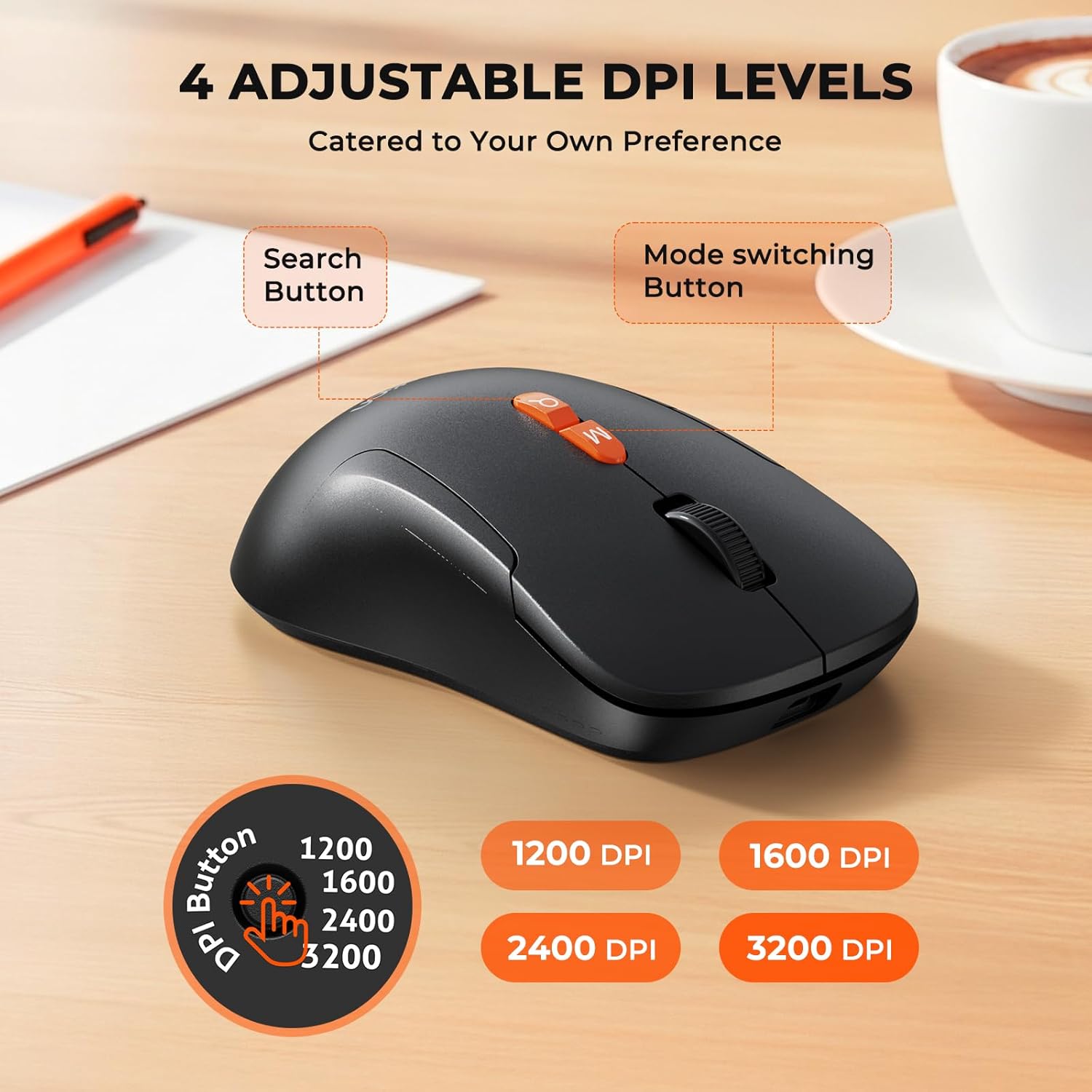
Image: The wireless mouse highlighting its 4 adjustable DPI levels (1200, 1600, 2400, 3200) and dedicated buttons.
3. Official Product Video: Keyboard and Mouse Overview
Video: Un oficial s-a terminatview of the MEETION C1100 Wireless Keyboard and Mouse, demonstrating its features including the phone holder and multi-device connectivity.
Întreţinere
- Păstrați tastatura și mouse-ul curate ștergându-le cu o lavetă moale și uscată.
- Evitați expunerea dispozitivelor la temperaturi extreme, lumina directă a soarelui sau lichide.
- Store the USB receiver in its designated compartment when not in use to prevent loss.
Depanare
Probleme de conectivitate
- Nici o conexiune: Ensure the keyboard/mouse is switched to the correct operating system (Windows/Mac) and connection mode (2.4G, BT1, or BT2).
- Eroare de asociere Bluetooth: Make sure the device is in pairing mode (blinking blue light). Remove previous pairings from your device's Bluetooth settings and try pairing again.
- 2.4G Receiver Not Detected: Ensure the USB receiver is fully plugged into a working USB port. Try a different USB port if necessary.
Probleme de performanță
- Lag or Unresponsive: Check battery levels and recharge if low. Ensure the device is within range of your computer. For 2.4G connection, try moving the receiver closer to the devices.
- Salturi cursor mouse/Inexactitate: Adjust the DPI settings on the mouse to find a comfortable sensitivity. Ensure the mouse sensor is clean.
Probleme cu baterie
- Baterie descărcată: Recharge the devices using the provided USB-C cable. The indicator light will show charging status.
- Dispozitivul nu pornește: Ensure the power switch is in the 'On' position and the battery is charged.
Specificații
| Caracteristică | Descriere |
|---|---|
| Marca | ÎNTÂLNIREA |
| Model | BTC1100 |
| Tehnologia de conectivitate | Bluetooth, 2.4G USB |
| Caracteristici speciale | Ergonomic, Full-Size, Phone Holder, Rechargeable, Wrist Rest |
| Dispozitive compatibile | Laptop, computer personal, smartphone |
| Culoare | Negru |
| Greutatea articolului | 2.98 lire sterline |
| Dimensiuni pachet | 17.28 x 9.21 x 2.56 inci |
| baterii | 1 9V batteries required. (included) - Note: Product is rechargeable via USB-C, internal batteries are included. |
| Producător | MEETION Inc |
Garanție și suport
For warranty information and technical support, please contact MEETION Inc directly. Refer to the product packaging or the official MEETION website-ul pentru cele mai recente date de contact și termeni de garanție.