
1. Introducere
This manual provides instructions for the SABLUTE KMA1pro Bluetooth Keyboard and Mouse combo, designed for Apple devices. This combo offers a full-size Mac layout keyboard with 7-color backlighting, multi-device connectivity, and a quiet, rechargeable mouse. Please read this manual thoroughly before use to ensure proper operation and longevity of your devices.
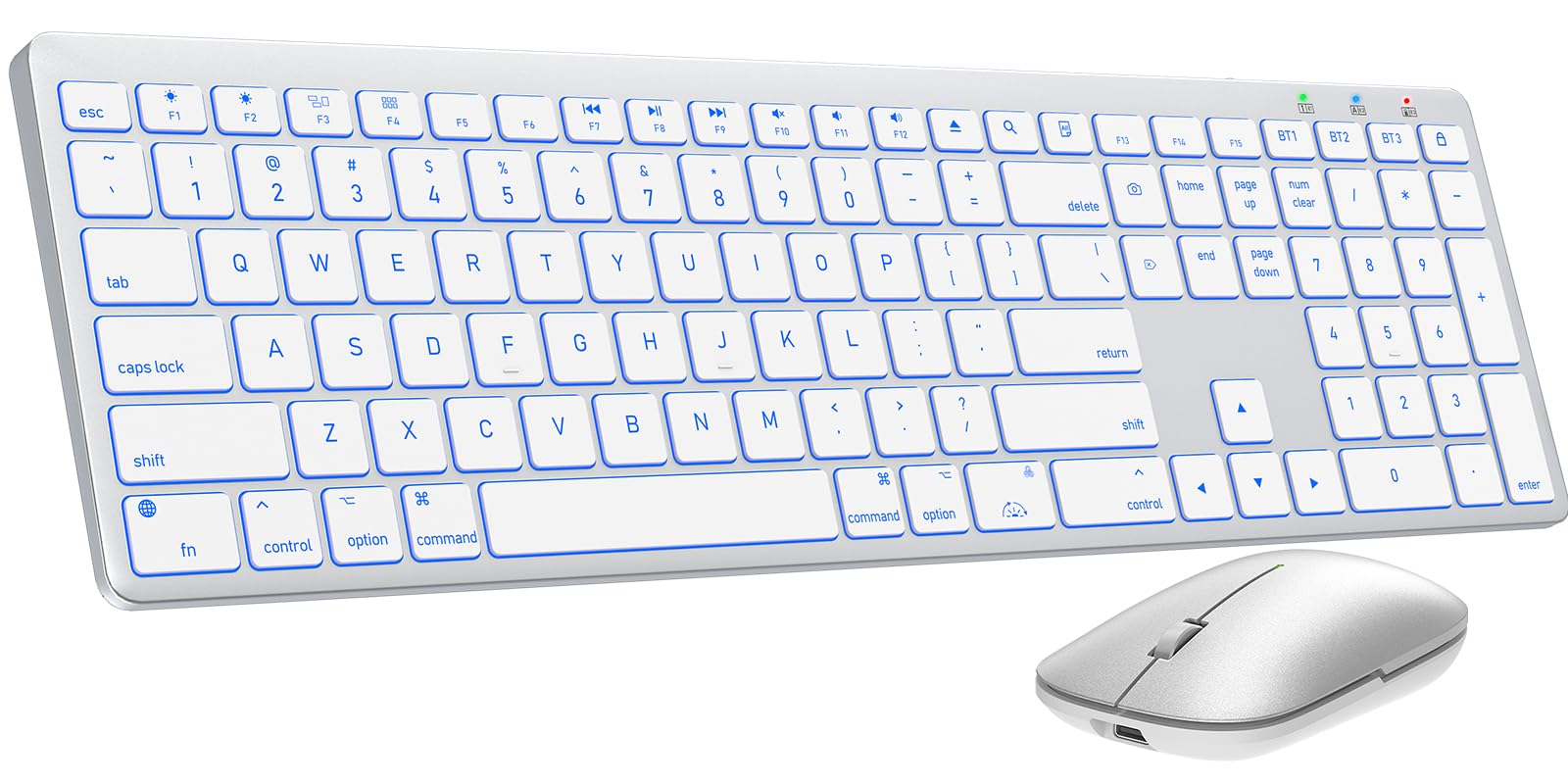
Image 1.1: The SABLUTE KMA1pro Bluetooth Keyboard and Mouse combo.
Continutul pachetului:
- SABLUTE KMA1pro Bluetooth Keyboard
- SABLUTE Bluetooth Mouse
- Cablu de încărcare USB-C
- Silicone Dustproof Cover
- Manual de utilizare
2. Configurare
2.1 Încărcarea dispozitivelor
Before initial use, fully charge both the keyboard and the mouse. Use the provided USB-C charging cable.
- Connect the USB-C end of the cable to the charging port on the keyboard (located on the top edge) and the mouse (located on the front edge).
- Conectați capătul USB-A al cablului la un adaptor de alimentare USB (nu este inclus) sau la portul USB al unui computer.
- The charging indicator light will illuminate. Once fully charged (approximately 2-3 hours), the indicator will change or turn off.

Image 2.1: Charging the keyboard and mouse via USB-C cable.
2.2 Pornire/Oprire
- Tastatura: Locate the power switch on the top edge of the keyboard. Slide it to the 'ON' position to power on, and 'OFF' to power off.
- Mouse: Locate the power switch on the bottom of the mouse. Slide it to the 'ON' position to power on, and 'OFF' to power off.
2.3 Asociere Bluetooth
The KMA1pro combo supports connecting up to three Bluetooth devices simultaneously.
- Enable Bluetooth on your Mac device: Go to System Settings (or System Preferences) > Bluetooth and ensure Bluetooth is turned on.
- Împerecherea tastaturii:
- Porniți tastatura.
- Țineți apăsat butonul BT1, BT2, sau BT3 key for 3-5 seconds until the corresponding indicator light flashes rapidly. This indicates the keyboard is in pairing mode.
- On your Mac device, look for "SABLUTE Keyboard" in the Bluetooth device list and click "Connect".
- Odată conectat, indicatorul luminos va înceta să clipească.
- Împerecherea mouse-ului:
- Porniți mouse-ul.
- Press the channel switch button on the bottom of the mouse to select a channel (e.g., BT1). The indicator light will flash.
- On your Mac device, look for "SABLUTE Mouse" in the Bluetooth device list and click "Connect".
- Odată conectat, indicatorul luminos va înceta să clipească.
- Repeat these steps for additional devices using BT2 and BT3 channels.

Image 2.2: The keyboard and mouse can switch between three paired Bluetooth devices.
3. Funcționare
3.1 Keyboard Backlight Control
The keyboard features 7-color backlighting with adjustable brightness levels.
- Schimbați culoarea iluminării de fundal: Presa Fn +
 (the light bulb icon) to cycle through the 7 available colors.
 - Reglați luminozitatea: Presa Fn + (the sun icon) to cycle through 3 brightness levels or turn the backlight off.

Image 3.1: Adjusting backlight colors and brightness on the keyboard.
3.2 Switching Between Multiple Devices
To switch between your paired devices (Mac, iPad, iPhone), simply press the corresponding Bluetooth channel key on the keyboard:
- Presa BT1 to switch to device 1.
- Presa BT2 to switch to device 2.
- Presa BT3 to switch to device 3.
For the mouse, press the channel switch button on the bottom to select the desired paired channel.
3.3 Mac Shortcut Keys
The keyboard features a full standard Mac layout with dedicated macOS shortcut keys for enhanced productivity.

Image 3.2: Mac-specific function keys on the keyboard.
| Cheie | Funcţie |
|---|---|
| F1 | Light Decreases |
| F2 | Light Increases |
| F3 | Multitasking Window |
| F4 | Launchpad |
| F7 | Piesa anterioară |
| F8 | Redare/Pauză |
| F9 | Următoarea piesă |
| F10 | Mut |
| F11 | Volum - |
| F12 | Volumul + |
| Ejectare media | Eject Media |
| Caută | Funcția de căutare |
| Selectați Toate | Select All Content |
| Comutați iluminarea de fundal | Activați/Dezactivați iluminarea de fundal |
| Blocare ecran | Blocare ecran |
Nota: Mac shortcuts and keys are incompatible with Windows operating systems.
3.4 Reglarea DPI-ului mouse-ului
The mouse features three adjustable DPI settings (800/1200/1600) for precise cursor control.
- To switch DPI settings, press and hold the middle scroll wheel button and the right-click button simultaneously for 3 seconds. The DPI will cycle through 800, 1200, and 1600.

Image 3.3: The mouse offers three adjustable DPI settings for cursor precision.
3.5 Ergonomic Tilt
The keyboard includes built-in adjustable folding feet to set an ergonomic typing angle, reducing wrist strain during extended use.
- Gently pull out the folding feet located on the underside of the keyboard to elevate the back edge.
- Push them back in to return the keyboard to a flat position.

Image 3.4: The keyboard features adjustable folding feet for ergonomic comfort.
3.6 Modul de economisire a energiei
Both the keyboard and mouse feature an intelligent auto-sleep mode to conserve battery power when not in use. To reactivate, simply press any key on the keyboard or move/click the mouse.
4. Întreținere
4.1 Curățare
- Opriți atât tastatura, cât și mouse-ul înainte de curățare.
- Folosiți o cârpă moale, fără scame dampClătiți cu apă sau o soluție de curățare blândă. Evitați substanțele chimice dure.
- For the keyboard, you can use a can of compressed air to remove dust and debris from between the keys.
4.2 Using the Dustproof Cover
A custom-fit silicone protective film is included to shield your keyboard from dust, spills, and daily wear. Place it over the keyboard when not in active use or during travel.
4.3 Îngrijirea bateriei
- Avoid fully discharging the batteries frequently. Recharge when the low battery indicator appears.
- If storing the devices for an extended period, charge them to about 50% and power them off. Recharge every few months to prevent deep discharge.
5. Depanare
| Problemă | Soluție posibilă |
|---|---|
| Tastatura/mouse-ul nu se conectează prin Bluetooth |
|
| Lumina de fundal nu funcționează sau este slabă |
|
| Cursorul mouse-ului este neregulat sau nu răspunde |
|
| Tastele tastaturii nu răspund |
|
6. Specificații
| Caracteristică | Detaliu |
|---|---|
| Marca | SABLUTE |
| Numărul de model | KMA1pro |
| Culoare | Alb argintiu |
| Tehnologia de conectivitate | Bluetooth |
| Dispozitive compatibile | Mac, Mac Mini, iPad, MacBook, MacBook Air, MacBook Pro |
| Sistem de operare | Mac OS |
| Aspectul tastaturii | QWERTY |
| Descrierea tastaturii | Membrane, Scissor-Switch Keys |
| Iluminarea din spate a tastaturii | 7 culori, 3 niveluri de luminozitate |
| Capacitatea bateriei tastaturii | 1600 mAh |
| Capacitatea bateriei mouse-ului | 300 mAh |
| Setări DPI mouse | 800/1200/1600 |
| Greutatea articolului | 0.82 Kilograms (Keyboard and Mouse) |
| Caracteristici speciale | 7 Color Backlit, Designed for Mac, Dustproof Cover, Quiet Typing, Rechargeable, Multi-Device Switching, Ergonomic Tilt |
7. Informații despre garanție
SABLUTE offers a 24 luni garantie for each KMA1pro Bluetooth Keyboard and Mouse combo from the date of purchase. This warranty covers manufacturing defects and workmanship. Please retain your proof of purchase for warranty claims.
Garanția nu acoperă daunele cauzate de utilizarea necorespunzătoare, accidente, modificări neautorizate sau uzură normală.
8. Asistență pentru clienți
For any questions, technical assistance, or warranty claims, please contact SABLUTE customer support:
- E-mail: sabluteservices@outlook.com
Our support team aims to respond within 24 hours.
Video 8.1: Official product video demonstrating the SABLUTE Bluetooth Wireless Keyboard and Mouse for Mac features.