
MERCUSYS ME80X
Mercusys ME80X AX3000 WiFi 6 Range Extender User Manual
Model: ME80X | Brand: MERCUSYS
Introducere
This manual provides detailed instructions for setting up, operating, maintaining, and troubleshooting your Mercusys ME80X AX3000 WiFi 6 Range Extender. Please read this guide carefully to ensure optimal performance and proper use of your device.
Ce este în cutie
- Mercusys ME80X AX3000 WiFi 6 Range Extender
- Quick Installation Guide (not included in this digital manual, but typically provided)
Ensure all components are present and in good condition. If any item is missing or damaged, please contact customer support.
Caracteristici cheie
- Dual Band AX3000 Speeds: Up to 2402 Mbps on 5 GHz and 574 Mbps on 2.4 GHz.
- Tehnologie WiFi 6: Enhances speed, efficiency, and capacity for a better network experience.
- Port Gigabit Ethernet: Provides fast wired connections for devices like PCs, IPTVs, and gaming consoles.
- Universal Compatibilitate: Works with any standard Wi-Fi router.
- One-Touch WPS Setup: Easy expansion of Wi-Fi coverage by pressing the WPS button.
- Moduri de funcționare duale: Functions as a Range Extender (RE) or an Access Point (AP).
- Control inteligent al aplicației: Manage your network via the MERCUSYS app on iOS or Android devices.
- Compatibil cu EasyMesh: Create a unified mesh network for seamless roaming.
Produs terminatview
The Mercusys ME80X is designed to extend your existing Wi-Fi coverage, eliminating dead zones and providing strong, reliable wireless connectivity throughout your home or office.
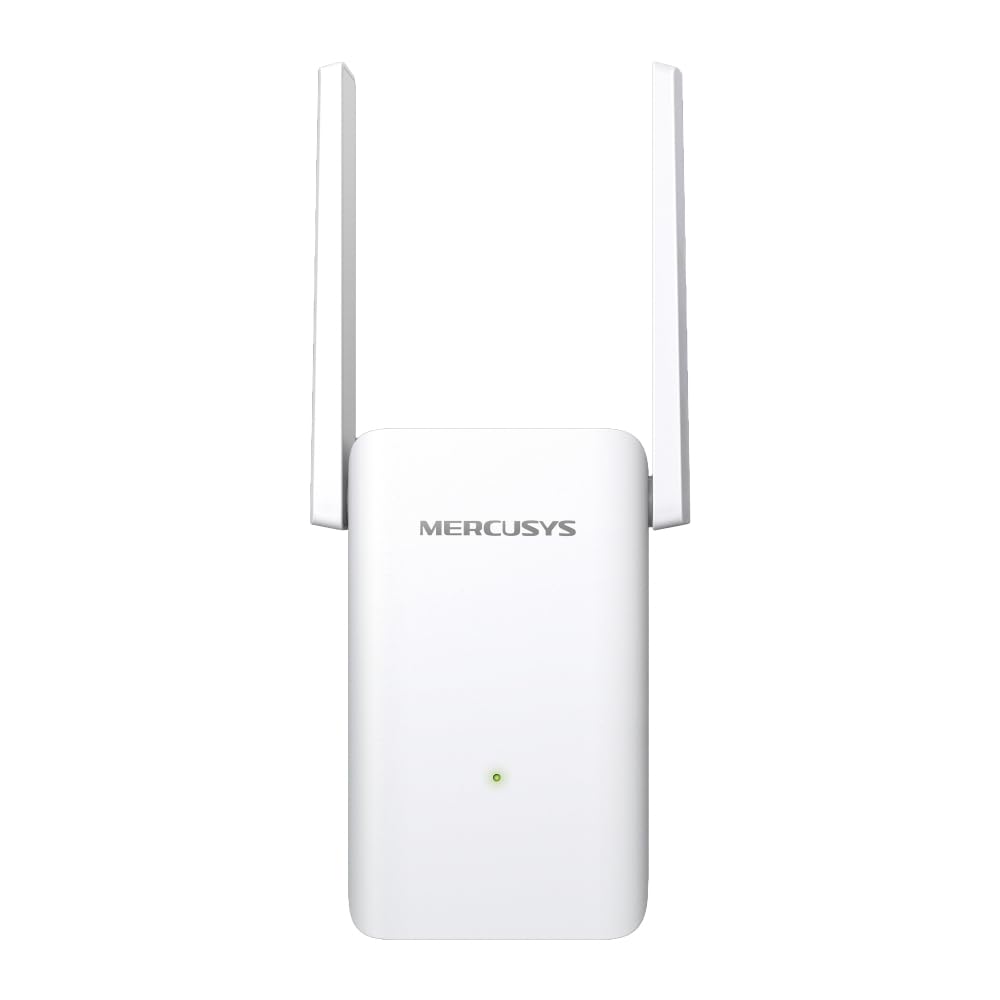
Imagine: față view of the Mercusys ME80X AX3000 WiFi 6 Range Extender, showing the MERCUSYS logo and an LED indicator.

Image: Diagram highlighting key features of the ME80X, including WiFi 6, Gigabit Ethernet, adjustable high-gain antennas, AX3000 speeds, compatibility with any router, built-in Access Point mode, EasyMesh, and MERCUSYS App Control.

Image: Visual representation of WiFi 6 benefits, showing 2.4 GHz at 574 Mbps and 5 GHz at 2402 Mbps, emphasizing higher speed, larger capacity, and ultra-low latency.
Înființat
There are several methods to set up your Mercusys ME80X Range Extender. Choose the method that best suits your needs.
Metoda 1: WPS (Configurare protejată Wi-Fi)
WPS is the quickest way to extend your Wi-Fi network if your router supports it.
- Conectați ME80X la o priză electrică din apropierea routerului.
- Wait for the LED on the ME80X to turn solid red or orange.
- Apăsați butonul WPS de pe routerul principal.
- În decurs de două minute, apăsați butonul WPS de pe ME80X.
- The LED on the ME80X should change to solid green, indicating a successful connection.
- Relocate the ME80X to an optimal location between your router and the Wi-Fi dead zone. Ensure the LED remains solid green for a good connection.

Image: Diagram illustrating the one-touch WPS setup process, showing pressing the WPS button on both the router and the ME80X, and the LED indicator for connection status (green for good, orange for too far).
Metoda 2: Prin aplicația MERCUSYS
The MERCUSYS app provides an intuitive way to set up and manage your extender.
- Download the MERCUSYS app from the App Store (iOS) or Google Play (Android).
- Conectați ME80X la o priză electrică din apropierea routerului.
- Open the MERCUSYS app and follow the on-screen instructions to add your new device.
- The app will guide you through connecting the extender to your existing Wi-Fi network.
- Once connected, relocate the ME80X to an optimal location.
Metoda 3: Via Web Browser
For advanced configuration or if WPS/App setup is not preferred.
- Conectați ME80X la o priză electrică din apropierea routerului.
- Connect your computer or mobile device to the ME80X's Wi-Fi network (e.g., "MERCUSYS_Extender").
- Deschide a web browser și tip mwlogin.net or the default IP address (check the label on the device or quick start guide) into the address bar.
- Creați o parolă de conectare când vi se solicită.
- Follow the on-screen instructions to select your host network and configure the extender.
- Relocate the ME80X to an optimal location.
Access Point (AP) Mode Setup
In Access Point mode, the ME80X connects to your router via an Ethernet cable to create a new Wi-Fi access point.
- Plug the ME80X into an electrical outlet.
- Connect an Ethernet cable from your main router's LAN port to the Gigabit Ethernet port on the ME80X.
- Access the ME80X's web management page (as described in Method 3).
- Navigate to the operating mode settings and select "Access Point Mode".
- Configure the Wi-Fi network name (SSID) and password for the new access point.
- Save the settings. The ME80X will now function as a wired access point.

Image: The ME80X plugged into a wall outlet, connected via Ethernet cable to a laptop, demonstrating its use in Access Point mode to provide Wi-Fi to nearby devices.
EasyMesh Setup
The ME80X is EasyMesh compatible, allowing it to form a unified mesh network with a compatible EasyMesh router. This provides seamless roaming and a single Wi-Fi network name.
Note: This process requires your main router to also support EasyMesh and have the feature enabled.
- Factory Reset ME80X: If the ME80X has been previously set up, perform a factory reset by holding the Reset/WPS button for approximately 10-20 seconds until the LED behavior changes.
- Enable EasyMesh on Router: Conectați-vă la dvs web-based router management interface (not through an app). Locate and enable the EasyMesh feature, usually found in the wireless or system settings.
- Plasarea inițială: Plug the ME80X into an electrical outlet next to your router.
- Initiate WPS Pairing: Once the ME80X's LED turns orange, press the WPS button on your router, then immediately press the WPS button on the ME80X.
- Add Mesh Device: On your router's web management interface, scroll to the bottom (or relevant section) and select "Add Mesh" or "Caută WPS connection".
- Confirmare: The router should detect and automatically set up the ME80X as part of the mesh network. The ME80X's LED should turn solid green.
- Verify Network: Confirm that there is no separate "ME80X_Ext" network visible. Only your main home network SSID should be broadcast.
- Mutați: You can now unplug the ME80X and relocate it to its permanent desired location within your home. Ensure the LED remains solid green for optimal mesh performance.
Operarea amplificatorului de gamă
Înțelegerea indicatorilor LED
The LED on the front of the ME80X provides important status information:
- Verde continuu: The extender is connected to the router and is in a good location.
- Portocaliu solid: The extender is connected to the router but is too far from it. Relocate the extender closer to the router.
- Roșu continuu: Extenderul nu este conectat la router.
- Flashing Green/Orange: Împerecherea WPS în curs.
- Off: The extender is powered off or experiencing an error.
Relocating the Extender
After initial setup, you can unplug the extender and move it to a new location. The ideal location is halfway between your router and the Wi-Fi dead zone. Ensure the LED turns solid green after relocation to confirm a good connection.

Image: Diagram showing a house with a router and the ME80X extender placed strategically to extend Wi-Fi coverage to previously unreachable areas.

Image: The Mercusys ME80X plugged into a wall outlet in a modern living room setting, demonstrating its discreet placement.
Întreţinere
Actualizări de firmware
Regularly check for firmware updates to ensure optimal performance, security, and access to new features. You can usually find firmware updates on the official MERCUSYS website or through the MERCUSYS app.
- Visit the official MERCUSYS support website for your model (ME80X).
- Descărcați cel mai recent firmware file.
- Access the ME80X's web management page (mwlogin.net).
- Navigate to System Tools > Firmware Upgrade and follow the instructions to upload the new firmware.
- Important: Do not power off the device during the firmware upgrade process.
Curatenie
To maintain proper airflow and prevent overheating, periodically clean the exterior of the extender. Use a soft, dry cloth. Do not use liquid cleaners or aerosols.
Depanare
Fără acces la internet după conectarea la extender
- Ensure the extender's LED is solid green, indicating a good connection to the router.
- Verificați dacă routerul principal are acces la internet.
- Încearcă să repornești atât routerul, cât și extenderul.
- If using a static IP on your device, ensure it's compatible with the extender's network.
Slow Speed or Frequent Disconnections
- Relocate the extender closer to your main router. The LED should be solid green.
- Ensure there are no major obstructions (thick walls, metal objects, large appliances) between the extender and your devices, or between the extender and the router.
- Check for interference from other wireless devices (e.g., cordless phones, microwaves).
- Update the firmware of both your router and the extender.
- If using EasyMesh, ensure the setup was completed correctly and the extender is integrated into the mesh.
Configurarea WPS eșuează
- Ensure your router supports WPS and that it is enabled.
- Press the WPS button on the router and extender within two minutes of each other.
- Încearcă web browser or app setup method instead.
How to Factory Reset the ME80X
If you encounter persistent issues or forget your login password, a factory reset can restore the extender to its default settings.
- With the extender powered on, locate the Reset/WPS button (often a small pinhole or combined with WPS).
- Press and hold the button for approximately 10-20 seconds until the LED flashes rapidly or changes color, then release.
- Extensorul va reporni cu setările implicite din fabrică. Va trebui să îl configurați din nou.
Specificații
| Caracteristică | Detaliu |
|---|---|
| Marca | MERCUSYS |
| Numărul de model | ME80X |
| standard wireless | 802.11a/b/g/n/ac/ax (Wi-Fi 6) |
| Banda de frecventa | Bandă dublă (2.4 GHz și 5 GHz) |
| Rata de transfer de date | Până la 3000 Mbps (2402 Mbps pe 5 GHz, 574 Mbps pe 2.4 GHz) |
| Porturi Ethernet | 1x port Gigabit Ethernet |
| Caracteristici speciale | Beamforming, Mesh Wi-Fi (EasyMesh), Access Point Mode, Guest Mode |
| Dispozitive compatibile | Gaming Consoles, PCs, Routers, Smart TVs, Tablets |
| Culoare | Alb |
| Componente incluse | Range Extender Wi-Fi (ME80X) |
| Producător | TP-Link (as per product data) |
Garanție și suport
Pentru informații despre garanție și asistență tehnică, vă rugăm să consultați site-ul oficial MERCUSYS. website-ul lor web sau contactați direct serviciul lor de asistență pentru clienți. Păstrați bonul fiscal pentru reclamații în garanție.
MERCUSYS Official Website: www.mercusys.com
Ask a question about this manual
Ask about setup, troubleshooting, compatibility, parts, safety, or missing instructions. Manuals+ will review the question and use this page’s manual context to help answer it.