
Introducere
Mulțumesc pentru achizițieasing the Matbip Multi-Platform Wireless Gaming Controller. This controller is designed to enhance your gaming experience across various platforms, including Nintendo Switch, Android, iOS, and PC. It features advanced functions such as TURBO burst, macro programming, customizable RGB lighting, and HD vibration, providing precise control and immersive feedback. Please read this manual carefully before use to ensure proper operation and to fully utilize all features.
Produs terminatview
Familiarize yourself with the various components and buttons of your Matbip controller.
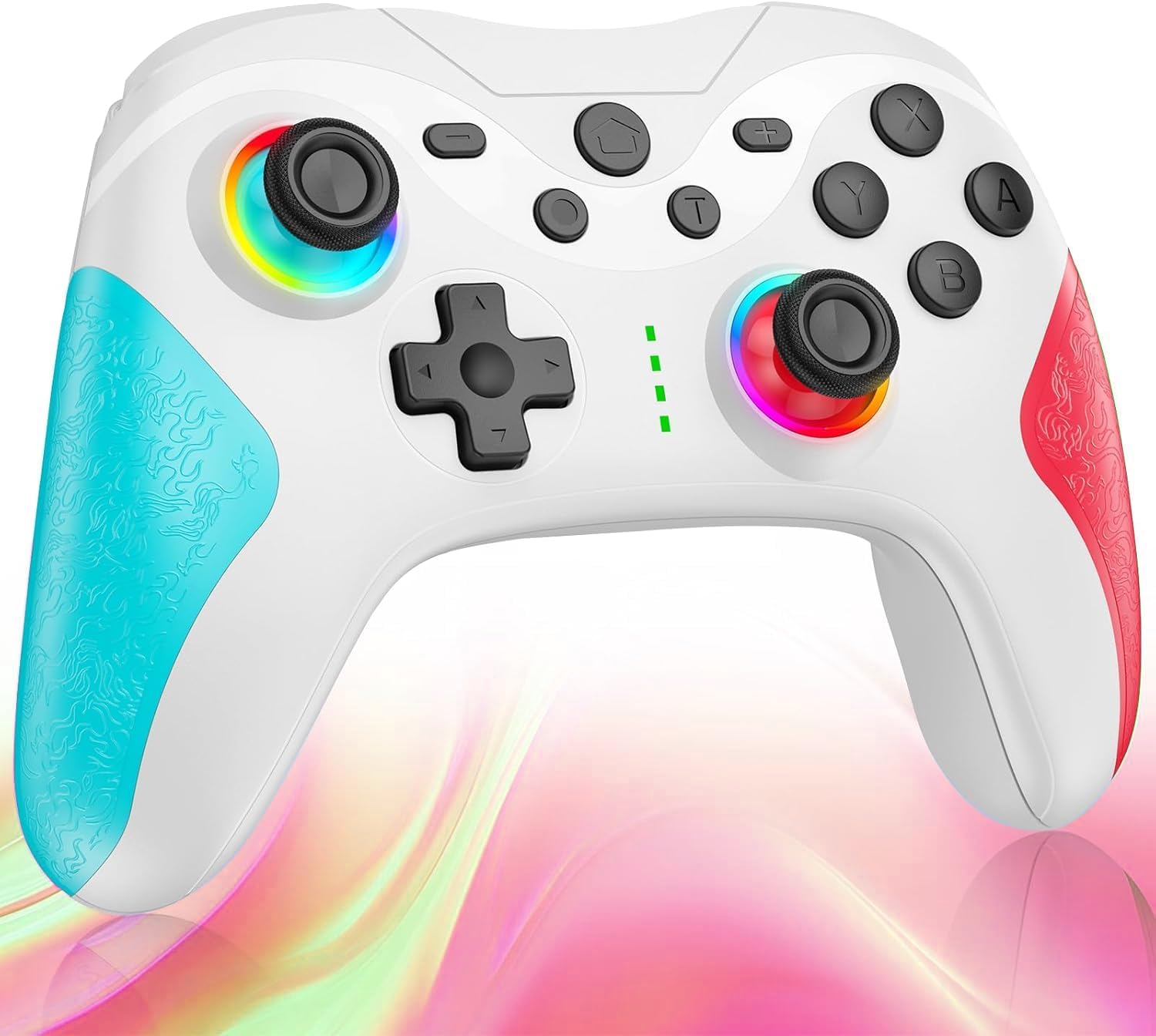
Imagine: Faţă view of the Matbip Multi-Platform Wireless Gaming Controller. It features a white body with blue textured grips on the left and red textured grips on the right. The joysticks are illuminated with a rainbow RGB light. Standard buttons (A, B, X, Y), a D-pad, and central function buttons (Home, Plus, Minus, T) are visible.
Componente cheie:
- Joystick-uri stânga/dreapta: For directional control, with customizable RGB lighting.
- D-pad: Pentru o introducere direcțională precisă.
- Action Buttons (A/B/X/Y): Standard gaming input buttons.
- Shoulder Buttons (L/R/ZL/ZR): Top-mounted trigger and bumper buttons.
- Butoane Înapoi: Additional programmable buttons on the rear for strategic gameplay.
- Buton Acasă: Revine la ecranul principal al sistemului.
- Butoane Plus (+) / Minus (-): System-specific function buttons.
- T Button (TURBO): Activates and manages the TURBO burst function.
- Port de încărcare: Port USB-C pentru încărcare.
- Indicatoare luminoase: Display connection status and battery level.
Înființat
1. Încărcarea controlerului
Before first use, fully charge the controller. Connect the provided USB-C cable to the controller's charging port and the other end to a USB power source (e.g., console, PC, or USB wall adapter). The indicator lights will show charging status and turn off when fully charged.
2. Asocierea cu dispozitive
The controller supports Bluetooth wireless connection across multiple platforms.
Pentru Nintendo Switch:
- On the Switch HOME Menu, select Controlori > Schimbați Grip/Comanda.
- Țineți apăsat butonul butonul Acasă on the Matbip controller for 3-5 seconds until the indicator lights flash rapidly.
- Once paired, the indicator light(s) on the controller will remain solid.
For Android/iOS Devices:
- Activați Bluetooth pe dispozitivul dvs. Android sau iOS.
- Țineți apăsat butonul butonul Acasă on the Matbip controller for 3-5 seconds until the indicator lights flash rapidly.
- On your device's Bluetooth settings, select the controller (e.g., "Matbip Controller") from the list of available devices to pair.
Pentru PC (Windows):
- Ensure your PC has Bluetooth enabled. Go to Setări > Dispozitive > Bluetooth și alte dispozitive.
- Clic Adăugați Bluetooth sau alt dispozitiv > Bluetooth.
- Țineți apăsat butonul butonul Acasă on the Matbip controller for 3-5 seconds until the indicator lights flash rapidly.
- Select the controller from the list of devices to pair.
Instrucțiuni de operare
Funcția TURBO Burst:
The TURBO function allows for rapid, automatic button presses, ideal for combat games.
- To activate TURBO: Țineți apăsat butonul butonul T, then press the desired action button (e.g., A, B, X, Y, L, R, ZL, ZR). The button will now continuously activate when held down.
- Pentru a regla viteza TURBO: În timp ce ține butonul T, mutați right joystick up or down to cycle through 3 different burst speeds.
- To deactivate TURBO: Țineți apăsat butonul butonul T, then press the same action button again.
Funcția macro:
Program a sequence of button presses to a single back button for complex actions.
- Specific instructions for macro programming will be detailed in the full manual. Generally, this involves entering a programming mode, pressing the sequence, and assigning it to a back button.
Iluminare RGB personalizabilă:
The joysticks feature 9-color RGB lighting to enhance your gaming atmosphere.
- To change RGB color/mode: Press a specific button combination (e.g., T + Left Joystick click) to cycle through different colors and lighting effects.
HD Vibration Adjustment:
Adjust the intensity of the HD vibration feedback to your preference (4 levels).
- To adjust vibration: Press a specific button combination (e.g., T + D-Pad Up/Down) to cycle through the 4 vibration levels.
Senzor giroscopic:
The high-precision gyro sensor enables intuitive motion control in supported games.
- The gyro sensor is automatically active when connected to a compatible device (e.g., Nintendo Switch) and used in games that support motion controls.
Sleep Wake-up Function:
The controller supports waking up your Nintendo Switch console from sleep mode.
- When the Switch is in sleep mode, simply press the butonul Acasă on the controller to wake it up and reconnect.
Întreţinere
Întreținerea corectă asigură longevitatea și performanța optimă a controlerului dumneavoastră.
- curatenie: Folosiți o lavetă moale și uscată pentru a șterge controlerul. Pentru murdăria persistentă, ștergeți ușor.ampClătiți cârpa cu apă. Nu folosiți substanțe chimice dure sau produse de curățare abrazive.
- Depozitare: Depozitați controlerul într-un loc răcoros și uscat, ferit de lumina directă a soarelui, temperaturi extreme și umiditate.
- Îngrijirea bateriei: Avoid fully discharging the battery frequently. If storing for a long period, charge the controller to about 50% every few months.
- Evitați picăturile: Protejați controlerul de căderi și impacturi, care pot deteriora componentele interne.
Depanare
Dacă întâmpinați probleme cu controlerul, vă rugăm să consultați următoarele soluții comune:
| Problemă | Soluție posibilă |
|---|---|
| Controlerul nu pornește. | Asigurați-vă că controlerul este încărcat. Conectați-l la o sursă de alimentare folosind cablul USB-C. |
| Controller does not pair. | Ensure Bluetooth is enabled on your device. Make sure the controller is in pairing mode (flashing lights). Try restarting both the controller and the device. |
| Întârziere la intrare sau deconectare. | Ensure there are no strong wireless interferences nearby. Move closer to the device. Re-pair the controller. |
| Butoanele sau joystick-urile nu răspund. | Try resetting the controller (refer to the full manual for reset instructions, usually a small pinhole button). Ensure no debris is obstructing the buttons. |
| Vibrațiile nu funcționează. | Check if vibration is enabled in the game or system settings. Adjust the vibration intensity on the controller. |
Specificații
| Caracteristică | Detaliu |
|---|---|
| Dimensiunile produsului | 10 x 15 x 6.5 cm |
| Greutate | 300 g |
| Conectivitate | Bluetooth Wireless |
| Compatibilitate | Nintendo Switch, Android, iOS, PC (Windows) |
| Caracteristici speciale | TURBO Burst, Macro Function, 9-Color RGB Lighting, 4-Level HD Vibration, Gyro Sensor, Back Buttons, Sleep Wake-up |
| ASIN | B0FHWRK7CQ |
| Data de lansare | 16 iulie 2025 |
Garanție și suport
Matbip is committed to providing high-quality products and customer satisfaction. This product comes with a standard manufacturer's warranty. For detailed warranty information, please refer to the documentation included with your purchase or contact Matbip customer support.
If you require further assistance, have questions, or encounter issues not covered in this manual, please contact our customer support team. A Japanese instruction manual is included with the product to ensure ease of use for first-time users.
Informații de contact: Please refer to the packaging or the official Matbip website pentru cele mai actualizate date de contact pentru asistența clienți.