
1. Introducere
The OREI SplitExtend Laptop Docking Station SX-2C1080-D100W is a versatile and compact solution designed to expand the connectivity and display capabilities of your laptop. This manual provides detailed instructions for setup, operation, maintenance, and troubleshooting to ensure optimal performance and user experience.

Figure 1: OREI SplitExtend Docking Station Overview
2. Caracteristicile produsului
- Dual HDMI Display Output: Extend or duplicate your laptop screen to up to two external displays. Supports 4K@30Hz on a single monitor or 1080p@60Hz across two screens.
- Conectivitate USB 3.0: Includes two USB 3.0 Type-A ports and one USB 3.0 Type-C port for high-speed data transfer and peripheral connectivity.
- Integrated Card Readers: Features dedicated SD and Micro SD card slots for convenient access to memory cards.
- Putere de livrare 100W (PD): Allows for pass-through charging of your laptop while using the docking station, ensuring your device remains powered.
- Design compact și durabil: Constructed with aluminum alloy housing for enhanced durability and portability.
- Compatibilitate largă: Supports Windows (11, 10, 7, 8.1) and macOS (Ventura 13, Monterey 12, Big Sur 11, Catalina 10.15, Mojave 10.14) operating systems. Compatible with USB-C, USB-A, Thunderbolt 3/4, and USB 4 devices.

Figura 2: Caracteristici cheie ale produsului

Figura 3: Port detaliat pesteview
3. Specificații
| Caracteristică | Caietul de sarcini |
|---|---|
| Model | SX-2C1080-D100W |
| Interfață hardware | HDMI, USB 3.0 Type A, USB 3.0 Type C |
| Dispozitive compatibile | Laptop, monitor |
| Total porturi USB | 3 (2x USB 3.0 Type-A, 1x USB 3.0 Type-C) |
| Total porturi HDMI | 2 |
| Livrarea energiei | 100W |
| Dimensiuni (L x l x H) | 5.12" x 1.7" x 0.4" (130 mm x 43.2 mm x 10.4 mm) |
| Greutate | 2.68 uncii (76 g) |
| Material | Aluminiu și ABS |
| Culoare | Negru |

Figura 4: Specificații tehnice
4. Ghid de instalare
Follow these steps to set up your OREI SplitExtend Docking Station:
- Conectare la laptop: Plug the integrated USB-C cable from the docking station into an available USB-C port on your laptop. Ensure your laptop's USB-C port supports video output (DP Alt Mode).
- Conectați monitoare: Use HDMI cables (not included) to connect your external monitors to the two HDMI output ports on the docking station.
- Conectați alimentarea (opțional): If your laptop requires charging or if you are connecting power-intensive peripherals, connect your laptop's USB-C power adapter to the dedicated USB-C PD port on the docking station. This port supports up to 100W Power Delivery.
- Conectați periferice: Plug your USB devices (e.g., mouse, keyboard, external hard drive) into the USB 3.0 Type-A and Type-C ports on the docking station. Insert SD or Micro SD cards into their respective slots if needed.

Figure 5: Docking Station Connected to Laptop and Monitors
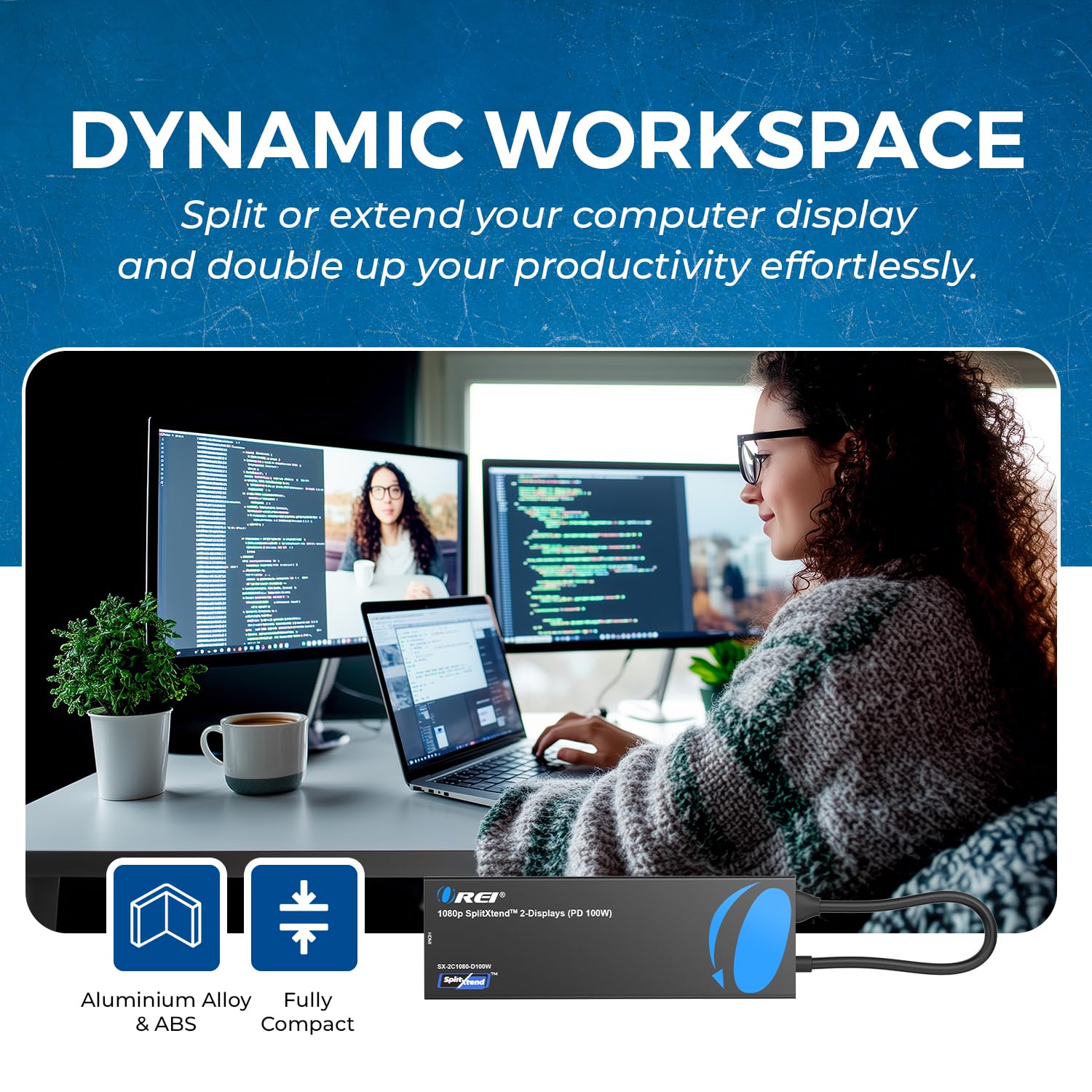
Figure 6: Close-up of Docking Station Ports
Ghid video de configurare
Video 1: How to Use SplitExtend Docking Station Dual Monitor. This video provides a visual guide on connecting and setting up the docking station with your laptop and external monitors.
5. Moduri de operare
The OREI SplitExtend Docking Station supports various display modes to enhance your productivity:
- Extended Display Mode (Windows MST): Allows you to extend your desktop across multiple screens, providing more screen real estate for multitasking. Each monitor can display different content.
- Mirror Display Mode (Windows/macOS SST): Duplicates your laptop's screen onto the external monitors, showing the same content on all displays. This is ideal for presentations or sharing your screen.
Note: Your laptop must support video output through USB-C (DP Alt Mode) for the adapter to function correctly.

Figure 7: Split or Extend Display Options

Figure 8: Mirror and Extend Mode Compatibility
Operating Mode Video Guide
Video 2: OREI SplitExtend Laptop Docking Station 4K Overview. This video demonstrates the various operating modes and capabilities of the docking station.
6. Compatibilitate
The OREI SplitExtend Docking Station is designed for broad compatibility:
- Sisteme de operare: Windows 11, 10, 7, 8.1 and macOS Ventura 13, Monterey 12, Big Sur 11, Catalina 10.15, Mojave 10.14.
- Compatibilitate laptop: Works with M1/M2 & Intel-based MacBook Air/Pro, Dell XPS, Precision, Latitude, Lenovo Yoga, Thinkbook, Ideapad, HP Spectre, X360, ENVY, and other laptops with compatible USB-C ports.

Figure 9: Broad Compatibility with Various Operating Systems and Laptops
7. Depanare
- Fără ieșire de afișare:
- Ensure your laptop's USB-C port supports video output (DP Alt Mode). Not all USB-C ports have this capability.
- Check all cable connections (USB-C to laptop, HDMI to monitors). Try re-plugging them firmly.
- Verify monitor input settings are set to the correct HDMI input.
- Try connecting only one monitor at a time to isolate the issue.
- Update your laptop's graphics drivers and operating system.
- Afișaj pâlpâitor sau instabil:
- Ensure you are using high-quality HDMI cables.
- Reduce the display resolution or refresh rate in your laptop's display settings.
- Ensure adequate power supply if using power-intensive peripherals or charging your laptop through the dock.
- Dispozitive USB nerecunoscute:
- Try connecting the USB device directly to your laptop to confirm it's functional.
- Asigurați-vă că stația de andocare este conectată corect la laptop.
- If it's a power-intensive device, ensure the docking station is connected to a 100W PD power source.
- Laptopul nu se încarcă:
- Ensure your laptop's original USB-C power adapter is connected to the docking station's USB-C PD port.
- Verificați dacă adaptorul de alimentare funcționează corect.
- Confirmă că laptopul tău este compatibil cu USB-C Power Delivery.
8. Întreținere
To ensure the longevity and optimal performance of your OREI SplitExtend Docking Station, follow these maintenance tips:
- Păstrați dispozitivul curat ștergându-l cu o cârpă moale și uscată. Evitați utilizarea substanțelor chimice dure sau a materialelor abrazive.
- Depozitați stația de andocare într-un loc răcoros și uscat, ferit de lumina directă a soarelui și de temperaturi extreme.
- Avoid bending or straining the integrated USB-C cable excessively. Utilize the built-in storage slot for the cable when not in use to prevent damage.
- Nu expuneți dispozitivul la apă sau alte lichide.
- Handle the ports gently when connecting or disconnecting cables to prevent physical damage.
9. Garanție și asistență
The OREI SplitExtend Laptop Docking Station SX-2C1080-D100W comes with a 12 luni garantie from the date of purchase. This warranty covers manufacturing defects and ensures reliable use.
For technical support, warranty claims, or any inquiries regarding your product, please contact OREI Direct customer service. Refer to the contact information provided in your product packaging or visit the official OREI website pentru asistență.
Thank you for choosing OREI products.