
1. Introducere
This manual provides detailed instructions for the GUSGU G7 Wireless Gaming Controller. Please read this guide thoroughly to ensure proper setup, operation, and maintenance of your device. The GUSGU G7 controller offers advanced features such as an interactive screen, Hall Effect joysticks and triggers, programmable buttons, and broad compatibility across multiple platforms.
2. Produs terminatview
Familiarize yourself with the components and features of your GUSGU G7 Wireless Gaming Controller.

Figura 2.1: Față view of the GUSGU G7 Wireless Gaming Controller, showcasing its transparent red design and button layout.
2.1 Caracteristici cheie
- Interactive Display Screen: For on-the-fly configuration of settings.
- Joystick-uri cu efect Hall: Drift-free precision with adjustable dead zones.
- Hall Effect Dual-Stage Triggers: Customizable trigger travel for various game genres.
- Butoane programabile pentru spate: Four customizable buttons for macros and shortcuts.
- Senzor giroscopic pe 6 axe: For motion control in supported games.
- Motoare cu vibrații asimetrice: Four levels of haptic feedback.
- Moduri multiple de conectivitate: Bluetooth 5.1, 2.4GHz wireless, and USB-C wired.
- Rată ridicată de sondare: 1000Hz for ultra-fast input in wired/2.4GHz modes.
- Durată lungă de viață a bateriei: 1000mAh battery providing up to 18 hours of gameplay.
3. Configurare
3.1 Încărcarea controlerului
Before initial use, fully charge the controller. Connect the supplied USB-C cable to the controller's charging port and the other end to a compatible USB power source (e.g., PC, USB wall adapter). The interactive screen will indicate charging status. A full charge provides up to 18 hours of gameplay.
3.2 Initial Pairing and Connection
The GUSGU G7 supports three connection methods: Bluetooth, 2.4GHz wireless, and USB-C wired.
3.2.1 2.4GHz Wireless Connection (PC, Android TV)
- Insert the 2.4GHz USB receiver into an available USB port on your device (PC, Android TV).
- Porniți controlerul apăsând butonul Acasă.
- The controller will automatically attempt to connect to the receiver. The interactive screen will display connection status.
3.2.2 Bluetooth Connection (iOS, Android, Switch, PS4)
- Asigurați-vă că Bluetooth este activat pe dispozitivul dvs.
- On the controller, press and hold the Home button until the interactive screen displays pairing mode.
- On your device, search for Bluetooth devices and select "GUSGU G7" from the list.
- Once paired, the interactive screen will confirm the connection.
3.2.3 USB-C Wired Connection (PC, Switch, PS4)
- Connect the USB-C cable from the controller to a USB port on your device.
- Controlerul va comuta automat în modul cu fir.
- For Switch and PS4, ensure the console's settings allow for wired controller communication.
4. Funcționare
4.1 Using the Interactive Display Screen
The interactive screen allows for direct adjustment of controller settings without external software. Press the 'H' button for 3 seconds to enter the menu. Navigate using the D-pad and confirm selections with the 'A' button. Use 'B' to go back.
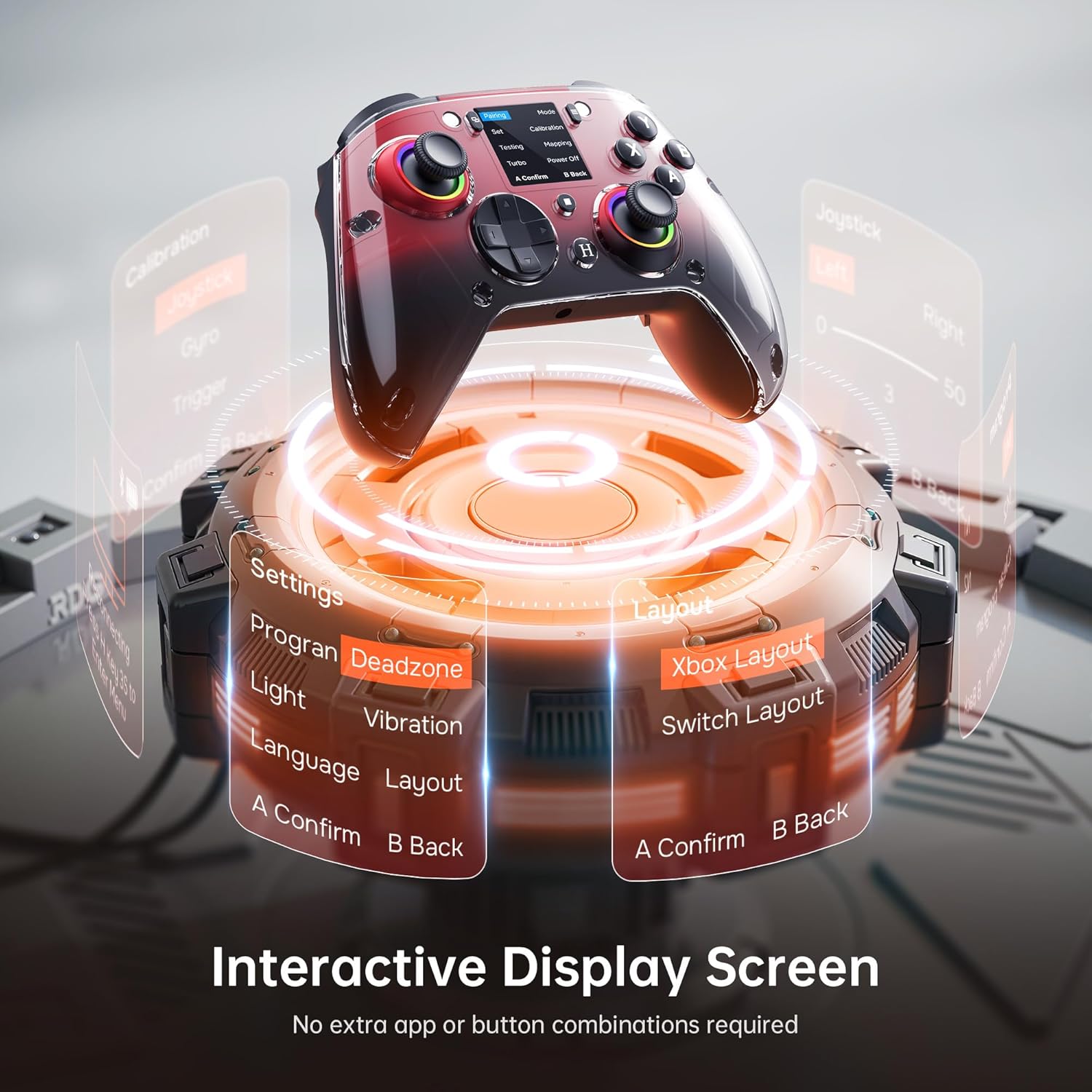
Figure 4.1: The interactive display screen allows for easy adjustment of settings like dead zones, vibration, and button layouts.
- Setări: Adjust vibration intensity, joystick dead zones, trigger sensitivity, and lighting effects.
- Program: Configure the four programmable back buttons (M1, M2, N1, N2).
- Aspect: Switch between Xbox and Switch button layouts.
- Calibrare: Calibrate joysticks, gyro, and triggers if needed.
4.2 Butoane programabile pentru Înapoi
The GUSGU G7 features four programmable back buttons (M1, M2, N1, N2) located on the underside of the controller. These can be assigned to single button presses, sequences, or macros via the interactive screen's "Program" menu. This allows for quick execution of complex commands during gameplay.
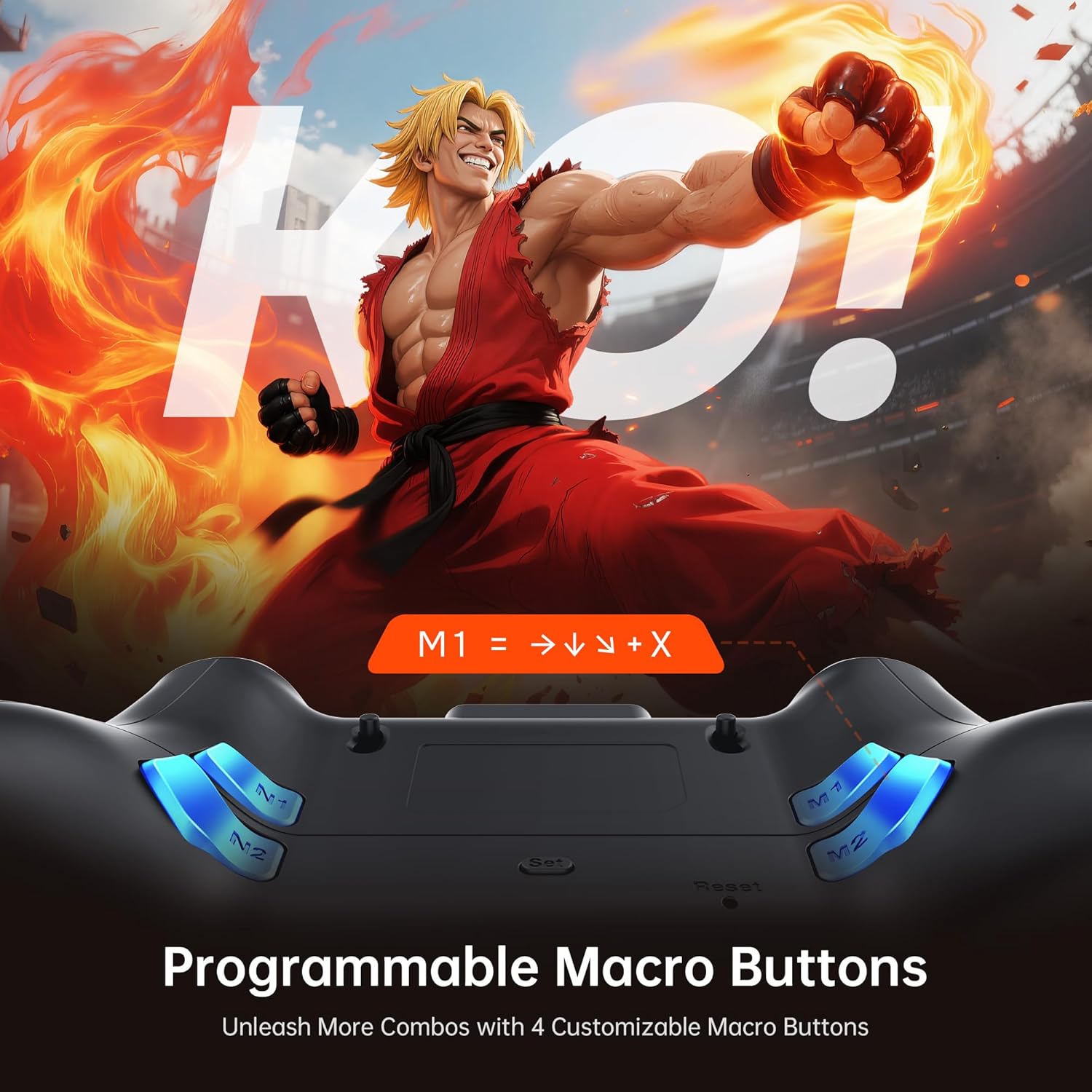
Figure 4.2: The four programmable back buttons (M1, M2, N1, N2) on the rear of the controller, designed for custom macros and shortcuts.
4.3 Hall Effect Joysticks and Adjustable Dead Zones
The Hall Effect joysticks provide precise, drift-free control. Dead zones can be customized from 0% to 50% using the interactive screen to match your preference and game requirements. A smaller dead zone offers more immediate response, while a larger one can prevent unintended inputs.

Figure 4.3: Illustration of the Hall Effect joystick mechanism and the concept of adjustable dead zones for enhanced precision.
4.4 Hall Effect Dual-Stage Triggers
The triggers feature a dual-stage mechanism, allowing you to switch between short-pull for quick actions (e.g., shooting in FPS games) and full-pull for precise control (e.g., acceleration in racing games). This can be configured through the interactive screen.

Figure 4.4: Visual representation of the dual-stage trigger functionality, demonstrating its application in different gaming scenarios.
4.5 Motion Control (6-Axis Gyro Sensor)
The built-in 6-axis gyroscope provides precise motion sensing for games that support tilt or motion-based controls. This enhances immersion in titles requiring realistic steering, aiming, or flight mechanics.
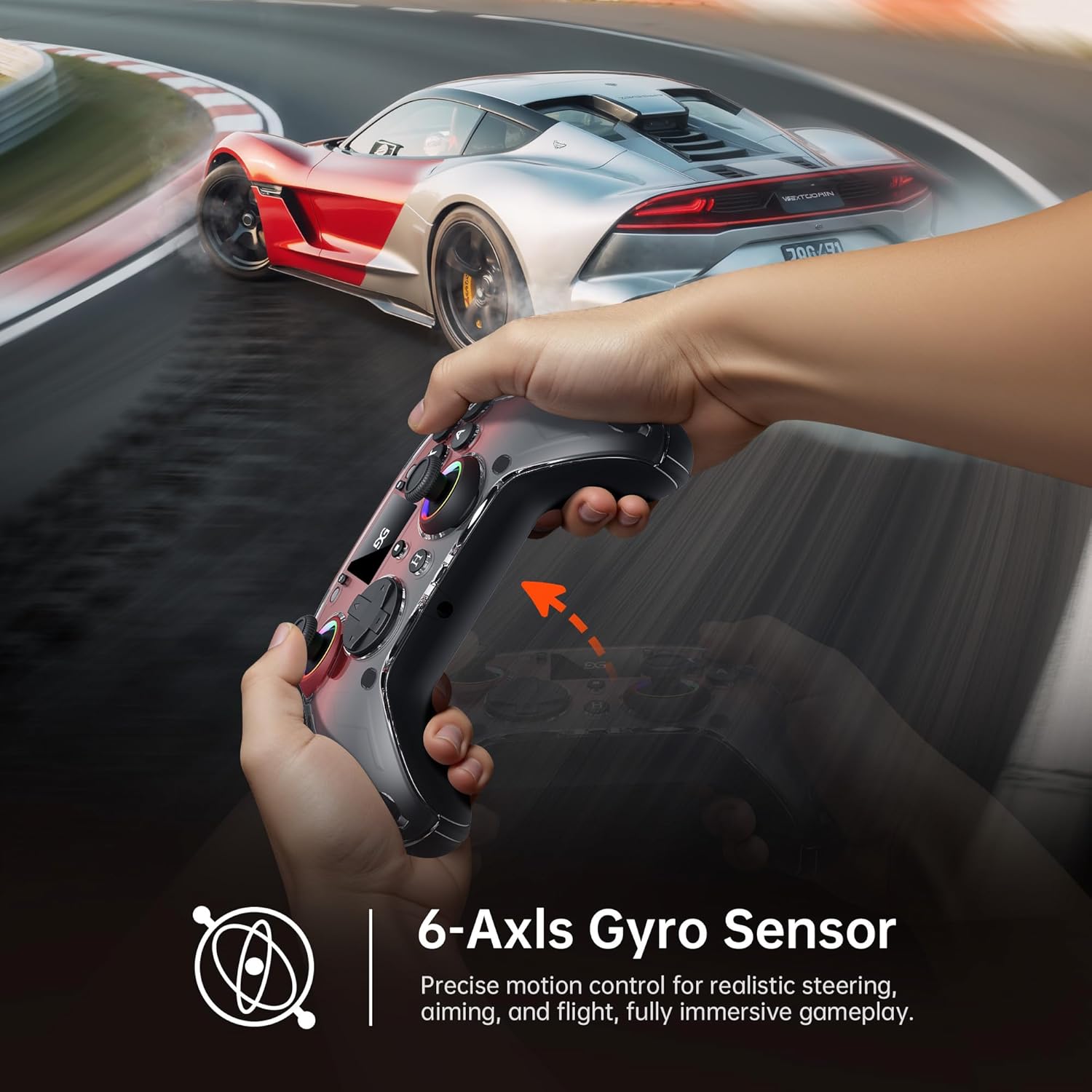
Figure 4.5: A user demonstrating motion control with the GUSGU G7 controller in a racing game, highlighting the 6-axis gyro sensor.
4.6 Feedback la vibrații
Dual asymmetric vibration motors provide four levels of haptic feedback, accurately replicating in-game events such as impacts, explosions, or engine rumble. Vibration intensity can be adjusted via the interactive screen.
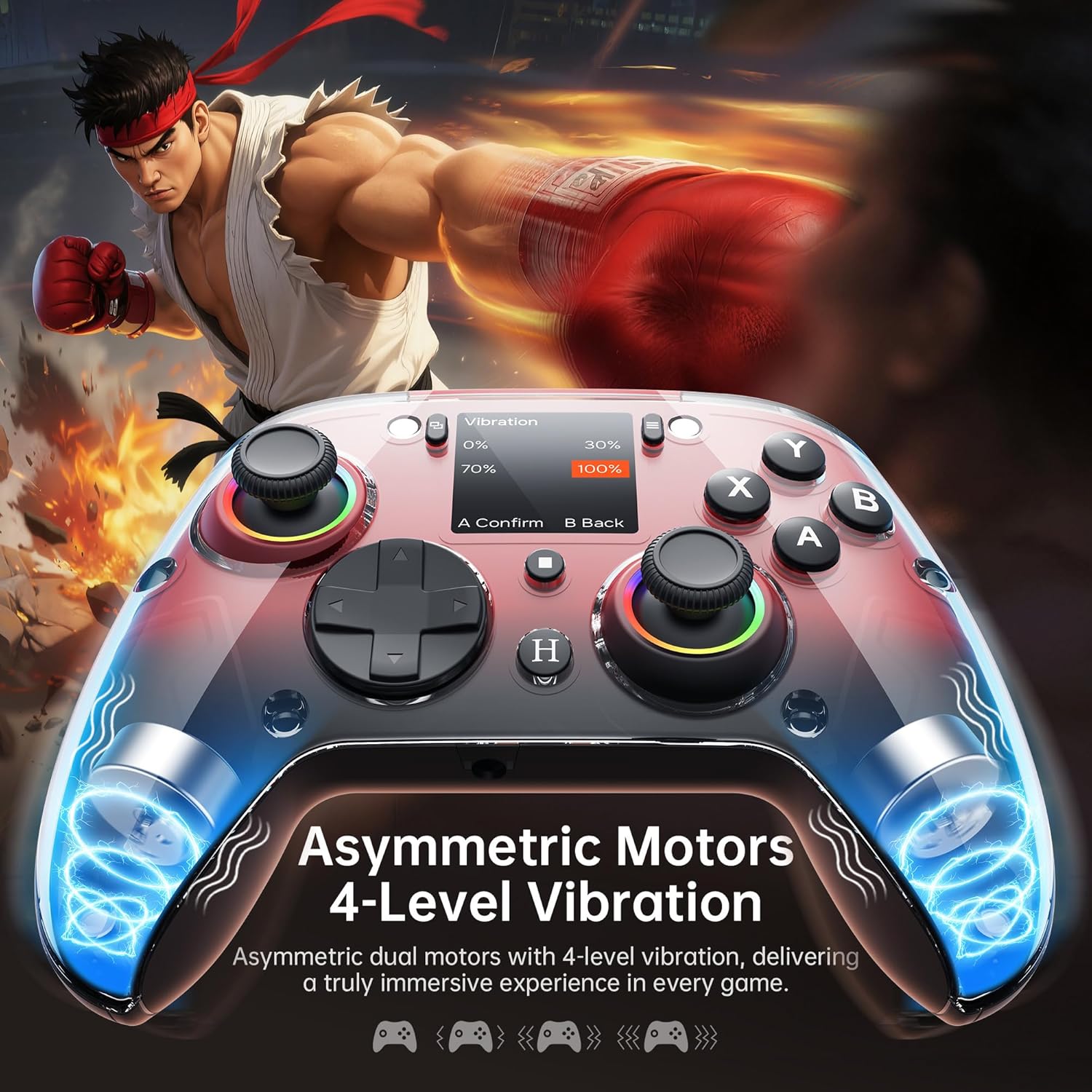
Figura 4.6: Intern view of the GUSGU G7 controller illustrating the asymmetric vibration motors and their four adjustable intensity levels.
4.7 Ieșire audio
The 3.5mm headphone jack supports game audio output when the controller is connected via USB cable to a Nintendo Switch (Switch 1) or PlayStation 4. Audio output is not supported on other devices such as PC or mobile phones.
5. Compatibilitate
The GUSGU G7 Wireless Gaming Controller offers broad compatibility across various platforms:

Figure 5.1: The GUSGU G7 controller displayed with a list of compatible devices including PC, mobile, gaming consoles, and in-car systems.
- PC: Windows 10 and above (X-input, D-input modes).
- iOS: iOS 14.0 și versiuni ulterioare.
- Android: Android 9.0 și versiuni ulterioare.
- Nintendo Switch (NS): Supports Switch mode.
- PlayStation 4 (PS4): Supports PS4 mode.
- Tesla Arcade: Compatible with Tesla in-car gaming systems.
Note: The GUSGU G7 controller is currently not compatible with Xbox or PlayStation 5 consoles.
6. Întreținere
To ensure the longevity and optimal performance of your GUSGU G7 controller, follow these maintenance guidelines:
- curatenie: Folosiți o lavetă moale și uscată pentru a șterge controlerul. Pentru murdăria persistentă, ștergeți ușor.ampClătiți cârpa cu apă. Evitați utilizarea substanțelor chimice dure sau a produselor de curățare abrazive.
- Depozitare: Depozitați controlerul într-un loc răcoros și uscat, ferit de lumina directă a soarelui și de temperaturi extreme.
- Îngrijirea bateriei: Avoid fully discharging the battery frequently. If storing for an extended period, charge the controller to approximately 50% to preserve battery health.
- Organizare de cabluri: Nu îndoiți și nu trageți excesiv de cablul USB-C pentru a preveni deteriorarea.
7. Depanare
If you encounter issues with your GUSGU G7 controller, refer to the following common solutions:
| Problemă | Soluţie |
|---|---|
| Controlerul nu pornește. | Asigurați-vă că controlerul este încărcat. Conectați-l la o sursă de alimentare folosind cablul USB-C. |
| Controller does not connect wirelessly. |
|
| Joystick drift or inaccurate input. |
|
| Programmable buttons not working. | Verify the button assignments in the "Program" menu on the interactive screen. Ensure they are correctly configured. |
| No audio from 3.5mm jack. | Ensure the controller is connected via USB-C to a Nintendo Switch (Switch 1) or PlayStation 4. Audio is not supported on PC or mobile devices. Check device audio settings. |
8. Specificații
| Caracteristică | Detaliu |
|---|---|
| Numărul de model | GUSGU G7 |
| Conectivitate | Bluetooth 5.1, fără fir la 2.4 GHz, USB-C cu fir |
| Rata de sondare | 1000Hz (Wired/2.4GHz), 250Hz (Bluetooth) |
| Joystick-uri | Hall Effect, Adjustable Dead Zones (0-50%) |
| Declanșatoare | Hall Effect, Dual-Stage with Adjustable Travel |
| Butoane programabile | 4 Back Buttons (M1, M2, N1, N2) |
| Senzor de mișcare | Giroscop cu 6 axe |
| Vibrație | Dual Asymmetric Motors, 4 Levels Adjustable |
| Capacitatea bateriei | 1000mAh |
| Durata de viață a bateriei | Până la 18 ore |
| Jack audio | 3.5mm (Switch 1, PS4 via USB only) |
| Compatibilitate | PC (Win 10+), iOS (14.0+), Android (9.0+), NS, PS4, Tesla Arcade |
| Dimensiuni | 7.72 x 5.16 x 2.83 inci |
| Greutate | 16 uncii |
9. Garanție și asistență
GUSGU is committed to providing quality products and customer satisfaction. While specific warranty details are not provided in this manual, GUSGU offers lifetime customer support for its products.
For further assistance, technical support, or warranty inquiries, please visit the official GUSGU website-ul web sau contactați departamentul de asistență pentru clienți prin intermediul comerciantului de unde a fost achiziționat produsul.
De asemenea, puteți vizita GUSGU Store on Amazon pentru mai multe informații și resurse de asistență.