Introducere
This manual provides essential information for setting up, operating, maintaining, and troubleshooting your Thunderobot Zero 18 Pro 5070 Ti Gaming Laptop. Please read this guide thoroughly to ensure optimal performance and longevity of your device.
Ce este în cutie
La despachetare, verificați dacă sunt prezente toate articolele enumerate mai jos:
- THUNDEROBOT Zero Laptop
- Adaptor de alimentare
- Manual de utilizare (acest document)
- Card de garanție
If any items are missing or damaged, contact your retailer or Thunderobot customer support immediately.
Înființat
Pornirea inițială
- Connect the power adapter to the laptop's power input port and then to a wall outlet.
- Deschide capacul laptopului.
- Apăsați butonul de pornire pentru a porni laptopul.
- Urmați instrucțiunile de pe ecran pentru a finaliza configurarea Windows 11 Home.
Conectarea perifericelor
Utilize the available ports to connect external devices such as a mouse, keyboard, external display, or other accessories. Refer to the "Connectivity (Ports)" section for port details.
Instrucțiuni de operare
Pornire/Oprire
- To power on: Press the power button located on the keyboard deck.
- To shut down: Click the Start button, then Power, and select "Shut down".
- To restart: Click the Start button, then Power, and select "Restart".
- To sleep: Close the laptop lid or click the Start button, then Power, and select "Sleep".
Keyboard and RGB Lighting
The laptop features a full-size keyboard with per-key customizable RGB backlighting and a dedicated numeric keypad.
- Per-Key RGB Backlight: Customize individual key lighting through the AI Intelligent Control Center software.
- Taste funcționale: Utilizați Fn key in combination with other keys for various functions (e.g., volume control, screen brightness, keyboard backlight adjustment).
- Performance Mode Switching: Dedicated keys (Fn+Space) allow for quick toggling between performance profiles.
- One-Click Cooling: A dedicated key (often near the numeric keypad) can activate maximum cooling. Ensure cooling mode is exited before using the first three keys to switch modes.
Caracteristici de afișare
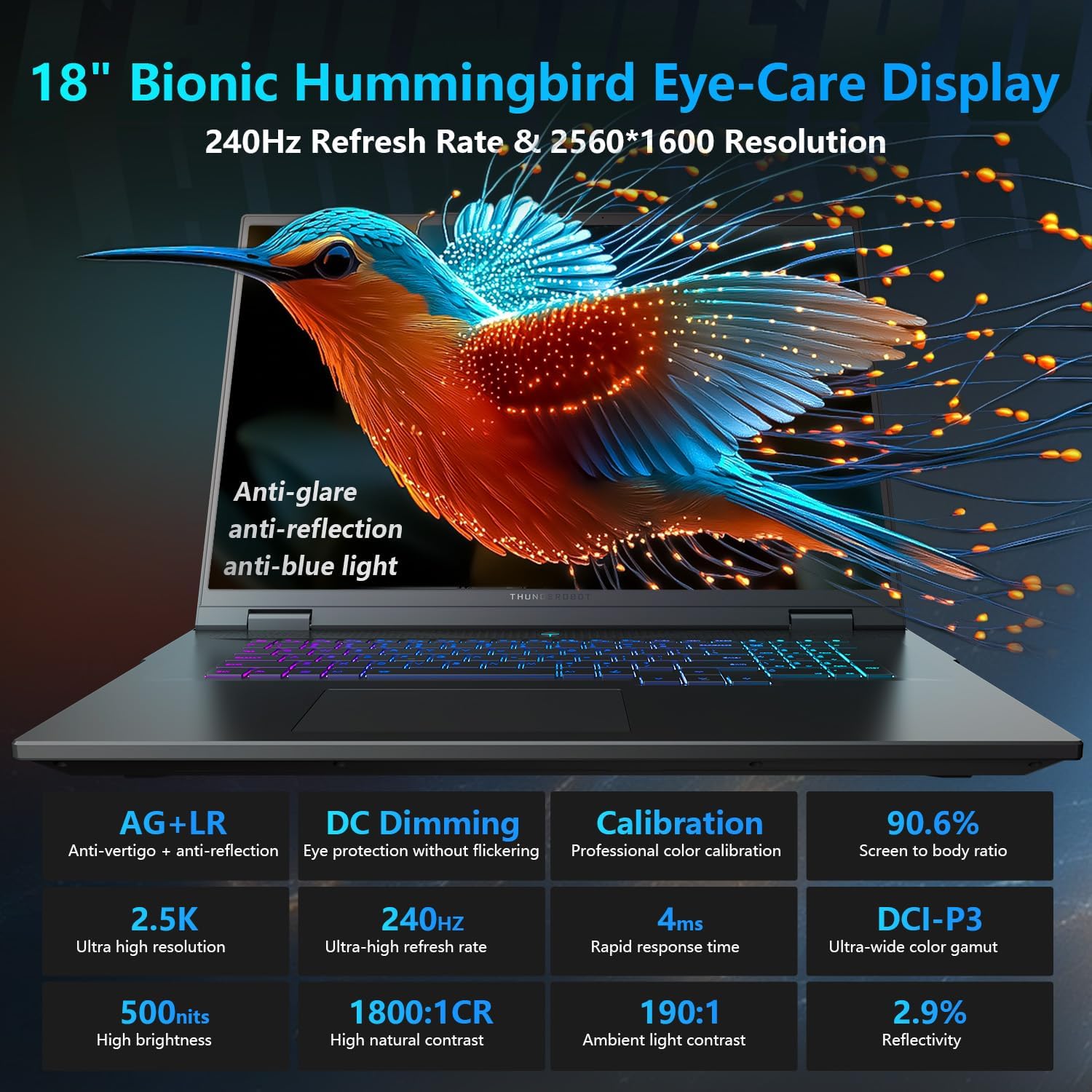
The 18-inch QHD+ (2560x1600) Bionic Hummingbird Eye-Care display offers a 240Hz refresh rate and 4ms response time for clear and fluid visuals. It includes anti-glare, anti-reflection, and anti-blue light technologies for eye comfort.

Connectivity (Ports)
The laptop is equipped with various ports for extensive connectivity:
- 3 porturi USB tip A Superspeed
- 2 x Superspeed USB Type-C ports (including Thunderbolt 5 support)
- 1 x HDMI port (HDMI 2.1)
- 1 port Ethernet RJ-45
- 1 x Port audio (3.5 mm)
- Cititor de carduri SD UHS-II
- Wi-Fi 6E for high-speed wireless internet
- Bluetooth for wireless peripheral connections

Sistem de racire
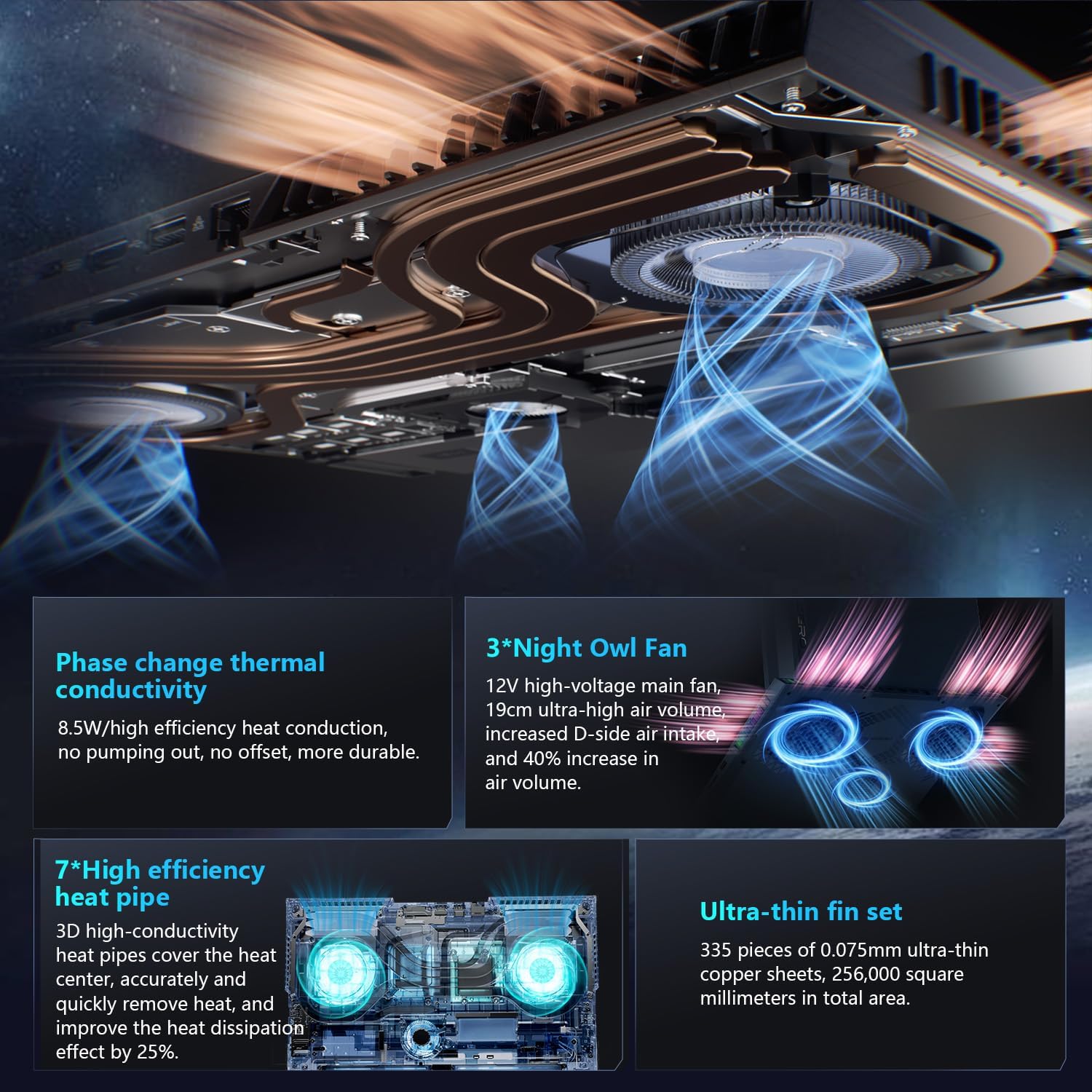
The advanced cooling system features 3 Night Owl fans, 7 high-efficiency heat pipes, and 338 ultra-thin copper fins to ensure optimal thermal management during intensive use, allowing for 270W super performance release.
AI Intelligent Control Center
The AI Intelligent Control Center software allows for comprehensive system management, including performance tuning, intelligent light adjustment, and personalized customization. This includes monitoring CPU/GPU temperatures and fan speeds.
- Performance Tuning: Adjust power settings for quiet, balanced, or turbo modes.
- Intelligent Light Adjustment: Customize keyboard, strip, and logo RGB lighting effects.
- Monitorizarea sistemului: View real-time CPU and GPU status.
Notă: Comutarea modului de sistem în Centrul de Control necesită conectarea dispozitivului la o sursă de alimentare.
Întreţinere
Curățarea laptopului
- Ecran: Utilizați ușor o cârpă moale, fără scame dampclătiți cu apă sau cu un detergent de ecran. Evitați substanțele chimice dure.
- Tastatură și șasiu: Folosiți o cârpă moale pentru a șterge suprafețele. Pentru praful din crăpături, folosiți aer comprimat.
- Vents: Curățați periodic orificiile de ventilație cu aer comprimat pentru a preveni acumularea de praf, care poate afecta performanța.
Îngrijirea bateriei
- Evitați descărcarea completă frecventă a bateriei.
- Depozitați laptopul într-un loc răcoros și uscat dacă nu îl utilizați pentru perioade lungi de timp.
- Pentru o stare optimă a bateriei, evitați temperaturile extreme.
Actualizări de software
Regularly check for and install operating system updates (Windows Update) and driver updates (via Thunderobot's official website or the AI Intelligent Control Center) to ensure system stability and performance.
Depanare
| Problemă | Cauza posibila | Soluţie |
|---|---|---|
| Laptopul nu pornește. | Fără alimentare, baterie descărcată sau problemă hardware. |
|
| Ecranul este gol sau negru. | Display settings, external monitor connected, or hardware issue. |
|
| Supraîncălzire în timpul utilizării. | Blocked vents, high performance settings, or dust buildup. |
|
| Probleme cu conexiunea Wi-Fi. | Wi-Fi disabled, driver issues, or router problems. |
|
For further assistance, please contact Thunderobot customer support.
Specificații
| Caracteristică | Detaliu |
|---|---|
| Numele modelului | Zero 18 Pro |
| Procesor | Intel Core Ultra 9 275HX (24 Cores, 24 Threads, up to 5.40GHz) |
| Grafică | NVIDIA GeForce RTX 5070 Ti (8 GB GDDR6 Dedicated) |
| RAM | 32 GB DDR5 (4800 MHz) |
| Depozitare | 2 TB PCIe M.2 SSD |
| Afişa | 18-inch QHD+ (2560x1600) 240Hz Bionic Hummingbird Eye-Care Display |
| Sistem de operare | Windows 11 Home |
| Conectivitate | Wi-Fi 6E, Bluetooth, 3x USB-A, 2x USB-C (Thunderbolt 5), HDMI 2.1, RJ-45, Audio Port |
| Tastatura | Per-Key RGB Backlit, Numeric Keypad |
| Dimensiuni (Lxlxh) | 16.04 x 11.78 x 1.41 inci |
| Greutatea articolului | 15 lire sterline |
| Sursa de alimentare | AC și baterie |
Garanție și suport
Fiecare laptop Thunderobot include un 12 luni garantie, oferind asistență de specialitate, diagnosticare amănunțită și piese originale dacă este necesară o reparație. În plus, un 90 de zile garanție is provided on all warranty replacement parts, ensuring hassle-free repairs. Your complete satisfaction is our commitment.
Pentru asistență tehnică, solicitări de garanție sau întrebări legate de service, vă rugăm să vizitați site-ul oficial Thunderbot. website or contact their customer service department. Keep your purchase receipt and serial number handy for faster service.