
1. Introducere
This user manual provides detailed instructions for the KTC M27P6 27-inch MiniLED Gaming Monitor. Please read this manual thoroughly before operating the device to ensure proper usage and optimal performance. Keep this manual for future reference.
The KTC M27P6 is a high-performance gaming monitor featuring a 27-inch MiniLED panel with 1152 local dimming zones, offering exceptional contrast and brightness up to HDR1400. It supports dual display modes: 4K resolution at 160Hz and Full HD resolution at 320Hz, providing versatility for various gaming and professional needs. Key features include a 1ms GtG response time, Adaptive Sync technology, and comprehensive connectivity options including USB-C with 65W power delivery and KVM functionality.

Imagine: Pesteview of KTC M27P6 monitor's key features including MiniLED, 1152 local dimming zones, dual mode 4K@160Hz/FHD@320Hz, USB-C, KVM, HDR1400, 145% sRGB, Fast IPS, and Adaptive-Sync.
2. Informații de siguranță
- Așezați întotdeauna monitorul pe o suprafață stabilă și plană pentru a preveni căderea acestuia.
- Nu expuneți monitorul la ploaie sau umezeală pentru a evita electrocutarea sau incendiul.
- Nu expuneți monitorul la lumina directă a soarelui, la surse de căldură sau la temperaturi extreme.
- Asigurați o ventilație adecvată în jurul monitorului. Nu blocați orificiile de ventilație.
- Folosiți doar adaptorul de alimentare și cablurile furnizate sau recomandate de producător.
- Unplug the power cord from the outlet if the monitor will not be used for a long period.
- Nu încercați să reparați monitorul singur. Apelați la personal de service calificat pentru toate lucrările de service.
- Evitați să atingeți ecranul cu obiecte ascuțite.
3. Conținutul pachetului
Verify that all components are present in your package. If any items are missing or damaged, contact your retailer.
- KTC M27P6 27-inch MiniLED Gaming Monitor
- Suport monitor (bază și braț)
- Adaptor de alimentare
- Cablu de alimentare
- Cablu HDMI
- Cablu DisplayPort
- Cablu USB-C
- USB-B to USB-A Cable (for KVM/USB Hub)
- Manual de utilizare (acest document)
- Card de garanție
4. Monitor Overview
4.1 Față View
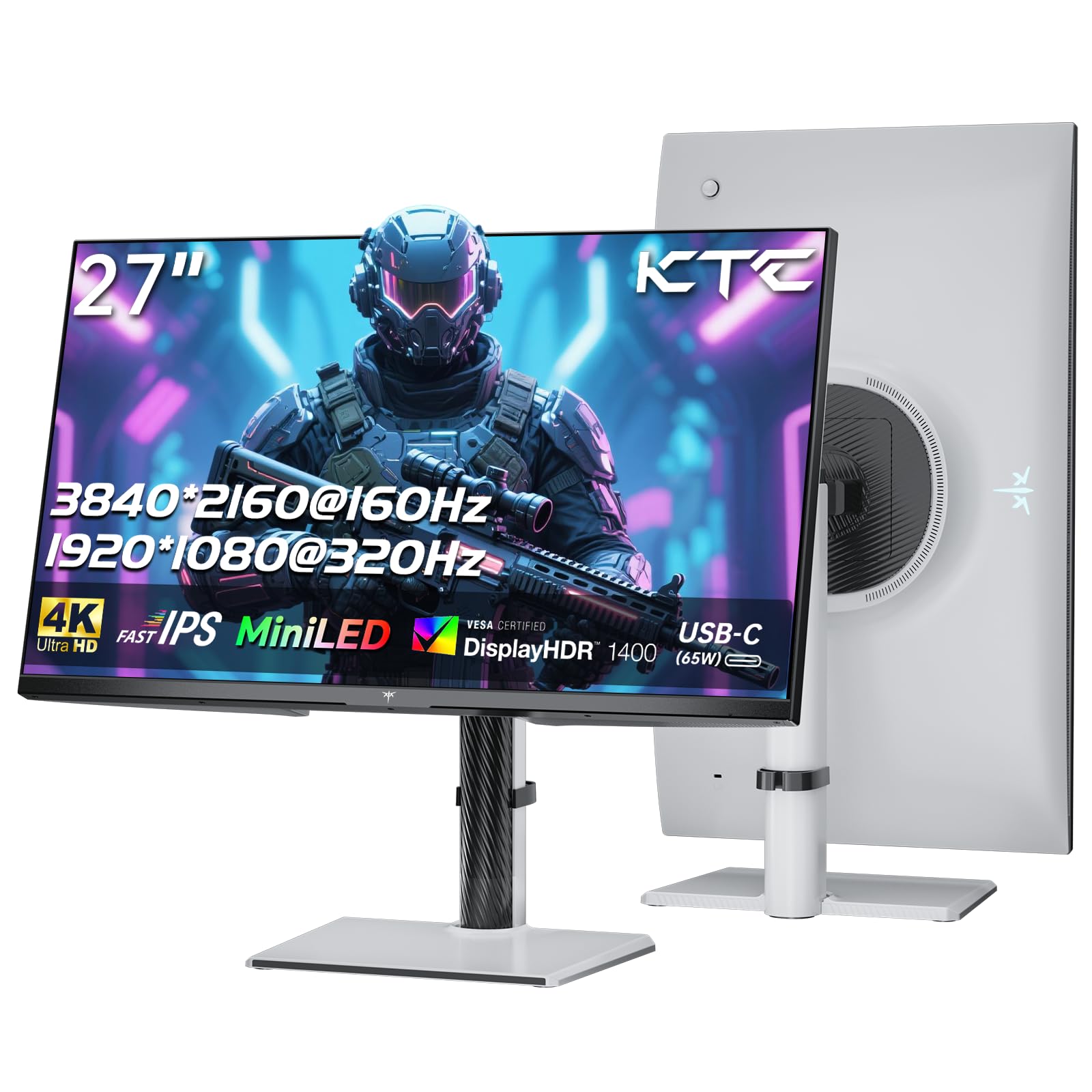
Imagine: față view of the KTC M27P6 27-inch MiniLED Gaming Monitor.
The front of the monitor features the 27-inch MiniLED display panel. The KTC logo is typically located at the bottom center bezel.
4.2 Spate View și Porturi

Imagine: Spate view of the KTC M27P6 monitor, highlighting the various input/output ports and the adjustable stand.
The rear of the monitor houses the input/output ports and the stand attachment point. The ports include:
- Putere de intrare: Pentru conectarea adaptorului de alimentare.
- Porturi HDMI 2.1 (x2): For connecting to devices supporting HDMI 2.1 (4K@160Hz / FHD@320Hz).
- DisplayPort 1.4 Ports (x2): For connecting to devices supporting DisplayPort 1.4 (4K@160Hz / FHD@320Hz).
- Port USB-C (x1): Full-function port supporting video input (4K@160Hz / FHD@320Hz) and 65W Power Delivery.
- USB-B Upstream Port (x1): For connecting the monitor's USB hub to your computer, enabling the downstream USB-A ports and KVM functionality.
- USB-A 3.0 Downstream Ports (x3): Pentru conectarea perifericelor precum tastaturi, mouse-uri sau unități USB.
- Ieșire audio de 3.5 mm: Pentru conectarea căștilor sau a difuzoarelor externe.
Video: Un pesteview of the KTC M27P6 monitor's features and design, including its connectivity options and adjustable stand.
5. Configurare
5.1 Asamblarea standului
- Scoateți cu grijă monitorul și componentele suportului din ambalaj.
- Attach the stand arm to the monitor panel by aligning the mounting points and securing with screws (if applicable).
- Attach the stand base to the stand arm, ensuring it is firmly connected.
- Așezați monitorul asamblat pe o suprafață stabilă și plană.
The monitor also supports VESA mounting (100x100mm) for use with compatible wall mounts or monitor arms. Ensure the VESA mount is rated for the monitor's weight.

Image: Diagram illustrating the multi-angle adjustment capabilities of the KTC M27P6 monitor stand, including height, tilt, swivel, and pivot.
5.2 Cabluri de conectare
- Conexiune de alimentare: Conectați adaptorul de alimentare la intrarea de alimentare a monitorului, apoi introduceți cablul de alimentare într-o priză.
- Conexiune video:
- For PC/Gaming Console: Connect one end of the HDMI or DisplayPort cable to your device's output and the other end to the corresponding port on the monitor.
- For USB-C Compatible Devices: Connect the USB-C cable from your device to the monitor's USB-C port for video, data, and power delivery.
- USB Hub/KVM Connection: To use the monitor's USB-A ports and KVM functionality, connect the USB-B to USB-A cable from the monitor's USB-B upstream port to a USB-A port on your computer.
- Conexiune audio: If using external headphones or speakers, connect them to the 3.5mm audio out port on the monitor.
6. Instrucțiuni de utilizare
6.1 Pornire/Oprire
Apăsați butonul de alimentare (de obicei situat pe spatele sau partea inferioară a monitorului) pentru a porni sau opri monitorul. Indicatorul luminos de alimentare se va aprinde când monitorul este pornit.
6.2 Navigare în meniul OSD
The On-Screen Display (OSD) menu allows you to adjust various monitor settings. Use the joystick or buttons (refer to your monitor's physical layout) to navigate the OSD menu:
- Press Joystick/Button: Enter OSD menu or confirm selection.
- Mișcare joystick sus/jos: Navigați prin opțiunile de meniu.
- Mișcare joystick stânga/dreapta: Ajustați valorile sau accesați submeniurile.
- Buton de ieșire: Ieșiți din meniul sau OSD-ul curent.
6.3 Dual Mode Switching (4K@160Hz / FHD@320Hz)
The KTC M27P6 supports seamless switching between two display modes: 4K (3840x2160) at 160Hz and Full HD (1920x1080) at 320Hz. This allows you to optimize performance based on your content (e.g., high-resolution graphics for AAA games or ultra-high refresh rate for competitive FPS games).
To switch modes, access the OSD menu and navigate to the "Display" or "Gaming" settings. Select the desired resolution and refresh rate. Your connected device must also support these resolutions and refresh rates for optimal performance.

Image: Illustration of the KTC M27P6 monitor's seamless dual mode switching capability, showing a 4K@160Hz gaming scene and a FHD@320Hz gaming scene.
6.4 Sincronizare adaptivă
The monitor supports Adaptive Sync (AMD FreeSync and NVIDIA G-Sync compatible) to eliminate screen tearing and stuttering, providing a smoother gaming experience. Ensure Adaptive Sync is enabled in the monitor's OSD settings and in your graphics card control panel.

Image: Visual representation of Adaptive Sync technology, showing how it prevents screen tearing by synchronizing the monitor's refresh rate with the GPU's frame rate.
6.5 Funcționalitatea KVM
The integrated KVM (Keyboard, Video, Mouse) switch allows you to control multiple computers or devices connected to the monitor using a single keyboard and mouse. To use KVM:
- Connect your primary computer to the monitor via DisplayPort/HDMI and the USB-B upstream cable.
- Connect your secondary device (e.g., laptop via USB-C) to the monitor.
- Connect your keyboard and mouse to the USB-A downstream ports on the monitor.
- Switch between connected devices using the KVM hotkey or OSD menu option.
6.6 Color Settings and HDR1400
The monitor features a MiniLED panel with 1152 local dimming zones and VESA DisplayHDR 1400 certification, providing high contrast and vibrant colors. You can adjust color settings (brightness, contrast, color temperature, gamma) through the OSD menu. For HDR content, ensure HDR is enabled in your operating system and the monitor's OSD. The monitor supports 10-bit color depth and a wide color gamut (145% sRGB / 99% DCI-P3).

Image: Visual comparison demonstrating the enhanced dynamic range and detail provided by HDR1400 on the KTC M27P6 monitor.
7. Întreținere
- Curățarea ecranului: Ștergeți ușor ecranul cu o lavetă moale, fără scame. Pentru petele persistente, ștergețiampen the cloth with a small amount of screen cleaner (non-ammonia based). Do not spray cleaner directly onto the screen.
- Curățarea C-uluiasing: Folosiți o cârpă moale și uscată pentru a șterge monitorul.asing. Evitați utilizarea de produse de curățare abrazive sau solvenți.
- Ventilare: Ensure the ventilation openings on the monitor are clear of dust and debris to prevent overheating.
8. Depanare
| Problemă | Cauza posibila | Soluţie |
|---|---|---|
| Nicio imagine pe ecran | Cablu de alimentare deconectat; Cablu video deconectat; Sursă de intrare incorectă. | Verificați conexiunile cablului de alimentare și video. Selectați sursa de intrare corectă prin intermediul meniului OSD. |
| Imaginea este neclară sau distorsionată | Rezoluție incorectă; Cablu video defect. | Set the display resolution to the native 3840x2160 or 1920x1080. Try a different video cable. |
| Ruperea sau sacadarea ecranului în jocuri | Adaptive Sync not enabled; Graphics card driver issues. | Enable Adaptive Sync in monitor OSD and graphics card settings. Update graphics drivers. |
| Porturile USB nu funcționează | USB-B upstream cable not connected; Driver issues. | Ensure the USB-B upstream cable is connected from the monitor to your computer. Check computer's USB drivers. |
| Nu există sunet de la ieșirea audio | Incorrect audio output selected; Volume too low. | Check audio output settings on your computer. Adjust monitor and device volume. |
9. Specificații
| Caracteristică | Detaliu |
|---|---|
| Marca | KTC |
| Numele modelului | M27P6 |
| Dimensiunea ecranului | 27 Pollici (27 inches) |
| Tip panou | MiniLED, Fast IPS |
| Resolution (Native) | 3840 x 2160 (4K UHD) |
| Max Refresh Rate (4K) | 160 Hz |
| Max Refresh Rate (FHD) | 320 Hz |
| Timp de răspuns | 1ms GtG |
| Zone locale de diminuare | 1152 zone |
| Certificare HDR | VESA DisplayHDR 1400 |
| Luminozitate | 1400 cd / m² (vârf) |
| Raport de contrast | 1,000,000:1 (dinamic) |
| Gama de culori | 145% sRGB, 99% DCI-P3 |
| Adâncimea culorii | 10 de biți |
| Sincronizare adaptivă | AMD FreeSync, NVIDIA G-Sync Compatible |
| Viewunghiul ing | 178 de grade |
| Conectivitate | 2x HDMI 2.1, 2x DisplayPort 1.4, 1x USB-C (65W PD), 1x USB-B Upstream, 3x USB-A 3.0 Downstream, 1x 3.5mm Audio Out |
| Suport KVM | Da |
| Ajustări ale standului | Înălțime, înclinare, pivotare, pivotare |
| Muntele VESA | 100 x 100 mm |
| Dimensiuni (DxWxH) | 21.1P x 61.7L x 54.7H cm |
10. Garanție și asistență
KTC products are covered by a limited warranty. Please refer to the warranty card included in your package for specific terms and conditions. For technical support, troubleshooting assistance, or warranty claims, please contact KTC customer service or visit the official KTC website-ul.
You can find more information and contact details on the KTC official store page: KTC Store.