
1. Introducere
This manual provides essential information for the safe and efficient use of your BOOX Go 7 ePaper Tablet. Please read it thoroughly before operating the device and retain it for future reference.

Figure 1.1: BOOX Go 7 ePaper Tablet
2. Informații de siguranță
- Nu expuneți dispozitivul la temperaturi extreme, la lumina directă a soarelui sau la umiditate ridicată.
- Evitați scăderea sau supunerea dispozitivului la impacturi puternice.
- Utilizați numai cablul USB furnizat pentru încărcare.
- Keep the device away from water and liquids, despite its water-repellent features.
- Nu încercați să dezasamblați sau să reparați dispozitivul singur. Contactați personalul de service autorizat.
3. Conținutul pachetului
Verificați dacă toate articolele sunt prezente în colet:
- BOOX Go 7 ePaper Tablet
- Cablu USB
- Ghid de pornire rapidă (poate varia în funcție de regiune)

Figure 3.1: BOOX Go 7 Package Contents
4. Dispozitiv terminatview
4.1 Componente fizice
Familiarize yourself with the main components of your BOOX Go 7 tablet:
- E Ink Screen: 7-inch monochrome display with 300 ppi resolution.
- Lumină frontală: Adjustable illumination for reading in various lighting conditions.
- Page-Turn Buttons: Ergonomically designed buttons for easy navigation.
- Port USB-C: Pentru încărcare și transfer de date.
- Buton de alimentare: Situat pe marginea superioară.
- Microfon încorporat: Pentru intrare audio.
- Difuzoare duale încorporate: Pentru ieșire audio.

Figure 4.1: Page-Turn Buttons and Water-Repellent Protection
5. Configurare
5.1 Încărcare inițială
Before first use, fully charge your BOOX Go 7 tablet. Connect the provided USB-C cable to the device and a compatible power adapter (not included) or a computer's USB port. The charging indicator will show the charging status.
5.2 Pornire/Oprire
- Pentru a porni: Press and hold the Power button until the BOOX logo appears.
- Pentru a opri: Apăsați și mențineți apăsat butonul de pornire/oprire, apoi selectați „Oprire” din opțiunile de pe ecran.
- A dormi/a te trezi: Apăsați scurt butonul de pornire.
5.3 Conexiune la rețea (Wi-Fi)
- From the home screen, swipe down from the top to access the Quick Settings panel.
- Atingeți pictograma Wi-Fi pentru a activa Wi-Fi-ul.
- Atingeți și mențineți apăsată pictograma Wi-Fi pentru a deschide setările Wi-Fi.
- Selectați rețeaua dorită din listă și introduceți parola dacă vi se solicită.
- După conectare, pictograma Wi-Fi va indica o conexiune reușită.
6. Instrucțiuni de utilizare
6.1 Navigare de bază
- Touch screen: Tap, swipe, and pinch to navigate menus, open applications, and interact with content.
- Page-Turn Buttons: Use the physical buttons on the side to turn pages in documents and books.
6.2 Reading Documents and Books
The BOOX Go 7 supports various document formats. Open your desired file from the library. Use the page-turn buttons or swipe gestures to navigate through pages. Adjust font size, contrast, and frontlight settings for optimal reading comfort.
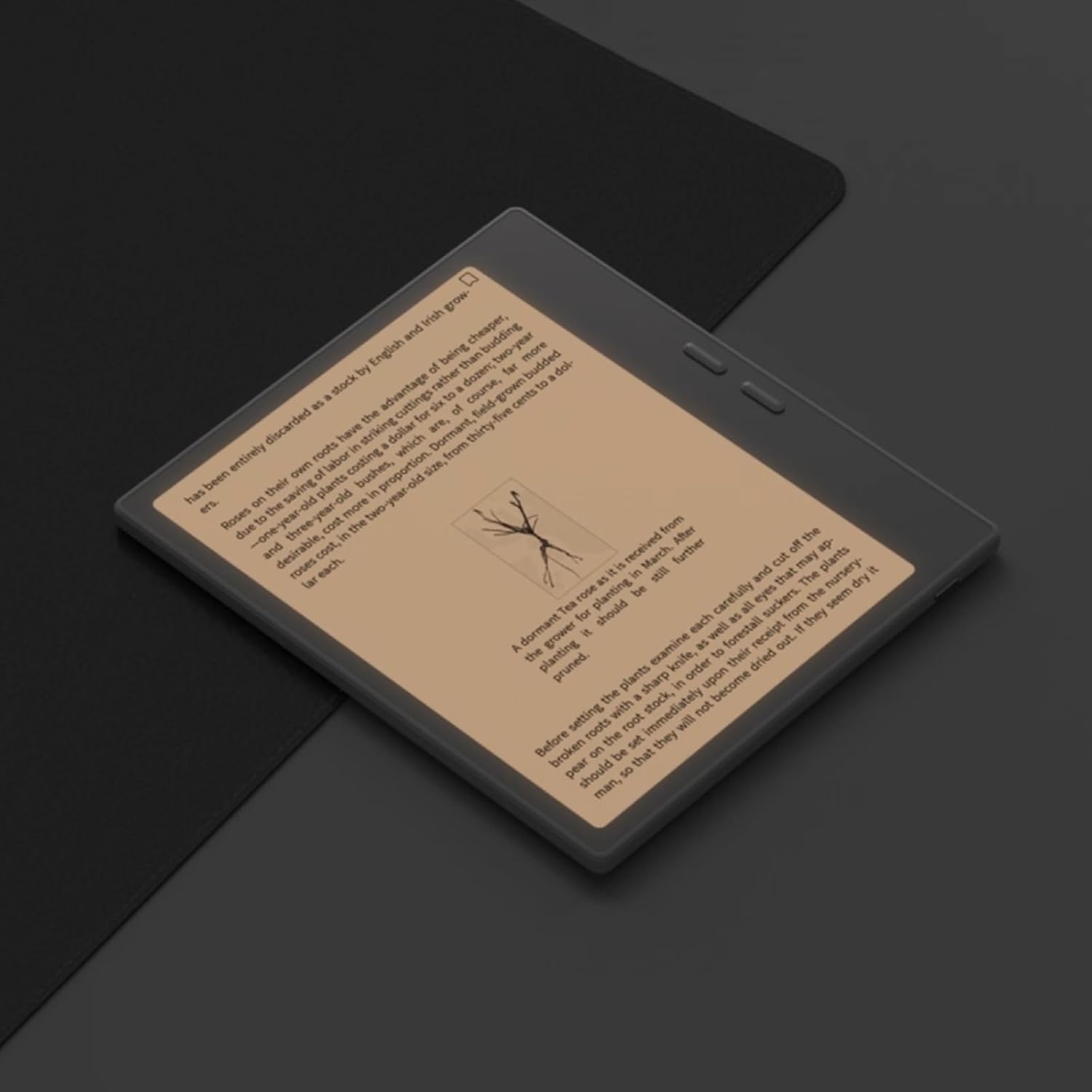
Figure 6.1: Reading with Frontlight
6.3 Using Android Applications
As an Android 13 device, the BOOX Go 7 allows installation of various applications from the Google Play Store. Navigate to the App Store, search for your desired application, and install it. Note that some applications may not be fully optimized for ePaper displays.

Figure 6.2: Various Android Applications on BOOX Go 7
6.4 Note-Taking and Drawing
Utilize the stylus (if included or purchased separately) for note-taking, sketching, and annotating documents. The device offers various templates and tools for creative and organizational tasks.

Figure 6.3: Stylus Use for Note-Taking

Figure 6.4: Handwriting to Text Conversion
7. Întreținere
7.1 Curăţarea dispozitivului
Use a soft, lint-free cloth to gently wipe the screen and body of the device. Do not use harsh chemicals, abrasive cleaners, or excessive moisture.
7.2 Actualizări de software
Regularly check for and install software updates to ensure optimal performance and access to new features. Connect to Wi-Fi and navigate to Setări > Sistem > Actualizare sistem pentru a verifica dacă există actualizări disponibile.
8. Depanare
- Dispozitivul nu pornește: Ensure the device is charged. Connect it to a power source and try again.
- Ecranul nu răspunde: Perform a soft reset by holding the Power button for 10-15 seconds.
- Probleme cu conexiunea Wi-Fi: Verify your Wi-Fi password and router settings. Try restarting your router and the device.
- Aplicațiile se blochează: Ensure applications are updated to their latest versions. Clear the app's cache or reinstall if issues persist.
9. Specificații
| Marca | BOOX |
| Numele modelului | Merge la 7 |
| Capacitate de stocare | 64 GB |
| Dimensiunea ecranului | 7 inchi |
| Rezoluție maximă a afișajului | 300 Pixels per inch |
| Sistem de operare | Android 13 |
| Culoare | Noir (Negru) |
| Dimensiunea RAM instalată | 4 GB |
| Caracteristici speciale | USB OTG support, Expandable storage, Stylus support |
| Anul modelului | 2025 |
| Tip baterie | Litiu-ion |
| Conținut energetic al bateriei | 8.8 wați-oră |
| Marca procesorului | Qualcomm |
| Descrierea procesorului | Qualcomm Snapdragon |
| Camera foto | Fără cameră |
| Tip senzor | Giroscop |
| Item Dimensions (LxWxT) | 15.6L x 0.6W x 13.7T centimeters |
| Metoda de intrare | Touchscreen with stylus |
| Descrierea plăcii grafice | Integrat |
| Dispozitive compatibile | Stylus |
| Tip de afișare | Cerneală electronică |
| Rezoluția ecranului | 1280 x 800 pixeli |
| Raportul de aspect | 16:10 |
| hardware-ul Suport conectare | USB |
| Tehnologia fără fir | Bluetooth, Wi-Fi (802.11ax) |
| Total porturi USB | 1 |

Figure 9.1: BOOX Go 7 Energy Label (Legătură EPREL)
10. Informații despre garanție
The BOOX Go 7 ePaper Tablet comes with a Garanție limitată de 2 an. This warranty covers manufacturing defects under normal use. For specific terms and conditions, please refer to the warranty card included in your package or contact customer support.
The standard return policy allows for returns within 30 days of purchase for refund or replacement.
11. Suport
For technical assistance, troubleshooting, or warranty claims, please contact BOOX customer service. You can find support resources and submit inquiries through the official BOOX help center.
- Actualizări firmware: BOOX commits to at least 3 years of firmware updates for each product.
- Stocare în cloud: 10 GB of free cloud storage is provided for each user.
- Timp de răspuns: Customer inquiries are typically responded to within 24 hours.
Pentru mai multe informații, vizitați BOOX Brand Store on Amazon.