
1. Produs terminatview
This manual provides instructions for the UNITOPSCI 4G+64G 8 Core Android Car Stereo Radio. This unit features a 7-inch IPS touchscreen, integrated Wireless CarPlay and Android Auto, Bluetooth 5.0, GPS navigation, Wi-Fi connectivity, FM/RDS radio, DSP audio processing, and support for AHD backup cameras and steering wheel controls. It is designed for specific Volkswagen, Seat, and Skoda models.

Image: The UNITOPSCI Android Car Stereo seamlessly integrated into a Volkswagen dashboard, showcasinecranul său de 7 inci și interfața cu utilizatorul.
2. Conținutul pachetului
Verificați dacă toate articolele enumerate mai jos sunt incluse în pachetul dumneavoastră:
- Android Car Stereo Unit
- Camera de rezervă
- Microfon
- Wire Harness (36-pin and 40-pin options)
- Antena GPS
- Cablu USB
- RCA prin cablu
- Antenă radio
- Canbus Box (if applicable for your vehicle)
- Manual de utilizare
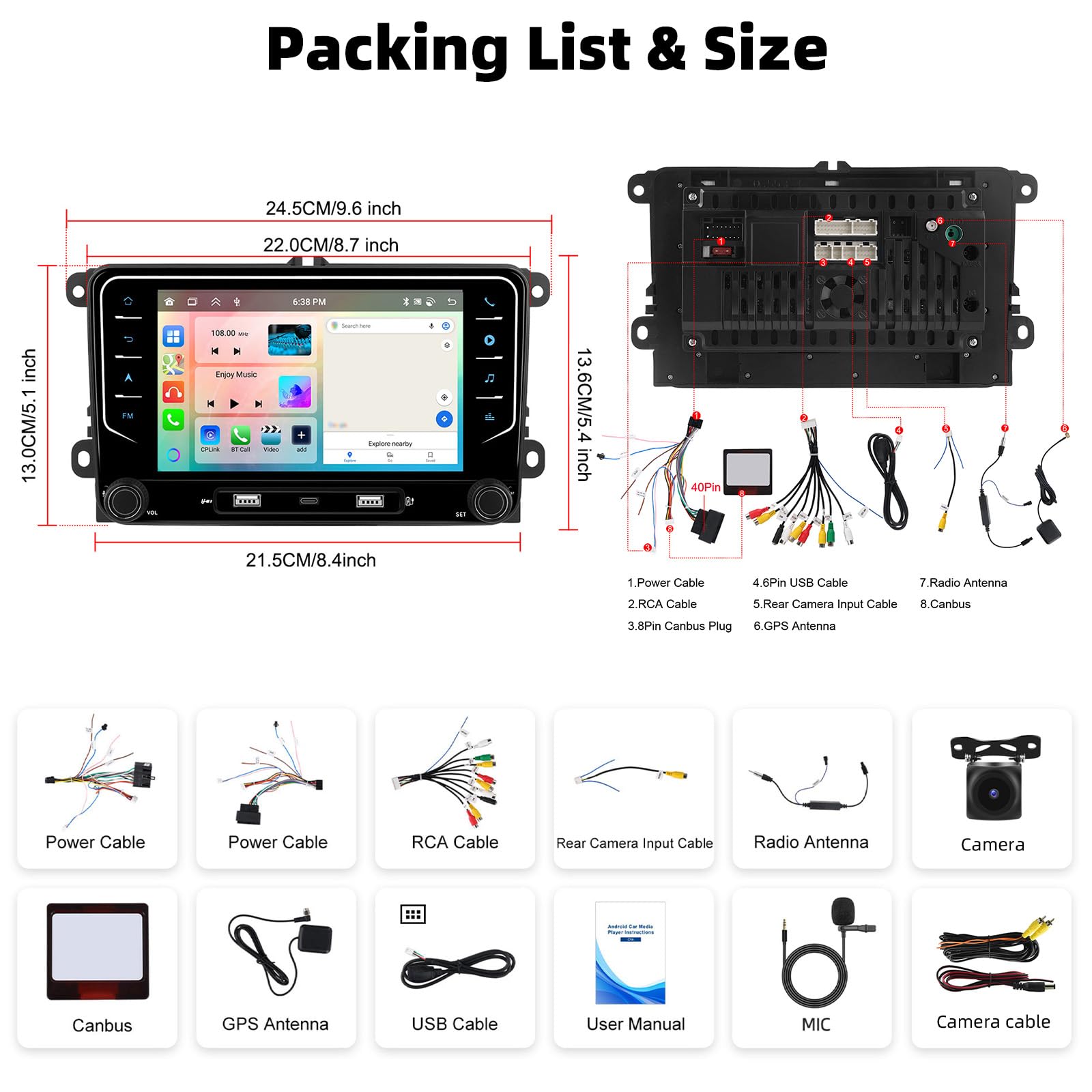
Image: Detailed diagram illustrating the dimensions of the car stereo unit and a visual representation of all included accessories such as power cables, RCA cables, GPS antenna, microphone, and backup camera.
3. Compatibilitatea vehiculului
This car stereo is compatible with various Volkswagen, Seat, and Skoda models. Please ensure your vehicle's model and year match the list below. If unsure, consult with a professional or the manufacturer.
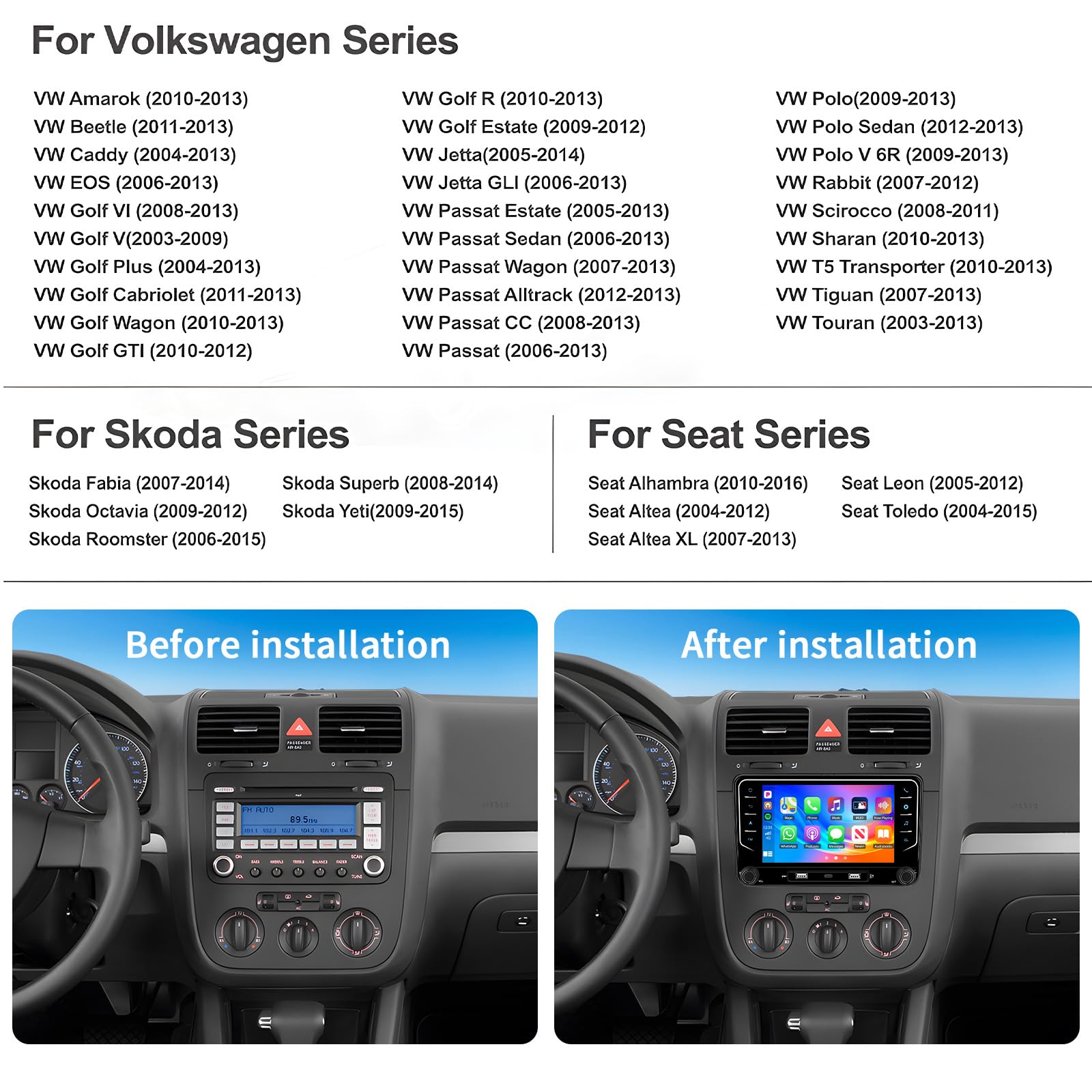
Image: A comprehensive list detailing compatible Volkswagen, Skoda, and Seat vehicle models along with their respective manufacturing years.
Modele Volkswagen compatibile:
- VW Amarok (2010-2013)
- VW Beetle (2011-2013)
- VW Caddy (2004-2013)
- VW EOS (2006-2013)
- VW Golf VI (2008-2013)
- VW Golf V (2003-2009)
- VW Golf Plus (2004-2013)
- VW Golf Cabriolet (2011-2013)
- VW Golf Wagon (2010-2013)
- VW Golf GTI (2010-2012)
- VW Golf R (2010-2013)
- VW Golf Estate (2009-2012)
- VW Jetta (2005-2014)
- VW Jetta GLI (2006-2013)
- VW Passat Estate (2005-2013)
- VW Passat Sedan (2006-2013)
- VW Passat Wagon (2007-2013)
- VW Passat Alltrack (2012-2013)
- VW Passat CC (2008-2013)
- VW Passat (2006-2013)
- VW Polo (2009-2013)
- VW Polo Sedan (2012-2013)
- VW Polo V 6R (2009-2013)
- VW Rabbit (2007-2012)
- VW Scirocco (2008-2011)
- VW Sharan (2010-2013)
- VW T5 Transporter (2010-2013)
- VW Tiguan (2007-2013)
- VW Touran (2003-2013)
Modele Skoda compatibile:
- Skoda Fabia (2007-2014)
- Skoda Octavia (2009-2012)
- Skoda Roomster (2006-2015)
- Skoda Superb (2008-2014)
- Skoda Yeti (2009-2015)
Modele de scaune compatibile:
- Seat Alhambra (2010-2016)
- Seat Altea (2004-2012)
- Seat Altea XL (2007-2013)
- Seat Leon (2005-2012)
- Seat Toledo (2004-2015)
4. Ghid de instalare
Se recomandă instalarea de către un profesionist. Asigurați-vă că vehiculul este deconectat de la rețeaua electrică înainte de a începe instalarea.
4.1 Conexiunea cablajului
Refer to the wiring diagram to connect the appropriate harness (36-pin or 40-pin) for your car model. Ensure all connections are secure.

Image: Detailed wiring diagrams illustrating connections for both 36-pin and 40-pin harnesses, including ACC, Canbus, and power cables. Please read the manual carefully before wiring.
4.2 Montarea unității
Carefully remove your existing car stereo. Install the new UNITOPSCI unit into the dashboard slot, ensuring it is securely fastened. Connect all cables as per the wiring diagram.
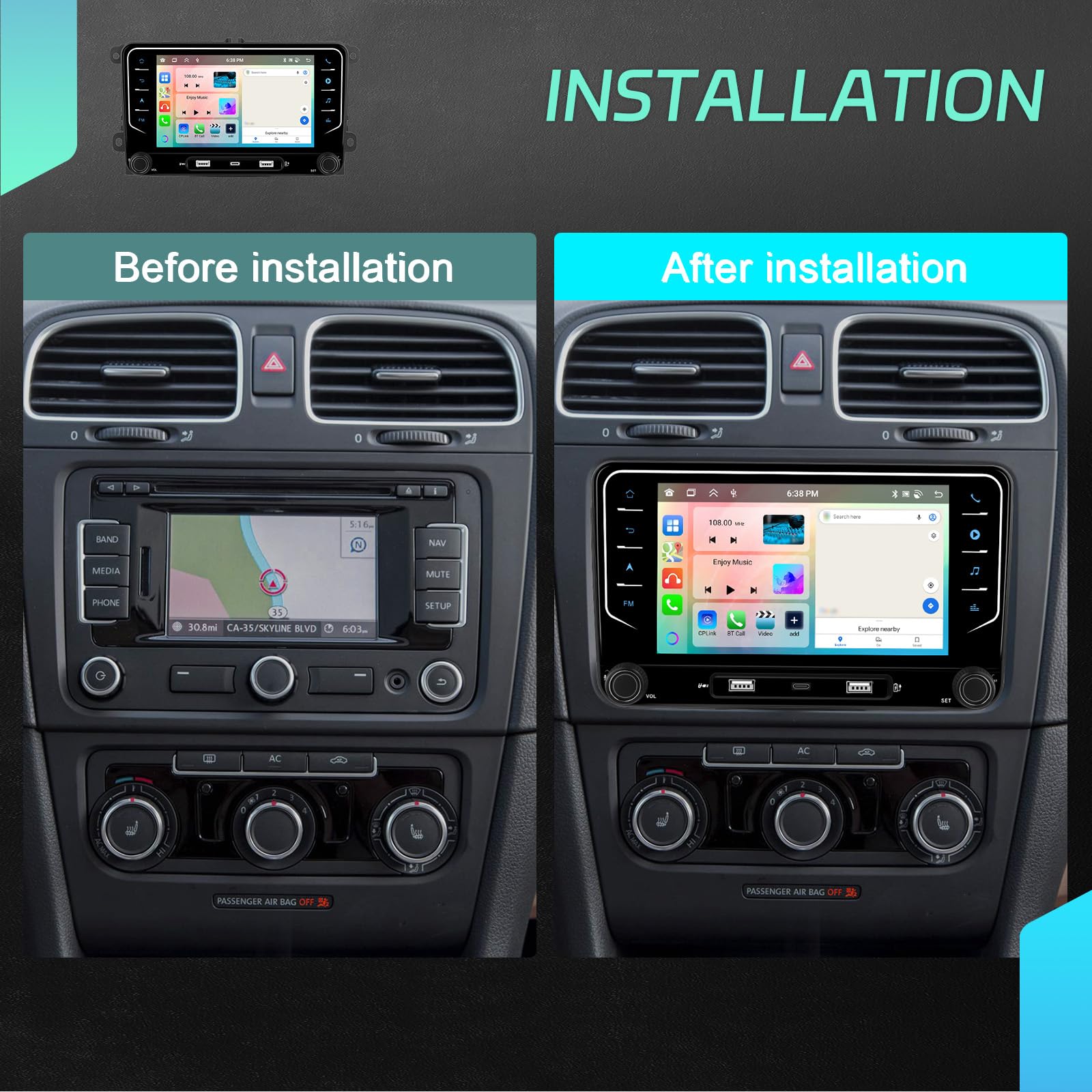
Image: A visual comparison showing a car's dashboard before and after the installation of the UNITOPSCI Android Car Stereo, highlighting the integrated appearance.
4.3 Instalarea camerei de mers înapoi
Install the AHD backup camera at the rear of your vehicle. Connect the camera's video output to the designated input on the car stereo unit. Ensure the camera's power is connected to the reverse light circuit for automatic activation.

Image: An illustration demonstrating the features of the AHD backup camera, including night vision, waterproofing, and wide-angle view, along with its connection to the car stereo for reverse imaging.
5. Instrucțiuni de utilizare
5.1 Pornire/Oprire și comenzi de bază
Press the power button to turn the unit on or off. Use the volume knobs or touchscreen controls to adjust audio levels. Navigate through menus using the touchscreen interface.
5.2 CarPlay wireless și Android Auto
Connect your iPhone or Android smartphone wirelessly via Bluetooth and Wi-Fi to activate CarPlay or Android Auto. This allows access to phone calls, GPS navigation, music, and other compatible apps directly on the stereo screen.
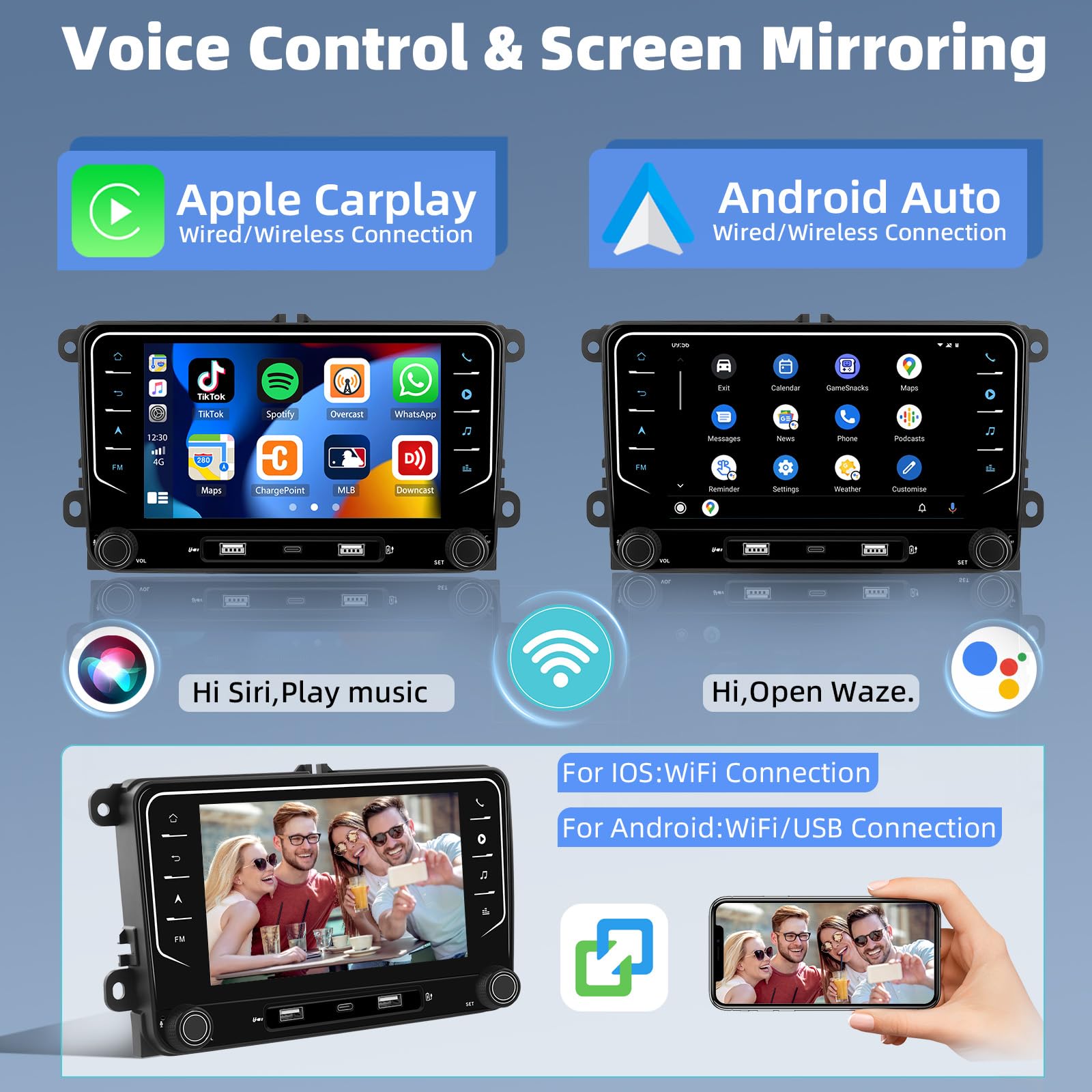
Image: Screenshots displaying the user interfaces for Apple CarPlay and Android Auto, showing how phone applications are integrated into the car stereo display.
5.3 Navigare GPS
The unit comes with pre-installed offline maps. Connect to Wi-Fi to download additional maps or use online navigation services. The built-in GPS supports BeiDou, GLONASS, and GPS systems.

Image: Screenshots illustrating the Wi-Fi connection interface and a GPS navigation map display on the car stereo.
5.4 Bluetooth 5.0
Pair your mobile device via Bluetooth for hands-free calling and audio streaming. Access your phone book and call history directly from the stereo. An external microphone is included for clear call quality.

Image: Screenshots demonstrating the Bluetooth interface for hands-free calls and music playback on the car stereo.
Radio FM/RDS 5.5
Tune into your favorite FM radio stations. The RDS (Radio Data System) feature displays station information where available.

Image: Screenshots showing the FM/RDS radio interface with frequency display and preset station options.
5.6 Controlul volanului (SWC)
Configure the steering wheel controls to manage functions like volume, track skipping, and answering calls, enhancing driving safety.

Image: A diagram illustrating how to map steering wheel control buttons to various functions on the car stereo for convenient operation.
5.7 Funcția de ecran divizat
Folosește funcția de ecran divizat pentru a rula două aplicații simultan, cum ar fi navigarea și redarea muzicii.

Image: A screenshot showing the split-screen functionality, displaying a navigation app on one side and a media player on the other.
6. Caracteristici cheie
Procesor de înaltă performanță 6.1
Equipped with an 8-core CPU, 4GB RAM, and 64GB ROM, this unit ensures smooth operation and ampspațiu de stocare pentru aplicații și media.

Image: A visual representation highlighting the 8-core CPU, 4GB RAM, and 64GB ROM, emphasizing increased performance, heat dissipation, and productivity.
6.2 DSP 32-band EQ
The built-in Digital Sound Processor (DSP) with a 32-band equalizer allows for precise audio customization, delivering enhanced sound quality.

Image: Screenshots of the DSP audio settings and 32-band equalizer interface, showing options for sound field, balance, and custom EQ adjustments.
6.3 7-inch IPS Touchscreen
The 7-inch IPS touchscreen offers a clear display with a resolution of 1024*600 (or 1280*720P for optimal viewing), providing vibrant colors and wide viewunghiuri de ing.

Image: A visual comparison demonstrating the superior clarity and resolution of the 7-inch IPS touchscreen compared to other standard screens.
6.4 Customizable UI Themes
Personalize your stereo's interface with 59 available UI themes to match your preference.

Imagine: Capturile de ecran aratăasing different customizable UI themes and wallpaper options available for the car stereo interface.
6.5 DVR Input Support
Connect an external DVR (Digital Video Recorder) to record your driving journeys, providing valuable evidence in case of incidents.
7. Specificatii tehnice
| Caracteristică | Caietul de sarcini |
|---|---|
| Marca | UNITOPSCI |
| Numele modelului | VW Android Car Stereo Radio |
| Sistem de operare | Android |
| CPU | Procesor cu 8 nuclee |
| RAM | 4 GB |
| ROM | 64 GB |
| Dimensiunea ecranului | 7 inchi |
| Tip de afișare | LCD IPS |
| Rezoluția ecranului | 1024*600 (or 1280*720P) |
| Tip ecran tactil | Capacitiv |
| Conectivitate | Bluetooth 5.0, Wi-Fi |
| Caracteristici speciale | CarPlay, Android Auto, Mirror Link, DSP Audio, AHD Backup Camera, FM/RDS Radio, Steering Wheel Control, GPS Navigation |
| Supported Sat Nav Systems | BeiDou, GLONASS, GPS |
| Tip hartă | America de Nord, la nivel mondial |
| Mod ieșire audio | Stereo |
8. Depanare
8.1 Fara putere
- Check all power connections, including the ACC and ground wires.
- Ensure the vehicle's fuse for the stereo is not blown.
- Verify the Canbus connection if your vehicle requires it.
8.2 Fără sunet
- Verificați conexiunile cablurilor difuzorului.
- Asigurați-vă că volumul nu este redus la dezactivare sau setat prea jos.
- Verify audio settings in the DSP equalizer.
8.3 GPS Not Working
- Asigurați-vă că antena GPS este conectată corect și amplasată într-o zonă cu cer senin view.
- Verificați setările GPS din meniul de sistem.
- Verify that maps are downloaded and up to date.
8.4 Probleme de conexiune Bluetooth
- Asigurați-vă că Bluetooth este activat atât pe sistemul stereo, cât și pe dispozitivul mobil.
- Ștergeți asocierile anterioare și încercați să vă reconectați.
- Move your device closer to the stereo.
8.5 Camera de marșarier nu afișează
- Verificați conexiunea de intrare video de la cameră la sistemul stereo.
- Ensure the camera is receiving power and its trigger wire is correctly connected to the reverse light.
- Verify camera settings in the system menu.
9. Garanție și asistență
9.1 Informații despre garanție
Acest produs vine cu un 1 an garanție de la data achiziției, acoperind defectele de fabricație. Vă rugăm să păstrați dovada achiziției pentru reclamațiile în garanție.
9.2 Asistență pentru clienți
For technical assistance, troubleshooting, or warranty inquiries, please contact UNITOPSCI customer support:
- E-mail: UNITOPSCI@126.com

Image: Information regarding UNITOPSCI's customer service, including contact email for support.