
Ultron Ultron Play 5298
Uppertech Ultron Play 7-inch Multimedia System User Manual
Model: Ultron Play 5298 | Brand: Ultron
1. Introducere
This manual provides detailed instructions for the installation, operation, and maintenance of your Uppertech Ultron Play 7-inch Multimedia System. Please read this manual thoroughly before using the device to ensure proper functionality and to maximize your user experience. Keep this manual for future reference.
2. Produs terminatview
Caracteristici cheie:
- 7-inch IPS Capacitive Touchscreen (1080x600dpi)
- Sistem de operare Android 13.0
- 2 GB RAM DDR3
- 32GB Internal Flash Storage
- Quad Core 1.2GHz Processor
- Bluetooth 4.0 pentru apeluri hands-free și streaming audio
- Dual Wi-Fi Connectivity (2.4 GHz and 5.0 GHz)
- Integrated GPS Navigation (IGO NEXT_GEN 3D offline)
- Wireless Apple CarPlay and Android Auto (via Bluetooth)
- FM Radio (76-108 MHz) with MT6625 Radio IC
- Amplified Audio Output: YD-7388 - 4x41 watts + Sub EQ
- Multi-UI Function for interface customization (23 options)
- Support for Rear and Front Cameras (360p, 480p, 720p)
- Pre-installed Apps: Waze, Netflix, Spotify, YouTube, Google Maps, Google Chrome, Play Store
Continutul pachetului:
- 1x 7-inch Multimedia System
- 1x Spate View Camera foto
- 1x Spate View Cablul camerei
- 1x Universal 16-pin Power Harness
- 1x RCA AV AUX Audio and Video Output Cable
- 1x Antena GPS
- 1x Mounting Bracket Set
- 1x Bluetooth Microphone
- 1x USB Cable (4-pin)
- 1x USB Cable (6-pin)
3. Configurare
3.1 Instrucțiuni de instalare
It is highly recommended that this multimedia system be installed by a qualified professional. Incorrect installation can lead to damage to the device or your vehicle's electrical system. Ensure the vehicle's battery is disconnected before beginning installation.
3.2 Conexiuni de cablare
- Cablaj de alimentare: Connect the universal 16-pin power harness to the vehicle's wiring according to the wiring diagram provided with the harness. Ensure correct polarity for constant power, accessory power, and ground connections.
- Antena GPS: Conectați antena GPS și amplasați-o într-un loc cu lumină naturală view ale cerului, de obicei pe bord sau sub parbriz.
- Antena Wi-Fi: The system includes an integrated Wi-Fi antenna.
- Cabluri USB: Connect the 4-pin and 6-pin USB cables to the designated ports on the multimedia system. These can be routed to a convenient location for connecting USB devices.
- Microfon Bluetooth: Connect the external Bluetooth microphone for improved call quality and place it near the driver's position.
- Spate View Camera: Conectați partea din spate view camera cable to the dedicated video input. The camera automatically activates when the vehicle is in reverse gear.
- Front Camera (Optional): If installing a front camera, connect it to the AV AUX video input. It will activate automatically for 10 seconds after disengaging reverse.
- Ieșiri audio/video: Use the RCA AV AUX cables for additional audio outputs (including subwoofer) and video output to external displays.
3.3 Pornirea inițială
After all connections are securely made, reconnect the vehicle's battery. Turn on the vehicle's ignition. The multimedia system should power on automatically. Follow any on-screen prompts for initial setup.
4. Instrucțiuni de utilizare
4.1 Interfața utilizator și navigarea
The system features a customizable Android interface. Swipe left or right on the main screen to access different pages of applications. The main screen typically displays time, date, and quick access icons.
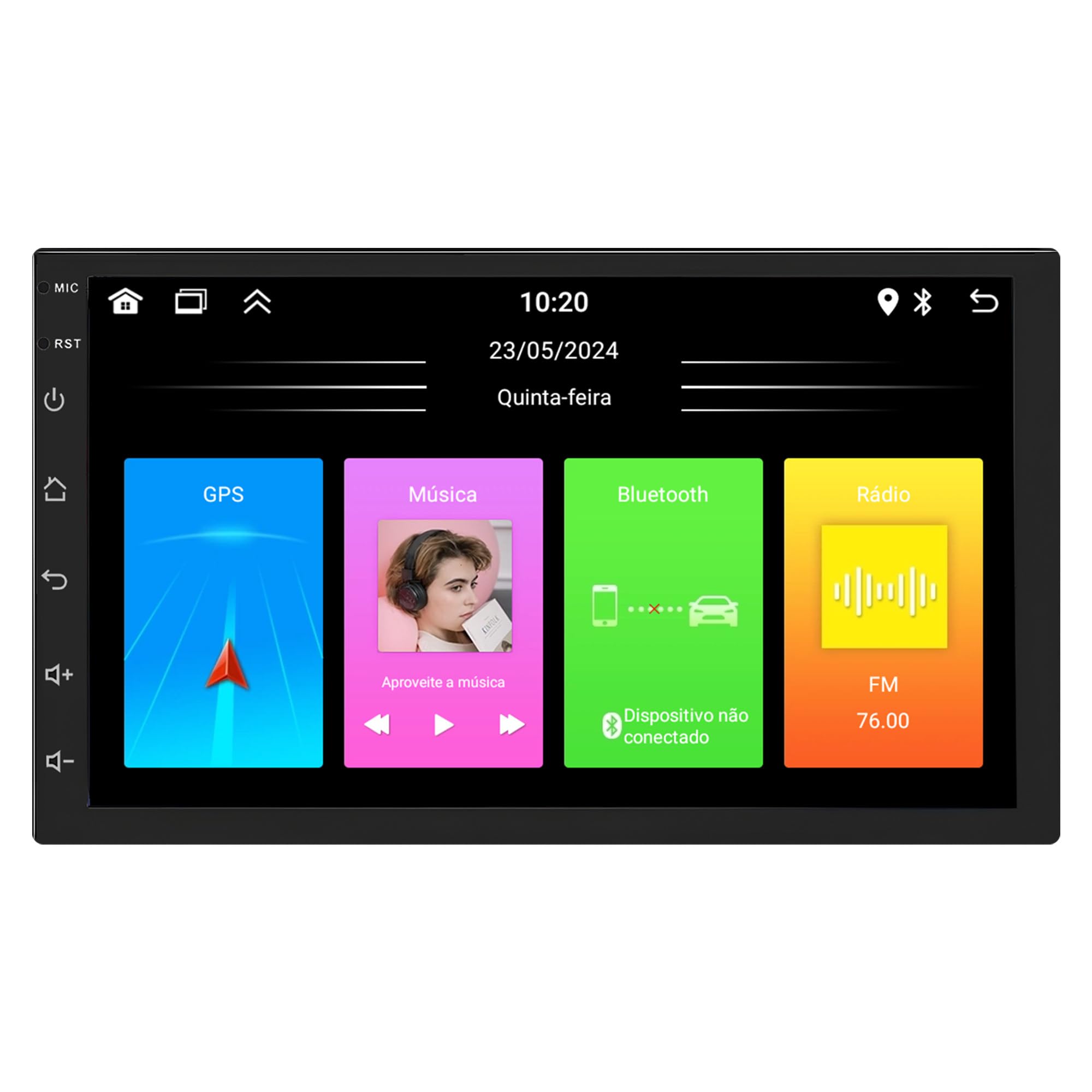
Image: Main interface of the Ultron Play multimedia system, displaying large icons for Video, Adjustments, File Manager, and Apps, along with time and date at the top.

Image: Second screen of applications on the Ultron Play system, showing icons for Radio, Music, Video, Bluetooth, BT Music, Gallery, Files, Vehicle Info, Settings, and EQ.

Image: Third screen of applications on the Ultron Play system, displaying icons for SWC (Steering Wheel Control), AUX, Manual, Sound Recorder, CPLink, Android Auto, Chrome, Play Store, Maps, and YouTube.
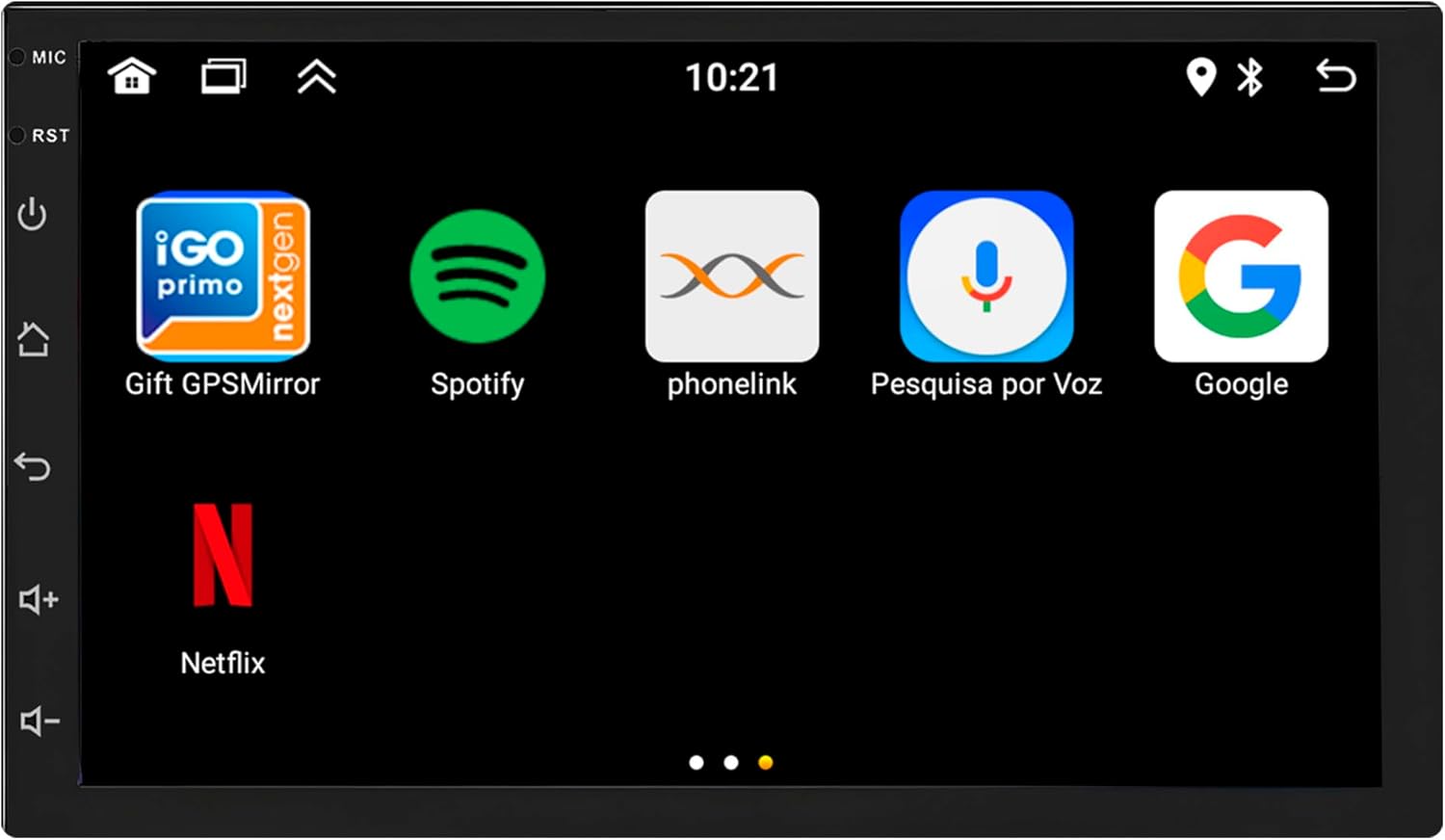
Image: Fourth screen of applications on the Ultron Play system, showing icons for Gift GPSMirror, Spotify, PhoneLink, Voice Search, Google, and Netflix.
4.2 Funcția radio
Access the "Radio" application from the main menu. You can perform automatic station searches or manually tune to frequencies. The system allows you to save up to 6 FM stations as presets.

Image: The radio interface of the Ultron Play system, displaying the current FM frequency (76.00 MHz) and six programmable preset buttons for saving stations.
4.3 Conectivitate Bluetooth
To pair your phone, go to the "Bluetooth" application. Enable Bluetooth on your mobile device and search for the multimedia system. Select the device and confirm the pairing code. Once connected, you can make/receive calls hands-free, access your phonebook, view call history, and stream audio (A2DP).

Image: The Bluetooth dialer screen on the Ultron Play system, featuring a numeric keypad for dialing, along with options to access contacts and call records.
4.4 Navigare GPS
The system comes with pre-installed IGO NEXT_GEN 3D offline GPS. You can also use online navigation apps like Waze and Google Maps by connecting to Wi-Fi. Access these applications from the main menu.
4.5 Apple CarPlay și Android Auto
The Ultron Play supports wireless Apple CarPlay (for iOS devices) and Android Auto (for Android devices) via Bluetooth. Launch the "CPLink" or "Android Auto" app on the multimedia system, then follow the on-screen instructions to connect your smartphone wirelessly. This allows seamless integration of your phone's navigation, music, and communication apps.
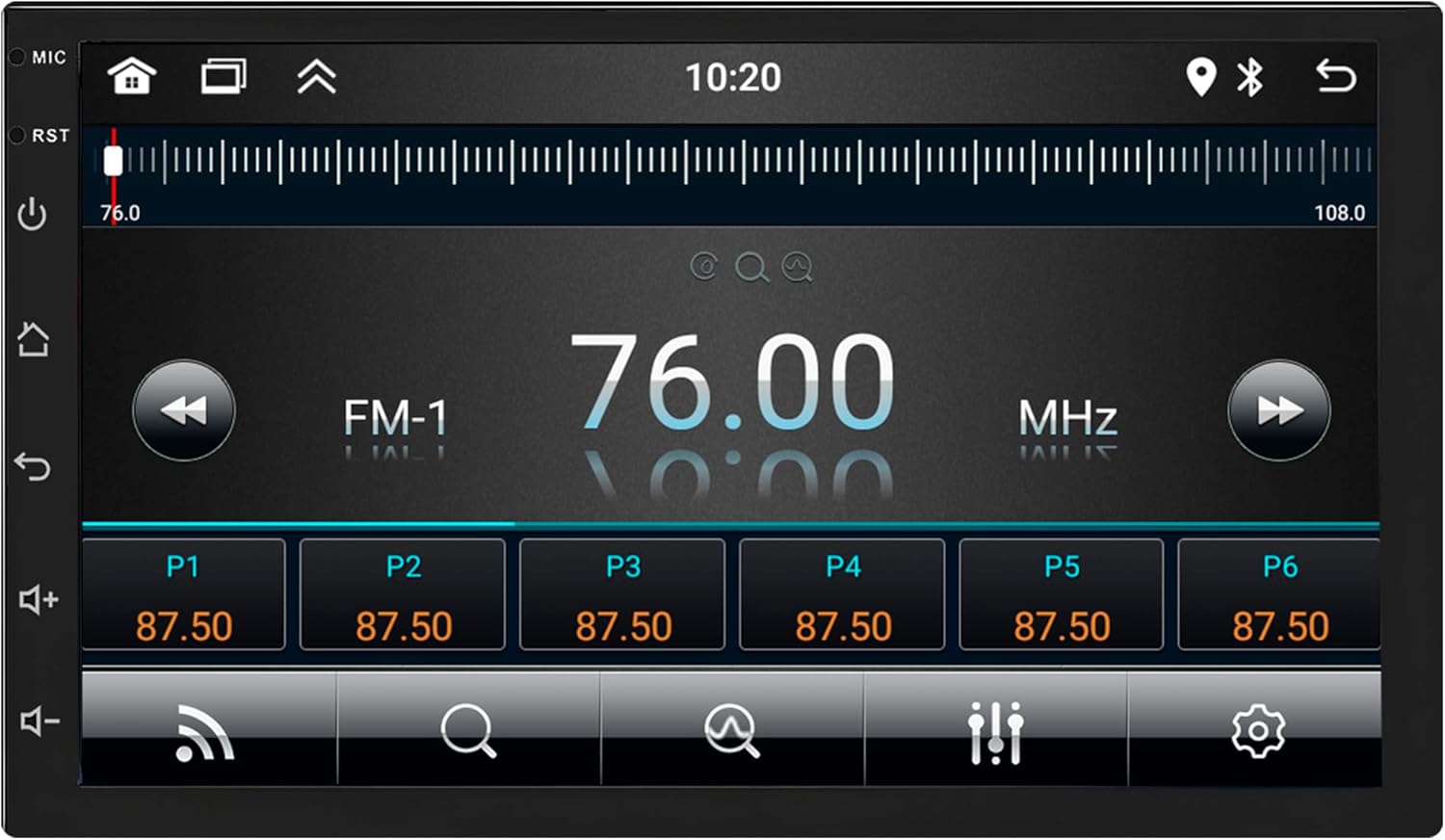
Image: The Apple CarPlay interface shown on the Ultron Play system, with an iPhone positioned beside the screen, illustrating the wireless connection.

Image: The Android Auto interface displayed on the Ultron Play system, with an Android phone positioned beside the screen, illustrating the wireless connection.
4.6 Redare media
The system supports various audio, video, and image formats. Use the "Music" or "Video" apps to play files from connected USB devices or internal storage.
- Formate audio: MP2, MP3, MP4, ACC, WMA, WAV
- Formate video: WMV, MPEG, MJPEG, AVI, MP4, MKV, MPG, RMVB
- Formate de imagine: JPEG, PNG, GIF, BPM
4.7 Conexiune Wi-Fi
To connect to a Wi-Fi network, go to "Settings" > "Network & Internet" > "Wi-Fi". Select your desired network and enter the password if required. The system supports both 2.4 GHz and 5.0 GHz bands.
4.8 Funcțiile camerei
- Spate View Camera: Afișează automat partea din spate view when the vehicle is shifted into reverse gear. The image remains active as long as reverse gear is engaged.
- Front Camera (Optional): If installed, the front camera view will automatically display for 10 seconds after disengaging reverse gear.
4.9 Setări de sistem
Access the "Settings" menu to customize various aspects of the multimedia system:
- Multi UI Function: Personalize the main and secondary interface with 23 different options.
- Car Logos: Select from various car manufacturer logos for the boot screen.
- Reglarea luminii: Control the intensity level of the screen backlight.
- Tapet: Schimbați imaginea de fundal a interfeței.
- Iluminare RGB: Adjust the color of the button illumination.
- Balans/Fader: Distribute sound within the vehicle's interior.
- Egalizare: Adjust Bass, Middle, and Treble. Predefined equalization bands include Classic, Jazz, Pop, Speech, and Rock.
5. Întreținere
5.1 Curățarea ecranului
Folosiți o lavetă moale, fără scame, pentru a șterge ușor ecranul. Pentru petele persistente, ștergeți ușor.ampen the cloth with water or a screen-cleaning solution. Avoid harsh chemicals or abrasive materials that could damage the screen surface.
5.2 Actualizări de software
Periodically check for software updates through the system's settings menu or the manufacturer's website. Keeping your system updated ensures optimal performance and access to new features.
5.3 Îngrijire generală
Avoid exposing the unit to extreme temperatures, direct sunlight for prolonged periods, or excessive moisture. Ensure all connections remain secure to prevent intermittent issues.
6. Depanare
If you encounter any issues with your multimedia system, refer to the following common problems and solutions:
- Fără putere:
- Check all power connections, including the 16-pin harness and vehicle fuses.
- Asigurați-vă că contactul vehiculului este cuplat.
- Fără sunet:
- Verify the volume level is not muted or set too low.
- Verificați conexiunile difuzoarelor.
- Asigurați-vă că este selectată sursa audio corectă.
- Probleme de conexiune Bluetooth:
- Ensure Bluetooth is enabled on both the multimedia system and your mobile device.
- Ștergeți asocierile anterioare și încercați să le reorganizați.
- Reporniți ambele dispozitive.
- GPS-ul nu funcționează / este inexact:
- Asigurați-vă că antena GPS este conectată corect și are o rază clară de acțiune. view a cerului.
- Check GPS settings within the system.
- For online maps, verify Wi-Fi connectivity.
- Ecranul tactil nu răspunde:
- Perform a soft reset by pressing the RST button (if available) or by turning the vehicle ignition off and on.
- Asigurați-vă că ecranul este curat și fără resturi.
- Camera din spate nu afișează:
- Check the camera's video input connection.
- Asigurați-vă că vehiculul este cuplat în marșarier.
If these steps do not resolve the issue, please contact technical support.
7. Specificații
| Caracteristică | Caietul de sarcini |
|---|---|
| Model | Ultron Play 5298 |
| Dimensiunea ecranului | 7 inci |
| Tip de ecran | IPS Capacitive Glass+Glass |
| Rezoluţie | 1080x600 dpi |
| Sistem de operare | Android 13.0 |
| RAM | 2 GB DDR3 |
| Stocare internă | Memorie flash de 32 GB |
| Procesor | Quad Core 1.2GHz |
| Versiune Bluetooth | 4.0 (Hands-Free, A2DP) |
| Wifi | Dual Band (2.4 GHz & 5.0 GHz) with integrated antenna |
| Circuit integrat radio | MT6625 |
| Gama de frecvențe FM | 76-108 MHz |
| Ieșire audio | Amplified YD-7388 - 4x41 watts |
| CarPlay / Android Auto | Wireless (via Bluetooth) |
| GPS | Integrated IGO NEXT_GEN 3D offline |
| Compatibilitatea camerei | 360p, 480p, 720p (Rear & Front) |
| Intrări / ieșiri audio | 2x RCA Audio In, 2x Audio Out + Sub Out, 1x External Mic In |
| Intrări / ieșiri video | 1x Rear Camera Video In, 1x AUX/Front Camera Video In, 1x RCA Video Out |
| Porturi USB | 2 (4-pin and 6-pin) |
| Certificari | INMETRO 85287200, ANATEL 191552213463 |
| Producător | UPPERTECH |
| Dimensiuni pachet | 30 x 18 x 10 cm; 800 g |
8. Garanție și asistență
8.1 Informații despre garanție
This product is covered by a manufacturer's warranty against defects in materials and workmanship. Please refer to the warranty card included in your package for specific terms, conditions, and duration. Keep your proof of purchase for warranty claims.
8.2 Suport tehnic
For technical assistance, installation queries, or troubleshooting beyond the scope of this manual, specialized technical support is available. Please refer to the contact information provided with your product or on the manufacturer's official website-ul pentru detalii de asistență.
Ask a question about this manual
Ask about setup, troubleshooting, compatibility, parts, safety, or missing instructions. Manuals+ will review the question and use this page’s manual context to help answer it.