
1. Introducere
The Innex DS200 is a professional USB book scanner designed for efficient digitization of various documents, including books, magazines, and loose papers. It features a 26MP camera, A3 scanning capability, and advanced software functions to enhance scanning quality and workflow. This manual provides detailed instructions for setting up, operating, and maintaining your DS200 scanner.

Figure 1.1: Innex DS200 Scanner in operation with an open book.
2. Conținutul pachetului
Verificați dacă toate articolele enumerate mai jos sunt incluse în colet. Dacă lipsesc sau sunt deteriorate articole, vă rugăm să contactați serviciul de asistență pentru clienți.
- Innex DS200 Scanner Unit
- Pad de scanare
- Cablu USB
- Adaptor de alimentare (tip A)
- Power Plugs (Type C, Type G)
- Buton de mână
- Pedala de picior
- Adapter (USB-C to USB-A)
- Ghid de pornire rapidă
- Card de service
- Declarație GPSR
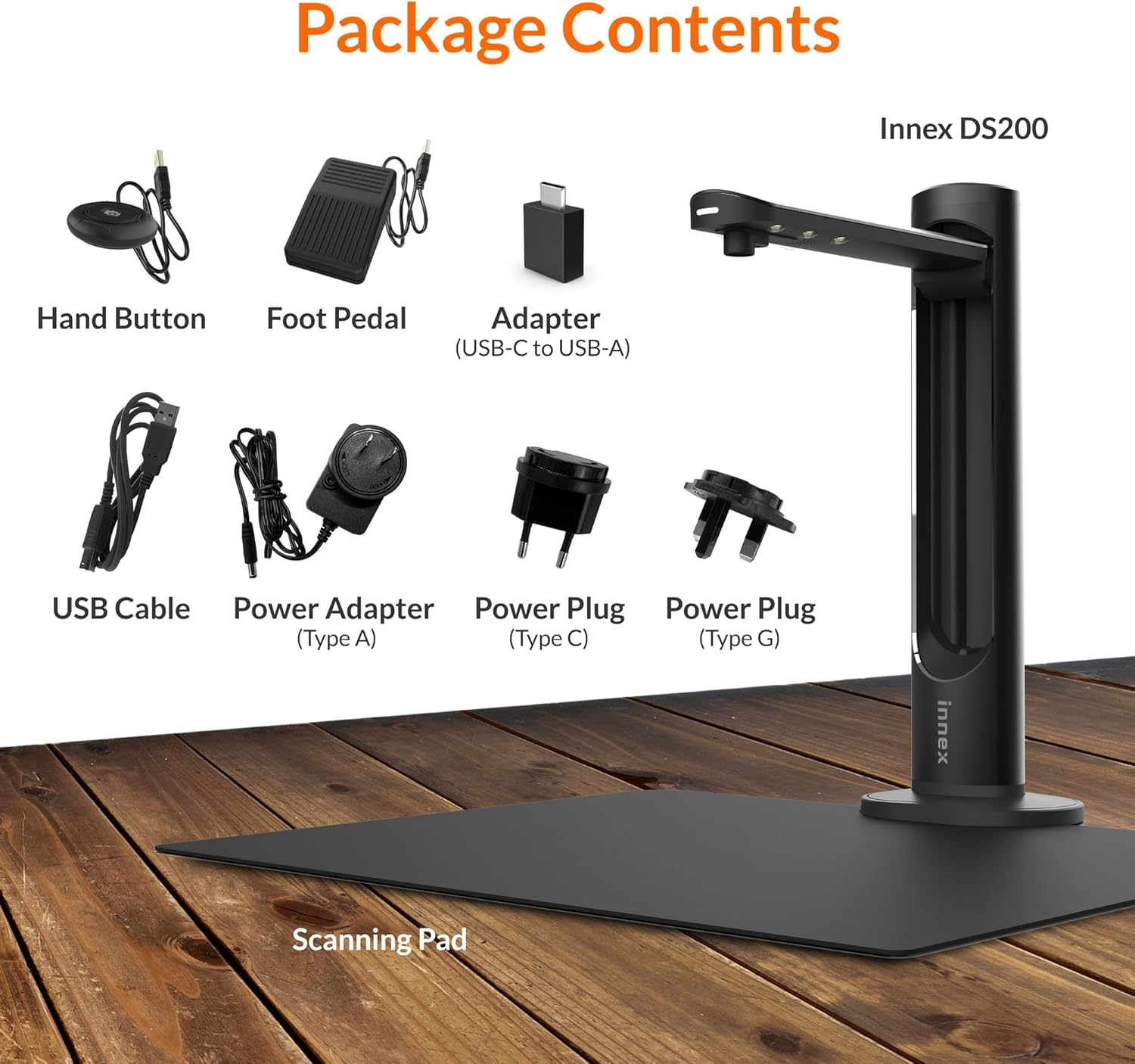
Figure 2.1: Contents of the Innex DS200 package.
3. Configurare
- Despachetați componente: Scoateți cu grijă toate articolele din ambalaj.
- Poziționarea scanerului: Place the Innex DS200 scanner unit on a stable, flat surface.
- Place the Scanning Pad: Position the black scanning pad directly beneath the scanner head. Ensure it is centered and flat.
- Conectare alimentare: Connect the power adapter to the scanner and plug it into an electrical outlet. Use the appropriate power plug for your region.
- Conectare la computer: Connect the scanner to your computer using the provided USB cable. If your computer only has USB-C ports, use the included USB-C to USB-A adapter.
- Instalați software-ul: Download and install the Innex Scan software from the official Innex website. Follow the on-screen instructions for installation. The software is compatible with Windows and macOS.
- Accesorii de conectare: Plug in the hand button and foot pedal to the designated ports on the scanner unit.
4. Instrucțiuni de utilizare
4.1. Basic Scanning Procedure
- Launch Innex Scan Software: Open the Innex Scan application on your computer.
- Locul documentului: Place the document or book you wish to scan on the scanning pad. Ensure it is within the scanning area. The laser guide can assist with alignment.
- Ajustați setările: In the software, select your desired scanning mode (e.g., Document, Book, Photo) and adjust settings such as color mode, resolution, and output format.
- Inițiați scanarea: Trigger the scan using one of the available methods: the software capture button, the hand button, or the foot pedal.
- Review și Salvați: După scanare, repetațiview the image in the software. Apply any necessary corrections and save the file to your preferred location and format.

Figure 4.1: Using the laser guide for document alignment.

Figure 4.2: Multiple options for triggering a scan.
4.2. Caracteristici software
The Innex Scan software includes several features to optimize your scanning experience:
- Curve Flattening: Automatically corrects the curvature of book pages for flat, readable scans.
- OCR (recunoaștere optică a caracterelor): Converts scanned images into editable and searchable text in over 120 languages.
- Auto-Cropping: Automatically detects and crops the document edges.
- Page-Turn Detection: For book scanning, the software can detect when a page has been turned and automatically initiate the next scan.
- Finger Removal: Intelligently removes images of fingers holding down pages during scanning.
- Multi Scan Mode: Allows scanning multiple small items simultaneously, such as business cards or photos, and separates them into individual files.
- Visualizer Mode: Enables the scanner to function as a document camera for presentations or live demonstrations.
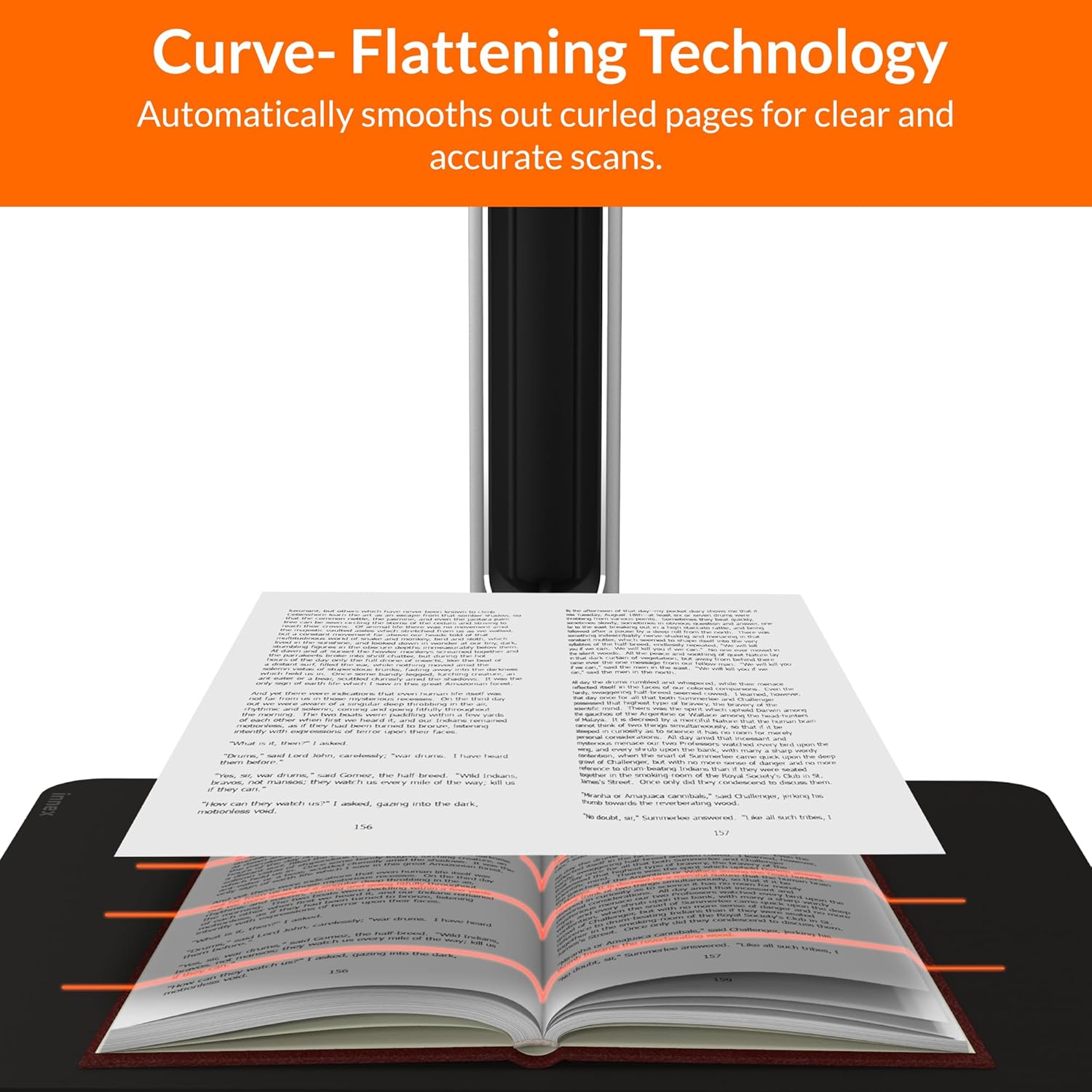
Figure 4.3: Curve Flattening Technology in use.

Figure 4.4: OCR Text Recognition and export options.

Figura 4.5: Pesteview of Innex Scan software features.
4.3. Export Options
The Innex DS200 supports various export formats for both image and text files:
- Imagine Files: JPEG, PNG, BMP, TIFF
- Document Files: PDF (searchable), DOC, EXCEL, TEXT
- E-carte Files: EPUB
- Audio Files (Text-to-Speech): MP3, WAV
- Video Files (Visualizer Mode): MP4, AVI, FLV, WMV

Figure 4.6: Available export formats in Innex Scan software.
5. Întreținere
- curatenie: Regularly wipe the scanner lens and LED lamp with a soft, dry, lint-free cloth to ensure optimal scan quality. Clean the scanning pad with a damp pânză dacă este necesar.
- Actualizări de software: Periodically check the official Innex website for software updates to ensure you have the latest features and performance improvements.
- Depozitare: Când nu îl utilizați, depozitați scanerul într-un mediu curat și uscat, ferit de lumina directă a soarelui și de temperaturi extreme.
6. Depanare
6.1. Probleme comune și soluții
| Emisiune | Cauza posibila | Soluţie |
|---|---|---|
| Scanerul nu a fost detectat | Loose USB connection, driver issue, power issue | Ensure USB cable is securely connected. Check power connection. Reinstall scanner drivers or software. Try a different USB port. |
| Calitate slabă a scanării | Dirty lens, insufficient lighting, incorrect settings, document not flat | Clean the scanner lens. Ensure adequate ambient lighting or use the built-in LED lamp. Adjust resolution and color settings in software. Ensure documents are flat on the scanning pad. |
| Software-ul se blochează sau se blochează | Outdated software, system incompatibility, insufficient system resources | Update Innex Scan software to the latest version. Ensure your computer meets minimum system requirements. Close other demanding applications. Restart the software and computer. |
| OCR not working correctly | Poor scan quality, incorrect language setting, complex font | Improve scan quality. Verify the correct OCR language is selected in the software. For highly stylized or handwritten text, OCR accuracy may vary. |
7. Specificații
Detailed technical specifications for the Innex DS200 scanner:

Figure 7.1: Innex DS200 Technical Specifications.
- Model: DS200
- Senzor de imagine: Senzor CMOS
- Max. Rezoluţie: 5800 x 4522 pixeli (26MP)
- Output DPI: Approx. 300 dpi (A3)
- Max. Zona de tragere: A3 (16.77" x 12.59" / 426 x 320mm)
- Adâncimea culorii: 24 de biți
- Lens Focus: Fix
- Viteza de scanare: 1.5 sec per A3 page
- Declanșator de scanare: Buton manual, Pedală de picior, Buton software, Scanare automată
- Formate de ieșire: Picture (JPG, TIFF, BMP, PNG), Document (PDF, Image, PDF Searchable), Text (DOC, EXCEL, TEXT), E-book (EPUB), Audio (MP3, WAV), Video (AVI, MPEG, FLV, WMV)
- Proiecție laser: Încorporat
- Sursa de lumina: LED încorporat de înaltă luminozitate
- Interfata: USB 2.0 Type B x 1 (for PC Connection), USB 2.0 Type-A x 1 (for USB Extension)
- Putere: 5V/2A
- Cerințe minime de sistem: Windows 10, 11, macOS 11 or later; Intel i5 Processor or higher; 8GB RAM (Recommended 16GB or more); 20GB Available HDD Space; USB 2.0 Port
- Dimensiuni produs (pliat): 4.33"D x 5.91"W x 15.75"H (110 x 150 x 400mm)
- Product Dimensions (In Use): 12.05"D x 5.91"W x 15.75"H (307 x 150 x 400mm)
- Greutate netă: Aproximativ. 2.64 lbs (1.2 kg)
8. Garanție și asistență
For warranty information and technical support, please refer to the service card included in your package or visit the official Innex website. You can also contact FunTech Innovation, the manufacturer, for assistance.
Producător: FunTech Innovation
Website: Innex Official Store on Amazon