
1. Introducere
This manual provides essential information for the safe and efficient operation, maintenance, and troubleshooting of your OMTech 60W CO2 Laser Engraver, Model SH-G570. Please read this manual thoroughly before operating the machine to ensure proper usage and to prevent injury or damage.
2. Produs terminatview
The OMTech 60W CO2 Laser Engraver is a versatile machine designed for precision cutting and engraving across a wide range of materials. It features a 28"x20" working area, autofocus, air assist, and 4-way pass-through capabilities, making it suitable for various creative and industrial applications.
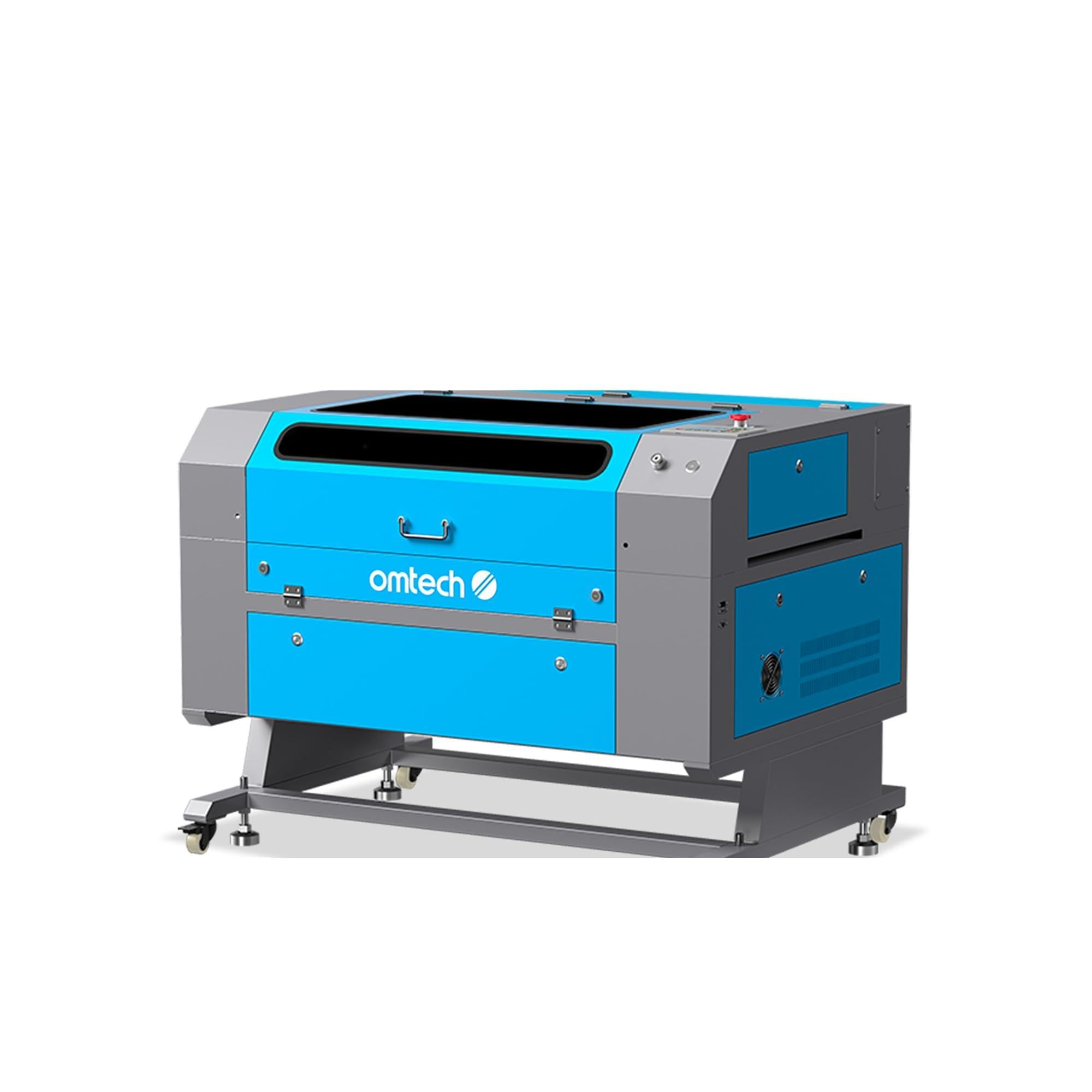
Figure 2.1: OMTech 60W CO2 Laser Engraver, Model SH-G570.
Caracteristici cheie:
- Tub laser CO2 de 60W: Provides sufficient power for engraving and cutting various materials.
- 28"x20" Working Area: Accommodates a wide range of project sizes.
- Autofocus Function: Simplifies setup by automatically adjusting the laser focal distance.
- Asistență aeriană: Helps to clear debris and reduce scorching during operation, resulting in cleaner cuts and engravings.
- 4-Way Pass-Through: Allows for processing of oversized materials.
- Compatibilitate software: Supports LightBurn, RDWorks, CorelDRAW, and AutoCAD.

Figura 2.2: Pesteview of the laser engraver's main features including laser power, working area, engraving speed, autofocus, and software compatibility.

Figure 2.3: The built-in autofocus and air assist system ensures precise focusing and efficient debris removal for optimal results.

Figure 2.4: The machine offers wide compatibility with popular software like RDWorks, LightBurn, CorelDRAW, and AutoCAD.
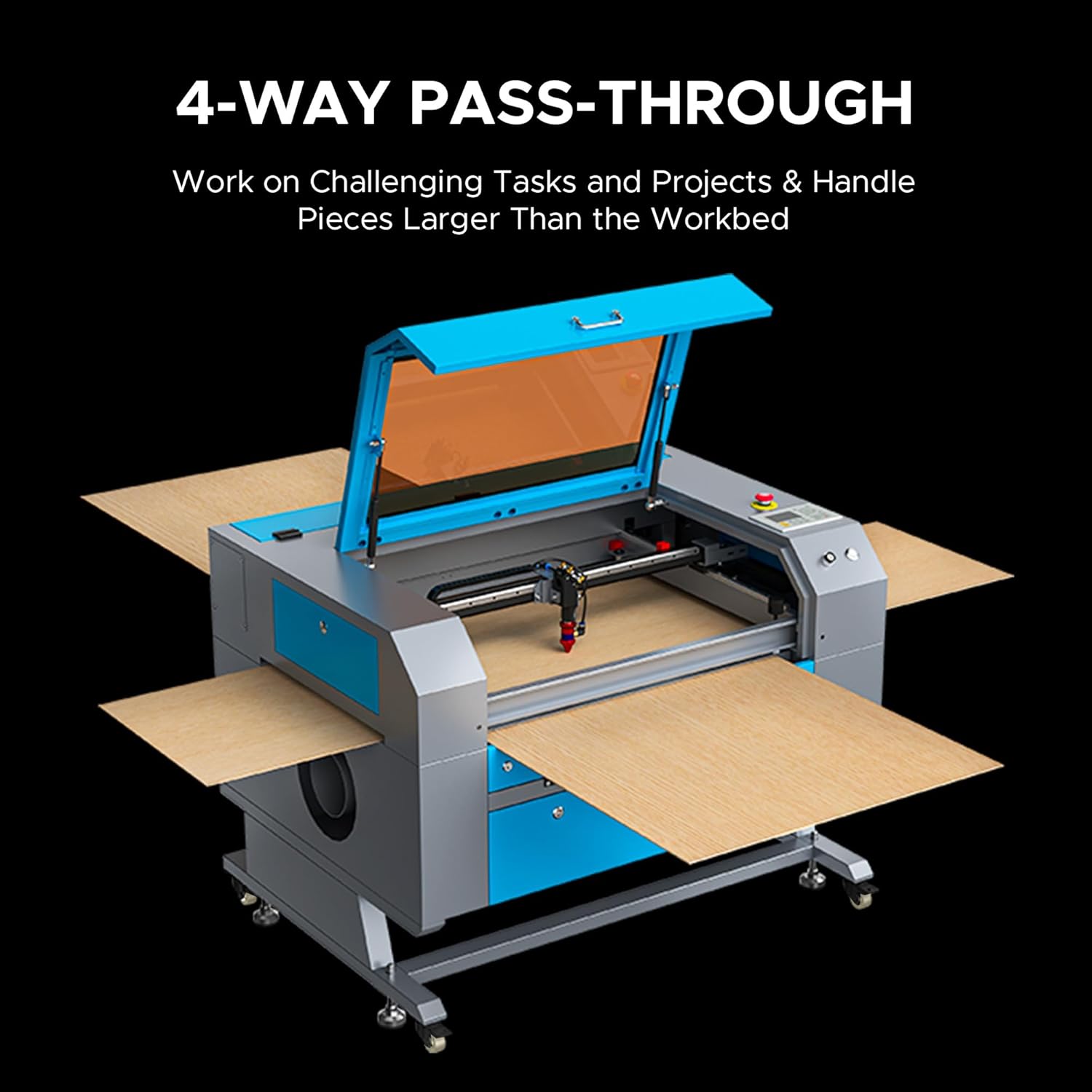
Figure 2.5: The 4-way pass-through design allows for working with materials larger than the internal workbed.
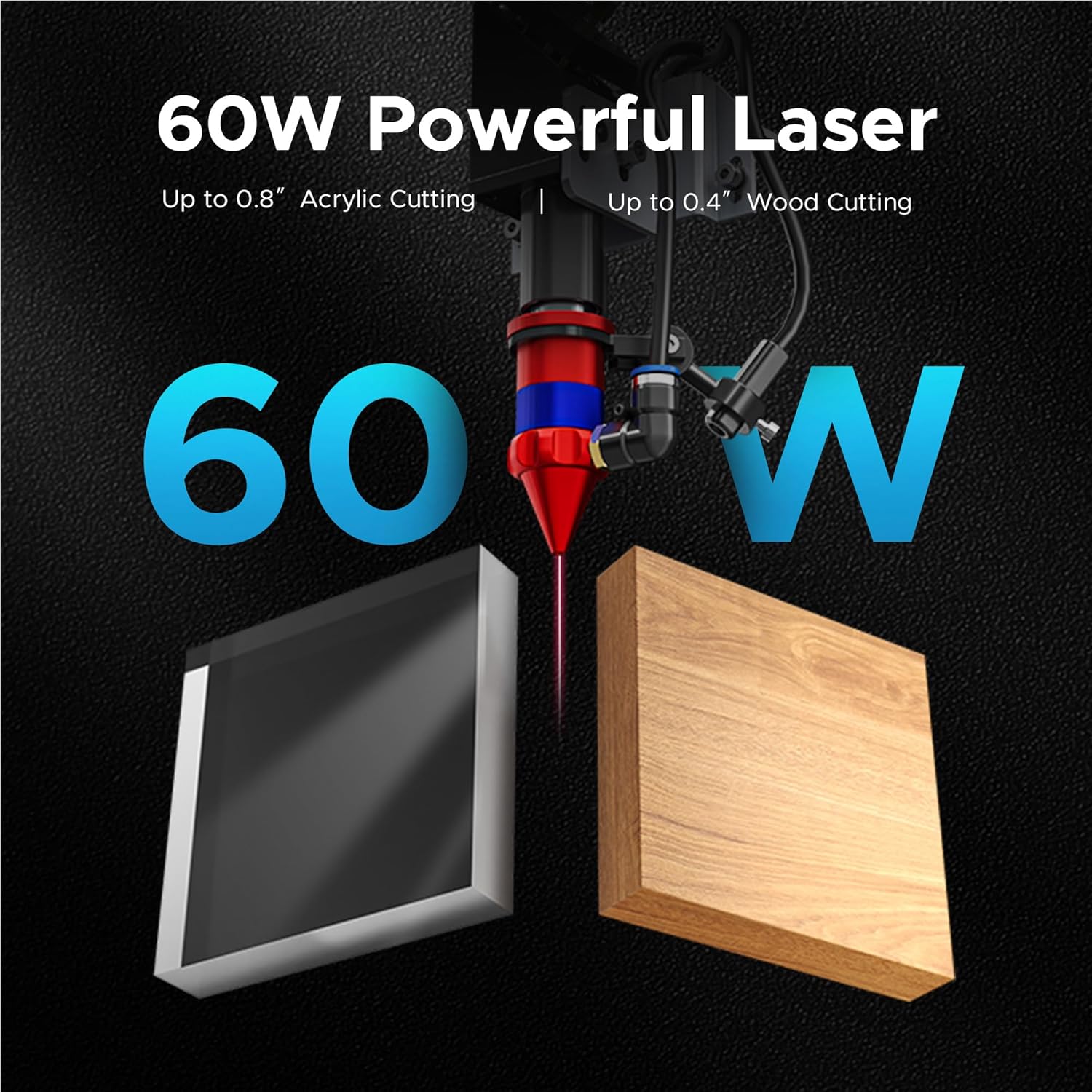
Figure 2.6: The 60W laser is capable of cutting up to 0.8 inches of acrylic and 0.4 inches of wood.

Figure 2.7: The laser head precisely engraves text onto a wooden surface, demonstrating its detailed capabilities.
3. Informații de siguranță
Operating a laser engraver involves inherent risks. Adhere to all safety guidelines to prevent accidents and ensure safe operation.
- Protecția ochilor: Always wear appropriate laser safety glasses when the laser is in operation.
- Ventilare: Ensure adequate ventilation to remove fumes and smoke generated during engraving and cutting. An efficient exhaust system is crucial.
- Siguranța la incendiu: Keep a fire extinguisher nearby. Never leave the machine unattended during operation.
- Compatibilitate material: Only engrave or cut materials approved for CO2 lasers. Avoid materials that produce toxic fumes or are highly flammable.
- Siguranta electrica: Asigurați-vă că mașina este împământată corespunzător și conectată la o sursă de alimentare adecvată.
- Oprire de urgență: Familiarizați-vă cu amplasarea și funcționarea butonului de oprire de urgență.

Figure 3.1: An efficient exhaust system is vital for directing hazardous debris and fumes away from the engraving surface and into a ventilation system.
4. Configurare
Follow these steps to set up your OMTech 60W CO2 Laser Engraver.
4.1 Despachetarea și plasarea
- Scoateți cu grijă mașina din ambalaj.
- Place the engraver on a stable, level surface in a well-ventilated area.
- Ensure sufficient space around the machine for operation and maintenance.
4.2 Conectarea componentelor
- Connect the exhaust fan and ducting to the machine and vent outdoors.
- Connect the water pump/chiller to the laser tube's inlet and outlet ports. Ensure the water reservoir is filled with distilled water.
- Connect the air pump to the air assist inlet.
- Conectați cablul de alimentare la o priză cu împământare.
4.3 Instalare software
Your OMTech laser engraver is compatible with LightBurn and RDWorks. Refer to the software-specific installation guides provided with your machine or available on the OMTech website-ul pentru instrucțiuni detaliate.
Videoclip 4.1: Acest videoclip oferă o imagine generalăview of OMTech laser engravers, demonstrating their capabilities and ease of use, which can be helpful during initial setup and understanding the machine's potential.
5. Instrucțiuni de utilizare
This section outlines the basic steps for operating your laser engraver.
5.1 Pornirea și verificări inițiale
- Turn on the water chiller/pump and air pump. Verify water flow and air pressure.
- Porniți întrerupătorul principal de alimentare al mașinii.
- The control panel will initialize.
5.2 Plasarea și focalizarea materialelor
- Place your material on the honeycomb or blade workbed.
- Închideți capacul mașinii.
- Use the autofocus function by pressing the designated button on the control panel. The laser head will automatically adjust to the correct focal distance.
5.3 Software Operation and Job Execution
- Open your design software (e.g., LightBurn) on your computer.
- Import or create your design.
- Set appropriate power and speed settings for your material. Refer to the material compatibility chart below for general guidelines.
- Send the job to the laser engraver.
- On the machine's control panel, select the job and press 'Start'.
- Monitor the engraving/cutting process through the flame-resistant window.

Figure 5.1: This table illustrates the wide range of materials compatible with the OMTech 60W CO2 laser for both engraving and cutting applications.

Figure 5.2: The machine's maximum engraving speed of 600 mm/s significantly enhances productivity.
6. Întreținere
Regular maintenance is crucial for the longevity and optimal performance of your laser engraver.
6.1 Întreținere zilnică
- Clean the workbed and interior of the machine to remove debris.
- Check the water level in the chiller and ensure proper circulation.
- Inspect the laser lens and mirrors for dust or residue.
6.2 Întreținere săptămânală
- Clean the laser lens and mirrors using a specialized lens cleaning solution and wipes.
- Clean the exhaust fan and ducting.
- Lubricate the guide rails and bearings.
6.3 Îngrijirea tubului laser
The CO2 laser tube has a lifespan of up to 1,000 hours, which can be extended with efficient use at lower power settings. Ensure the water chiller maintains a stable temperature to prevent overheating.

Figure 6.1: The high-performance laser tube is designed for long-lasting operation, providing up to 1,000 hours of use.
7. Depanare
Această secțiune abordează problemele frecvente pe care le-ați putea întâmpina și posibilele soluții ale acestora.
7.1 No Laser Output
- Verificați puterea: Ensure the machine is powered on and connected to a working outlet.
- Water Chiller: Verify the water chiller is on and circulating water. The laser will not fire if the water protection sensor is triggered.
- Setări software: Confirm that the laser power and speed settings in your software are correctly configured and not set to zero.
- Oprire de urgență: Asigurați-vă că butonul de oprire de urgență nu este acționat.
7.2 Calitate slabă a gravării/tăierii
- Focus: Re-run the autofocus function or manually adjust the focal distance. An incorrect focus is a common cause of poor quality.
- Lens/Mirrors: Clean the laser lens and mirrors. Dirt or smudges can significantly degrade laser performance.
- Putere/viteza: Adjust laser power and speed settings. Different materials require different settings.
- Calitatea materialului: Ensure the material itself is suitable and consistent in thickness.
7.3 Aparatul nu răspunde
- Conexiune software: Check the USB or network connection between the computer and the machine.
- Repornire: Try restarting both the machine and the computer.
- Panou de control: Ensure no error messages are displayed on the control panel.
8. Specificații
Detailed technical specifications for the OMTech 60W CO2 Laser Engraver, Model SH-G570.

Figure 8.1: Summary of rated power, max engraving speed, machine weight, pass sizes, and machine dimensions.
| Caietul de sarcini | Valoare |
|---|---|
| Numărul de model | SH-G570 |
| Putere laser | 60W |
| Zona de lucru | 28" x 20" (700 x 500 mm) |
| Max. Viteza de gravare | 600 mm/s |
| Cutting Depth (Wood) | Până la 0.4" |
| Cutting Depth (Acrylic) | Până la 0.8" |
| Clasa laser | Class 2 (0.874 mW output power) |
| Focalizare automată | Da |
| Air Assist | Da |
| Pass-through | 4 căi |
| Compatibilitate software | LightBurn, RDWorks, CorelDRAW, AutoCAD |
| Greutatea mașinii | 249.1 lb. |
| Dimensiunile mașinii | 47.2 cm x 34.3 cm x 36.6 cm |
9. Garanție și asistență
OMTech provides comprehensive support for its products.
9.1 Informații despre garanție
Your OMTech 60W CO2 Laser Engraver comes with a two-year support period. For specific warranty terms and conditions, please refer to the documentation included with your purchase or visit the official OMTech website-ul.
9.2 Asistență pentru clienți
For technical assistance, troubleshooting, or any inquiries regarding your laser engraver, please contact OMTech customer support. They offer U.S.-based technical support and 24/7 online customer service.

Figure 9.1: OMTech offers a demo room program with hosts across the United States for hands-on experience and support.
Video 9.1: This video features 'Laser Guys from OMTech' discussing their experience with OMTech lasers, highlighting the quality, pricing, and how the machines have supported their business growth and product development.