
1. Introducere
The Lamzu Inca Gaming Mouse is engineered for competitive gaming, featuring an ultra-lightweight design, high-precision sensor, and advanced connectivity options. This manual provides essential information for setting up, operating, maintaining, and troubleshooting your Lamzu Inca mouse to ensure optimal performance.
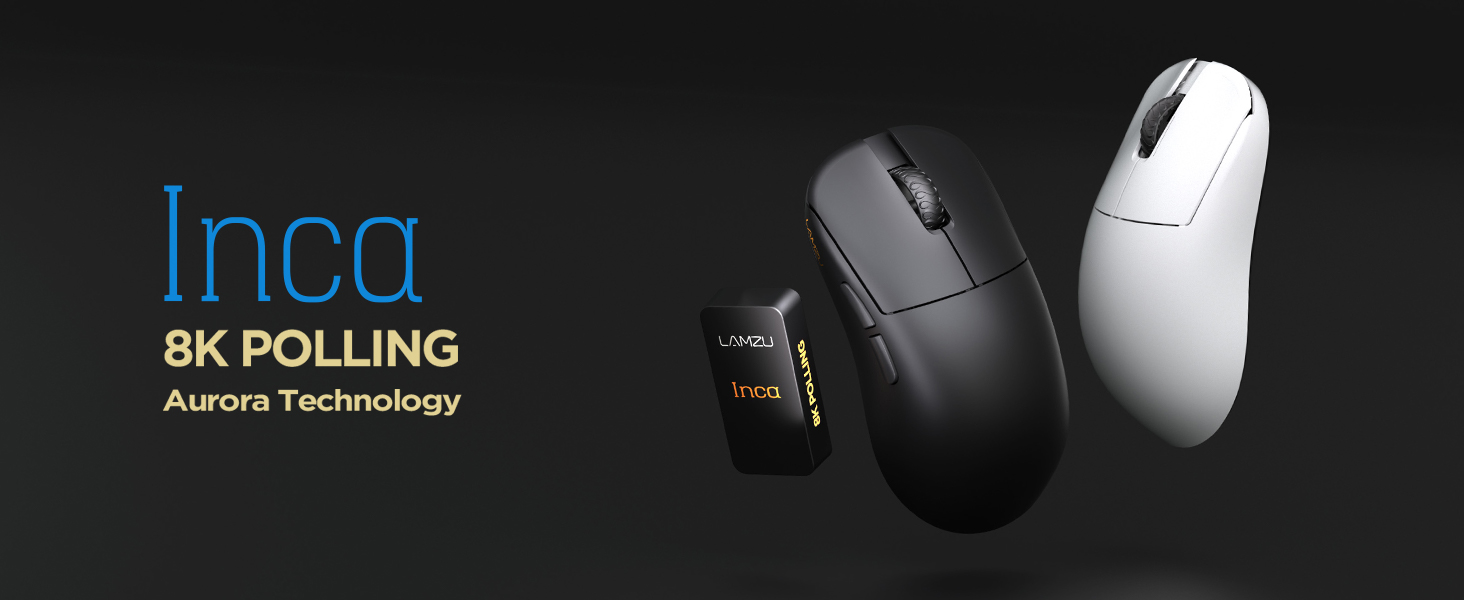
Image: The Lamzu Inca Gaming Mouse, highlighting its 8K Polling Rate and Aurora Technology.

Imagine: Pesteview of key features including Pixart 3950 sensor, 40g weight, Aurora Technology, 8K Polling, Dual Mode connectivity, and Nordic 52840 MCU.
2. Conținutul pachetului
Vă rugăm să vă asigurați că toate articolele sunt prezente în colet:
- Lamzu Inca Gaming Mouse (Black)
- 8K Polling Rate Dongle
- Cablu USB tip C (1.8 m)
- PTFE Feet (x2 sets)
- Geanta de catifea
- Banda de prindere a mouse-ului
3. Configurare
3.1 Conectarea mouse-ului
The Lamzu Inca mouse supports both 2.4GHz wireless and wired connectivity.
Wireless Mode (2.4GHz)
- Locate the 8K Polling Rate Dongle included in your package.
- Plug the 8K dongle into an available USB port on your computer.
- Porniți mouse-ul folosind comutatorul Pornit/Oprit situat în partea de jos a mouse-ului.
- The mouse should automatically connect to the dongle. If not, refer to the pairing instructions in the software section.

Image: The Lamzu Inca mouse with its 8K dongle, illustrating the bottom view of the mouse where the sensor and power switch are located.
Mod prin cablu
- Connect the provided USB Type-C cable to the front port of the Lamzu Inca mouse.
- Conectați celălalt capăt al cablului USB într-un port USB disponibil de pe computer.
- The mouse will function in wired mode and will also charge its internal battery.

Imagine: față view of the Lamzu Inca mouse, clearly showing the USB-C port for wired connection and charging.

Image: Diagram illustrating the dual connectivity modes: 2.4G Wireless and Wired (Type-C).
3.2 Software Installation (LAMZU Aurora Driver)
To unlock the full customization potential of your Lamzu Inca mouse, download and install the LAMZU Aurora driver from the official Lamzu website-ul.
- The software allows adjustments for DPI, polling rate, debounce time, macro settings, and more.
- Notă pentru utilizatorii de macOS: To use the Aurora driver on macOS, you must first update the firmware to version 0.0.0.15 or later using a Windows system.

Image: Screenshot of the LAMZU Aurora driver interface, showing options for macro settings, button customization, DPI, polling rate, and debounce time.
4. Utilizarea mouse-ului
4.1 Funcțiile butoanelor
The Lamzu Inca is a 6-button gaming mouse:
- Click stânga: Acțiune primară.
- Click dreapta: Acțiune secundară.
- Rotiță de defilare: Scroll up/down, Middle click.
- Butonul DPI: Cycles through preset DPI stages (customizable via software).
- Buton înainte: Navigational forward.
- Butonul Înapoi: Navigational back.
- Comutator pornit/oprit: Located on the bottom of the mouse to power on or off.

Image: A detailed diagram labeling all buttons on the Lamzu Inca gaming mouse, including Left, Right, Scroll Wheel, DPI, Forward, Back, and On/Off switch.
4.2 Ajustare DPI
The Lamzu Inca features a PixArt PAW3950 sensor capable of up to 30,000 DPI. DPI settings can be customized and adjusted using the LAMZU Aurora driver. The dedicated DPI button on the mouse allows for quick cycling through your configured DPI profiles.

Imagine: Jos view of the Lamzu Inca mouse, emphasizing its maximum 30,000 DPI capability and the sensor area.
4.3 Rata de sondare
The mouse supports an 8K polling rate, ensuring faster and more accurate responses, particularly beneficial in fast-paced games. The polling rate can be configured via the LAMZU Aurora driver.

Image: The Lamzu Inca mouse connected to its 8K dongle, demonstrating the smooth tracking achieved with an 8K polling rate.
4.4 Recommended Grip Style
The Lamzu Inca features a symmetrical high-back design, making it suitable for various grip styles. It is particularly recommended for claw-grip gamers.
- For hand length ≤ 18cm: Palm grip (extended), Claw grip (inward), Fingertip grip.
- For hand length ≥ 18cm: Fingertip grip, Claw grip (extended), Hybrid grip.
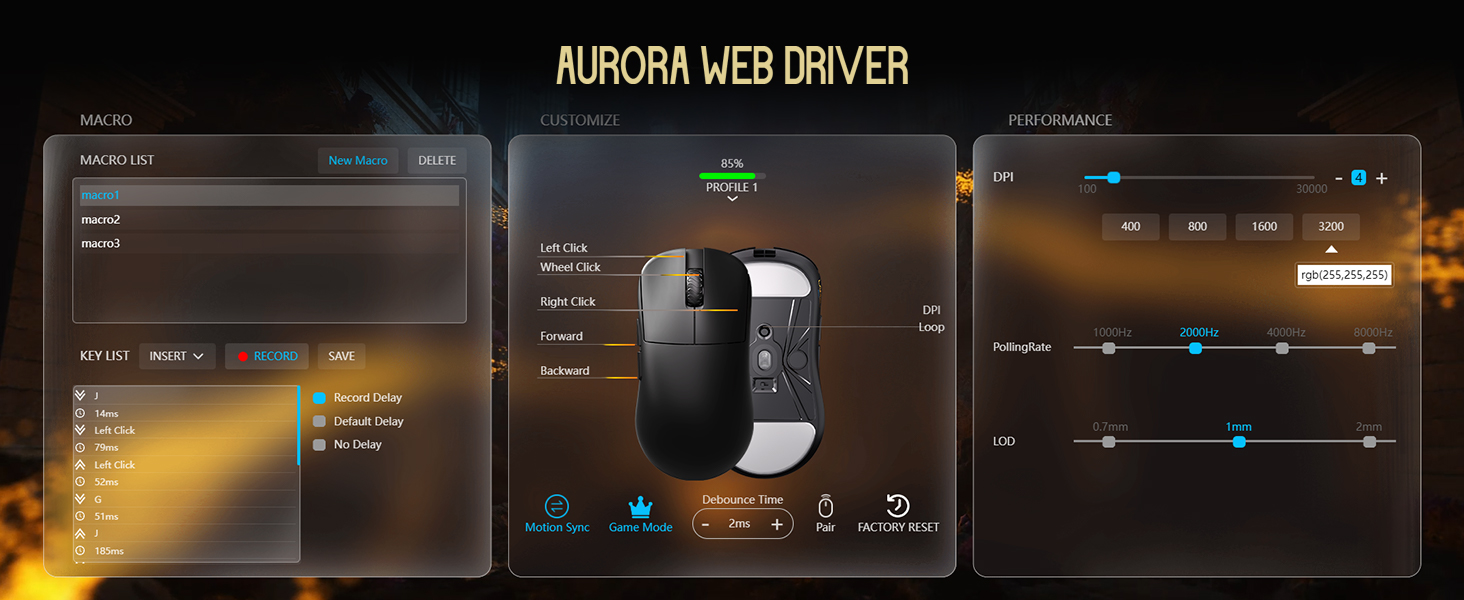
Image: Illustrations of common mouse grip methods (Palm Grip, Claw Grip, Fingertip Grip), indicating the Lamzu Inca's suitability for claw grip.
5. Întreținere
5.1 Curățare
- Regularly clean the mouse surface with a soft, dry cloth.
- Pentru murdăria persistentă, dreaptă ușorampClătiți laveta cu apă sau o soluție de curățare delicată, apoi ștergeți-o imediat.
- Evitați utilizarea substanțelor chimice dure sau a materialelor abrazive, deoarece acestea pot deteriora finisajul mouse-ului.
- Clean the sensor area on the bottom of the mouse periodically to ensure accurate tracking.
5.2 Îngrijirea bateriei
- The mouse uses a nonstandard battery (included).
- Încărcați mouse-ul folosind cablul USB Type-C furnizat.
- Evitați descărcarea completă frecventă a bateriei pentru a-i prelungi durata de viață.
- Depozitați mouse-ul într-un loc răcoros și uscat atunci când nu îl utilizați pentru perioade lungi de timp.
6. Depanare
6.1 Mouse-ul nu răspunde
- Verificați puterea: Ensure the mouse is turned on using the switch on the bottom.
- Verificați bateria: If in wireless mode, ensure the battery is charged. Connect the USB-C cable to charge.
- Verificați conectivitatea: For wireless, ensure the 8K dongle is securely plugged into a USB port. For wired, ensure the USB-C cable is firmly connected to both the mouse and the computer.
- Încercați un alt port USB: Plug the dongle or cable into a different USB port on your computer.
- Re-pair (Wireless): If connection is lost, use the LAMZU Aurora driver to re-pair the mouse with the dongle.
6.2 Sensor Stutter or Inaccurate Tracking
- Curățați senzorul: Asigurați-vă că senzorul optic din partea inferioară a mouse-ului este curat și fără praf sau resturi.
- Suprafața mouse pad-ului: Use the mouse on a clean, uniform mouse pad surface. Avoid highly reflective or uneven surfaces.
- Polling Rate/DPI Settings: Adjust polling rate and DPI settings in the Aurora driver. Sometimes very high polling rates can cause issues on older systems or with certain USB controllers.
- Actualizarea firmware-ului: Ensure your mouse firmware is up to date via the LAMZU Aurora driver.
6.3 Software-ul nu detectează mouse-ul
- Reinstalați driverul: Uninstall and reinstall the LAMZU Aurora driver.
- Verificați conexiunea USB: Ensure the mouse is connected directly to the computer, not through a USB hub.
- Reporniți computerul: A system restart can often resolve software detection issues.
- macOS Firmware: If on macOS, ensure the firmware has been updated on a Windows system as required.
7. Specificații
| Caracteristică | Detaliu |
|---|---|
| Model de produs | LA-INCA |
| Dimensiunile produsului | 122 × 63 × 40mm (4.8 x 2.48 x 0.1 inches) |
| Greutatea articolului | 40 grame (1.41 uncii) |
| Senzor IC | PixArt PAW3950 |
| DPI maxim | 30,000 DPI |
| MCU | Nordic 52840 |
| Rata de sondare | Până la 8K (8000Hz) |
| Conectivitate | 2.4GHz Wireless, USB Wired (Type-C) |
| Comutatoare | Optical Switches (70 million clicks durability) |
| Codificator | TTC Gold Dustproof Encoder |
| Caracteristici speciale | Ultra-Lightweight, Symmetrical High-Hump Design |
| Baterie | 1 baterie non-standard (inclusă) |
| Culoare | Negru |

Image: Detailed diagram showing the dimensions of the Lamzu Inca mouse and a summary of its key specifications.
7.1 Component Highlights
- Pixart 3950 Sensor: Senzor optic de înaltă precizie pentru urmărire precisă.
- Nordic 52840 MCU: Advanced microcontroller for efficient performance and improved battery life.
- Comutatoare optice: Provide tactile feedback, ultra-fast actuation, and enhanced durability.
- TTC Encoder: Features a five-layer dustproof structure for improved longevity and scroll wheel reliability.

Imagine: Prim-plan view of the Pixart 3950 sensor IC, a core component for precise mouse tracking.

Imagine: Prim-plan view of the Nordic 52840 MCU, highlighting its role in advanced mouse functionality and 8K polling rate compatibility.

Imagine: Transparentă view illustrating the internal mechanism of the optical switches, designed for optimized click feel and to prevent double clicks.

Imagine: Prim-plan view of the TTC Encoder, responsible for the scroll wheel's precise and durable operation.
8. Garanție și asistență
For warranty information, technical support, and frequently asked questions, please visit the official Lamzu website or contact Lamzu customer service directly. Keep your proof of purchase for warranty claims.
Producător: Lamzu
Data primului disponibil: 12 martie 2025