
1. Introducere
This manual provides essential information for the safe and efficient operation of your Machenike Machcreator N17A laptop. Please read this manual thoroughly before using the device and retain it for future reference.
2. Conținutul pachetului
Verificați dacă toate articolele sunt prezente în colet:
- Machenike Machcreator N17A Laptop
- Adaptor de alimentare
- Manual de utilizare (acest document)
3. Produs terminatview
The Machenike Machcreator N17A is a 17.3-inch laptop designed for daily computing tasks. It features an Intel N100 Processor, 8GB DDR5 RAM, and a 256GB PCIe SSD for responsive performance. The 17.3" Full HD 120Hz display provides clear visuals, and the laptop runs on Windows 11 Home.
3.1. Componente laptop

Figura 3.1: Față view of the Machenike Machcreator N17A laptop.
This image shows the overall design of the Machenike Machcreator N17A laptop, highlighting its large 17.3-inch display and sleek chassis.

Figure 3.2: The 17.3-inch Full HD 120Hz display.
Un detaliat view of the laptop's 17.3-inch Full HD display, emphasizing its narrow bezels and 120Hz refresh rate for smooth visuals.

Figure 3.3: Backlit keyboard and touchpad.
This image highlights the backlit keyboard and the spacious touchpad, designed for comfortable typing and navigation.
3.2. Porturi și conectori
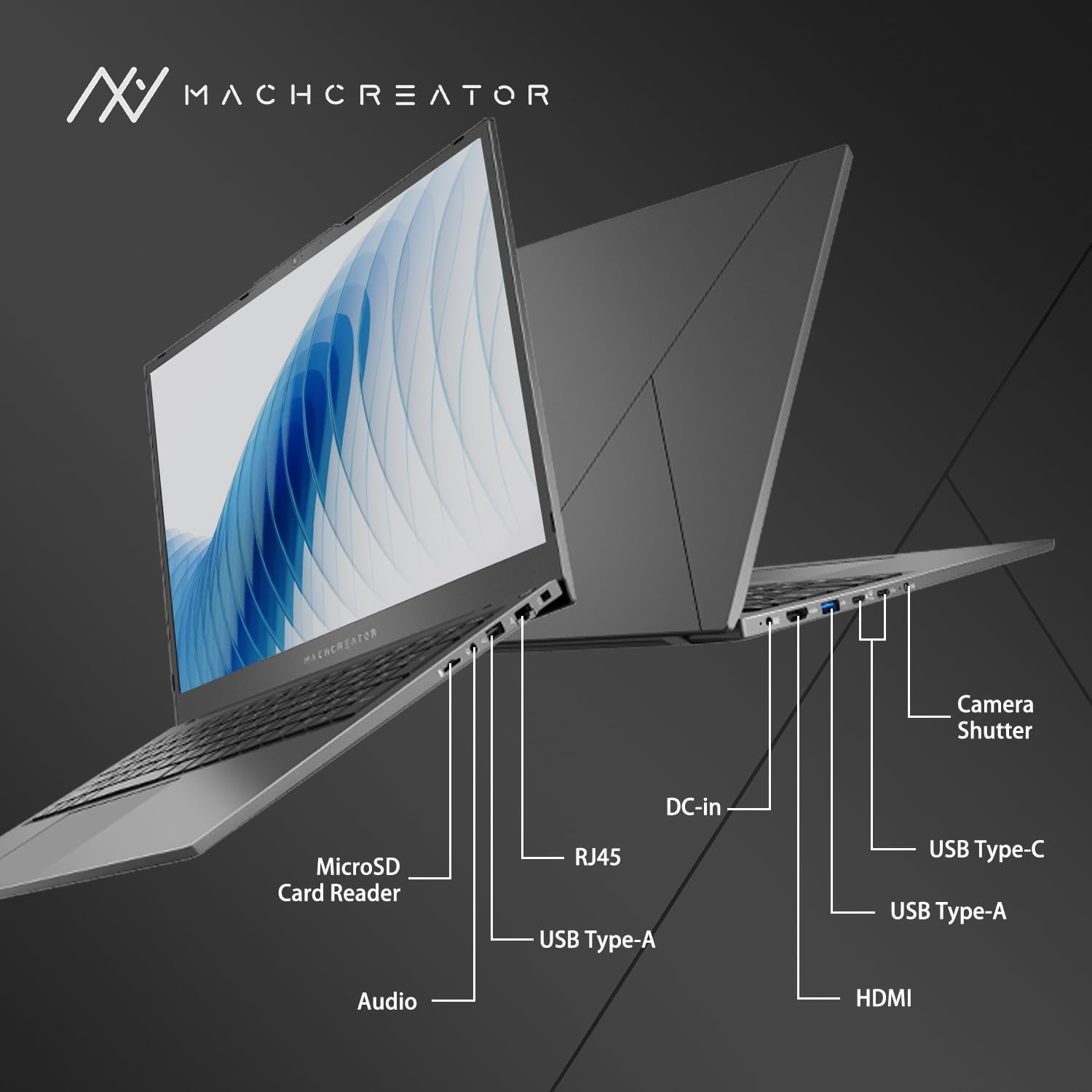
Figura 3.4: lateral view with port labels.
An illustration detailing the various input/output ports available on the laptop, including USB, HDMI, and the SD card reader.
- Cititor de carduri MicroSD: For reading and writing data to MicroSD cards.
- DC-in: Connect the power adapter for charging and power supply.
- Thunderbolt 4 (x2): High-speed data transfer, video output, and power delivery.
- USB 2.0 Tip-A (x2): Conectați dispozitive USB.
- HDMI: Conectați la afișaje externe sau proiectoare.
- RJ45: Port Ethernet pentru conexiune la rețea prin cablu.
- Mufa audio: Conectați căști sau difuzoare externe.
4. Configurare
4.1. Pornirea inițială
- Despachetați laptopul și toate accesoriile din cutie.
- Connect the power adapter to the DC-in port on the laptop and then to a power outlet.
- Deschide capacul laptopului.
- Apăsați butonul de pornire situat pe tastatură pentru a porni laptopul.
- Follow the on-screen instructions to complete the Windows 11 Home setup process. This includes selecting your region, language, and setting up your user account.
4.2. Conectarea la Wi-Fi
- During the Windows setup, you will be prompted to connect to a Wi-Fi network. Select your desired network from the list.
- Enter the Wi-Fi password if prompted and click "Connect".
- If you skip this step, you can connect later via Windows Settings: Go to Început > Setări > Rețea și internet > Wifi.
5. Instrucțiuni de utilizare
5.1. Utilizarea tastaturii și a touchpad-ului
The laptop features a full-size keyboard with a numeric keypad and a large touchpad. The keyboard is backlit, which can be activated or adjusted using the function keys (e.g., Fn + F5).
Figura 5.1: Dispunerea tastaturii și a touchpad-ului.
This image illustrates the keyboard and touchpad, showing the key layout and the size of the touchpad for user interaction.
5.2. Conectarea dispozitivelor externe
Folosește porturile disponibile pentru a conecta dispozitive externe:
- Dispozitive USB: Plug USB drives, mice, or keyboards into the USB Type-A or Thunderbolt 4 (USB-C) ports.
- Afișaj extern: Connect an external monitor or TV using the HDMI port or one of the Thunderbolt 4 ports (with an appropriate adapter, if needed).
- Carduri SD: Insert a MicroSD card into the MicroSD Card Reader slot to access its contents.
- Rețea cu fir: Conectați un cablu Ethernet la portul RJ45 pentru o conexiune stabilă la internet prin cablu.
5.3. Adjusting the Display Angle
The laptop screen can be adjusted up to a 170-degree angle, providing flexibility for various viewing positions, presentations, or collaborative work.
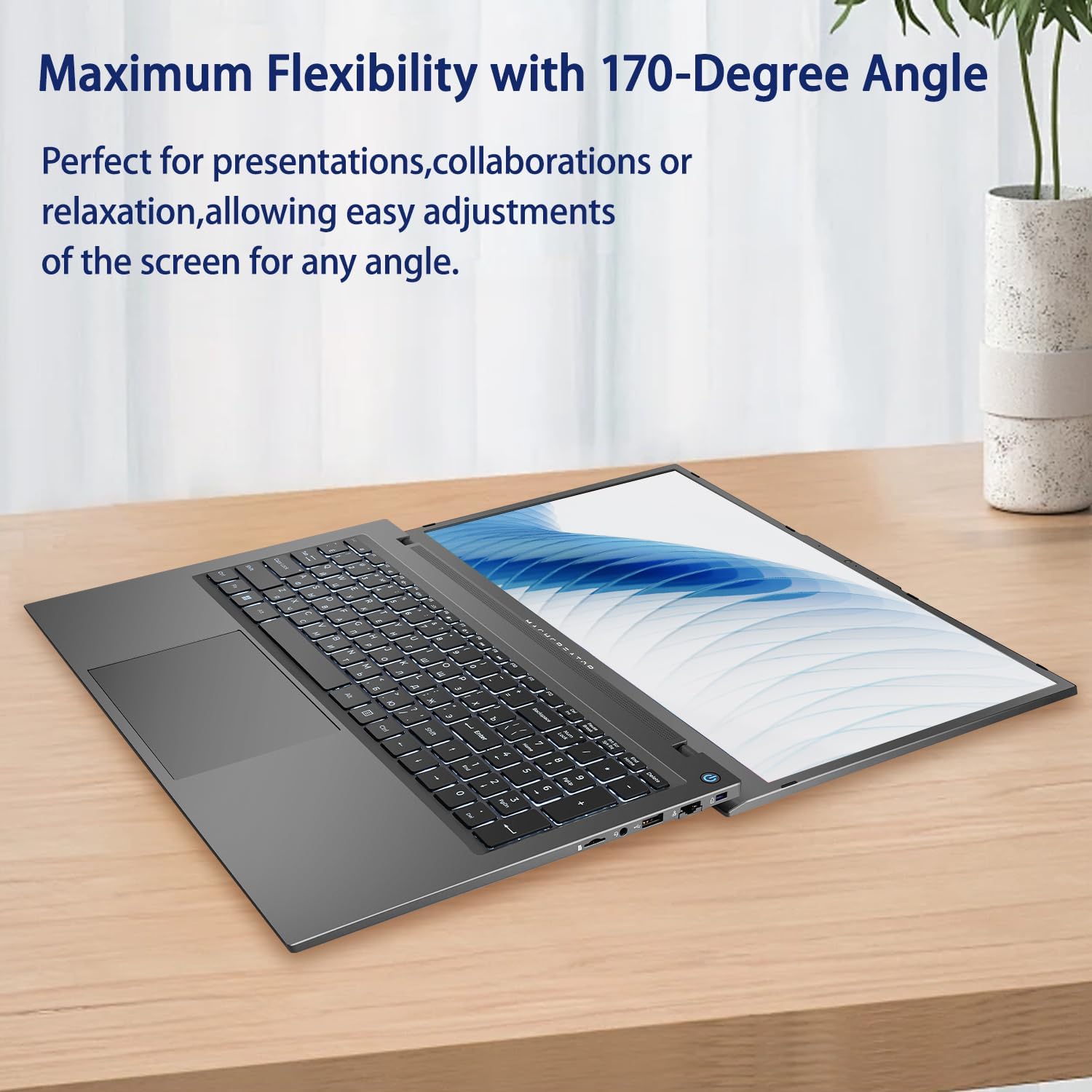
Figure 5.2: Laptop display at 170-degree angle.
This image demonstrates the laptop's ability to open its screen to a wide 170-degree angle, useful for various viewscenarii.
5.4. Încărcarea laptopului
Connect the provided power adapter to the DC-in port. The laptop also supports fast charging via its USB-C (Thunderbolt 4) ports with a compatible USB-C Power Delivery charger.
6. Întreținere
6.1. Curatenie
- Folosiți o lavetă moale, fără scame, pentru a curăța ecranul. Pentru petele persistente, ștergeți ușor.ampClătiți laveta cu apă sau cu o soluție de curățare a ecranului.
- Ștergeți tastatura și carcasa cu o cârpă moale și uscată. Evitați utilizarea substanțelor chimice dure sau a materialelor abrazive.
- Asigurați-vă că laptopul este oprit și deconectat de la priză înainte de curățare.
6.2. Îngrijirea bateriei
- Evitați descărcarea completă frecventă a bateriei.
- Nu expuneți laptopul la temperaturi extreme.
- Dacă depozitați laptopul pentru o perioadă lungă de timp, încărcați bateria la aproximativ 50-70% înainte de a-l opri.
6.3. Actualizări software
Actualizați periodic sistemul de operare Windows și driverele pentru a asigura performanțe și securitate optime. Accesați Început > Setări > Windows Update pentru a verifica actualizările.
7. Depanare
| Problemă | Soluție posibilă |
|---|---|
| Laptopul nu pornește. |
|
| Nu există conexiune Wi-Fi. |
|
| Ecranul este gol sau pâlpâie. |
|
| Iluminarea de fundal a tastaturii nu funcționează. |
|
8. Specificații
| Caracteristică | Detaliu |
|---|---|
| Numele modelului | Machenike Machcreator N17A |
| Procesor | Intel N100 (4 Cores, up to 3.4 GHz) |
| RAM | 8 GB DDR5 (4800 MHz) |
| Depozitare | SSD PCIe de 256 GB |
| Grafică | Grafică Intel UHD (integrată) |
| Afişa | 17.3" FHD (1920x1080) IPS, 120Hz |
| Sistem de operare | Windows 11 Home |
| Porturi | 2x Thunderbolt 4, 2x USB 2.0 Type-A, 1x HDMI, 1x RJ45, 1x MicroSD Card Reader, 1x Audio Jack, 1x DC-in |
| Conectivitate wireless | Wi-Fi (802.11n) |
| Caracteristici speciale | Tastatură iluminată din spate, tastatură numerică |
| Dimensiuni (Lxlxh) | 15.6 x 10.32 x 1.02 inci |
| Greutate | 5.78 lbs |
| Culoare | Gri |
9. Garanție și asistență
For warranty information and technical support, please refer to the documentation provided with your purchase or visit the official Machenike webPăstrați dovada achiziției pentru reclamații în garanție.
Resurse online:
- Oficial Machenike Website: www.machenike.com (Notă: Acesta este un substituent URL, please refer to your product's specific warranty card for the correct support contact.)
10. Video demonstrativ de produs
Video 10.1: Machcreator N17A Laptop Overview.
Acest videoclip oferă o imagine vizuală pesteview of the Machenike Machcreator N17A laptop, showcasing its design, key features, and various ports. It demonstrates the unboxing experience, the backlit keyboard, and the available connectivity options.