
1. Introducere
This manual provides detailed instructions for the installation, operation, and maintenance of your UNITOPSCI 4GB+64GB Single Din Android Car Stereo. This device features a 7-inch flip-out touchscreen, Wireless CarPlay, Android Auto, GPS navigation, Wi-Fi, Bluetooth 5.0, FM/RDS radio, DSP, USB/TF card/AUX inputs, backup camera support, and steering wheel control compatibility. Please read this manual thoroughly before using the product to ensure proper function and safety.
2. Informații de siguranță
- Conduceți întotdeauna vehiculul în siguranță. Condusul distras poate duce la accidente.
- Do not attempt to install or service this unit if you are not qualified. Professional installation is recommended.
- Asigurați-vă că toate cablurile sunt conectate corect pentru a preveni scurtcircuitele sau deteriorarea sistemului electric al vehiculului.
- Mențineți volumul la un nivel care să vă permită să auziți traficul exterior și vehiculele de urgență.
- Evitați expunerea unității la temperaturi extreme, la lumina directă a soarelui pentru perioade lungi de timp sau la umiditate excesivă.
- Nu blocați orificiile de ventilație ale unității.
3. Conținutul pachetului
Verificați dacă toate articolele sunt prezente în colet:
- 1 x Sistem stereo auto
- 1 x cablu de alimentare
- Cablu 1 x RCA
- 1 x cablu camera spate
- 1 x 6 PIN USB Cable
- 1 x suport de montare
- 1 x Antenă radio
- 1 x Antenă GPS
- 1 x Microfon
- 1 x Manual de utilizare
- 1 x Cameră de mers înapoi AHD

4. Produs terminatview
The UNITOPSCI Single Din Android Car Stereo is designed to integrate advanced multimedia and navigation features into your vehicle. It features a motorized 7-inch IPS touchscreen that flips out from a standard single DIN chassis.

Caracteristici cheie:
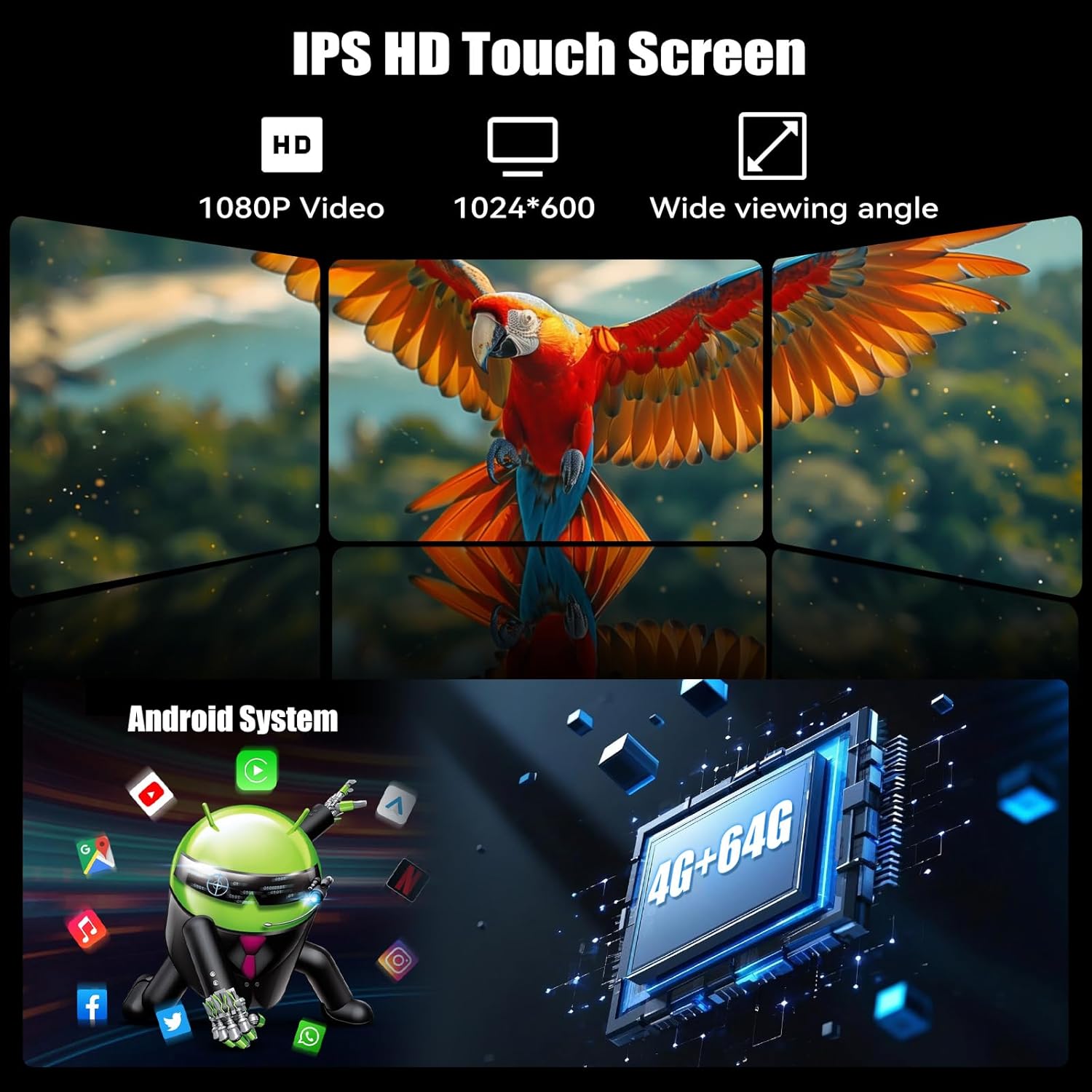
- Sistem Android 13: Echipat cu 4 GB de RAM și 64 GB de memorie ROM pentru o funcționare fără probleme și ample depozitare.
- 7-inch IPS Flip-Out Touchscreen: High-definition 1024*600 capacitive display with wide viewunghiuri de ing.
- CarPlay wireless și Android Auto: Integrare perfectă cu smartphone-ul pentru navigare, muzică și comunicare.
- Navigare prin GPS: Built-in GPS module supporting online and offline maps.
- Conectivitate Wi-Fi: For online functions, app downloads, and internet browsing.
- Bluetooth 5.0: Apeluri hands-free și streaming audio.
- Radio FM/RDS: 18 preset stations with memory function.
- DSP & EQ Sound: Built-in digital sound processing with customizable EQ settings.
- Intrări multiple: Dual USB ports, TF card slot, and AUX input.
- Cameră video AHD pentru marșarier: Included for enhanced reversing safety.
- Controlul volanului (SWC): Compatible with existing vehicle steering wheel controls.
- Legătură oglindă: Supports wireless mirroring for Android/iOS devices.
- Funcția ecran împărțit: Allows two applications to run simultaneously on the display.
- 7 Color Backlight: Iluminare personalizabilă a butoanelor.
5. Configurare și instalare
Important: Due to the complexity of car audio system wiring, professional installation is highly recommended. Incorrect wiring can cause damage to the unit or your vehicle.
5.1 Lista de verificare înainte de instalare
- Deconectați borna negativă a bateriei vehiculului înainte de a începe orice lucrare electrică.
- Ensure you have the correct wiring harness adapter for your vehicle model (if not included).
- Confirmați că deschiderea DIN unică din bord este compatibilă cu dimensiunile unității.
5.2 Conexiuni de cablare
Refer to the wiring diagram provided in the included user manual for specific connections. General connections include:
- Putere: Conectați firul galben la tensiunea constantă de 12V, firul roșu la tensiunea accesoriului de 12V și firul negru la masă.
- Difuzoare: Conectați firele difuzoarelor la firele corespunzătoare ale difuzoarelor vehiculului (de exemplu, față stânga +, față stânga -).
- Antena GPS: Conectați antena GPS și montați-o într-un loc cu lumină naturală view a cerului (de exemplu, bordul, colțul parbrizului).
- Camera spate: Connect the video input from the AHD backup camera to the unit's camera input. Connect the camera's power to the reverse light circuit.
- Microfon: Conectați microfonul extern pentru apeluri hands-free.
- Cabluri USB: Route the USB extension cables to an accessible location.
- Antena radio: Conectați antena radio a vehiculului.
- Controlul volanului (SWC): Connect the SWC wires according to your vehicle's wiring diagram.
5.3 Montarea unității
- Slide the mounting sleeve into the dashboard opening.
- Fixați manșonul folosind urechile de îndoire.
- Carefully slide the car stereo unit into the mounting sleeve until it locks into place.
- Reconectați borna negativă a bateriei vehiculului.
6. Instrucțiuni de utilizare
6.1 Operare de bază
- Pornire/Oprire: Apăsați butonul de alimentare (de obicei, butonul de volum) pentru a porni sau opri unitatea.
- Controlul volumului: Rotiți butonul pentru a regla volumul.
- Ajustarea ecranului: The 7-inch screen is motorized. Use the screen controls to adjust its angle or retract it.
- Interfață cu ecran tactil: Navigate the Android system by tapping, swiping, and pinching on the capacitive touchscreen.

CarPlay wireless 6.2 și Android Auto
Connect your smartphone wirelessly for an integrated driving experience.
- Asigurați-vă că Bluetooth și Wi-Fi sunt activate pe smartphone-ul dvs.
- Pe sistemul stereo al mașinii, deschideți aplicația CarPlay sau Android Auto.
- Follow the on-screen prompts to pair your phone. Once paired, your phone will automatically connect in the future.


6.3 Navigare GPS
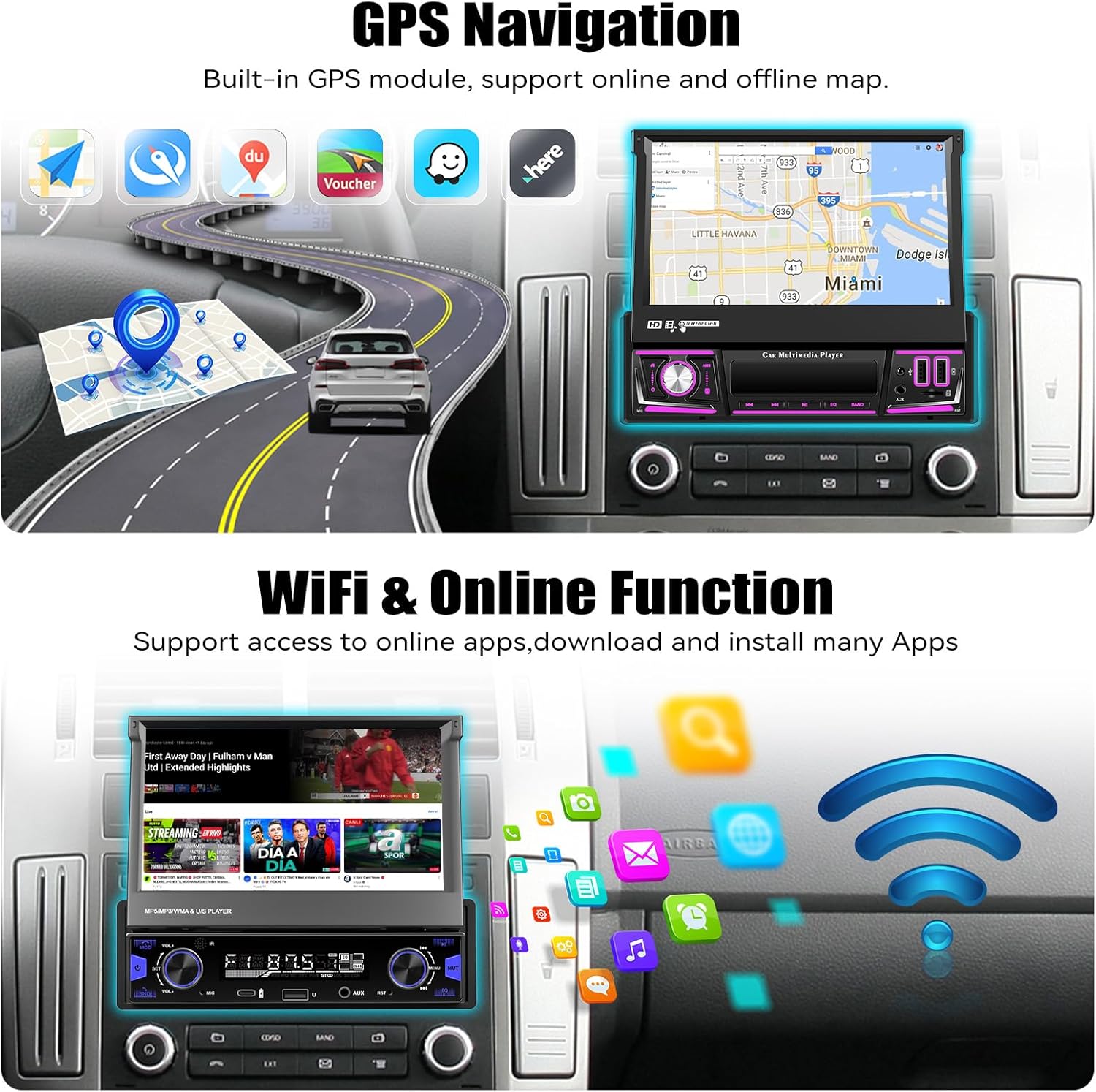
The unit includes a built-in GPS module for navigation. It supports both online and offline map applications.
- Asigurați-vă că antena GPS este instalată corect și are o vizibilitate clară. view a cerului.
- Use pre-installed navigation apps or download your preferred map applications via Wi-Fi.
- For offline maps, download the necessary map data when connected to Wi-Fi.


6.4 Wi-Fi & Online Functions
Connect the stereo to a Wi-Fi hotspot (e.g., from your smartphone) to access online features.
- Accesați Setări > Rețea și internet > Wi-Fi.
- Selectați rețeaua Wi-Fi dorită și introduceți parola.
- Once connected, you can download apps from the Google Play Store, browse the internet, and stream online content.

6.5 Bluetooth 5.0
Asociați telefonul mobil prin Bluetooth pentru apeluri hands-free și streaming audio.
- Activați Bluetooth pe telefon și pe sistemul stereo al mașinii.
- On the car stereo, search for available devices and select your phone.
- Confirmați codul de asociere pe ambele dispozitive.
- Odată conectat, puteți efectua/primi apeluri și reda muzică fără fir.


Radio FM/RDS 6.6
Accesați posturile de radio locale cu funcționalitate FM și RDS (Radio Data System).
- Selectați aplicația „Radio” din meniul principal.
- Use the scan function to automatically search for and save available stations.
- Acordați manual frecvențele sau selectați dintre posturile presetate.
- RDS provides station information, song titles, and traffic announcements where available.


6.7 Setări de sunet EQ
Customize your audio experience using the built-in Equalizer (EQ).
- Access the 'EQ' or 'Sound Settings' option from the main menu or during audio playback.
- Adjust frequency bands, bass, treble, and other audio parameters to your preference.
- Select from various preset EQ modes (e.g., Pop, Rock, Jazz) or create custom settings.

6.8 Funcționarea camerei video pentru marșarier
Camera video AHD pentru marșarier inclusă afișează automat imaginea din spate view când vehiculul este cuplat în marșarier.
- Ensure the camera is properly installed and connected to the reverse trigger wire.
- La schimbarea vitezei de mers înapoi, ecranul va comuta automat la cameră view, displaying parking guidelines.


6.9 Controlul volanului (SWC)
Program your vehicle's steering wheel buttons to control the car stereo functions.
- Accesați setările „Comandă volan” din meniul unității.
- Urmați instrucțiunile de pe ecran pentru a atribui funcții (de exemplu, creștere/reducere volum, omitere melodie, mod) butoanelor de pe volan.

6.10 Legătură în oglindă
Mirror your Android or iOS smartphone screen onto the car stereo display.
- Deschideți aplicația „Mirror Link” pe sistemul stereo al mașinii.
- Connect your phone via Wi-Fi or USB cable as prompted.
- Your phone's screen will be displayed on the stereo, allowing you to view apps not supported by CarPlay/Android Auto.

6.11 Multiple Input (USB/TF/AUX)
The unit supports various media inputs for playback and charging.
- USB: Connect USB drives for media playback or use the USB ports for charging your smartphone.
- Card TF: Insert a TF (microSD) card into the designated slot for media playback.
- AUX: Connect external audio devices (e.g., MP3 players) via the 3.5mm AUX input.

6.12 Funcția de ecran divizat
The split-screen feature allows you to run two applications side-by-side on the display.
- While an app is open, swipe up from the bottom of the screen or long-press the recent apps button (if available) to enter split-screen mode.
- Select a second app to display on the other half of the screen.

6.13 7 Color Backlight
Customize the illumination color of the physical buttons on the unit.
- Navigate to the 'Settings' menu and look for 'Button Light' or 'Backlight Color' options.
- Choose from seven available colors to match your vehicle's interior lighting or personal preference.

7. Întreținere
- Curățarea ecranului: Folosiți o lavetă moale, fără scame, pentru a șterge ușor ecranul tactil. Pentru petele persistente, ștergeți ușor.ampClătiți cârpa cu apă sau cu o soluție de curățare a ecranului. Evitați substanțele chimice dure.
- Curatenie generala: Wipe the unit's body with a dry, soft cloth. Do not use abrasive cleaners.
- Actualizări de software: Periodically check for software updates via the unit's settings menu to ensure optimal performance and access to new features.
- Evitați lichidele: Prevent liquids from entering the unit, as this can cause severe damage.
8. Depanare
| Problemă | Cauza posibila | Soluţie |
|---|---|---|
| Unitatea nu pornește. | Cablare incorectă; Siguranță arsă; Lipsă alimentare cu energie electrică. | Check power connections (yellow, red, black wires). Inspect vehicle fuses. Ensure battery is charged. |
| Niciun sunet de la difuzoare. | Cablare incorectă a difuzorului; Volum prea scăzut; Mut activat. | Verify speaker connections. Increase volume. Check if mute is active. |
| GPS signal lost frequently. | GPS antenna improperly placed; Obstructions; Weak signal area. | Asigurați-vă că antena GPS are o distanță clară view of the sky. Relocate antenna if necessary. Update map data. |
| Probleme de conexiune Bluetooth. | Telefon imposibil de detectat; Împerechere incorectă; Interferență. | Ensure phone's Bluetooth is on and discoverable. Delete previous pairings and re-pair. Restart both devices. |
| CarPlay/Android Auto nu se conectează. | Wi-Fi/Bluetooth issues; Phone software outdated; App permissions. | Check Wi-Fi and Bluetooth connections. Update phone OS and CarPlay/Android Auto apps. Verify app permissions. |
| Camera video pentru marșarier nu afișează. | Camera wiring incorrect; Reverse trigger not connected; Faulty camera. | Check camera power and video connections. Ensure reverse trigger wire is correctly connected. |
| Ecranul tactil nu răspunde. | Eroare software; Deteriorarea ecranului. | Restart the unit. If issue persists, perform a factory reset (data will be lost). Contact support if physical damage is suspected. |
9. Specificații
| Caracteristică | Detaliu |
|---|---|
| Sistem de operare | Android 13 |
| RAM | 4 GB |
| Stocare internă (ROM) | 64 GB |
| Dimensiunea afișajului | 7 inchi |
| Rezoluția afișajului | 1024 * 600 IPS |
| Conectivitate | Bluetooth 5.0, Wi-Fi, Wireless CarPlay, Android Auto |
| Navigare | Built-in GPS (North America, Worldwide map support) |
| Mod ieșire audio | Stereo, Built-in EQ |
| Intrări | Dual USB, TF Card, AUX-in, Rear Camera Input |
| Caracteristici speciale | Flip-out screen, Mirror Link, Split Screen, Steering Wheel Control, 7 Color Backlight |
| Dimensiunile produsului | 7.36 x 7.87 x 2.32 inchi (18.7 x 20.0 x 5.9 cm) |
| Greutatea articolului | 4.18 lire (1.9 kg) |
10. Garanție și asistență
This UNITOPSCI product comes with a 1 ani garanție de la data achiziției, acoperind defectele de fabricație. Vă rugăm să păstrați dovada achiziției pentru reclamațiile în garanție.
Asistență clienți:
For technical assistance, troubleshooting, or warranty inquiries, please contact UNITOPSCI customer service:
- E-mail: UNITOPSCI@126.com
Please provide your product model and a detailed description of the issue when contacting support for faster resolution.
