
1. Introducere
The Delton F75 Foldable Bluetooth Keyboard with Touchpad is designed for portability and convenience, offering a full-sized typing experience in a compact form factor. This manual provides detailed instructions for setting up, operating, and maintaining your keyboard to ensure optimal performance across various devices.
2. Conținutul pachetului
Vă rugăm să verificați pachetul pentru următoarele articole:
- 1 x Delton F75 Foldable Bluetooth Keyboard with Touchpad
- Cablu de încărcare 1 x USB-C
- 1 x Manual de utilizare (acest document)
3. Produs terminatview
Familiarize yourself with the key components of your Delton F75 keyboard.
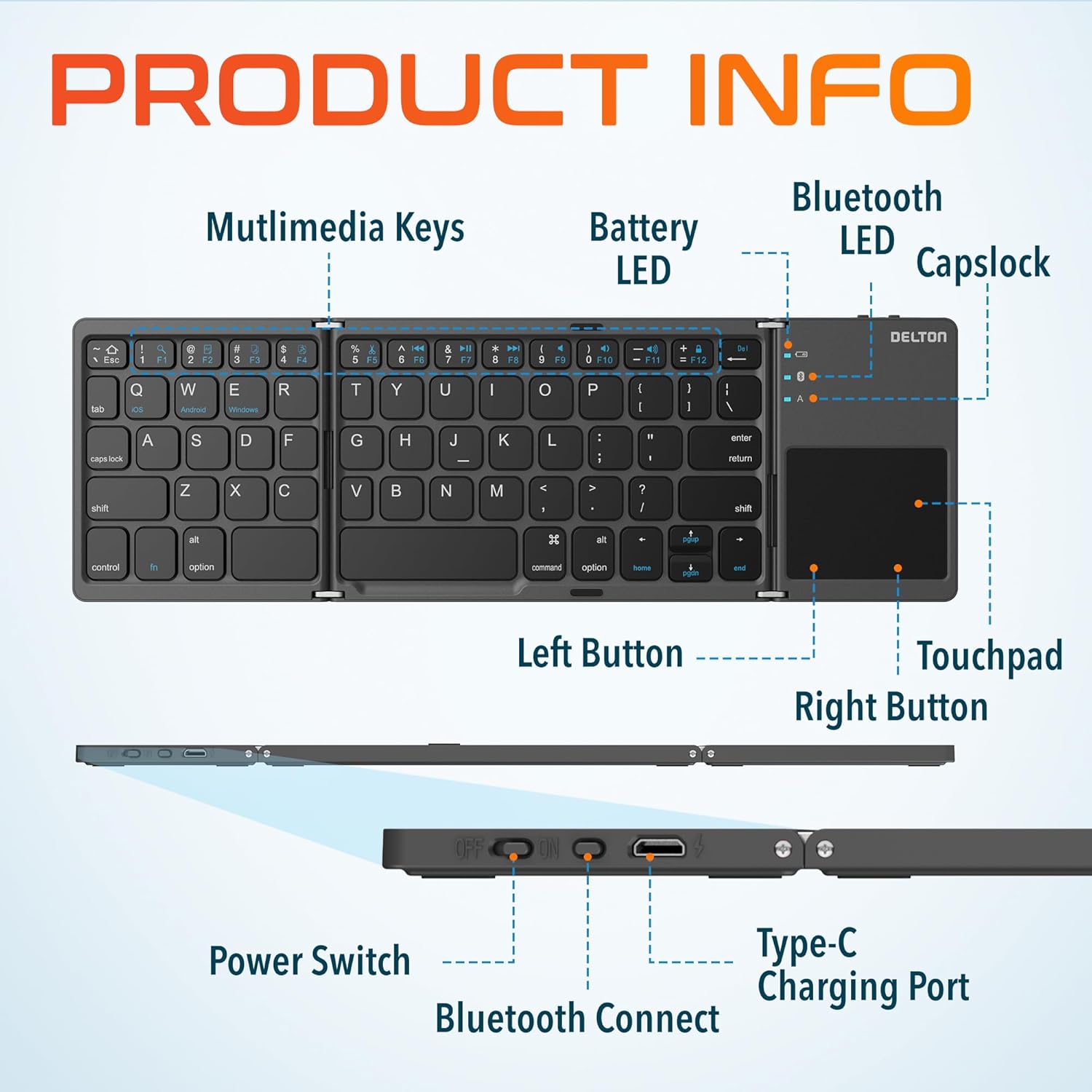
Image: Diagram showing multimedia keys, battery LED, Bluetooth LED, Capslock, Left/Right Touchpad Buttons, Touchpad, Power Switch, Bluetooth Connect button, and Type-C Charging Port.
- Taste multimedia: Access various functions like volume control, media playback, and more.
- LED-ul bateriei: Indică starea bateriei.
- LED Bluetooth: Indică starea conexiunii Bluetooth.
- Capslock Indicator: Se afișează când Caps Lock este activ.
- Touchpad: For navigation and gesture control.
- Left/Right Touchpad Buttons: Function as mouse clicks.
- Întrerupător: Pornește sau oprește tastatura.
- Buton de conectare Bluetooth: Inițiază modul de asociere Bluetooth.
- Port de încărcare tip C: For recharging the keyboard's internal battery.
4. Configurare și conectare
4.1 Încărcare inițială
Before first use, fully charge the keyboard. Connect the provided USB-C charging cable to the keyboard's Type-C port and the other end to a USB power source (e.g., computer, wall adapter). The Battery LED will indicate charging status.
4.2 Pornire/Oprire
To power on the keyboard, slide the Power Switch to the "ON" position. To power off, slide it to the "OFF" position.
4.3 Asociere Bluetooth
- Unfold the keyboard completely. This action often automatically powers on the device.
- Apăsați tasta Butonul Bluetooth Connect (usually indicated by a Bluetooth icon) to enter pairing mode. The Bluetooth LED will blink, indicating it is discoverable.
- On your device (PC, laptop, tablet, smartphone), go to Bluetooth settings.
- Caută available Bluetooth devices and select "Delton F75" (or similar name).
- Follow any on-screen prompts to complete the pairing process. The Bluetooth LED will stop blinking and remain solid once connected.
The keyboard supports seamless integration across Windows, macOS, iOS, and Android operating systems.

Image: Visual representation of the Delton F75 keyboard's compatibility with various tablets, phones, and laptops/PCs, including iPad, Galaxy Tab, iPhone, Galaxy, Google Pixel, OnePlus, iMac, Macbook, Dell, and HP, and operating systems like Windows, macOS, and iOS.
5. Instrucțiuni de utilizare
5.1 Tastare
The Delton F75 features an optimized key layout and scissor switch keys for comfortable and precise typing. The quiet keys minimize disturbance, making it suitable for various environments.
5.2 Utilizarea touchpad-ului
The integrated touchpad supports full gesture functions, eliminating the need for an additional mouse. It includes left and right-click buttons for standard mouse operations.

Image: Close-up of the Delton F75 keyboard's sensitive touchpad, highlighting its gesture control capabilities with a finger touching the pad.
Refer to your device's operating system documentation for specific touchpad gestures supported.
5.3 taste multimedia
The keyboard includes dedicated multimedia keys. These keys often require pressing the Fn (Function) key simultaneously with the desired multimedia key to activate their secondary functions (e.g., volume up/down, play/pause).
6. Încărcarea și durata de viață a bateriei
The Delton F75 keyboard is equipped with a rechargeable battery that provides up to 50 hours of continuous use on a single charge. When the battery is low, the Battery LED will indicate this status. Connect the keyboard to a power source using the USB-C cable for recharging.
7. Întreținere
- Păstrați tastatura curată ștergând-o cu o lavetă moale și uscată.
- Evitați expunerea tastaturii la temperaturi extreme, umiditate sau lumina directă a soarelui.
- Nu utilizați substanțe chimice dure sau produse de curățare abrazive.
- Store the keyboard in its folded, compact state when not in use to protect the keys and touchpad.
8. Depanare
- Tastatura nu se conectează prin Bluetooth: Ensure the keyboard is charged and powered on. Make sure Bluetooth is enabled on your device and the keyboard is in pairing mode (Bluetooth LED blinking). Try unpairing and re-pairing the device.
- Tastele nu răspund: Check if the keyboard is powered on and connected. Ensure the battery is not depleted.
- Touchpad-ul nu funcționează: Verify the keyboard is connected. Some devices may require specific settings for external touchpads.
- Conexiune intermitentă: Ensure there are no obstructions between the keyboard and your device. Move closer to your device. Avoid strong electromagnetic interference.
- Typing lag: This can sometimes be due to interference or a low battery. Try recharging the keyboard or moving closer to your device.
9. Specificații
| Caracteristică | Caietul de sarcini |
|---|---|
| Numărul de model | F75 |
| Dimensiunile produsului (desfășurat) | 11.9 x 6 x 0.7 inci (L x l x înălțime) |
| Greutatea articolului | 8.4 uncii |
| Tehnologia de conectivitate | Bluetooth |
| Dispozitive compatibile | Laptop, PC, Tablet, Smartphone (Windows, macOS, iOS, Android) |
| Descrierea tastaturii | Ergonomic, Scissor Switch Keys |
| Caracteristici speciale | Foldable, Portable, Touchpad, Rechargeable, Hotkeys and Media Keys, Lightweight, Compact |
| Durata de viață a bateriei | Până la 50 ore de utilizare continuă |
| Port de încărcare | Tip-C |
| Material | Plastic și Metal |
| Culoare | Negru |
10. Garanție și asistență
For warranty information or technical support, please refer to the documentation included with your purchase or visit the official Delton webPăstrați dovada achiziției pentru reclamații în garanție.