
1. Introducere
The Fanvil V66 is a professional IP videophone designed for business environments, offering advanced communication features and a modern design. It features a 7-inch color touchscreen, Bluetooth, and WiFi 6 connectivity, ensuring versatile and high-quality communication.
Ce este în cutie
- Telefon IP Fanvil V66
2. Produs terminatview
Familiarize yourself with the components of your Fanvil V66 Prime Business Phone.
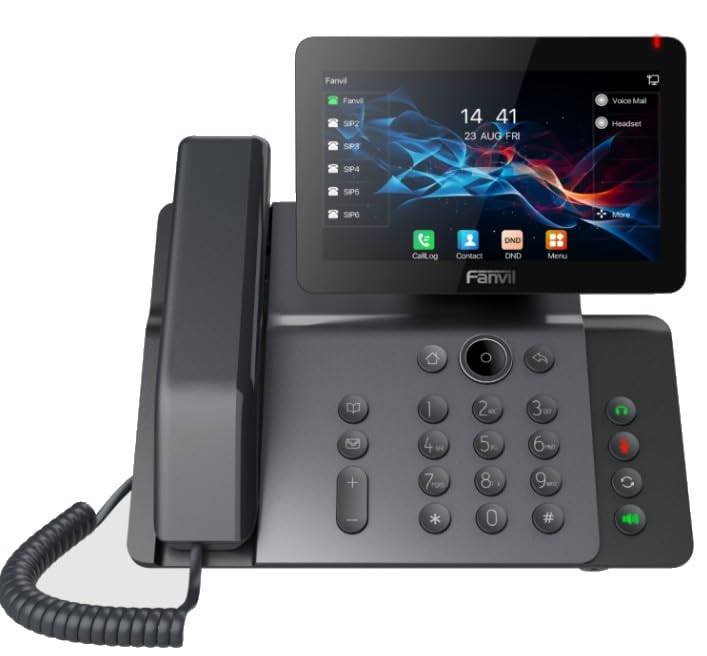
Figura 1: Față view of the Fanvil V66 Prime Business Phone, showing the 7-inch color display, numeric keypad, and function keys.
Caracteristici cheie
- 7-inch HD Color LCD Screen: Inclinable design for optimal viewing.
- Bluetooth & WiFi 6 Connectivity: For fast and stable wireless connections.
- 116-Key Numeric Keypad: Provides comprehensive control over phone functions.
- Integrated Audio and Video System: Supports high-quality professional calls and videoconferences.
- Interfață de utilizator intuitivă: Quick menu access for calls, contacts, and main functions.
3. Configurare
3.1 Asamblarea telefonului
- Atașați suportul de birou: Align the stand with the slots on the back of the phone and push until it clicks into place.
- Conectați receptorul: Conectați un capăt al cablului spiralat al receptorului la receptor și celălalt capăt în portul pentru receptor de pe baza telefonului.
3.2 Conectarea la rețea și la alimentare
- Conexiune Ethernet: Plug one end of the Ethernet cable into the LAN port on the back of the phone and the other end into your network switch or router.
- Power Connection (Choose one):
- Alimentare prin Ethernet (PoE): If your network switch supports PoE, the phone will power on automatically once connected via the Ethernet cable. No separate power adapter is needed.
- Adaptor de alimentare: If PoE is not available, connect a compatible power adapter to the DC 12V port on the phone and then plug it into a power outlet.
- The phone will automatically power on and begin the boot-up sequence.
3.3 Configurare inițială
Upon first boot, the phone may prompt you for initial network settings or firmware updates. Follow the on-screen instructions. For advanced network settings or SIP account configuration, consult your network administrator or IT support.
4. Instrucțiuni de utilizare
4.1 Efectuarea apelurilor
- Apelare: Pick up the handset, press the Speaker button, or press the New Call soft key. Dial the desired number using the keypad.
- Apelare rapida: If configured, press the assigned speed dial key.
- Din Contacte: Tap the "Contacts" icon on the display, select a contact, and tap the call icon.
4.2 Primirea apelurilor
When an incoming call rings, you can:
- Răspuns: Pick up the handset, press the Speaker button, or tap the "Answer" soft key on the display.
- Declin: Tap the "Decline" soft key.
4.3 Using the 7-inch Color Display
The touchscreen display provides access to various functions and settings:
- Ecranul principal: Displays time, date, line status, and quick access icons.
- Navigare: Swipe left/right or tap icons to navigate through menus.
- Taste soft: Context-sensitive buttons displayed at the bottom of the screen.
- Setări: Access phone settings, network configuration, and user preferences.
4.4 Bluetooth and WiFi Connectivity
- Bluetooth: Go to "Settings" > "Bluetooth" to enable and pair with Bluetooth headsets or other devices.
- WiFi 6: Go to "Settings" > "Wi-Fi" to enable, scan for available networks, and connect. Enter the password if required.
5. Întreținere
5.1 Curățarea telefonului
- Folosiți o lavetă moale, uscată și antistatică pentru a curăța suprafața telefonului.
- Pentru ecran, folosiți o soluție de curățare specifică ecranului și o lavetă din microfibră.
- Evitați utilizarea substanțelor chimice dure, a produselor de curățare abrazive sau a umidității excesive.
5.2 Actualizări de software
Periodically check for firmware updates to ensure optimal performance and security. Updates can usually be found in the phone's "Settings" menu under "System" or "Firmware Update," or provided by your IT department.
6. Depanare
| Problemă | Cauza posibila | Soluţie |
|---|---|---|
| Telefonul nu pornește. | Fără conexiune la alimentare sau sursă de alimentare defectă. | Check power adapter connection or Ethernet cable for PoE. Ensure power outlet is functional. |
| Nu se poate conecta la rețea. | Ethernet cable disconnected, incorrect network settings, or Wi-Fi issues. | Verify Ethernet cable is securely connected. Check Wi-Fi settings and password. Contact network administrator for IP configuration. |
| No dial tone or audio during calls. | Handset/headset not connected properly, volume too low, or SIP registration issue. | Ensure handset/headset is plugged in correctly. Adjust volume. Verify SIP account registration status on the display. |
| Afișajul nu răspunde. | Eroare temporară de software. | Reporniți telefonul deconectând și reconectând alimentarea. Dacă problema persistă, contactați asistența. |
7. Specificații
| Caracteristică | Detaliu |
|---|---|
| Marca | Fanvil |
| Numărul de model | V62 PRO (Note: Product series is V66) |
| Culoare | Negru |
| Afişa | 7-inch HD Color LCD, Inclinable |
| Conectivitate | Bluetooth, WiFi 6, Ethernet (PoE support) |
| Tastatura | 116 chei |
| Material | Plastic |
| Sursa de alimentare | Adaptor de alimentare / PoE |
| Dimensiuni (L x l x H) | 20 x 20 x 15 cm |
| Greutatea articolului | 600 grame |
| Dispozitive compatibile | EHS (Electronic Hook Switch) headsets |
8. Garanție și asistență
Pentru informații despre garanție, vă rugăm să consultați cardul de garanție inclus împreună cu produsul sau să vizitați site-ul oficial Fanvil. website. If you encounter any issues not covered in this manual or require further assistance, please contact your vendor or Fanvil technical support.
- Suport online: Visit the Fanvil official website cu întrebări frecvente, documentație și resurse de asistență.
- Asistență tehnică: Contact your authorized Fanvil reseller or service provider.