
Introducere
Thank you for choosing the NEWFAST WiFi 6E PCIe Network Card. This card is designed to provide high-speed wireless connectivity and Bluetooth functionality for your desktop PC. Featuring the Intel AX210 chipset, it supports the latest WiFi 6E standard, offering tri-band operation (2.4GHz, 5.8GHz, and 6GHz) with speeds up to 5374Mbps. The integrated Bluetooth 5.3 ensures fast and reliable connections to your wireless peripherals. This manual will guide you through the installation process, operation, and provide troubleshooting tips.

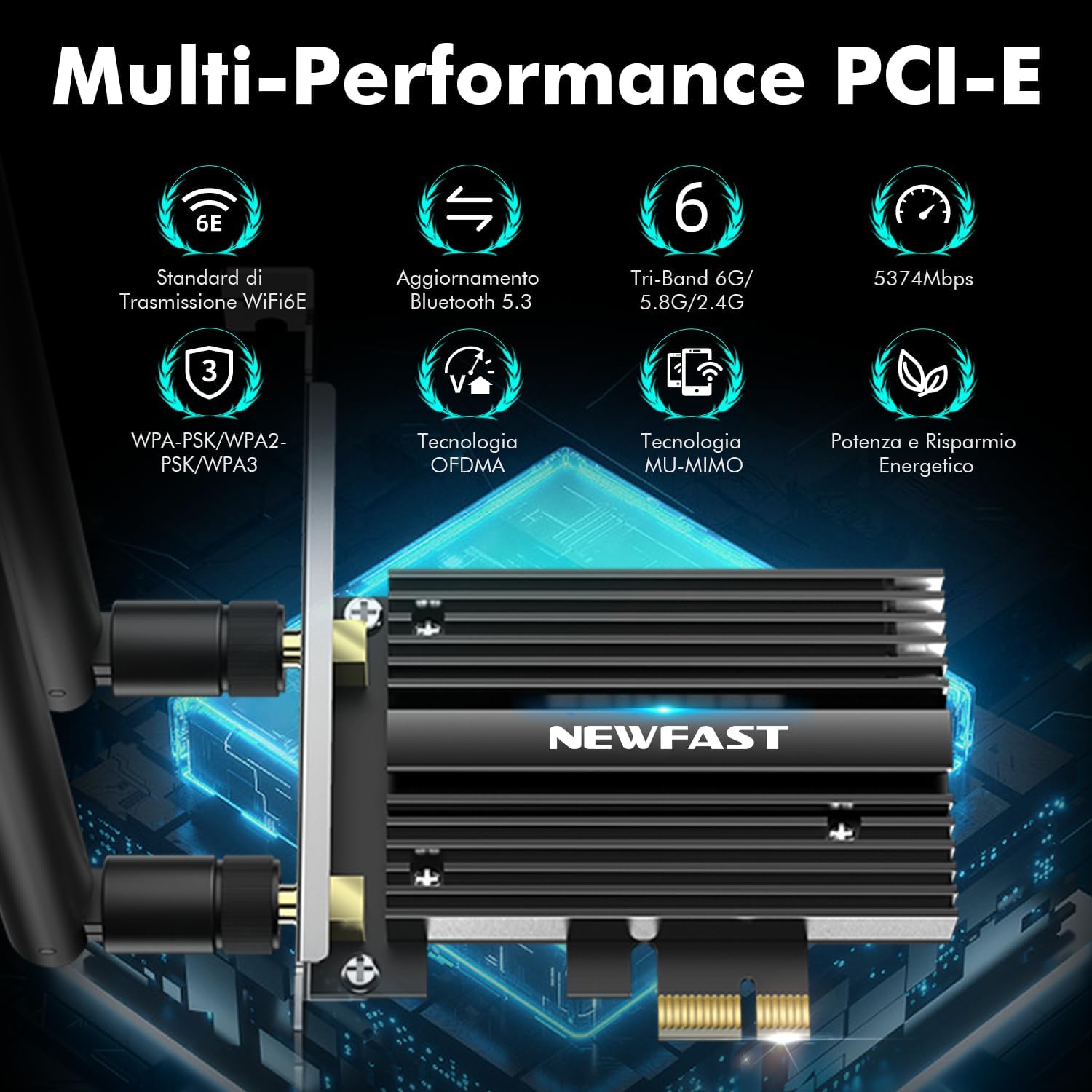
Pesteview of the NEWFAST WiFi 6E PCIe Card's multi-performance features, including WiFi 6E standard, Bluetooth 5.3 upgrade, Tri-Band support (6GHz/5.8GHz/2.4GHz), 5374Mbps speed, WPA-PSK/WPA2-PSK/WPA3 security, OFDMA, MU-MIMO technology, and power saving capabilities.
Ce este în cutie
Vă rugăm să verificați conținutul pachetului pentru a vă asigura că toate articolele sunt prezente:
- 1 x NEWFAST WiFi 6E PCIe Network Card
- 1 x Multi-language Instruction Manual (this document)
- 1 x Bluetooth Cable
- 2 x 5dBi Antennas
- 2 x șuruburi
Specificații
| Caracteristică | Detaliu |
|---|---|
| Marca | NEWFAST |
| Model | NF-P395 |
| Chipset | Intel AX210 |
| standard wireless | WiFi 6E (IEEE 802.11ax) |
| Protocol de legătură de date | IEEE 802.11ac/a/b/g/n, IEEE 802.11ax |
| Benzi de frecvență | 2.4 GHz, 5.8 GHz, 6 GHz (Tri-Band) |
| Rata maximă de transfer de date | 5374 Mbps (2.4GHz: 574Mbps, 5.8GHz: 2400Mbps, 6GHz: 2400Mbps) |
| Versiune Bluetooth | Bluetooth 5.3 |
| Interfață hardware | PCI-E X1, X4, X8, X16 (PCI slots not supported) |
| Antene | 2 antene externe de 5dBi |
| Caracteristici de securitate | WPA-PSK/WPA2-PSK/WPA3 |
| Sistem de operare acceptat | Windows 10 (64 de biți), Windows 11 (64 de biți) |
| Dimensiuni (pachet) | 19.9 x 11.9 x 3.4 cm |
| Greutatea articolului | 230 g |

Detailed breakdown of WiFi 6E speeds across 6GHz, 5.8GHz, and 2.4GHz bands, highlighting the Intel AX210 chip and Bluetooth 5.3 capabilities.
Instrucțiuni de configurare
1. Instalare hardware
- Opriți computerul: Before starting, ensure your computer is completely powered off and unplugged from the power outlet.
- Deschideți carcasa PC-ului: Scoateți panoul lateral al carcasei computerului pentru a accesa placa de bază.
- Locate a PCI-E Slot: Find an available PCI-E X1, X4, X8, or X16 slot on your motherboard. Note: Standard PCI slots are not compatible.
- Introduceți placa WiFi: Carefully align the NEWFAST WiFi 6E PCIe card with the chosen PCI-E slot and press it firmly until it is securely seated.
- Asigurați cardul: Use the provided screw to fasten the card's bracket to your PC case.
- Conectați cablul Bluetooth: Connect one end of the provided Bluetooth cable to the 9-pin USB header on the WiFi card and the other end to an available F_USB header on your motherboard. This connection is essential for Bluetooth functionality.
- Atașați antene: Screw the two 5dBi external antennas onto the connectors at the back of the WiFi card. Adjust their orientation for optimal signal reception.
- Închideți carcasa PC-ului: Replace the side panel of your computer case and reconnect the power cable.

Illustration of compatible PCI-E slots on a desktop motherboard.
The NEWFAST WiFi 6E PCIe Card with its two external antennas.
2. Instalarea driverului
After hardware installation, power on your PC. You will need to install the drivers for both WiFi and Bluetooth functionality. Drivers are typically available on the manufacturer's website. If you do not have internet access, you may need to download them on another device and transfer them via USB.
- Descărcați driverele: Visit the NEWFAST official website or the Intel support page for the AX210 chipset to download the latest WiFi and Bluetooth drivers for Windows 10 (64-bit) or Windows 11 (64-bit).
- Instalați driverul WiFi: Locate the downloaded WiFi driver file (usually an executable .exe file) and run it. Follow the on-screen instructions to complete the installation.
- Instalați driverul Bluetooth: Similarly, locate and run the Bluetooth driver file. Follow the installation wizard.
- Reporniți PC-ul: După instalarea ambelor drivere, reporniți computerul pentru a vă asigura că toate modificările au efect.

The WiFi card supports Windows 10 (64-bit) and Windows 11 (64-bit).
Instrucțiuni de operare
1. Conectarea la o rețea WiFi
- Accesați setările de rețea: On your Windows desktop, click the WiFi icon in the system tray (usually bottom-right corner).
- Selecteaza reteaua: A list of available WiFi networks will appear. Select your desired network.
- Introduceți parola: If prompted, enter the network security key (password) and click 'Connect'.
- Verificați conexiunea: Once connected, the WiFi icon will indicate an active connection. You can now browse the internet.
2. Utilizarea Bluetooth 5.3
Ensure the Bluetooth cable is correctly connected to your motherboard's F_USB header for Bluetooth functionality.
- Activați Bluetooth: Go to Windows Settings > Devices > Bluetooth & other devices. Ensure Bluetooth is turned 'On'.
- Pair a Device: Faceți clic pe „Adăugați Bluetooth sau alt dispozitiv” și selectați „Bluetooth”.
- Make Device Discoverable: Put your Bluetooth device (e.g., headphones, mouse, controller) into pairing mode. Refer to your device's manual for specific instructions.
- Selectați și conectați: Your PC will scan for nearby Bluetooth devices. Select your device from the list and follow any on-screen prompts to complete pairing.

The Bluetooth 5.3 feature allows connection to various peripherals with improved speed and range.
Întreţinere
The NEWFAST WiFi 6E PCIe Network Card is designed for reliable, long-term performance with minimal maintenance. Follow these guidelines:
- Țineți driverele actualizate: Regularly check the NEWFAST or Intel website for the latest WiFi and Bluetooth drivers to ensure optimal performance and security.
- Asigurați-vă un flux de aer adecvat: Make sure your PC case has adequate ventilation to prevent overheating, which can affect the card's performance. The card's aluminum heatsink is designed for efficient heat dissipation.
- Clean Antennas: Occasionally wipe the antennas with a soft, dry cloth to remove dust.
- Evitați daunele fizice: Handle the card with care during installation and avoid bending or stressing the antennas.
Depanare
If you encounter issues with your NEWFAST WiFi 6E PCIe Network Card, refer to the following common problems and solutions:
- Fără conexiune WiFi:
- Ensure the card is properly seated in the PCI-E slot.
- Verify that WiFi drivers are correctly installed and updated.
- Check if the antennas are securely attached.
- Confirm that your router is powered on and broadcasting a WiFi signal.
- Try restarting your PC and router.
- Fără funcționalitate Bluetooth:
- Ensure the Bluetooth cable is securely connected to both the WiFi card and the motherboard's F_USB header. This is crucial for Bluetooth.
- Verify that Bluetooth drivers are correctly installed and updated.
- Check Windows Bluetooth settings to ensure Bluetooth is enabled.
- Încearcă să repornești PC-ul.
- Viteze mici de WiFi:
- Ensure you are connected to a WiFi 6E compatible router for optimal speeds.
- Verificați dacă există interferențe de la alte dispozitive electronice.
- Reglați orientarea antenei pentru o recepție mai bună a semnalului.
- Actualizați firmware-ul routerului.
- Ensure your PC is within a reasonable range of your WiFi router.
- Dispozitiv nedetectat:
- Double-check all physical connections, including the PCI-E slot and Bluetooth cable.
- Asigurați-vă că sistemul de operare este Windows 10 (64-bit) sau Windows 11 (64-bit).
- Check Device Manager in Windows for any unknown devices or driver errors.
Garanție și suport
NEWFAST products are designed for quality and reliability. For specific warranty information, please refer to the warranty card included with your product or visit the official NEWFAST website-ul.
If you encounter any configuration issues, technical problems, or require further assistance, please do not hesitate to contact NEWFAST customer support. Our team is ready to help you.
- Suport online: Visit the NEWFAST official website pentru întrebări frecvente, descărcări de drivere și informații de contact pentru asistență.
- Asistență prin e-mail: Consultați ambalajul produsului sau instrucțiunile oficiale website pentru adresa de e-mail a serviciului de asistență pentru clienți.