
Taiahiro Bk6301
Manual de utilizare pentru tastatură și mouse mecanice wireless Taiahiro Bk6301
Model: Bk6301
1. Introducere
Thank you for choosing the Taiahiro Bk6301 Wireless Mechanical Gaming Keyboard and Mouse Combo. This manual provides detailed instructions for setting up, operating, and maintaining your new peripheral devices. This combo offers versatile connectivity options including 2.4G wireless, Bluetooth 5.0, and wired USB-C, ensuring compatibility with various devices.
2. Conținutul pachetului
Vă rugăm să verificați dacă toate articolele sunt prezente în coletul dumneavoastră:
- Taiahiro Bk6301 Wireless Mechanical Gaming Keyboard
- Taiahiro Wireless Gaming Mouse
- USB 2.4G Receiver (stored in mouse battery compartment)
- Cablu de încărcare/de date USB-C la USB-A
- Manual de utilizare
- 1 AA Battery (for mouse, may be pre-installed or included separately)

Image 2.1: Contents of the Taiahiro Bk6301 Keyboard and Mouse Combo package, including the keyboard, mouse, USB receiver, and USB-C cable.
3. Produs terminatview
3.1 Caracteristici ale tastaturii
- Aranjament cu 98 de taste: Compact design with a full numeric keypad.
- Comutatoare mecanice albastre: Provide tactile and audible feedback for typing.
- Iluminare de fundal RGB: Efecte de iluminare personalizabile.
- Adjustable Keyboard Stand: Allows for ergonomic positioning.
- Conectivitate multimodală: Supports 2.4G wireless, Bluetooth 5.0, and wired USB-C.
- Baterie reîncărcabilă: Built-in 2000mAh battery for wireless operation.
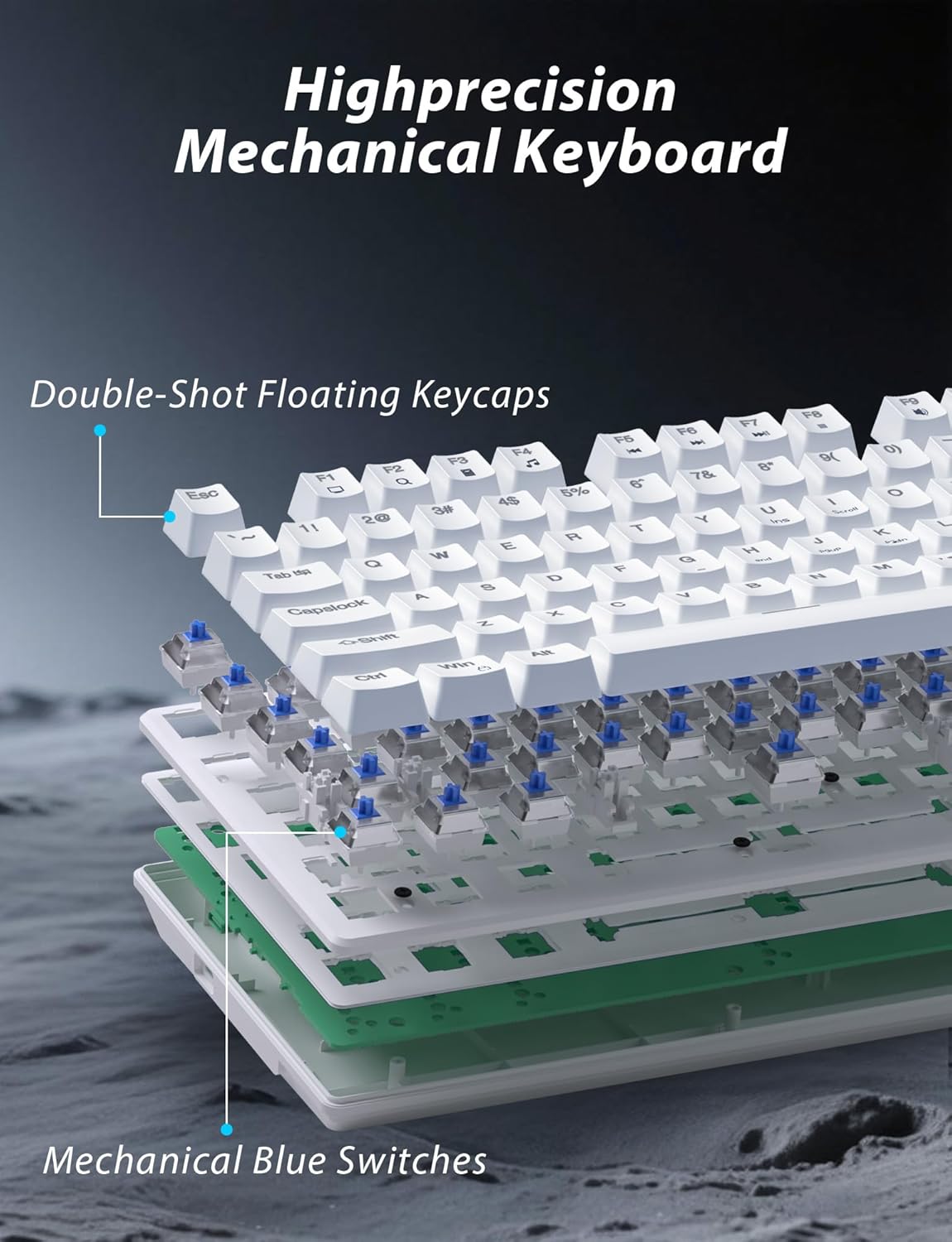
Imaginea 3.1: Explodată view illustrating the internal structure of the mechanical keyboard, highlighting the double-shot floating keycaps and mechanical blue switches.

Imaginea 3.2: Laterală view of the keyboard demonstrating its ergonomic design and adjustable stand for comfortable use.
3.2 Caracteristicile mouse-ului
- Design ergonomic: Shaped for comfortable grip.
- DPI reglabil: Four levels (800/1600/2400/3200) for precision control.
- Butoane Înainte/Înapoi: Convenient side buttons for navigation.
- Conectivitate dual-mode: Supports 2.4G wireless and Bluetooth.
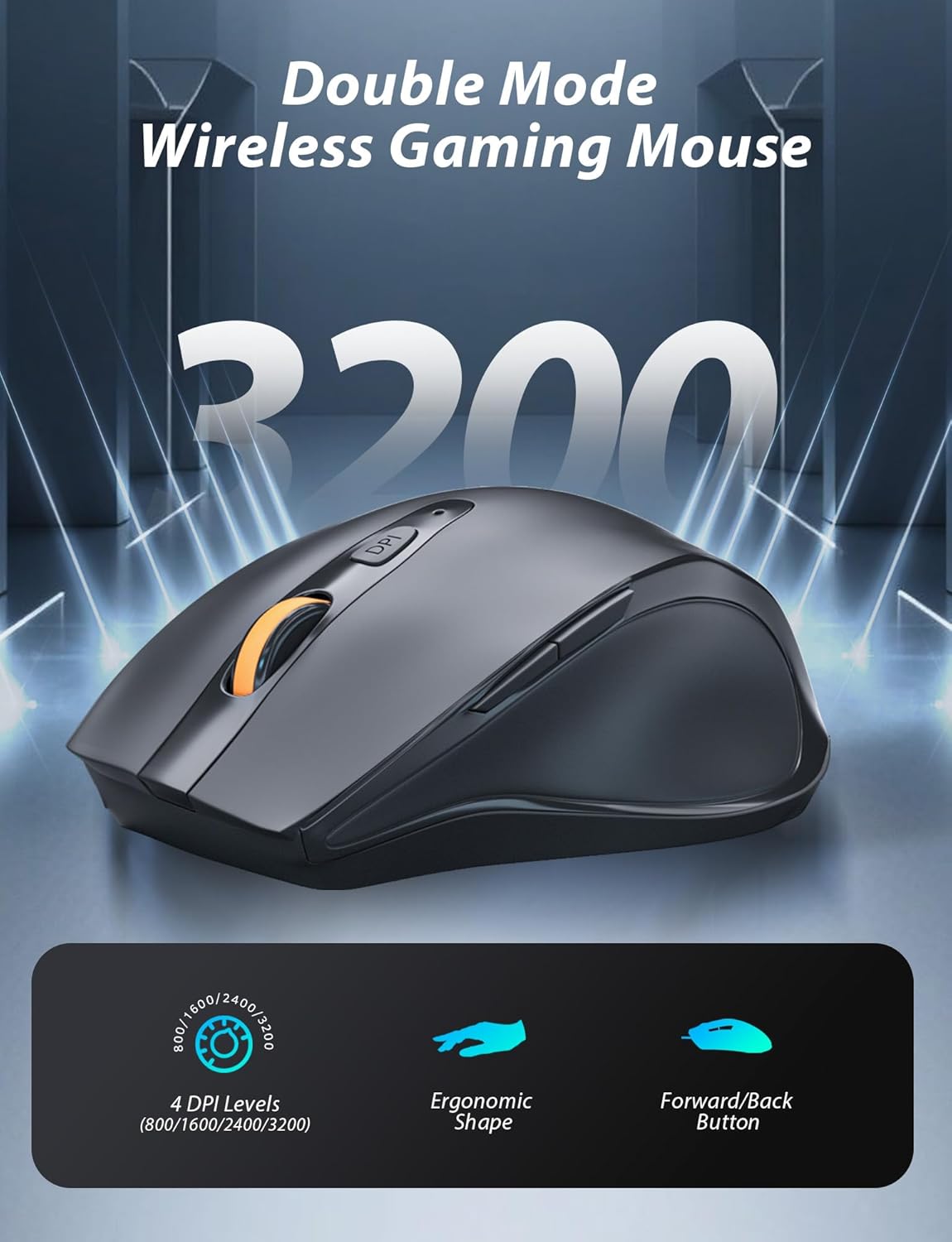
Image 3.3: The wireless gaming mouse, highlighting its ergonomic shape and four adjustable DPI levels.
4. Instrucțiuni de configurare
4.1 Conectarea tastaturii
The keyboard supports three connection modes: 2.4G wireless, Bluetooth, and wired USB-C.

Image 4.1: The keyboard displaying its three connectivity options: Bluetooth, 2.4GHz wireless, and USB-C wired connection.
Modul wireless 2.4G:
- Locate the USB 2.4G receiver, typically stored in the mouse's battery compartment.
- Introduceți receptorul USB într-un port USB disponibil de pe computer.
- On the keyboard, slide the mode switch (usually located on the top edge or bottom) to the '2.4G' position.
- Tastatura ar trebui să se conecteze automat.
Mod Bluetooth:
- Slide the mode switch on the keyboard to the 'BT' (Bluetooth) position.
- The keyboard's indicator light will flash, indicating it is in pairing mode.
- On your device (computer, laptop, smartphone), open Bluetooth settings and search for new devices.
- Select "Taiahiro Bk6301" or a similar name from the list of available devices to pair.
- După asociere, indicatorul luminos va deveni continuu.
Wired USB-C Mode:
- Conectați cablul USB-C furnizat la portul USB-C al tastaturii.
- Conectați celălalt capăt (USB-A) la un port USB disponibil de pe computer.
- The keyboard will function as a wired device and will charge simultaneously.
4.2 Mouse Connection
The mouse supports 2.4G wireless and Bluetooth connectivity.

Image 4.2: The underside of the mouse, illustrating the battery compartment for one AA battery and the storage slot for the tiny USB receiver.
Instalare baterie:
- Deschideți compartimentul bateriilor de pe partea inferioară a mouse-ului.
- Introduceți o baterie AA, asigurându-vă că polaritatea este corectă.
- Închideți compartimentul bateriei.
Modul wireless 2.4G:
- Ensure the USB 2.4G receiver is plugged into your computer.
- Glisați comutatorul de mod de pe partea inferioară a mouse-ului în poziția „2.4G”.
- Mouse-ul ar trebui să se conecteze automat.
Mod Bluetooth:
- Glisați comutatorul de mod de pe partea inferioară a mouse-ului în poziția „BT” (Bluetooth).
- The mouse will enter pairing mode.
- Pe dispozitiv, deschideți setările Bluetooth și căutați dispozitive noi.
- Select "Taiahiro Mouse" or a similar name from the list to pair.
5. Instrucțiuni de utilizare
5.1 Funcțiile tastaturii
Controlul luminii de fundal:
Tastatura dispune de iluminare de fundal RGB personalizabilă.
- Schimbați modul de iluminare din spate: Presa Fn + Acasă to cycle through 18 different lighting effects.
- Reglați luminozitatea: Presa Fn + ↑ (Săgeată sus) or Fn + ↓ (Săgeată în jos) to adjust between 5 brightness levels.
- Ajustați viteza: Presa Fn + ← (Săgeată stânga) or Fn + → (Săgeată dreapta) to adjust between 5 lighting speed levels.

Image 5.1: Keyboard layout highlighting the function key combinations for controlling backlight modes, brightness, and speed.
Funcții multimedia:
Accesați comenzile multimedia apăsând butonul Fn key in combination with the designated F-keys (F1-F12).
- Fn+F1: Media Player
- Fn+F2: Reducerea volumului
- Fn+F3: Creșterea volumului
- Fn+F4: Mut
- Fn+F5: Stop
- Fn+F6: Piesa anterioară
- Fn+F7: Redare/Pauză
- Fn+F8: Următoarea piesă
- Fn+F9: E-mail
- Fn+F10: Web Browser
- Fn+F11: Computerul meu
- Fn+F12: Calculator
5.2 Funcțiile mouse-ului
Ajustare DPI:
Apăsați tasta Butonul DPI (located behind the scroll wheel) to cycle through the four DPI settings: 800, 1600, 2400, and 3200. Each press changes the sensitivity, allowing you to adjust cursor speed to your preference.
6. Întreținere
6.1 Curățare
- Tastatura: Use a soft, dry cloth to wipe the surface. For deeper cleaning, use compressed air to remove debris from between keys. Avoid using harsh chemicals or abrasive materials.
- Mouse: Ștergeți suprafața mouse-ului cu o cârpă moale și ușor tamponată.amp cloth. Ensure no liquid enters the internal components.
6.2 Managementul bateriei
- Tastatura: The keyboard has a built-in rechargeable battery. Connect the USB-C cable to a power source (e.g., computer USB port, USB wall adapter) to charge. The indicator light will show charging status.
- Mouse: The mouse uses one AA battery. Replace the battery when the mouse performance degrades or it stops responding. Ensure proper polarity when inserting a new battery.
7. Depanare
If you encounter issues with your Taiahiro keyboard and mouse combo, please refer to the following solutions:
| Problemă | Soluție posibilă |
|---|---|
| Keyboard/Mouse not responding (2.4G) |
|
| Keyboard/Mouse not connecting (Bluetooth) |
|
| Keyboard backlight not working or stuck |
|
| Tastele nu răspund sau tastarea se face de două ori |
|
8. Specificații
| Caracteristică | Detaliu |
|---|---|
| Numărul de model | Bk6301 |
| Conectivitate | Bluetooth 5.0, Wireless 2.4G, USB-C cu fir |
| Tip tastatură | Tastatură mecanică pentru jocuri |
| Dispunerea tastelor | 98 Keys (with Numeric Keypad) |
| Tip comutator | Comutatoare albastre mecanice |
| Iluminarea din spate a tastaturii | RGB (18 moduri, 5 luminozități, 5 niveluri de viteză) |
| Baterie tastatură | 2000mAh reîncărcabil |
| Niveluri DPI mouse | 800 / 1600 / 2400 / 3200 |
| Baterie mouse | 1 x baterie AA |
| Dispozitive compatibile | Calculator Personal, Laptop, Smartphone |
| Greutatea articolului | 2.72 lire sterline (combinație) |
| Dimensiuni pachet | 15 x 5.59 x 3.11 inci |
9. Garanție și asistență
9.1 Informații despre garanție
Taiahiro products are covered by a limited warranty from the date of purchase. Please refer to the warranty card included in your package or visit the official Taiahiro website for detailed warranty terms and conditions. This warranty typically covers manufacturing defects and material faults under normal use.
9.2 Asistență pentru clienți
For technical assistance, troubleshooting, or any questions regarding your Taiahiro Bk6301 combo, please contact our customer support team. You can find contact information on the Taiahiro official website or through your purchase platform. When contacting support, please have your product model number (Bk6301) and purchase details ready.
Ask a question about this manual
Ask about setup, troubleshooting, compatibility, parts, safety, or missing instructions. Manuals+ will review the question and use this page’s manual context to help answer it.