
Introducere
This manual provides detailed instructions for the setup, operation, maintenance, and troubleshooting of your ATTACK SHARK X98PRO Wireless Mechanical Keyboard. This keyboard features a 98-key layout, a 1.14-inch TFT display, a multi-function CNC metal knob, tri-mode connectivity (Bluetooth, 2.4GHz wireless, USB-C wired), hot-swappable switches, RGB backlighting, and a 4000mAh battery. Please read this manual thoroughly before using the product to ensure optimal performance and longevity.
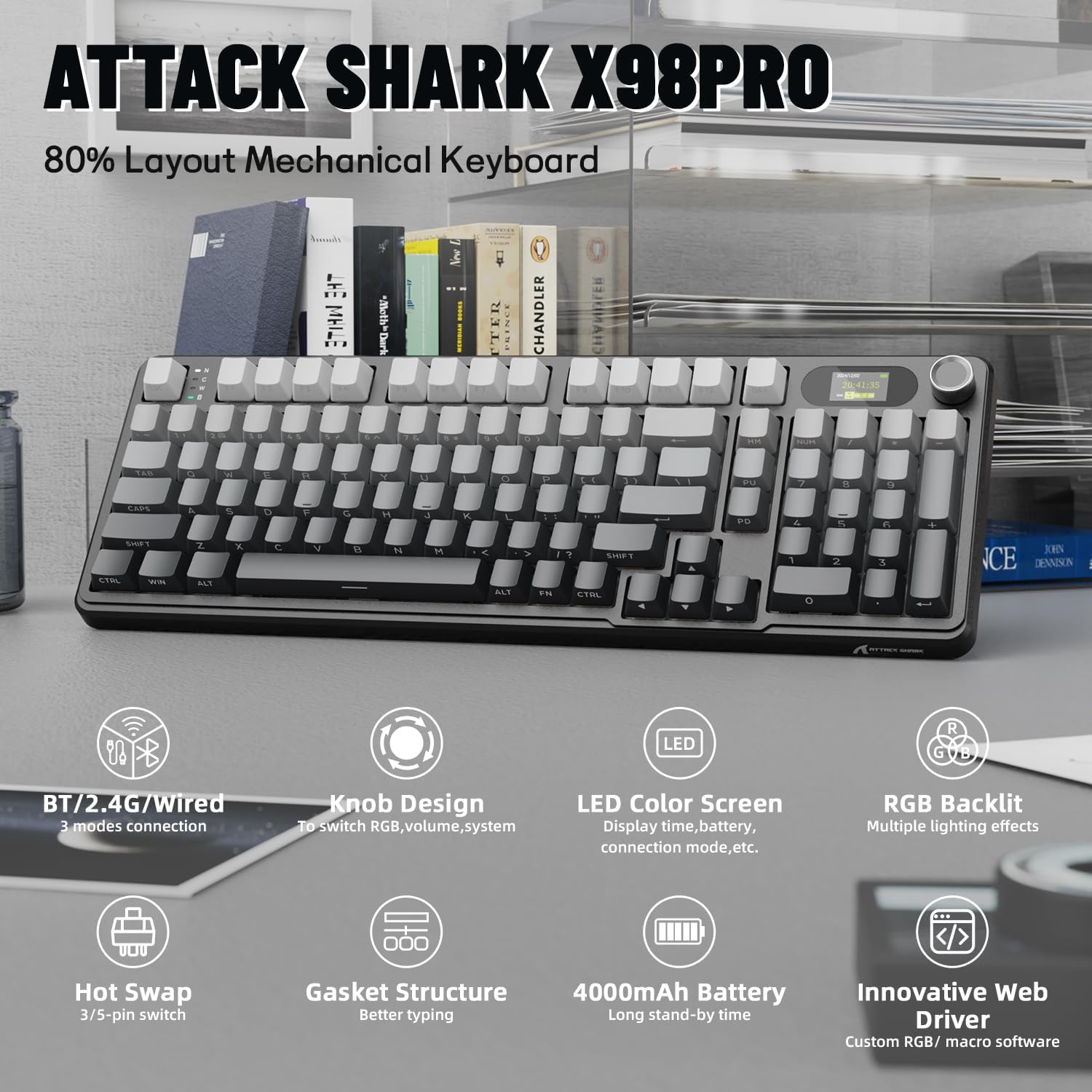
Imagine: Pesteview of the ATTACK SHARK X98PRO keyboard, highlighting its 80% layout and key features such as tri-mode connection, knob design, LED color screen, RGB backlit, hot-swap capability, gasket structure, 4000mAh battery, and innovative web şofer.
Înființat
1. Unboxing și inspecție inițială
Carefully remove the keyboard and all accessories from the packaging. Verify that the following items are included:
- ATTACK SHARK X98PRO Mechanical Keyboard
- USB-C to USB-A Braided Cable
- 2.4GHz Wireless Dongle (often stored in the keyboard's dongle slot)
- Keycap Puller and Switch Puller (for hot-swappable models)
2. Încărcarea inițială
Before first use, it is recommended to fully charge the keyboard. Connect the provided USB-C cable to the keyboard's USB-C port and the other end to a powered USB-A port on your computer or a wall adapter. The TFT screen will indicate charging status. The keyboard features a 4000mAh battery for extended use.

Image: The ATTACK SHARK X98PRO keyboard with an overlay indicating a 4000mAh high-capacity battery, showing estimated usage times of about 7 days with backlight on (5 hours/day) and about 15 days with backlight off (5 hours/day).
3. Connectivity Options (Tri-Mode)
The X98PRO keyboard supports three connection modes: USB-C wired, 2.4GHz wireless, and Bluetooth 5.0. A switch on the side of the keyboard allows you to select the desired mode.

Image: The ATTACK SHARK X98PRO keyboard connected to multiple devices via USB-C, 2.4GHz wireless, and Bluetooth 5.0, illustrating its versatile tri-mode connectivity.
Mod USB-C cu fir:
Connect the USB-C cable to the keyboard and your computer. Ensure the mode switch on the keyboard is set to 'USB'. The keyboard will be recognized automatically.
Mod wireless de 2.4 GHz:
Insert the 2.4GHz wireless dongle into an available USB port on your computer. Set the mode switch on the keyboard to '2.4G'. The keyboard should connect automatically. If not, press and hold Fn + 4 (for 2.4G pairing) until the indicator light flashes, then release. The keyboard will attempt to pair with the dongle.
Mod Bluetooth 5.0:
Set the mode switch on the keyboard to 'BT'. To enter pairing mode, press and hold Fn + 1, Fn + 2, or Fn + 3 for 3-5 seconds until the corresponding indicator light flashes rapidly. On your device (computer, tablet, phone), search for Bluetooth devices and select 'ATTACK SHARK X98PRO' to connect. You can pair up to three different Bluetooth devices and switch between them using Fn + 1, Fn + 2, or Fn + 3.

Image: The ATTACK SHARK X98PRO keyboard demonstrating its tri-mode connection capabilities, showing it simultaneously connected to a desktop PC via 2.4GHz, a laptop via USB-C, and a tablet via Bluetooth.
4. Web-Based Driver for Customization
The keyboard features an innovative web-based driver for advanced customization. This allows you to edit, upload, and switch display content for the TFT screen, customize RGB effects, remap keys, and set macros without installing software. Access the driver via the manufacturer's official website (refer to packaging or official product page for URL).

Image: The ATTACK SHARK X98PRO keyboard positioned in front of a monitor displaying the web-based driver interface, illustrating options for fully programmable keys, backlight color and effects, custom key combinations, and screen animation settings.
Instrucțiuni de operare
1. Multi-Function CNC Metal Knob
The CNC metal knob provides intuitive control over various functions. By default, rotating the knob adjusts volume. Pressing the knob cycles through different control modes.
- Roti: Adjusts selected parameter (e.g., volume, brightness, RGB speed).
- Presa: Cycles through knob functions (e.g., Volume, RGB Brightness, RGB Speed, Connection Mode).
- Fn + Knob Press: Some functions may require holding the Fn key while pressing the knob to switch between primary and secondary functions (e.g., switching between volume control and display menu navigation).

Imagine: O imagine detaliată view of the ATTACK SHARK X98PRO's CNC knob and TFT display. The image illustrates how to rotate the knob to select sections (e.g., volume) and press to confirm or enter menus, with examples of RGB mode, intensity, speed, GIF display, and language choice on the screen.
2. TFT Smart Screen
The 1.14-inch TFT screen can display various information and custom content:
- Starea sistemului
- Durata de viață a bateriei
- Ora și data
- Modul de conectare
- Custom GIFs or animations (configurable via web șofer)
3. Controlul iluminării de fundal RGB
The keyboard features full RGB backlighting. Use the following key combinations to adjust lighting effects:
- Fn + Enter: Comutați între diferite efecte de iluminare.
- Fn + \|: Schimbați culoarea iluminării.
- Fn + ↑ (Săgeată în sus): Măriți luminozitatea iluminării de fundal.
- Fn + ↓ (Săgeată în jos): Reduceți luminozitatea iluminării de fundal.
- Fn + ← (Săgeată stânga): Reduceți viteza iluminării de fundal.
- Fn + → (Săgeată dreapta): Măriți viteza iluminării de fundal.

Image: The ATTACK SHARK X98PRO keyboard showcasing its vibrant RGB full-color backlighting, with an overlay illustrating key combinations (Fn + Enter, Fn + arrow keys) for switching light effects, colors, brightness, and speed.
4. Comutatoare înlocuibile la cald
The X98PRO keyboard features a hot-swappable PCB, allowing you to easily change mechanical switches without soldering. It is compatible with most 3-pin and 5-pin mechanical switches.
- Pentru a elimina un comutator: Use the provided switch puller to gently grip the top and bottom of the switch and pull upwards.
- Pentru a instala un comutator: Align the pins of the new switch with the holes on the PCB. Gently press down until the switch clicks into place. Ensure pins are not bent.

Image: A close-up of the ATTACK SHARK X98PRO keyboard with several keycaps and switches removed, showing the hot-swappable sockets. A switch puller is depicted, along with an exploded view of a Blueberry linear switch and its specifications, emphasizing compatibility with 3 or 5-pin switches.
5. Key Customization and Macros
Utilizați web-based driver to remap keys, create custom key combinations, and program macros for enhanced productivity or gaming. Refer to the driver interface for detailed instructions on these advanced features.
Întreţinere
1. Curățarea tastaturii
Curățarea regulată ajută la menținerea aspectului și funcționalității tastaturii.
- Tastaturi: Use a keycap puller to remove keycaps. Clean them with a mild soap solution and a soft cloth, then dry thoroughly before reattaching.
- Corpul tastaturii: Ștergeți suprafața cu un material moale, damp Evitați umiditatea excesivă.
- Între chei: Folosiți aer comprimat pentru a îndepărta praful și resturile dintre întrerupătoare.
2. Îngrijirea bateriei
Pentru a maximiza durata de viață a bateriei:
- Evitați descărcarea completă frecventă a bateriei.
- Depozitați tastatura într-un loc răcoros și uscat atunci când nu o utilizați pentru perioade lungi de timp.
- Dacă depozitați pentru o perioadă lungă de timp, încărcați bateria la aproximativ 50% înainte de depozitare.
3. Înlocuirea comutatorului și a capacului tastelor
As the switches are hot-swappable, you can replace individual switches or the entire set if desired. Ensure replacement switches are compatible (3-pin or 5-pin). Keycaps can also be replaced with standard MX-style keycaps.
Depanare
1. Probleme de conectivitate
- Keyboard not connecting in 2.4GHz or Bluetooth mode: Ensure the mode switch is in the correct position. For 2.4GHz, try re-inserting the dongle and re-pairing (Fn + 4). For Bluetooth, ensure the keyboard is in pairing mode (Fn + 1/2/3 for 3-5 seconds) and your device's Bluetooth is enabled.
- Conexiune prin cablu nerecunoscută: Check the USB-C cable connection at both ends. Ensure the mode switch is set to 'USB'. Try a different USB port or cable.
2. Probleme cu iluminarea din spate
- Luminile RGB nu funcționează sau se blochează: Ensure the keyboard is charged. Try adjusting brightness (Fn + ↑/↓) or cycling through effects (Fn + Enter). A factory reset (if available, check web driver) might resolve persistent issues.
3. Knob or TFT Screen Issues
- Knob not responding: Press the knob to cycle through functions. Ensure no debris is obstructing its movement.
- Ecranul nu se afișează corect: Check battery level. If customized content is not showing, verify settings in the webșofer bazat pe.
4. Unintended Key Presses
- If experiencing unintended key presses, ensure proper typing posture and avoid resting hands heavily on keys. The linear switches have a light actuation force.
5. Preocupări legate de durata de viață a bateriei
- If battery life seems shorter than expected, ensure the keyboard is fully charged. Reduce RGB brightness or turn off backlighting to conserve power. Ensure the keyboard is turned off when not in use.
Specificații
| Caracteristică | Detaliu |
|---|---|
| Marca | ATACA RECHINUL |
| Model | X98PRO |
| Descrierea tastaturii | Mecanic |
| Tehnologia de conectivitate | 2.4GHz, Bluetooth 5.0, USB-C Wired |
| Numărul de chei | 98 |
| Tip comutator | Linear (Hot-Swappable 3/5-pin) |
| Capacitatea bateriei | 4000mAh |
| Caracteristici speciale | Customizable TFT Display, Multi-Function Knob, RGB Backlit, Gasket Mount |
| Dispozitive compatibile | Laptop, PC, Tabletă |
| Sistem de operare compatibil | Windows, Mac, Linux |
| Dimensiunile produsului | 16.4 cm L x 5.8 cm l x 1.8 cm Î |
| Material | Aluminum (Knob), Fiberglass Composite (Case) |
garanție
The ATTACK SHARK X98PRO Wireless Mechanical Keyboard comes with a 1-year manufacturer's warranty from the date of purchase. This warranty covers defects in materials and workmanship under normal use. Please retain your proof of purchase for warranty claims. The warranty does not cover damage caused by misuse, accident, unauthorized modification, or normal wear and tear.
Sprijin
For further assistance, technical support, or warranty inquiries, please contact ATTACK SHARK customer service through their official website or the retailer where the product was purchased. Please have your product model and purchase information ready when contacting support.
Videoclipuri cu produse
ATTACK SHARK X98PRO Wireless Keyboard Overview
Video: Un pesteview of the ATTACK SHARK X98PRO Wireless Mechanical Keyboard, showcasindesignul și caracteristicile sale.
X98PRO 98-Key Mechanical Keyboard with TFT Display Features
Video: A demonstration of the ATTACK SHARK X98PRO 98-key mechanical keyboard, focusing on its TFT display and other key functionalities.