
1. Produs terminatview
The MOBAPAD N1 HD is a versatile wireless controller designed for an enhanced gaming experience across multiple platforms. It features advanced technologies such as Hall Effect Joysticks for precise control, ALPS Dual-Axis Motors for immersive HD vibration, and six-axis motion control. This controller is compatible with Nintendo Switch, PC, iOS, and Android devices, offering seamless connectivity and responsive performance.

Imagine: față view of the MOBAPAD N1 HD Wireless Controller, showcasindesignul său ergonomic și dispunerea butoanelor.
2. Caracteristici cheie
- Compatibilitate cu mai multe platforme: Fully compatible with Nintendo Switch, PC, iOS, and Android devices, ensuring broad usability.
- Joystick-uri cu efect Hall: Provides smooth, precise, and durable control with minimal wear, ideal for accurate gaming.
- ALPS Dual-Axis Motors with HD Vibration: Delivers realistic and immersive haptic feedback for enhanced gameplay.
- Controlul mișcării pe șase axe: Built-in gyroscope enables enhanced motion control for compatible games.
- NFC for Amiibo Scanning: Supports NFC technology for scanning Amiibo figures on Nintendo Switch.

Image: The controller illustrating its immersive motion control capabilities with swirling lines around it.

Image: The controller positioned in front of a collection of Amiibo figures, highlighting its NFC scanning function.

Image: The controller shown alongside icons for Switch, Android/iOS, and PC, demonstrating its multi-device compatibility.
3. Configurare și conectare
Follow these steps to connect your MOBAPAD N1 HD controller to your desired device.
3.1. Conectarea la Nintendo Switch
- Din meniul HOME, selectați Controlori, atunci Schimbați Grip/Comanda.
- While the screen is displaying "Press L + R on the controller", press and hold the butonul Acasă on the MOBAPAD N1 HD controller for 3-5 seconds until the player LEDs begin to flash.
- Once connected, the player LED(s) corresponding to the controller number will remain lit.
3.2. Conectarea la PC (Windows)
- Connect the controller to your PC using a USB-C cable. The controller will be recognized as a wired controller.
- For wireless connection, ensure your PC has Bluetooth enabled. Go to Bluetooth & other devices settings.
- Selectați „Adăugați Bluetooth sau alt dispozitiv” și alegeți „Bluetooth”.
- Țineți apăsat butonul butonul Acasă on the controller until the LEDs flash rapidly, indicating pairing mode.
- Select "MOBAPAD N1 HD" from the list of available devices.
3.3. Connecting to iOS/Android Devices
- Activați Bluetooth pe dispozitivul dvs. iOS sau Android.
- Accesați setările Bluetooth și căutați dispozitive noi.
- Țineți apăsat butonul butonul Acasă on the controller until the LEDs flash rapidly.
- Select "MOBAPAD N1 HD" from the list of available devices to pair.
4. Operarea controlerului
Familiarize yourself with the controller's layout and functions for optimal gameplay.
4.1. Aranjamentul butoanelor
- Stick analogic stâng: For movement and camera control. Features Hall Effect technology.
- Stick analogic drept: For camera control and aiming. Features Hall Effect technology.
- D-pad: Directional input for menu navigation and specific game actions.
- Butoane A/B/X/Y: Butoane de acțiune standard.
- Butoane L/R: Nasturi de umăr.
- Butoane ZL/ZR: Butoane de declanșare.
- Butonul minus (-): Typically for opening in-game menus or specific functions.
- Butonul plus (+): Typically for opening in-game menus or specific functions.
- Buton Acasă: Returns to the system's home screen. Also used for pairing and NFC scanning.
- CaptureButton: Takes screenshots or video clips (Nintendo Switch).
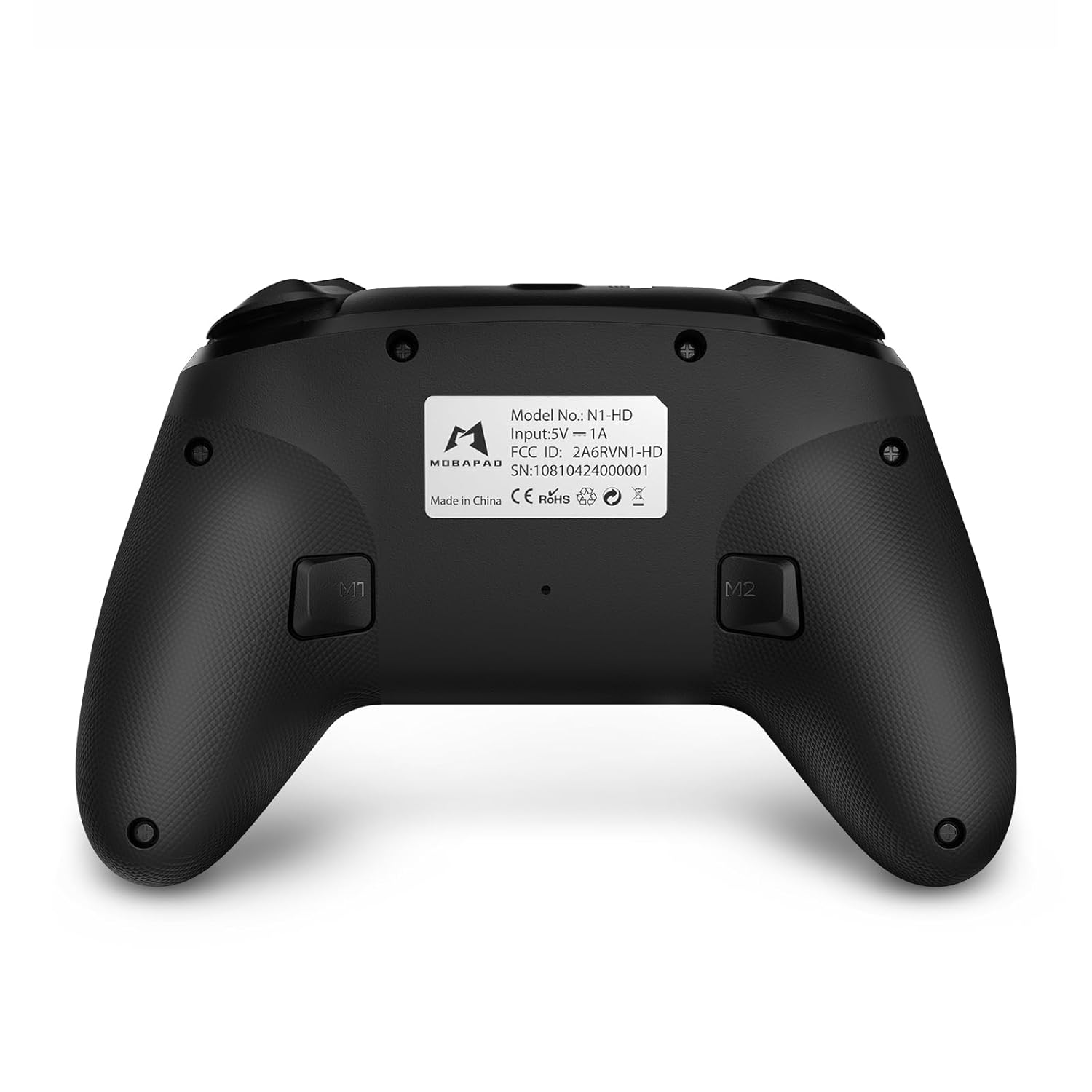
- Butoane M1/M2: Programmable back buttons for custom macros or remapping.
Imagine: Față detaliată view of the MOBAPAD N1 HD controller, showing all buttons and joysticks.

Imagine: Spate view of the MOBAPAD N1 HD controller, highlighting the M1 and M2 programmable buttons and product label.
4.2. NFC Functionality (Amiibo Scanning)
To use the NFC function for Amiibo scanning on Nintendo Switch:
- Ensure your controller is connected to the Nintendo Switch.
- In a compatible game, when prompted to scan an Amiibo, place the Amiibo figure directly over the butonul Acasă area on the controller.
- Hold the Amiibo in place until the game registers the scan.
5. Întreținere și îngrijire
Întreținerea corectă asigură longevitatea și performanța optimă a controlerului dumneavoastră.
- curatenie: Folosiți o lavetă moale și uscată pentru a șterge controlerul. Pentru murdăria persistentă, ștergeți ușor.ampClătiți cârpa cu apă. Evitați substanțele chimice dure sau materialele abrazive.
- Depozitare: Depozitați controlerul într-un loc răcoros și uscat, ferit de lumina directă a soarelui și de temperaturi extreme.
- Îngrijirea bateriei: The controller contains a Lithium Ion battery. Avoid fully discharging the battery frequently. If storing for extended periods, charge the battery to about 50% to prolong its lifespan. Do not expose the battery to fire or extreme heat.
- Manipulare: Avoid dropping the controller or subjecting it to strong impacts, as this can damage internal components.
6. Depanare
If you encounter issues with your MOBAPAD N1 HD controller, refer to the following common solutions.
| Problemă | Cauza posibila | Soluţie |
|---|---|---|
| Controlerul nu se conectează. | Low battery, out of range, incorrect pairing mode, interference. | Charge the controller fully. Ensure it is within range of the device. Re-enter pairing mode (hold Home button). Move closer to the device or away from other wireless devices. |
| Butoanele sau joystick-urile nu răspund. | Software glitch, physical obstruction, damage. | Restart the controller and the connected device. Check for any debris around the buttons/joysticks. If issues persist, contact customer support. |
| Vibrațiile sunt slabe sau absente. | Vibration setting off, game does not support vibration, motor issue. | Check in-game settings and system settings to ensure vibration is enabled. Verify if the game supports vibration feedback. |
| NFC scanning fails. | Incorrect placement, game not prompting scan, controller not connected. | Ensure the Amiibo is placed directly over the Home button area. Confirm the game is prompting for an Amiibo scan. Verify controller is properly connected to the Switch. |
7. Specificații
| Caracteristică | Detaliu |
|---|---|
| Numărul de model | Mobapad N1 HD Black |
| Dimensiuni (L x l x H) | 5.91 x 2.36 x 3.94 inci |
| Greutate | 7.05 uncii |
| Tip baterie | 1 baterie litiu-ion (inclusă) |
| Conectivitate | Wireless (Bluetooth), USB-C (wired) |
| Compatibilitate | Nintendo Switch, PC, iOS, Android |
| Caracteristici speciale | Hall Effect Joysticks, ALPS Dual-Axis Motors, HD Vibration, Six-Axis Gyroscope, NFC |
8. Garanție și asistență
For warranty information or technical support, please contact MOBAPAD customer service. Refer to the official MOBAPAD webConsultați site-ul sau documentația de achiziție pentru termenii specifici de garanție și datele de contact.
You can visit the official MOBAPAD store on Amazon for more information: MOBAPAD Store