
Introducere
Thank you for choosing the HP 14-inch Laptop. This manual provides essential information for setting up, operating, maintaining, and troubleshooting your new device. Please read this guide thoroughly to ensure optimal performance and longevity of your laptop.
The HP 14-inch Laptop is designed for everyday computing tasks, offering a balance of portability and functionality. It features an Intel Celeron N4120 processor, 8GB of RAM, and 256GB of storage, running on Windows 11 Home in S Mode.
Ce este în cutie
Verificați dacă toate articolele sunt prezente în colet:
- Laptop HP de 14 inci
- Adaptor de curent alternativ
- Card de stocare de 128 GB
- Mouse Pad
- Cablu HDMI
- Cablu USB
- Căști fără fir
- Mouse fără fir

Image: The HP 14-inch Laptop shown with its 5-in-1 value pack bundle, including wireless earbuds, mouse pad, HDMI cable, USB cable, and wireless mouse.
Înființat
1. Pornirea inițială
- Despachetați laptopul: Scoateți cu grijă laptopul și toate accesoriile din ambalaj.
- Conectare alimentare: Plug the AC power adapter into the laptop's AC smart pin port and then into a wall outlet. It is recommended to fully charge the battery before first use.
- Pornire: Deschideți capacul laptopului și apăsați butonul de pornire, care se află de obicei pe tastatură.
2. Windows 11 S Mode Setup
Follow the on-screen prompts to complete the initial Windows 11 Home S Mode setup. This includes selecting your region, keyboard layout, connecting to a Wi-Fi network, and setting up your Microsoft account.
3. Conectarea accesoriilor
- Mouse fara fir: Introduceți receptorul USB pentru mouse-ul wireless într-un port USB de tip A disponibil al laptopului. Mouse-ul ar trebui să se conecteze automat.
- Căști wireless: Refer to the earphones' specific instructions for pairing via Bluetooth. On your laptop, go to Setări > Bluetooth și dispozitive a perechi.
- 128GB Storage Card: Insert the storage card into the multi-format media card reader slot.
- Cablu HDMI: Connect one end of the HDMI cable to the laptop's HDMI port and the other end to an external display (monitor or TV).
4. Activating Microsoft Office 365
Laptopul dvs. include un abonament de 1 an la Microsoft Office 365. Pentru activare:
- Open any Office application (e.g., Word, Excel) from the Start Menu.
- Follow the on-screen prompts to sign in with your Microsoft account and activate your subscription.
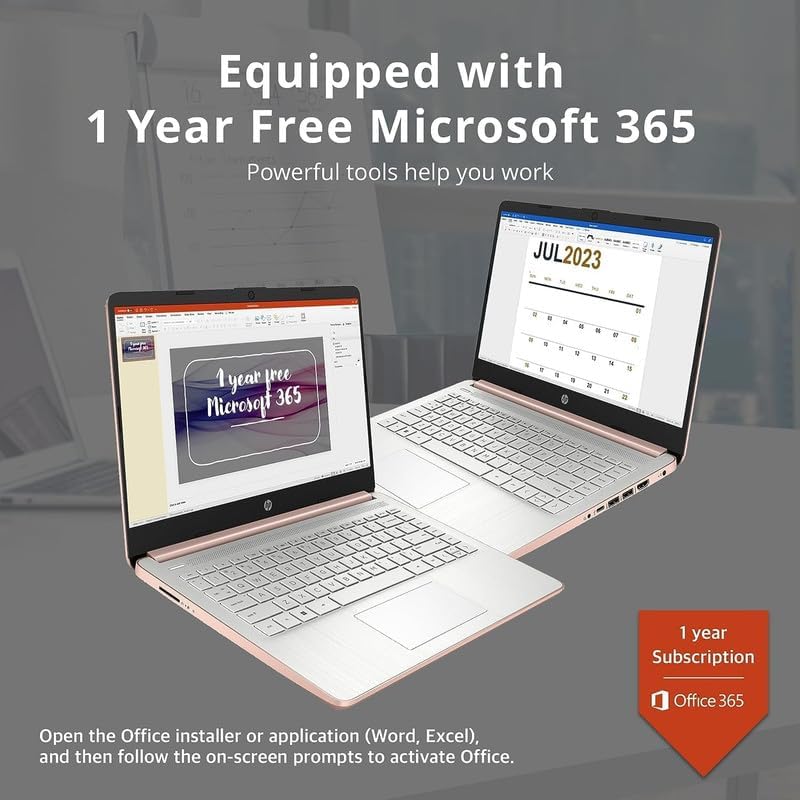
Image: Two HP laptops illustrating the activation process for the included 1-year Microsoft 365 subscription.
Utilizarea laptopului
1. Windows 11 Home în modul S
Windows 11 Home in S Mode is a streamlined version of Windows configured for security and performance. It exclusively uses apps from the Microsoft Store and requires Microsoft Edge for safe browsing. You can switch out of S Mode if you need to install apps from outside the Microsoft Store, but this action is irreversible.
2. Utilizarea porturi și conectivitate
Your HP 14-inch Laptop is equipped with various ports for connectivity:
- USB Type-C (1): Pentru transferul de date și conectarea dispozitivelor compatibile.
- USB Type-A (2): For connecting standard USB devices like external drives, keyboards, or mice.
- HDMI 1.4b (1): Pentru conectarea la afișaje externe.
- Headphone/Microphone Combo Jack (1): For audio output to headphones or input from a microphone.
- Multi-format Media Card Reader (1): For reading SD cards and other compatible memory cards.
- AC Smart Pin (1): Pentru conectarea adaptorului de alimentare.

Image: A detailed diagram highlighting the multi-port configuration on the HP 14-inch laptop, including SD Card Reader, Headphone Jack, USB Type-A, USB Type-C, HDMI, and AC Smart Pin.
3. Wi-Fi și Bluetooth
To connect to Wi-Fi or Bluetooth devices:
- Faceți clic pe Reţea icon on the taskbar (bottom right).
- Select the desired Wi-Fi network and enter the password, or turn on Bluetooth and pair with your device.
4. Folosind Webcam
The HP True Vision 720p HD camera is integrated for video calls and conferencing. Access it through applications like Camera, Microsoft Teams, or Zoom.

Image: The HP 14-inch laptop demonstrating its remote work capabilities, featuring HP Fast Charge, HP True Vision 720p HD camera, and HD audio with stereo speakers.
5. Managementul bateriei
Laptopul oferă o autonomie a bateriei de până la 11.5 ore. Pentru a optimiza performanța bateriei:
- Reglați luminozitatea ecranului.
- Închideți aplicațiile neutilizate.
- Folosește modurile de economisire a energiei din Windows.
- The laptop supports HP Fast Charge, allowing it to charge from 0% to 50% in approximately 45 minutes.
Întreţinere
1. Curățarea laptopului
- Ecran: Utilizați ușor o cârpă moale, fără scame dampCurățați cu apă sau cu un detergent de ecran. Nu pulverizați lichid direct pe ecran.
- Tastatură și șasiu: Folosiți o cârpă moale și uscată. Pentru murdăria persistentă, uscați ușor.amp Se poate folosi o cârpă, asigurându-vă că nu pătrunde lichid în orificii.
- Porturi: Folosiți aer comprimat pentru a îndepărta ușor praful din porturi.
2. Actualizări software
Verificați și instalați periodic actualizări Windows pentru a vă asigura că sistemul dvs. are cele mai recente corecții de securitate și îmbunătățiri de performanță. Accesați Setări > Actualizare Windows.
3. Managementul stocării
Periodic review și ștergeți inutilul files to free up storage space on your 256GB drive (128GB eMMC + 128GB Storage Card). Utilize the included 128GB storage card for additional file depozitare.
4. Îngrijirea bateriei
- Evitați temperaturile extreme.
- Do not leave the laptop plugged in constantly after it is fully charged for extended periods.
- Pentru depozitarea pe termen lung, încărcați bateria la aproximativ 50% și depozitați laptopul într-un loc răcoros și uscat.
Depanare
Această secțiune abordează problemele frecvente pe care le puteți întâmpina cu laptopul HP de 14 inch.
| Problemă | Soluție posibilă |
|---|---|
| Laptopul nu pornește | Ensure the AC adapter is securely connected to both the laptop and a working power outlet. Try a different outlet. If the battery is completely drained, it may take a few minutes to respond after plugging in. |
| Ecranul este gol sau negru | Check if the laptop is powered on. Adjust screen brightness. If an external monitor is connected, ensure it is properly configured (press Tasta Windows + P to cycle display modes). |
| Probleme de conexiune Wi-Fi | Ensure Wi-Fi is enabled in Windows settings. Restart your router and modem. Forget the network and reconnect. Update Wi-Fi drivers if necessary. |
| Dispozitivul Bluetooth nu se asociază | Asigurați-vă că Bluetooth este activat atât pe laptop, cât și pe dispozitiv. Așezați dispozitivele aproape unul de celălalt. Eliminați și adăugați din nou dispozitivul în setările Bluetooth. |
| Laptop performance is slow/lagging | Close unnecessary applications. Check for background processes in Task Manager. Ensure Windows is up to date. Consider running a disk cleanup. If running in S Mode, ensure all apps are from the Microsoft Store. |
| Audio nu funcționează | Check volume levels. Ensure correct playback device is selected. Update audio drivers. Test with headphones. |
Specificații
Detailed technical specifications for the HP 14-inch Laptop:
| Caracteristică | Detaliu |
|---|---|
| Marca | HP |
| Numele modelului | Newest HP 14 Inch Laptop |
| Procesor | Intel Celeron N4120 (Quad-Core, 1.1 GHz base, up to 2.6 GHz burst) |
| Grafică | Grafică Intel UHD 600 (integrată) |
| Sistem de operare | Windows 11 Home în modul S |
| Memorie (RAM) | 8 GB DDR4 SDRAM |
| Depozitare | 256 GB (128GB eMMC + 128GB Storage Card) |
| Afişa | 14.0-inch diagonal, HD (1366 x 768), micro-edge, BrightView, 220 nits, 45% NTSC |
| Conectivitate | Realtek 802.11b/g/n/ac (2x2) Wi-Fi, Bluetooth |
| Porturi | 1x SuperSpeed USB Type-C (5Gbps), 2x SuperSpeed USB Type-A (5Gbps), 1x HDMI 1.4b, 1x Headphone/microphone combo, 1x AC smart pin, Multi-format media card reader |
| Webcam | Cameră HD HP True Vision 720p cu microfoane digitale dual array integrate |
| Audio | Difuzoare duble |
| Tastatura | US English, Non-Backlit |
| Baterie | 3-cell, 41 Wh Lithium-Ion Prismatic Battery |
| Durata de viață a bateriei | Până la 11.5 ore (redare video) |
| Dimensiuni (L x l x H) | 12.76 x 8.86 x 0.71 inci |
| Greutate | 3.24 lbs |
| Culoare | Aur roz |

Image: The sleek design of the HP 14-inch laptop, highlighting its thin profile and overall dimensions.

Image: A visual representation of the Intel Celeron N4120 processor, detailing its 4 cores, 4 threads, 2.6GHz Max Turbo Frequency, Intel UHD Graphics 600, and 4MB Smart Cache.

Image: The HP 14-inch laptop displayed in a scenic outdoor setting, emphasizing its core components: Intel Celeron N4020 processor, Intel UHD Graphics 600, and Windows 11 Home in S mode.
Informații despre garanție
Your HP 14-inch Laptop comes with a limited manufacturer's warranty. For specific terms and conditions, please refer to the warranty documentation included with your product or visit the official HP support webPăstrați dovada achiziției pentru reclamații în garanție.
Sprijin
For further assistance, technical support, or to download updated drivers and manuals, please visit the official HP support website:
You can also find contact information for HP customer service on their website-ul.