
1. Introducere
This manual provides essential information for the installation, operation, and maintenance of your ADATA Legend 860 Solid State Drive. Please read this guide thoroughly before using the product to ensure optimal performance and longevity.
The ADATA Legend 860 is a high-performance NVMe SSD designed for expanding storage in compatible devices such as desktop PCs, laptops, and gaming consoles like the PlayStation 5. It utilizes PCIe Gen4 x4 interface for fast data transfer speeds.

Figure 1: ADATA Legend 860 NVMe Solid State Drive
2. Informații de siguranță
- Manevrați întotdeauna SSD-ul de margini pentru a evita atingerea conectorilor sau componentelor aurii.
- Asigurați-vă că sistemul este oprit și deconectat de la priză înainte de instalare.
- Discharge any static electricity from your body before handling the SSD. Use an anti-static wrist strap if available.
- Keep the SSD away from moisture, extreme temperatures, and strong magnetic fields.
- Do not attempt to disassemble or modify the SSD, as this will void the warranty.
3. Conținutul pachetului
Verificați dacă toate articolele sunt prezente în colet:
- ADATA Legend 860 Solid State Drive

Figure 2: ADATA Legend 860 SSD Retail Packaging
4. Specificații
| Marca | ADATA |
| Serie | Legendă 860 |
| Numărul de model | SLEG-860-1000GCS |
| Capacitate de stocare digitală | 1 TB |
| Interfață hard disk | NVMe |
| Tehnologia de conectivitate | PCIe Gen4 x4 |
| Factor de formă | M.2 2280 |
| Dispozitive compatibile | Desktop, Gaming Console (PS5), Laptop |
| Greutatea articolului | 0.353 uncii |
| Dimensiunile produsului | 5.24 x 0.31 x 1.57 inci |
5. Configurare și instalare
The ADATA Legend 860 SSD is designed for easy installation into compatible M.2 slots. Follow these general steps for installation:
- Pregătiți-vă sistemul: Power off your computer or gaming console and unplug all cables. Open the casing to access the motherboard or M.2 expansion slot.
- Localizați slotul M.2: Identify an available M.2 slot on your motherboard. These slots are typically labeled and may be covered by a heatsink.
- Introduceți SSD-ul: Gently slide the ADATA Legend 860 SSD into the M.2 slot at a 30-degree angle. Ensure the gold connectors are fully seated.
- Securizează SSD-ul: Once inserted, push the SSD down until it is parallel with the motherboard. Secure it with the provided screw (usually included with your motherboard or console).
- Închide Casing: Replace any heatsinks or covers, and close your system's casing.
- Pornire și inițializare: Reconnect all cables and power on your system. You may need to initialize and format the new SSD through your operating system's Disk Management (Windows) or Disk Utility (macOS) before it can be used. Refer to your operating system's documentation for detailed instructions.
Instalare Examples:
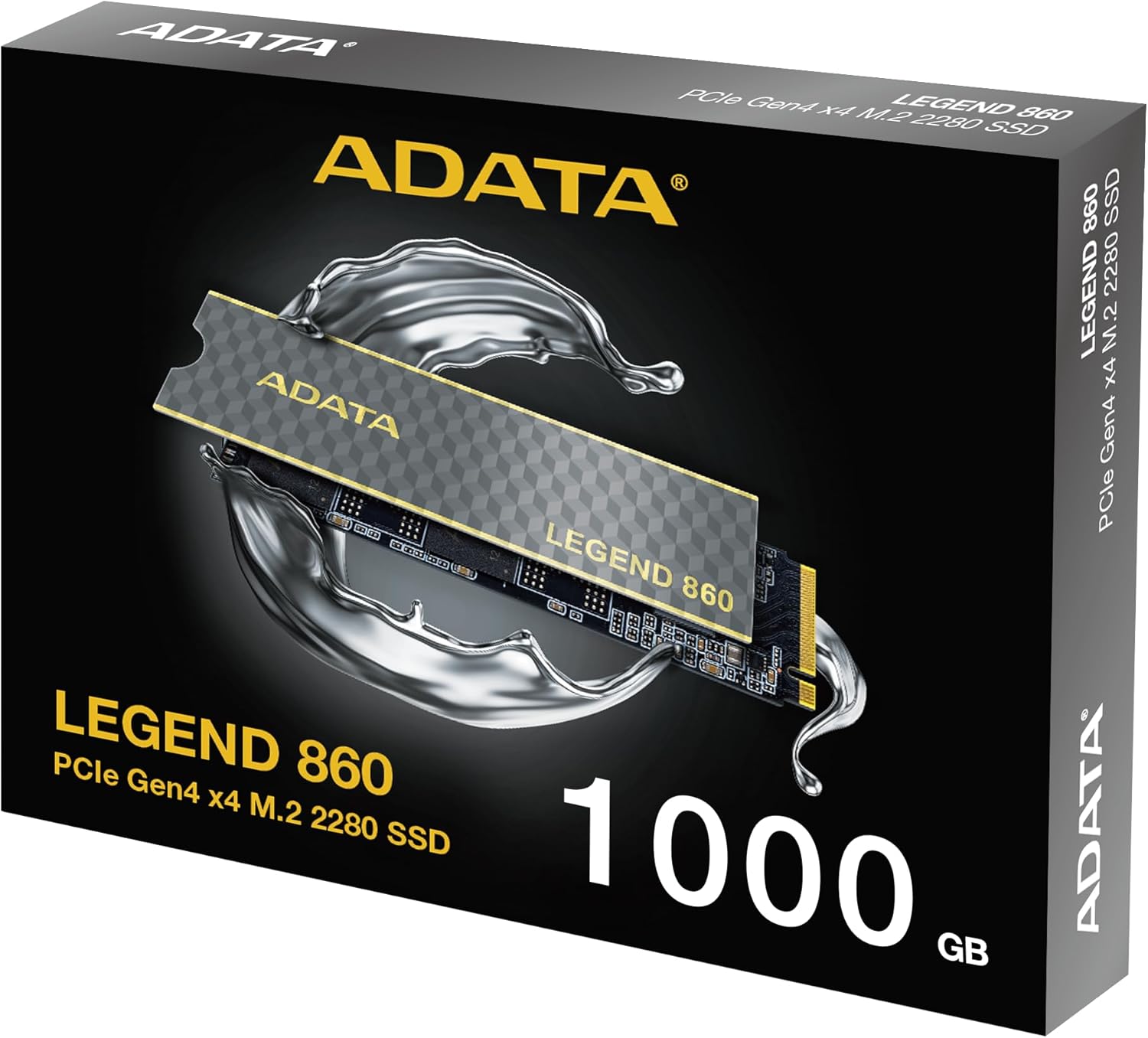
Figure 3: SSD installed in a desktop motherboard
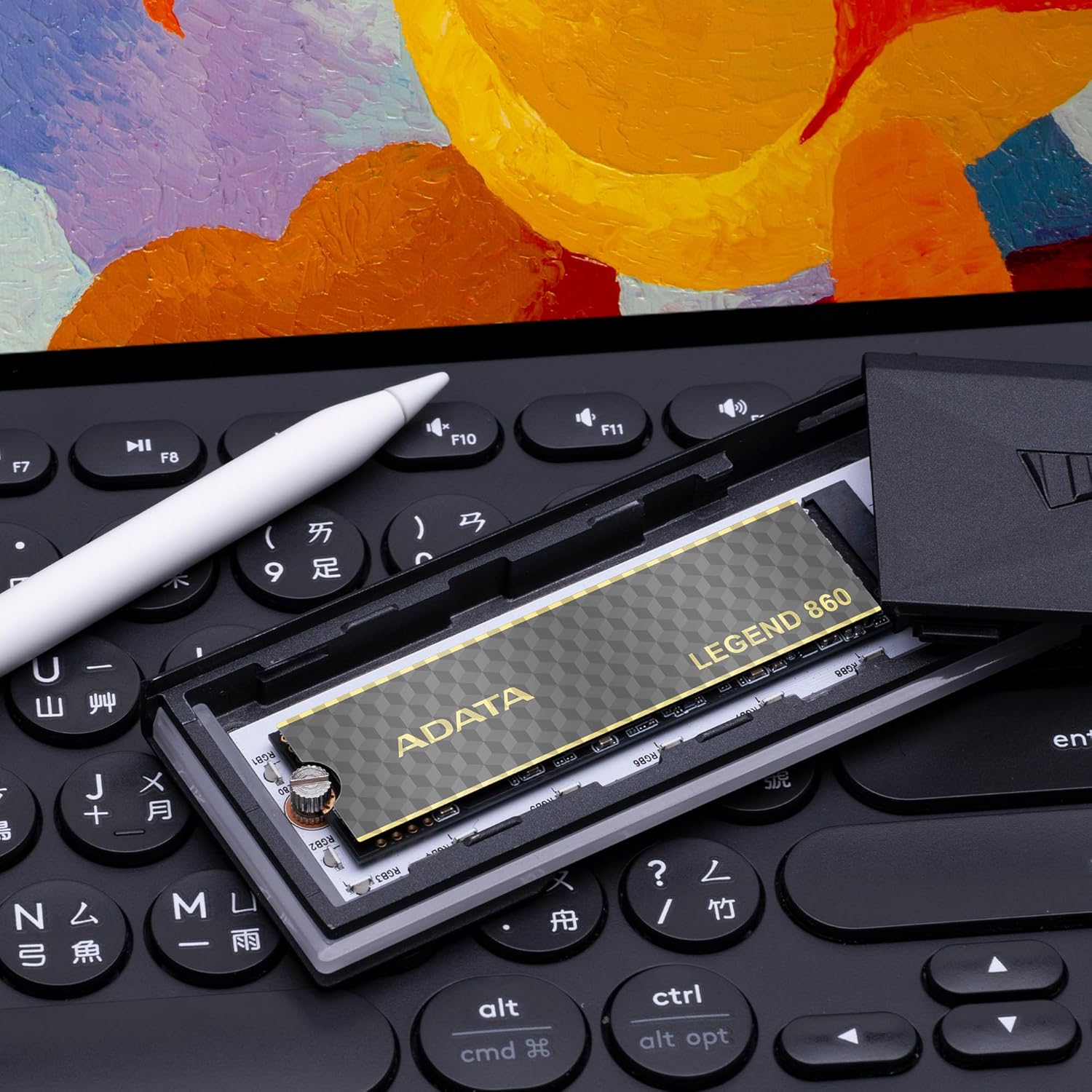
Figure 4: SSD installed in a PlayStation 5 console
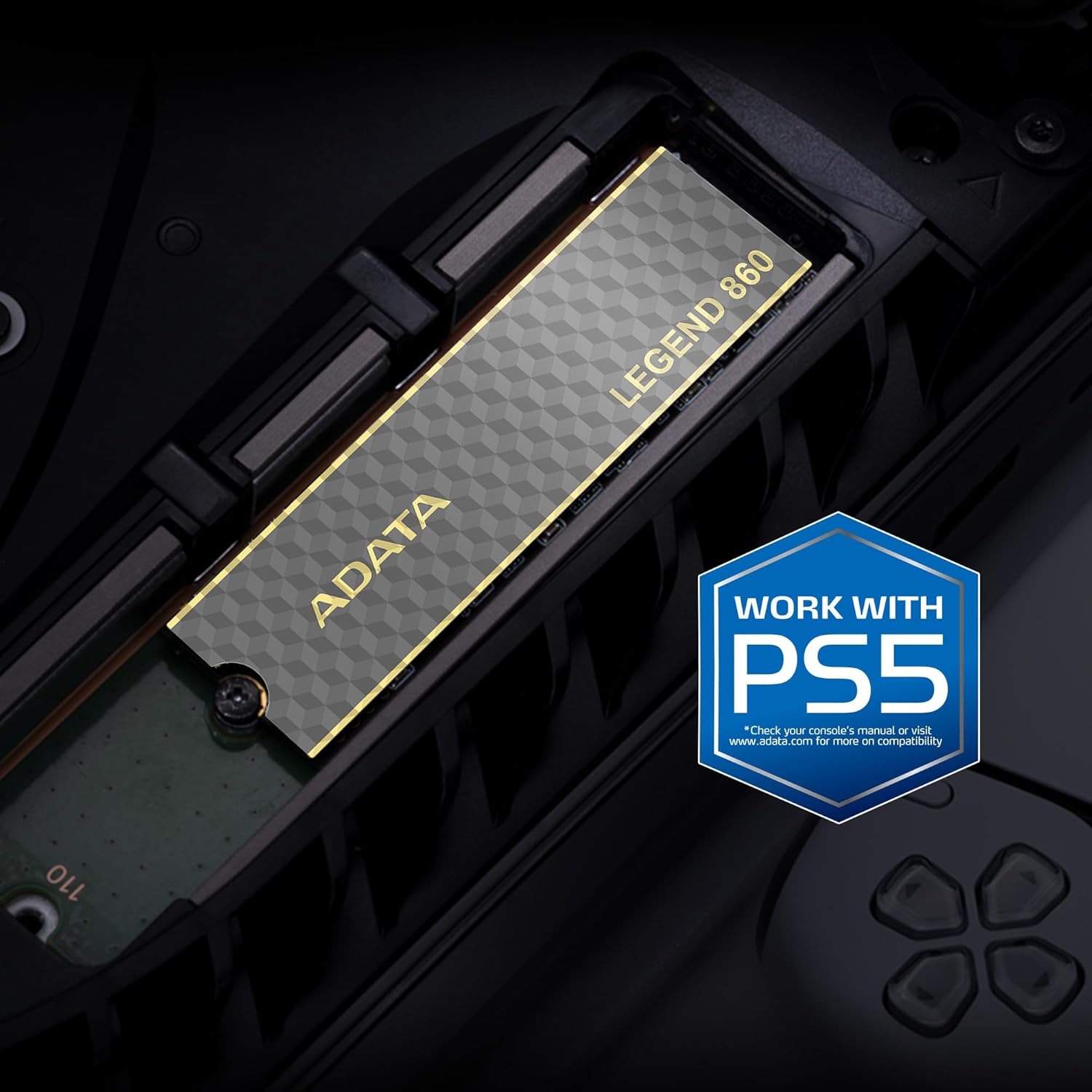
Figure 5: SSD installed in a laptop
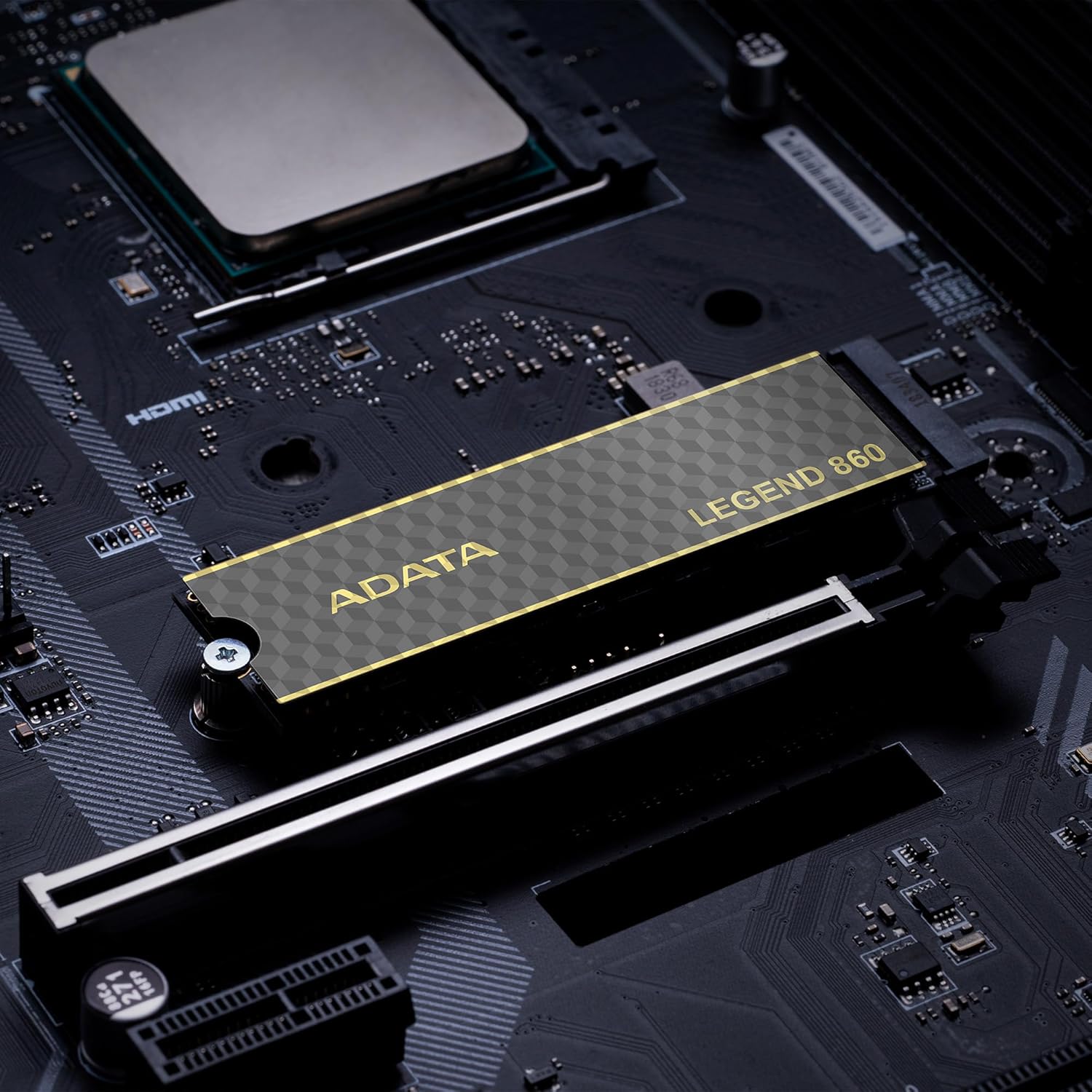
Figure 6: SSD in an external enclosure for portable use
6. Funcționare
Once installed and formatted, your ADATA Legend 860 SSD will function as a high-speed storage device. You can use it for:
- Unitate sistem de operare: Install your operating system for faster boot times and overall system responsiveness.
- Gaming Library: Store your games to significantly reduce load times and improve gaming experience.
- Stocarea aplicațiilor: Install demanding applications for quicker launch and operation.
- Stocarea datelor: Use it for high-speed storage of large files, such as 4K videos, high-resolution images, and large project files.
For optimal performance, ensure your system's drivers and firmware are up to date.
7. Întreținere
To maintain the performance and longevity of your ADATA Legend 860 SSD:
- Mențineți firmware-ul actualizat: Periodically check the ADATA official website pentru actualizări de firmware pentru SSD-ul dvs. Actualizările de firmware pot îmbunătăți performanța, stabilitatea și compatibilitatea.
- Evitați supraumplerea: While SSDs perform well even when nearly full, leaving some free space (typically 10-15%) can help maintain optimal performance and extend lifespan.
- Activează TRIM: Asigurați-vă că TRIM este activat în sistemul de operare. TRIM ajută SSD-ul să își gestioneze eficient spațiul de stocare, prevenind degradarea performanței în timp. Majoritatea sistemelor de operare moderne activează TRIM în mod implicit pentru SSD-uri.
- Monitorizați sănătatea: Use SSD monitoring tools (often provided by ADATA or third-party software) to check the health and estimated lifespan of your drive.
- Backup-uri regulate: Faceți în mod regulat copii de rezervă ale datelor importante pe un alt dispozitiv de stocare. Deși SSD-urile sunt fiabile, niciun dispozitiv de stocare nu este imun la defecțiuni.
8. Depanare
If you encounter issues with your ADATA Legend 860 SSD, consider the following troubleshooting steps:
- SSD nedetectat:
- Asigurați-vă că SSD-ul este introdus corect în slotul M.2.
- Check your system's BIOS/UEFI settings to confirm the M.2 slot is enabled and configured correctly.
- Verify that your motherboard or console supports NVMe PCIe Gen4 SSDs.
- Try the SSD in a different M.2 slot or a compatible external enclosure to rule out a motherboard issue.
- Performanță lentă:
- Ensure your system's M.2 slot supports PCIe Gen4 speeds. If it's a Gen3 slot, the SSD will operate at Gen3 speeds.
- Check if TRIM is enabled (as mentioned in Maintenance).
- Ensure the SSD is not nearly full.
- Actualizați driverele chipset-ului și firmware-ul SSD-ului plăcii de bază.
- Instabilitate/Blocaje ale sistemului:
- Ensure the SSD is properly secured and not overheating.
- Run a diagnostic tool to check the SSD's health.
- Check for system-wide issues (RAM, CPU, power supply).
If problems persist, contact ADATA customer support for further assistance.
9. Garanție și asistență
The ADATA Legend 860 Solid State Drive typically comes with a manufacturer's warranty. Please refer to the official ADATA website or your product packaging for specific warranty terms and conditions, including the duration and coverage details.
For technical support, driver downloads, firmware updates, and additional product information, please visit the official ADATA support website: www.adata.com
Păstrați dovada achiziției pentru cererile de garanție.


