
GUSGU Transparent Case with Wireless Keyboard
GUSGU Transparent Case with Wireless Keyboard User Manual
For iPad Air 13-inch (M3/M2) and iPad Pro 12.9-inch (6th/5th/4th/3rd Gen)
Introducere
This manual provides comprehensive instructions for the setup, operation, and maintenance of your GUSGU Transparent Case with Wireless Keyboard. Please read this manual thoroughly to ensure proper use and to maximize the functionality of your device.
Compatibilitate
This keyboard case is designed for specific iPad models:
- iPad Air 13-inch (M3, 2025)
- iPad Air 13-inch (M2, 2024)
- iPad Pro 12.9 inci (generația a 6-a, 2022)
- iPad Pro 12.9 inci (generația a 5-a, 2021)
- iPad Pro 12.9 inci (generația a 4-a, 2020)
- iPad Pro 12.9-inch (3rd Generation, 2018)
To verify your iPad model, check the back of your device for the model number (e.g., A2898).
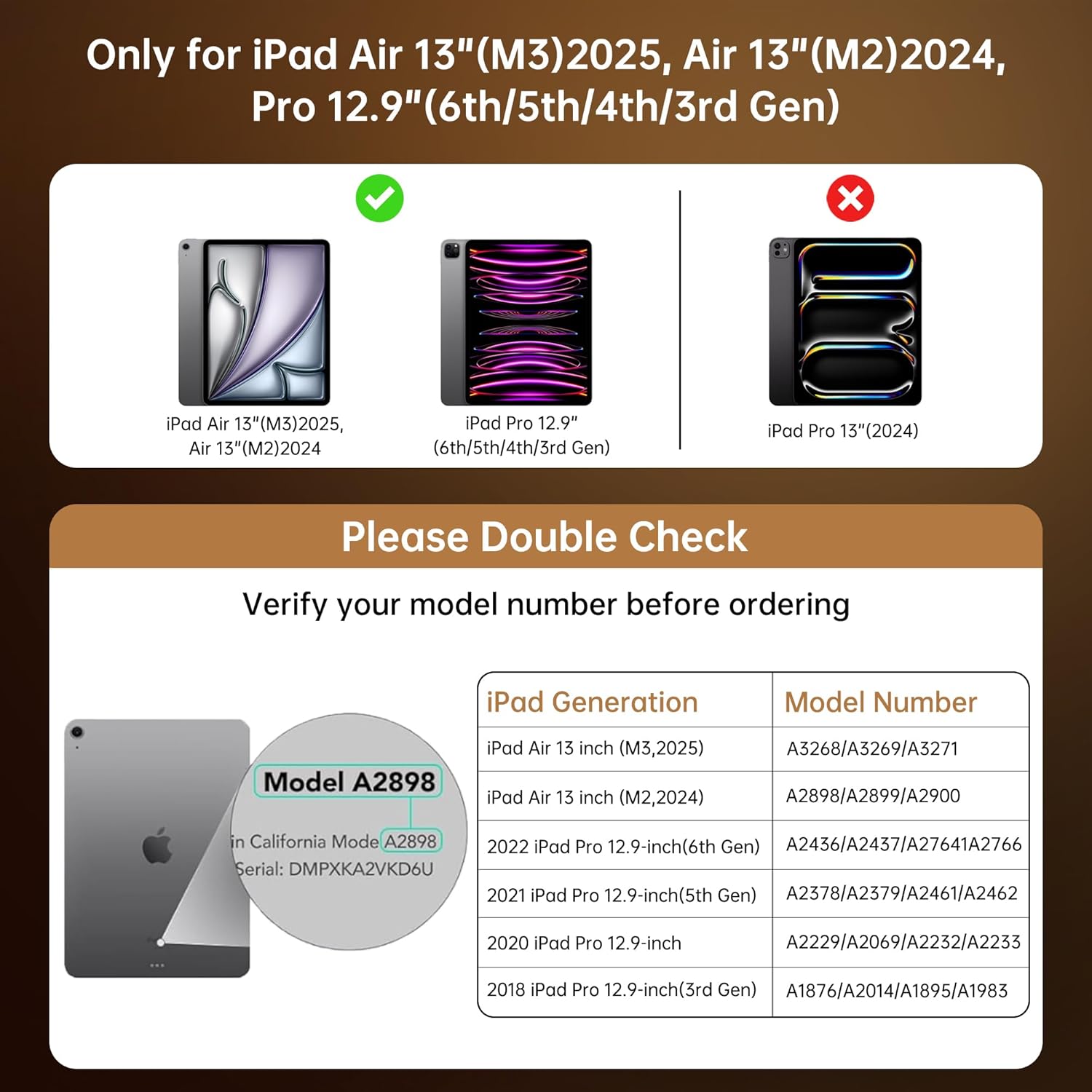
This chart provides essential compatibility information, detailing the specific iPad Air 13-inch (M3/M2) and iPad Pro 12.9-inch (6th/5th/4th/3rd Gen) models that are compatible with this keyboard case. It includes a visual guide on where to find your iPad's model number for verification.
Instrucțiuni de configurare
- Insert Your iPad: Gently align your iPad with the case and press it into the protective frame until it is securely seated. Ensure all ports and buttons are accessible. The case provides secure, form-fit protection.
- Încărcați tastatura: Before first use, fully charge the keyboard. Connect the provided USB-C cable to the keyboard's charging port and to a power source. A full charge takes approximately 2 hours and provides up to 30 days of power.
- Pair the Keyboard via Bluetooth:
- Turn on the keyboard by sliding the power switch. The indicator light will flash, indicating it's in pairing mode.
- Pe iPad-ul dvs., accesați Setări > Bluetooth.
- Activați Bluetooth.
- Select "GUSGU Keyboard" (or similar name) from the list of available devices.
- Urmați orice instrucțiuni de pe ecran pentru a finaliza procesul de asociere. Indicatorul luminos va deveni continuu după asocierea cu succes.

This graphic illustrates the efficient power management of the keyboard, showing that a 2-hour charge provides up to 30 days of usage, ensuring extended productivity.
Instrucțiuni de operare
360° Rotating Stand & Multi-Angle Viewing
The case features a 360° swivel stand and offers 5 adjustable viewing angles. This allows for seamless transitions between typing, sketching, and media viewmoduri de ing.

This image displays the GUSGU Transparent Keyboard Case with an iPad, illustrating its versatile design. The main view shows the iPad attached to the keyboard, with smaller insets demonstrating how the case can rotate 360 degrees and be adjusted to multiple viewing angles for typing, drawing, or media consumption.
- Mod de tastare: Position the iPad upright for a laptop-like experience.
- Mod Schiță: Lay the iPad flat or at a low angle for comfortable drawing or writing.
- ViewMod de operare: Adjust the iPad to various angles for watching videos or presentations.

This image illustrates three practical ways to use the keyboard case: 'Sketch' mode, where the iPad is laid flat for drawing; 'Watch Videos' mode, with the iPad angled for comfortable viewing; and 'Video Call' mode, positioning the iPad upright for communication.
Iluminarea din spate a tastaturii
The keyboard features 7 colors of backlight and 3 brightness levels for comfortable typing in various lighting conditions.
- Apăsați tasta Bec pentru a comuta între culorile iluminării de fundal.
- Apăsați tasta Fn + Bec keys to adjust backlight brightness (3 levels).

A visual representation of the keyboard's customizable backlight feature, showcasing the seven distinct colors and three adjustable brightness levels available to personalize the typing experience.

Un prim plan view of hands typing on the keyboard, emphasizing the comfortable and responsive typing experience provided by the backlit keys and scissor-switch mechanism with 1mm key travel.
Trackpad de precizie
The integrated trackpad supports multi-touch gestures for intuitive navigation, similar to a laptop. Familiar gestures include:
- Beţivan: Move your finger across the trackpad to navigate.
- Defilare: Folosește două degete pentru a derula în sus sau în jos.
- Ciupire: Folosește două degete pentru a mări sau a micșora imaginea.
- Atingeți de două ori: Selectați elemente sau deschideți aplicații.
- Switch Apps: Use three or four fingers to swipe between open applications (iPadOS dependent).

This image shows a hand interacting with the precision multi-touch trackpad, illustrating its responsiveness and support for various gestures, enhancing navigation and control.
Apple Pencil Holder
The case includes a dedicated magnetic holder for your Apple Pencil, ensuring it is securely stored and readily accessible without needing to remove the case.

This image highlights two key features: the robust, form-fitting protection provided by the case, particularly around the iPad's edges, and the convenient, integrated holder designed to securely store an Apple Pencil.
Funcție automată de repaus/trezire
The case supports the iPad's auto sleep/wake function. Closing the case will put your iPad to sleep, and opening it will wake it up, conserving battery life.
Întreţinere
- Curățarea carcasei: Folosiți un moale, damp cloth to wipe the exterior of the case. Avoid harsh chemicals or abrasive materials.
- Curățarea tastaturii: Use a soft, dry cloth or a can of compressed air to clean between the keys. Do not spray liquid directly onto the keyboard.
- Depozitare: When not in use for extended periods, ensure the keyboard is turned off to conserve battery. Store the case in a cool, dry place.
Depanare
- Tastatura nu se conectează:
- Asigurați-vă că tastatura este pornită și complet încărcată.
- Check your iPad's Bluetooth settings to confirm Bluetooth is enabled and the keyboard is paired. If not, try re-pairing.
- Reporniți atât iPad-ul, cât și tastatura.
- Tastele nu răspund:
- Asigurați-vă că tastatura este conectată prin Bluetooth.
- Verificați nivelul bateriei tastaturii.
- Curățați orice reziduuri din jurul tastelor.
- Trackpad-ul nu funcționează:
- Asigurați-vă că tastatura este conectată.
- Verificați setările iPadOS pentru funcționalitatea trackpad-ului.
- Reporniți iPad-ul.
- Iluminarea de fundal nu funcționează/se schimbă:
- Asigurați-vă că tastatura este pornită.
- Press the Light Bulb key or Fn + Light Bulb keys to cycle through options.
- Check battery level, as low battery might disable backlighting.
Specificații
| Marca | GUSGU |
| Dispozitive compatibile | iPad Air 13-inch (M2/M3), iPad Pro 12.9-inch (6th/5th/4th/3rd Gen) |
| Descrierea tastaturii | Ergonomic Backlit Keyboard (7 colors, 3 brightness levels, scissor-switch, 1mm travel) |
| Trackpad | Precision Multi-Touch Trackpad |
| Sursa de alimentare | Battery Powered (2-hour charge for 30-day power) |
| Aspectul tastaturii | QWERTY |
| Orientarea mâinii | Ambidextru |
| Greutatea articolului | 2.86 lire sterline |
| Dimensiuni pachet | 12.13 x 10.24 x 1.18 inci |
Garanție și suport
GUSGU provides lifetime customer support for this product. If you encounter any issues or have questions, please contact GUSGU customer service for assistance.
Pentru asistență suplimentară, vă rugăm să vizitați GUSGU Store on Amazon.
Ask a question about this manual
Ask about setup, troubleshooting, compatibility, parts, safety, or missing instructions. Manuals+ will review the question and use this page’s manual context to help answer it.