
1. Produs terminatview
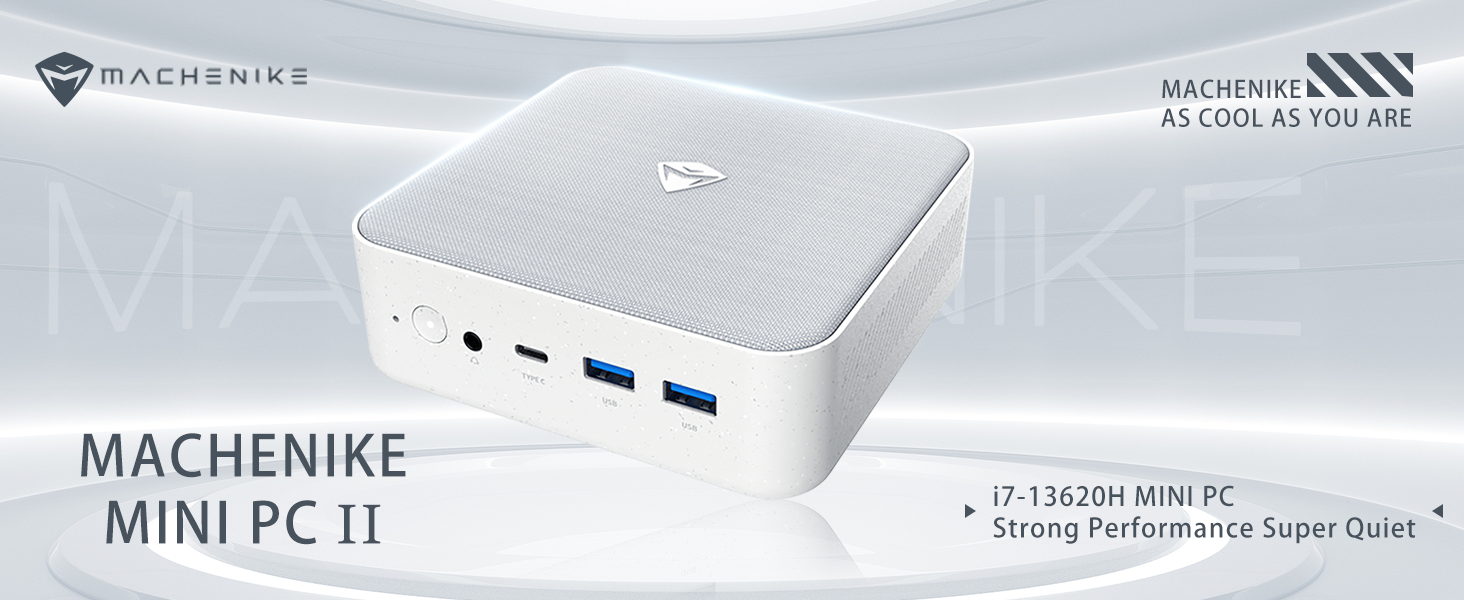
The Machenike Machcreator Mini Desktop, Model 4762H, is a compact and powerful computing solution designed for various applications, from business to everyday use. It features a 13th Gen Intel Core i7-13620H processor, 16GB DDR5 RAM, and a 512GB PCIe M.2 SSD, providing high-speed performance and efficient multitasking capabilities. This mini PC supports 4K dual monitor output and comes pre-installed with Windows 11 Pro.
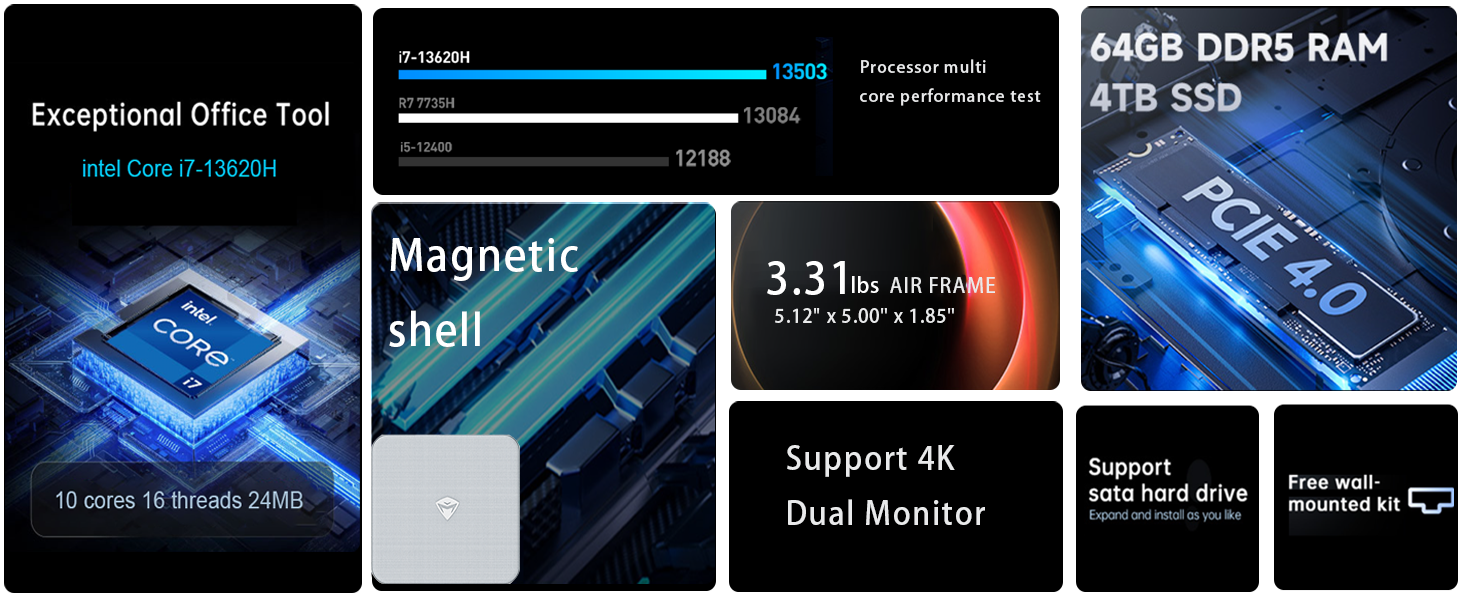
Imagine: Pesteview of the Intel Core i7 processor, highlighting 10 Cores, 16 Threads, 4.90 GHz Max Turbo Frequency, and 24 MB L3 Cache.
Caracteristici cheie:
- Procesor: Intel Core i7-13620H (10 nuclee, 16 fire de execuție, până la 4.9 GHz)
- Memorie: 16GB DDR5 SODIMM RAM (expandable up to 64GB)
- Depozitare: 512GB PCIe M.2 Solid State Drive (supports dual M.2 expansion)
- Sistem de operare: Windows 11 Pro
- Grafică: Integrated Intel UHD Graphics, supporting 4K dual monitor output via HDMI 2.0 and DisplayPort 1.4
- Conectivitate: Wi-Fi 6, Bluetooth, 2 x RJ45 Ethernet, USB 3.2 Gen2 Type-A, USB Type-C
- Sistem de racire: Twin turbine cooling fan with deluxe all-copper radiator
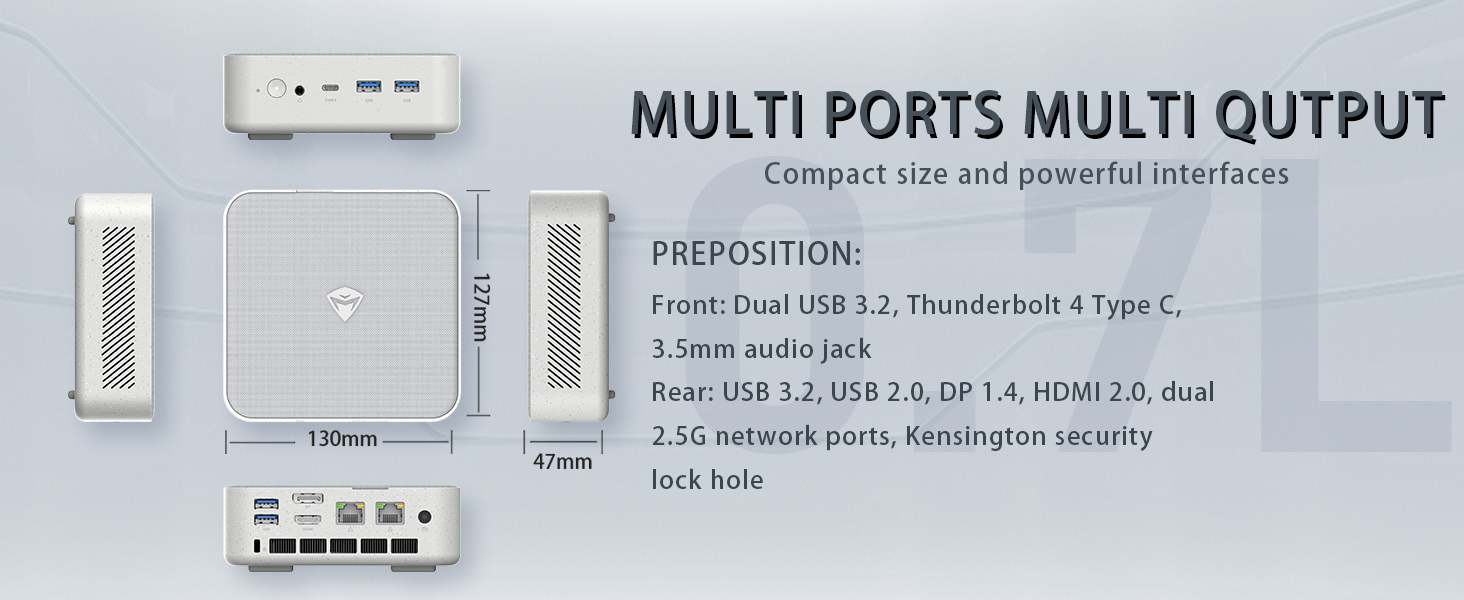
Image: Illustration of PCIe 4.0 SSD and memory slots, indicating support for up to 64GB DDR5 RAM and up to 4TB PCIe SSD expansion.
2. Ghid de instalare
2.1 Despachetarea dispozitivului
Scoateți cu grijă toate componentele din ambalaj. Asigurați-vă că sunt prezente următoarele articole:
- Machenike Machcreator Mini Desktop (Model 4762H)
- Adaptor de alimentare
- Manual de utilizare (acest document)
- (Optional) VESA Mount Kit
2.2 Conectarea perifericelor
Înainte de pornire, conectați perifericele esențiale:
- Afişa: Connect your monitor(s) to the HDMI 2.0 or DisplayPort 1.4 ports on the rear of the mini PC. The USB Type-C port also supports video output.
- Tastatură și mouse: Connect your USB keyboard and mouse to any of the available USB 3.2 Gen2 Type-A ports.
- Reţea: For a wired connection, connect an Ethernet cable to one of the RJ45 ports. For wireless, ensure your Wi-Fi network is available.
- Putere: Conectați adaptorul de alimentare la portul de intrare CC al mini PC-ului, apoi introduceți adaptorul într-o priză.
Imagine: Detaliată view of the mini PC's front and rear ports, including USB 3.2 Gen2 Type-A, USB Type-C, 3.5mm Audio Jack, HDMI 2.0, DisplayPort 1.4, and RJ45 Ethernet ports. Dimensions are also shown.
2.3 Pornirea inițială și configurarea Windows 11 Pro
- Press the power button located on the front of the mini PC.
- The system will boot into the Windows 11 Pro setup wizard. Follow the on-screen instructions to configure your language, region, network, and user account.
- Once setup is complete, your mini PC is ready for use.
3. Instrucțiuni de utilizare
3.1 Pornire/Oprire
- Pornire: Apăsați butonul de pornire o dată.
- Închidere: Faceți clic pe butonul Start din Windows, apoi selectați Alimentare > Oprire.
- Repornire: Faceți clic pe butonul Start din Windows, apoi selectați Alimentare > Repornire.
- Dormi: Faceți clic pe butonul Start din Windows, apoi selectați Alimentare > Repaus.
3.2 Configurarea afișajului
The mini PC supports up to two 4K displays simultaneously. To configure display settings:
- Faceți clic dreapta pe desktop și selectați „Setări de afișare”.
- Here you can detect multiple displays, arrange them, change resolution, and adjust scaling.
3.3 Conectivitate la rețea
- Wifi: Click the network icon in the taskbar, select your Wi-Fi network, enter the password, and connect.
- Ethernet: Dacă este conectat un cablu Ethernet, sistemul ar trebui să stabilească automat o conexiune de rețea cu fir.
3.4 Cooling System Modes
The mini PC features an advanced cooling system with adjustable modes via the BIOS to optimize performance and noise levels. These modes include:
- Mod Tăcere: Prioritizes quiet operation, suitable for light tasks.
- Mod echilibru: Offers a good balance between performance and noise.
- Modul de performanță: Maximizes performance (up to 65W power release), ideal for demanding applications.
To change these settings, access the BIOS during startup (typically by pressing Del or F2 repeatedly after powering on) and navigate to the relevant power or performance settings.
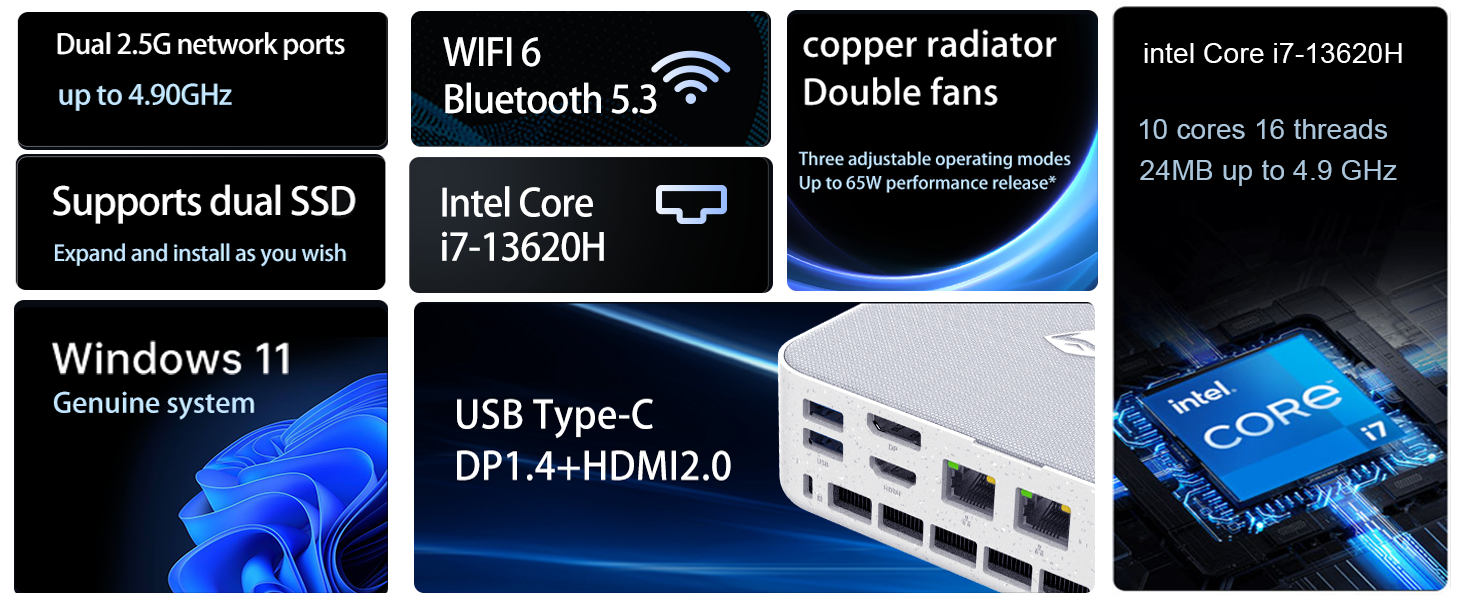
Image: Illustration of the twin turbine cooling fan and deluxe all-copper radiator, explaining how it prevents slowdowns due to overheating and offers silence, balance, and performance modes.
4. Întreținere
4.1 Curăţarea dispozitivului
Pentru a asigura performanțe optime și longevitate, curățați periodic mini-PC-ul:
- Power off the device and disconnect it from the power outlet.
- Folosiți o lavetă moale și uscată pentru a șterge exteriorul.
- Use compressed air to gently clear dust from ventilation openings. Do not insert any objects into the vents.
4.2 Actualizări de software
Keep your Windows 11 Pro operating system and drivers updated to ensure security and performance:
- Actualizări Windows: Go to Start > Settings > Windows Update and check for updates.
- Actualizări ale driverului: Visit the Machenike official website pentru cele mai recente drivere pentru modelul dvs. specific.
4.3 Stocare și extindere memorie
The Machenike Machcreator Mini Desktop supports upgrades for both RAM and storage:
- RAM: The device has 2 SODIMM slots and supports up to 64GB DDR5 RAM.
- Depozitare: It supports dual PCIe M.2 SSDs, allowing for significant storage expansion up to 4TB.
Nota: Opening the device for upgrades may void your warranty. Consult a qualified technician or refer to specific upgrade guides from Machenike if available.
5. Depanare
Această secțiune abordează problemele comune pe care le puteți întâmpina. Pentru probleme mai complexe, vă rugăm să contactați serviciul de asistență pentru clienți.
5.1 Fara putere
- Asigurați-vă că adaptorul de alimentare este conectat corect atât la mini PC, cât și la o priză funcțională.
- Verificați dacă priza funcționează conectând un alt dispozitiv.
- Verificați adaptorul de alimentare pentru a depista eventuale deteriorări vizibile.
5.2 Fără ieșire de afișare
- Confirmați că monitorul este pornit și că este selectată sursa de intrare corectă.
- Ensure the HDMI or DisplayPort cable is securely connected to both the mini PC and the monitor.
- Încercați un alt cablu de afișare sau monitor, dacă este disponibil.
- If using multiple displays, try connecting only one display at a time.
5.3 Probleme de conectivitate la rețea
- Prin cablu (Ethernet): Check if the Ethernet cable is properly connected to both the mini PC and the router/modem. Verify router/modem status.
- Fără fir (Wi-Fi): Ensure Wi-Fi is enabled in Windows settings. Restart your router/modem. Check if other devices can connect to the Wi-Fi network.
- Run Windows Network Troubleshooter (Start > Settings > Network & internet > Advanced network settings > Network troubleshooter).
6. Specificații
Detailed technical specifications for the Machenike Machcreator Mini Desktop, Model 4762H:
| Caracteristică | Caietul de sarcini |
|---|---|
| Marca | Machenike |
| Numărul de model | 4762H |
| Sistem de operare | Windows 11 Pro |
| Model CPU | Intel Core i7-13620H |
| Viteza procesorului | Up to 4.9 GHz (Max Turbo Frequency) |
| Dimensiunea memoriei RAM instalate | 16 GB DDR5 (Expandable to 64 GB) |
| Viteza ceasului memoriei | 4800 MHz |
| Sloturi de memorie disponibile | 2 |
| Capacitate de stocare a memoriei | 512 GB PCIe M.2 SSD (Supports dual M.2, up to 4TB) |
| Coprocesor grafic | Grafică Intel UHD (integrată) |
| Interfață de ieșire video | HDMI 2.0, DisplayPort 1.4, USB Type-C |
| Rezoluția afișajului maximă | 3840x2160 (4K) |
| Interfață hardware | 3.5mm Audio, Bluetooth, DisplayPort, Ethernet (2x RJ45), HDMI, USB, USB Type C |
| Conectivitate wireless | Wi-Fi 6 (802.11ax), Bluetooth |
| Dimensiuni articol (Lxlxh) | 5.12 x 5 x 1.85 inci |
| Greutatea articolului | 49.8 lire sterline (Note: This weight may be a data entry error; actual weight for a mini PC is typically much less.) |
| UPC | 193200587317 |
7. Garanție și asistență
7.1 Informații despre garanție
Machenike products typically come with a limited manufacturer's warranty. Please refer to the warranty card included with your purchase or visit the official Machenike website for detailed warranty terms and conditions specific to your region and product model. Keep your proof of purchase for warranty claims.
7.2 Asistență pentru clienți
For technical assistance, troubleshooting beyond this manual, or warranty inquiries, please contact Machenike customer support:
- Suport online: Visit the official Machenike website (www.machenike.com - examplinkul, linkul real poate varia) and navigate to the support section.
- Asistență prin e-mail: Consultați documentația produsului pentru adresa de e-mail specifică de asistență.
- Asistență telefonică: Check the Machenike website pentru numerele de telefon de asistență regionale.
When contacting support, please have your product model number (4762H) and serial number ready.