
1. Introducere
This manual provides comprehensive instructions for the setup, operation, maintenance, and troubleshooting of your Lamzu Maya X Wireless Gaming Mouse. Please read this manual carefully to ensure proper use and to maximize the performance of your device.
2. Produs terminatview
2.1 Caracteristici cheie
- Design ultra-ușor: Weighs approximately 47g for extended comfort during use.
- Formă simetrică: Accommodates various grip styles including palm, claw, and fingertip.
- Comutatoare optice: Durable and responsive, rated for over 70 million clicks.
- Dust-Proof Encoder: 30-grid roller for precise and responsive scroll wheel actions.
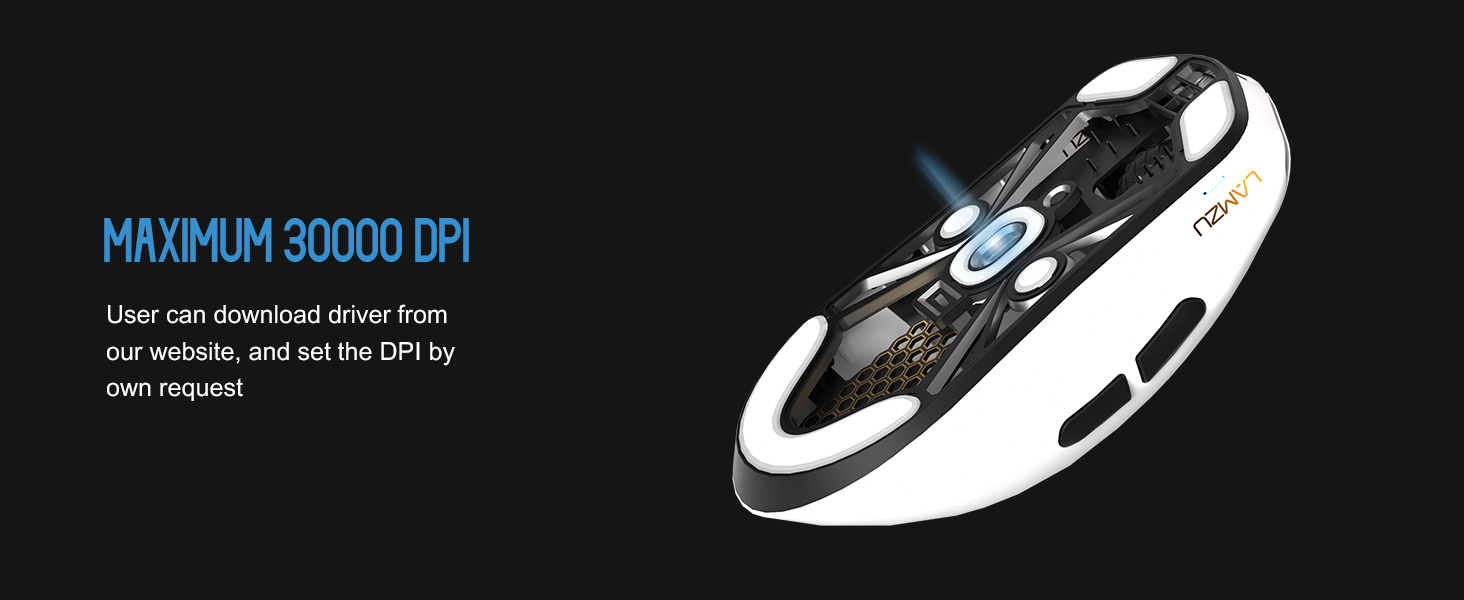
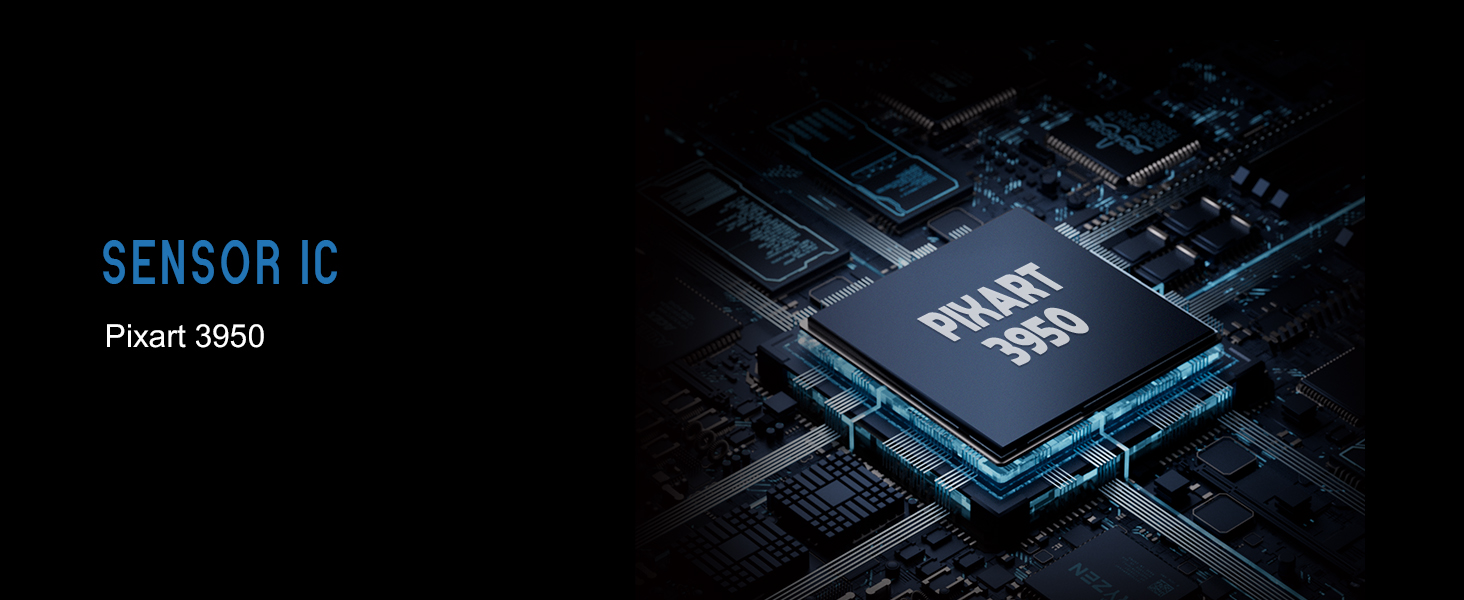
- Pixart PAW 3950 Sensor: Supports up to 30,000 DPI and 750 IPS.
- Nordic 52840 MCU: Ensures power efficiency, fast response times, and accurate motion tracking.
- Rată ridicată de sondare: Up to 8,000 Hz with the optional 8K dongle.
2.2 Conținutul pachetului
- Mouse de gaming wireless Lamzu Maya X
- PTFE Skates (x1 set)
- 8K Dongle (x1)
- MAYA X Dustproof Seal
- 1.8m Type-C Paracord Cable
- Geanta de catifea
- MAYA X Mouse Grip
2.3 Componentele mouse-ului
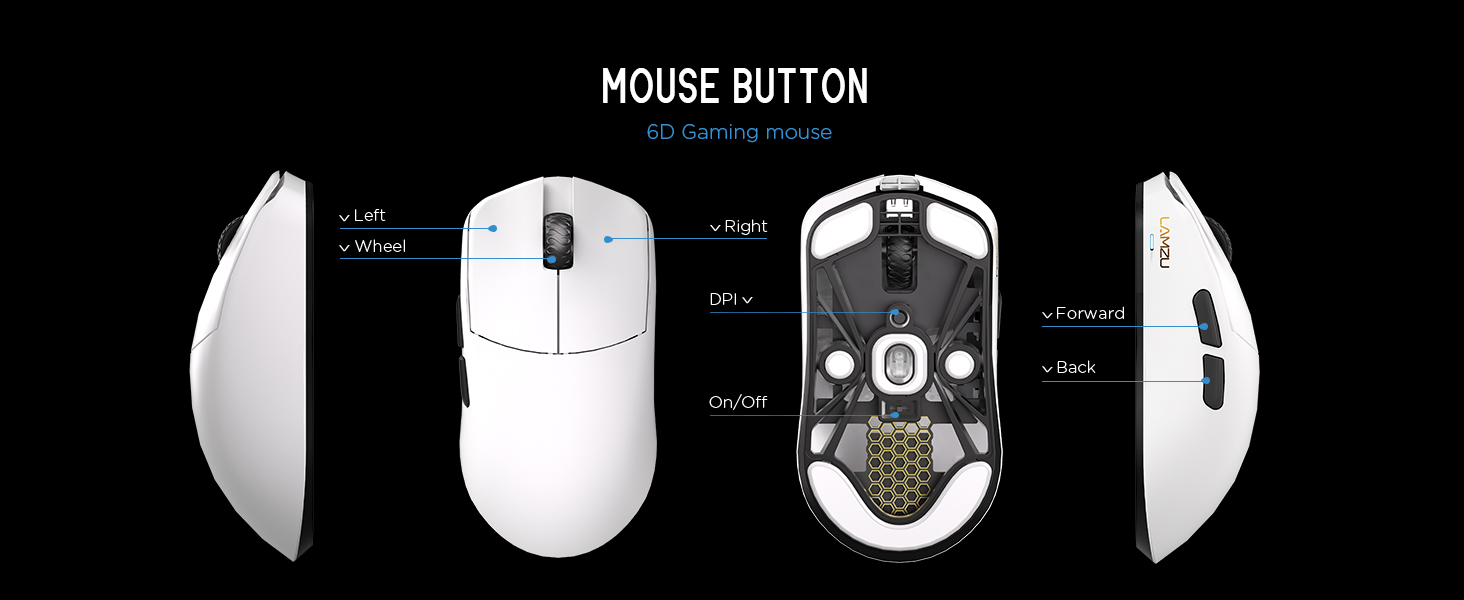
Imaginea 2.3.1: Diagram illustrating the various buttons and internal structure of the Lamzu Maya X mouse, including left click, right click, scroll wheel, DPI button, forward, back buttons, and the on/off switch.
- Butonul din stânga: Funcția de clic primară.
- Butonul din dreapta: Funcția de clic secundar.
- Rotiță de defilare: Pentru derulare și funcțiile de clic din mijloc.
- Butonul DPI: Adjusts Dots Per Inch sensitivity.
- Buton înainte: Navigational function (e.g., browser forward).
- Butonul Înapoi: Navigational function (e.g., browser back).
- Comutator pornit/oprit: Pornește sau oprește mouse-ul.
3. Configurare
3.1 Initial Connection and Charging
- Încărcați mouse-ul: Connect the provided Type-C paracord cable to the mouse and a USB port on your computer. The mouse will charge while connected.
- Pornire: Locate the On/Off switch on the underside of the mouse and slide it to the "On" position.
- Conectarea cheii wireless: Insert the 8K wireless dongle into an available USB port on your computer. The mouse should automatically pair.
- Wired Mode (Optional): To use the mouse in wired mode, connect the Type-C paracord cable directly to the mouse and your computer. The mouse will function as a wired device and charge simultaneously.
Imaginea 3.1.1: The Lamzu Maya X mouse connected via its Type-C paracord cable, illustrating both wired operation and charging capabilities.
3.2 Instalarea driverelor și a software-ului
Mouse-ul Lamzu Maya X utilizează un web-based driver for customization. To access the software and update firmware:
- Visit the official Lamzu website-ul.
- Navigate to the support or downloads section for the Maya X model.
- Descărcați web driver application. This application allows for DPI adjustment, polling rate settings, macro programming, and firmware updates.
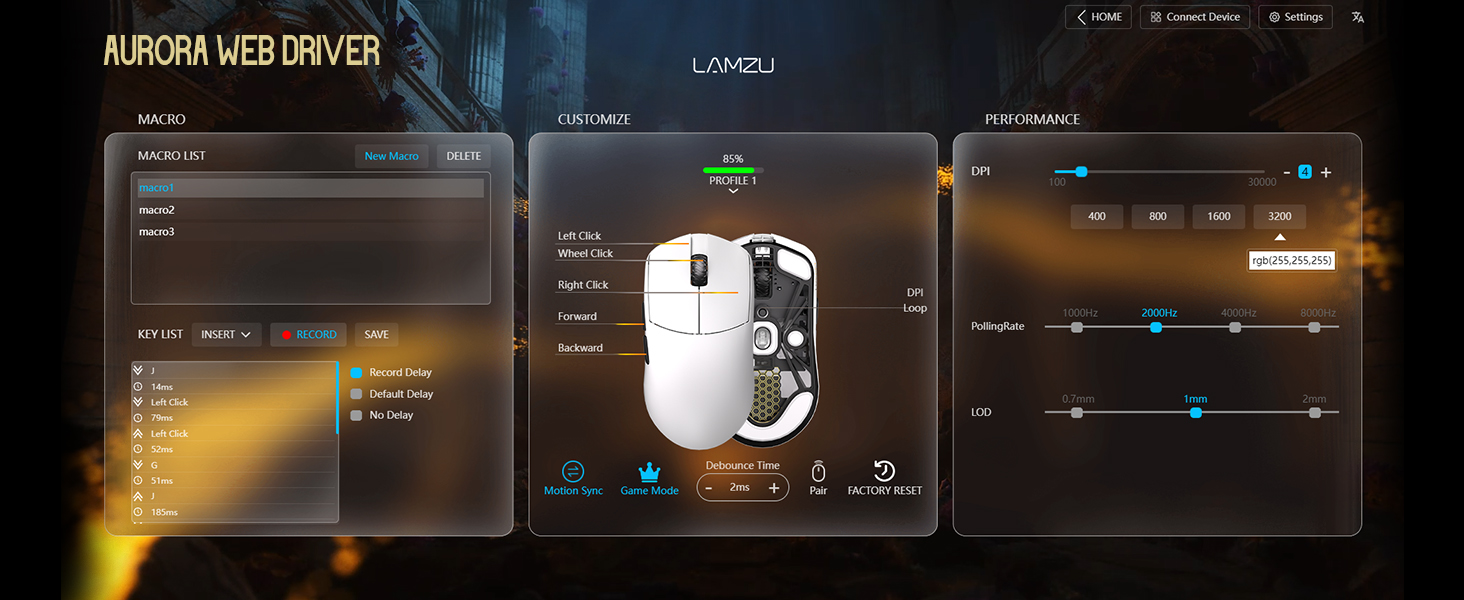
Imaginea 3.2.1: Screenshot of the Aurora Web Driver interface, displaying options for macro creation, button customization, DPI settings (up to 30000), polling rate selection (up to 8000Hz), and Lift-Off Distance (LOD).
4. Instrucțiuni de utilizare
4.1 Ajustare DPI
The DPI (Dots Per Inch) setting controls the mouse cursor's sensitivity. You can adjust the DPI using the dedicated DPI button on the mouse or through the Aurora Web Driver software. The Pixart PAW 3950 sensor supports up to 30,000 DPI.
Imaginea 4.1.1: O parte inferioară view of the Lamzu Maya X mouse, emphasizing its optical sensor and the capability to reach a maximum of 30,000 DPI, configurable via software.
4.2 Rata de sondare
The polling rate determines how often the mouse reports its position to the computer. The Maya X supports up to 8,000 Hz polling rate when using the included 8K dongle. Higher polling rates result in smoother cursor movement and reduced input lag.
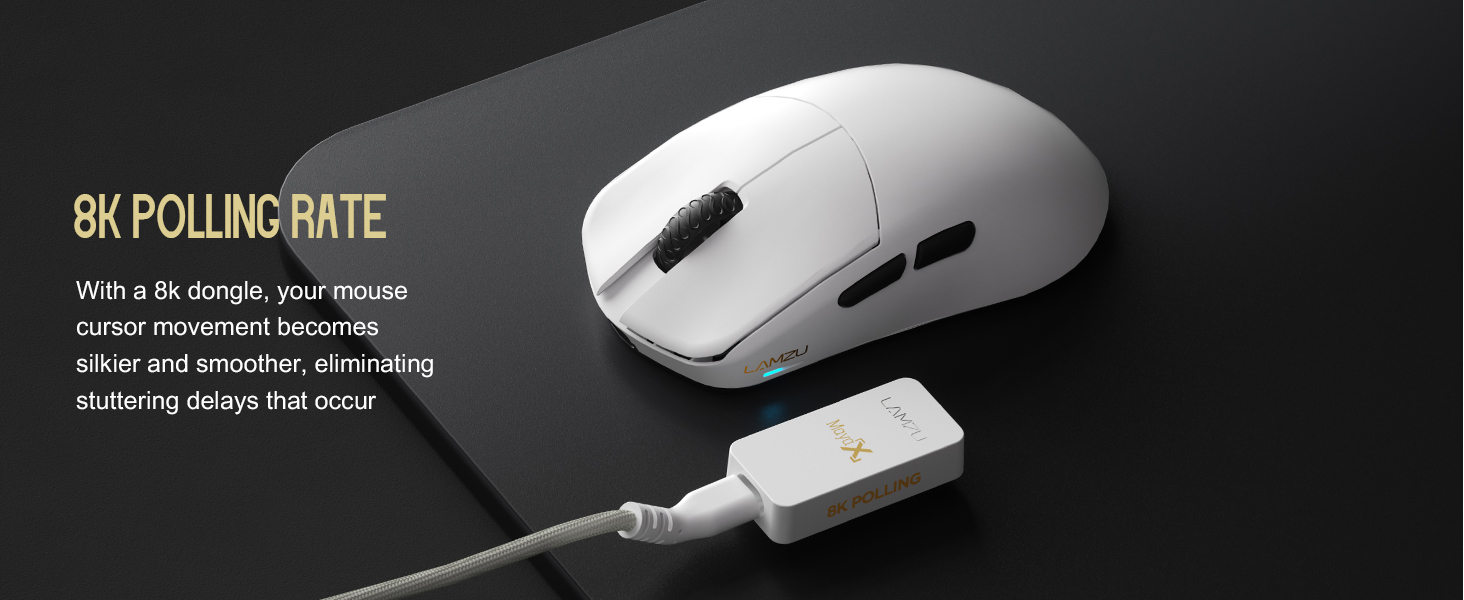
Imaginea 4.2.1: The Lamzu Maya X mouse positioned next to its 8K polling rate dongle, highlighting the benefit of smoother and more responsive cursor movement provided by high polling rates.
4.3 Stiluri de prindere
The symmetrical design of the Maya X mouse is engineered to accommodate various common grip styles:
- Prindere în palmă: The entire palm rests on the mouse.
- Prindere cu gheare: Fingers are arched, and the palm rests on the back of the mouse.
- Fingertip Grip: Only the fingertips make contact with the mouse.
Imaginea 4.3.1: A visual guide demonstrating the three primary mouse grip styles—Palm Grip, Claw Grip, and Fingertip Grip—and how the Maya X mouse is designed to be compatible with each.
4.4 Wired and Wireless Modes
The Maya X mouse supports both 2.4G wireless and wired (USB Type-C) connectivity. You can switch between modes by connecting or disconnecting the Type-C cable. In wired mode, the mouse operates at a 1K polling rate, while wireless mode with the 8K dongle supports up to 8K polling.
5. Întreținere
5.1 Curățare
- Asigurați-vă că mouse-ul este oprit înainte de curățare.
- Utilizați ușor o cârpă moale, fără scame dampclătiți cu apă sau o soluție de curățare blândă pentru a șterge suprafața mouse-ului.
- Evitați utilizarea substanțelor chimice dure, a abrazivelor sau a solvenților.
- Folosiți aer comprimat pentru a îndepărta praful din crăpături și din jurul butoanelor.
- Pentru senzorul optic, folosiți un bețișor de bumbac ușor frecat.ampumezit cu alcool izopropilic pentru a curăța ușor lentila.
5.2 Îngrijirea bateriei
- Pentru a prelungi durata de viață a bateriei, evitați descărcarea completă frecventă a mouse-ului.
- Store the mouse at room temperature when not in use for extended periods.
- If storing for a long time, charge the battery to approximately 50% before storage.
6. Depanare
- Mouse-ul nu răspunde:
- Asigurați-vă că mouse-ul este pornit.
- Verificați nivelul bateriei și încărcați-o dacă este necesar.
- Verify the wireless dongle is securely plugged into a USB port.
- Încercați să conectați mouse-ul în modul cu fir pentru a confirma funcționalitatea.
- Reporniți computerul.
- Conectivitate intermitentă:
- Ensure the wireless dongle is not obstructed and is close to the mouse.
- Avoid placing the dongle near other wireless devices that may cause interference.
- Update mouse firmware via the Aurora Web Conducător auto.
- Salturi sau întârzieri ale cursorului:
- Curățați senzorul optic (consultați Secțiunea 5.1).
- Ensure the mousepad surface is clean and uniform.
- Adjust the polling rate in the software.
- Check for any background applications consuming excessive system resources.
- Butoanele nu funcționează:
- Check button assignments in the Aurora Web Conducător auto.
- Ensure no physical obstructions are preventing button presses.
7. Specificații
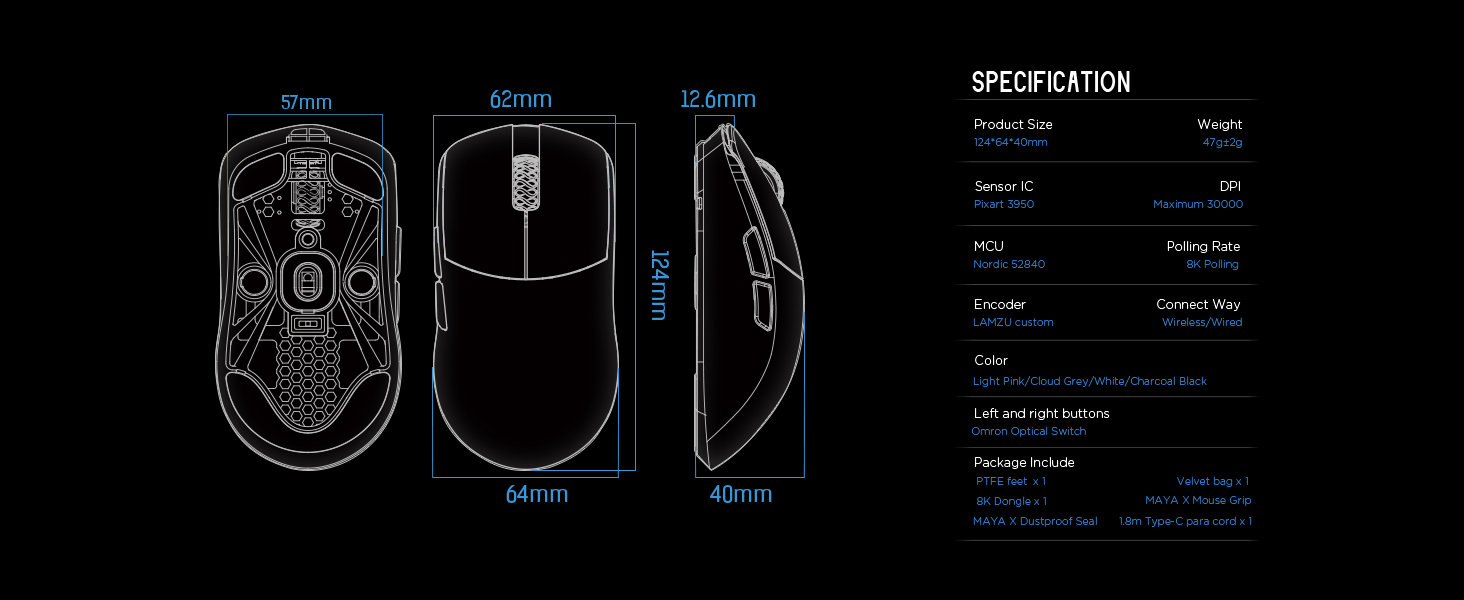
| Dimensiunile produsului | 4.88 x 2.52 x 0.04 inchi (124 x 64 x 40 mm) |
| Greutatea articolului | 1.66 uncii (47 g) |
| Senzor IC | Pixart PAW 3950 |
| DPI maxim | 30,000 |
| MCU | Nordic 52840 |
| Rata de sondare | Până la 8,000 Hz (cu dongle de 8K) |
| Tehnologia de conectivitate | 2.4G Wireless, USB Type-C Wired |
| Comutatoare | Optical Switches (Left/Right buttons) |
| Codificator | Dust-Proof Encoder |
| Baterie | 1 baterie litiu-ion (inclusă) |
| Producător | Lamzu |

Imaginea 7.1.1: A technical diagram detailing the dimensions (length, width, height) of the Lamzu Maya X mouse and a summary of its key specifications, including weight, sensor, MCU, DPI, and polling rate.
8. Garanție și asistență
For warranty information and technical support, please refer to the official Lamzu website or contact their customer service directly. Details regarding product registration, warranty claims, and frequently asked questions can typically be found in the support section of the website-ul.
Oficial Website: www.lamzu.com


